What the Madara Headset Includes
The Lexip Naruto Shippuden Madara Destruction Headset comes with a 2m detachable braided cable (3.5mm jack to USB-C) and a 1.5m braided USB-C to USB-A charging cable. You also get an exclusive artbook and comfortable ear pads. The headset supports wireless Bluetooth on Windows 10/11 and Mac, and wired 3.5mm connections on PS5, PS4, Xbox Series X/S, Xbox One, Nintendo Switch, Android, iOS, and tablets.
Step-by-Step Pairing Guide
Follow these steps to pair the headset with your preferred device. The headset uses Bluetooth for PC and Mac, and the included 3.5mm cable for consoles and mobile devices.
- Bluetooth Pairing (Windows 10/11 and Mac): Turn on the headset and put it into pairing mode (refer to the headset's manual for the exact button sequence, as it is not detailed in the catalog). On your PC or Mac, go to Bluetooth settings, search for new devices, and select 'Lexip Madara' from the list. Once paired, the headset will be your default audio output.
- Wired Connection (PS5, PS4, Xbox Series X/S, Xbox One, Switch, Android, iOS, Tablet): Use the included 2m 3.5mm jack to USB-C cable. Plug the 3.5mm end into your console's controller or device's headphone jack. Connect the USB-C end to the headset. The headset will automatically switch to wired mode. For Xbox controllers, ensure your controller has a 3.5mm port.
Connection Compatibility at a Glance
-
Lexip Naruto Shippuden Madara Destruction Headset: Compatible with Windows 10/11, Mac via Bluetooth; compatible with PS5, PS4, Xbox Series X/S, Xbox One, Nintendo Switch, Android, iOS and tablet via included 3.5mm jack cable. This tells you exactly which platforms work without extra adapters. For console gaming, you need the 3.5mm cable; for PC or Mac, Bluetooth is an option.
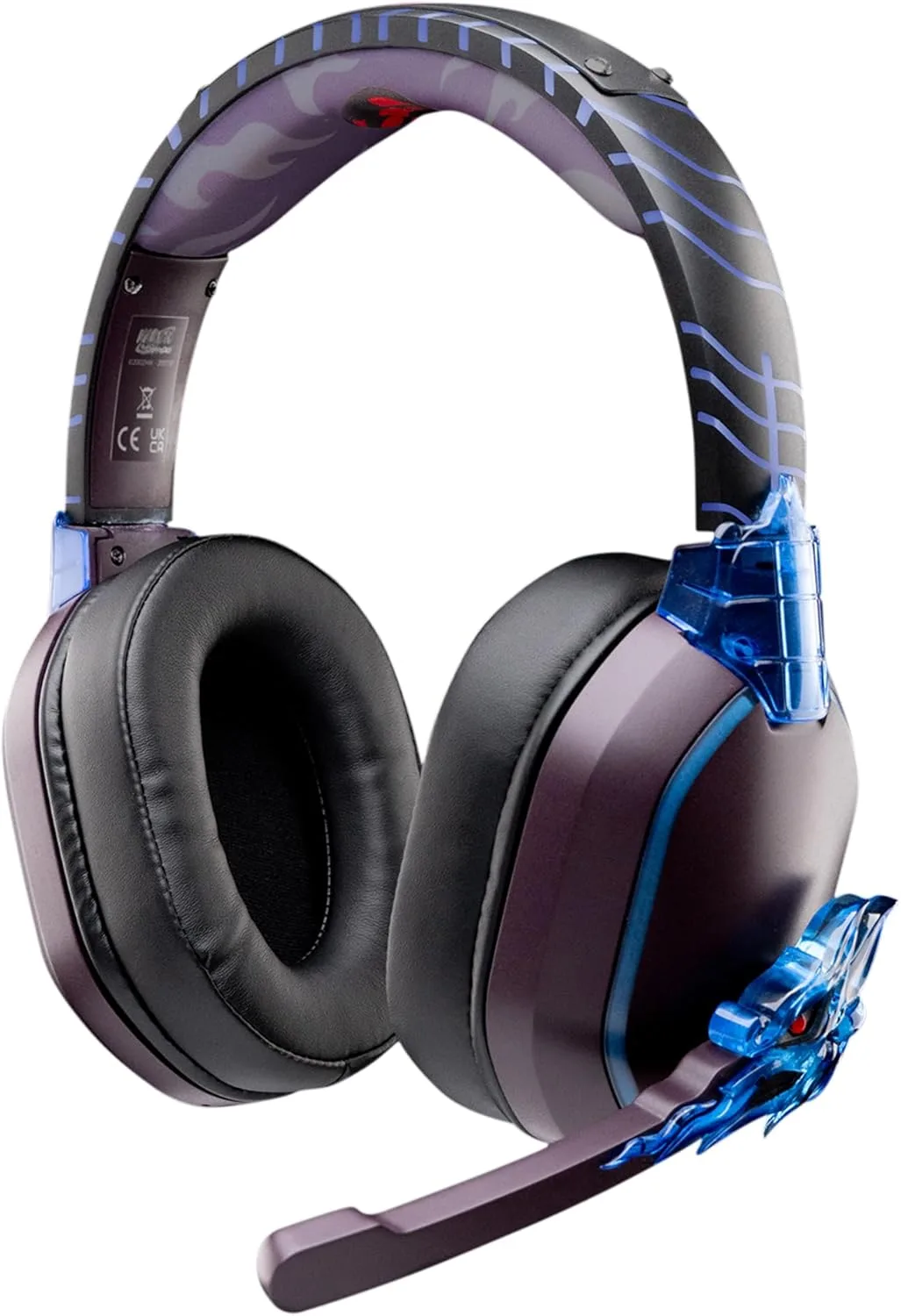
Lexip Naruto Shippuden Madara Destruction Headset
Using the Controls and Adjusting Audio
The headset has integrated volume and microphone controls on the ear cup. Use the volume wheel to adjust game and chat audio balance. The microphone mute switch lets you quickly silence yourself without unplugging. There is no supplied information about EQ presets or surround sound modes, so expect standard stereo audio.
Charging and Battery Life
Charge the headset using the included 1.5m USB-C to USB-A cable. Plug the USB-A end into a USB power source (like a console or PC port) and the USB-C end into the headset's charging port. The catalog does not specify battery life or charge time, so plan to charge it fully before your first use and monitor the low-battery indicator (if available) during sessions.
Troubleshooting Common Issues
If the headset doesn't pair via Bluetooth, ensure it's in pairing mode and that your PC or Mac's Bluetooth is enabled. For wired connections, check that the 3.5mm plug is fully inserted into both the controller and the headset. If audio is only coming from one side, inspect the cable for damage and try a different 3.5mm source. The catalog does not include specific reset steps, so refer to any included manual or contact support if problems persist.