Quick answer
The Logitech Marathon Mouse M705 pairs with one device at a time using the included Logitech Unifying receiver. To switch devices, you need to move the receiver to the other computer or use Logitech Flow software if both computers are on the same network.
Why the M705 uses a Unifying receiver instead of Bluetooth
The Marathon Mouse M705 relies on the Logitech Unifying receiver for wireless connectivity. This receiver uses a dedicated 2.4 GHz connection that provides reliable, low-latency performance without interference from other wireless devices. Unlike Bluetooth mice, the M705 does not support direct Bluetooth pairing, so you cannot switch devices with a button press.
The trade-off is that you can only connect to one computer at a time unless you physically move the receiver. However, the Unifying receiver is tiny and stays in the USB port, making it easy to carry between laptops or desktops.
What you need before you start
Before pairing, ensure you have the Logitech Unifying receiver that came with your M705. If you lose it, you can purchase a replacement Unifying receiver, but you will need Logitech's Unifying software to pair it. Also, install Logitech Options or Logitech G HUB on your computer to access pairing tools and customize settings.
The M705 requires one AA battery (included). Insert it into the battery compartment under the top cover. The mouse will power on automatically.
How to pair the Marathon Mouse M705 with multiple devices
- Insert the Unifying receiver into your computer: Plug the Logitech Unifying receiver into an available USB port on your computer. Windows and macOS will automatically recognize it. If nothing happens, try a different USB port. Make sure the receiver is fully inserted. A loose connection can prevent pairing.
- Turn on the mouse and check the connection: Remove the battery tab (if present) or press the power button on the bottom of the M705. The mouse should connect automatically within a few seconds. Move the mouse to confirm cursor movement. If the mouse does not move, remove and reinsert the battery, then try again.
- Install Logitech Unifying software (if needed): Download and install Logitech Unifying software from the official Logitech website. Open the software and click 'Pair' to add the M705 if it did not pair automatically. Follow the on-screen instructions. The Unifying software is free and works on both Windows and macOS. Do not skip this step if you are using a replacement receiver.
- Switch between devices by moving the receiver: To use the M705 with a second computer, eject the Unifying receiver safely (right-click the USB icon in the system tray or menu bar), remove it, and insert it into the other computer. The mouse will pair automatically. Always eject the receiver properly to avoid data corruption. The M705 does not support Bluetooth, so you cannot pair wirelessly without the receiver.
- Use Logitech Flow for seamless multi-device control (optional): If both computers are on the same Wi-Fi network, install Logitech Options and enable Logitech Flow. You can then move the cursor from one screen to another and copy-paste files between computers, as long as the receiver is plugged into the primary computer. Logitech Flow requires the Unifying receiver in the primary computer and the Logitech Options software on both machines. It works best with a stable network.
Product facts
-
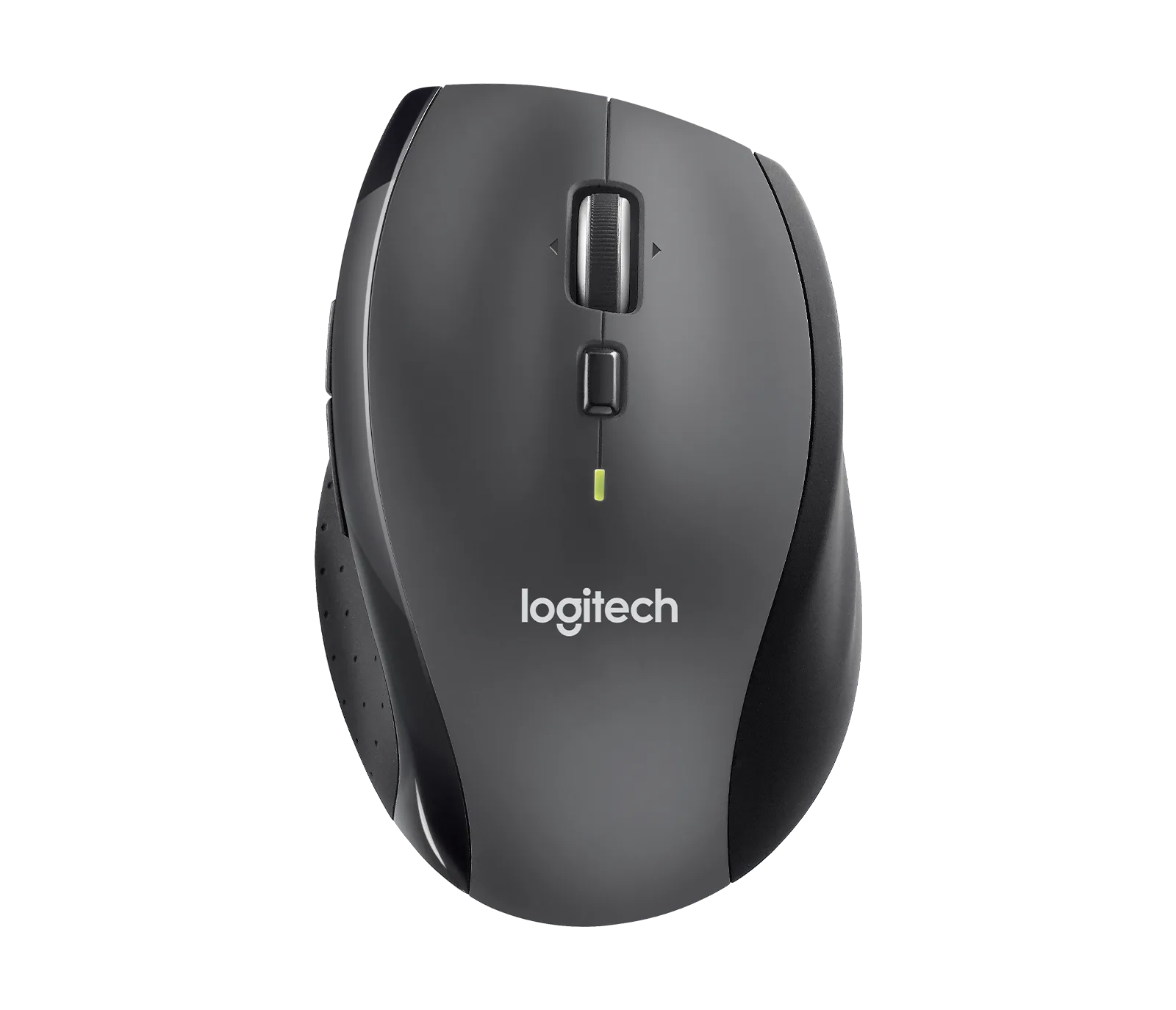
Marathon Mouse M705 - Charcoal: The Logitech Marathon Mouse M705 in Charcoal offers reliable performance for everyday computing tasks. Wireless connectivity reduces desk clutter and allows flexible placement. The Unifying receiver keeps your desk tidy and gives you a stable connection without Bluetooth pairing issues.
Marathon Mouse M705 - Charcoal