Quick answer
For Switch, plug the 2.4G receiver into the dock and turn the controller on in 2.4G mode. For PC, either use the same receiver in a USB port or connect the controller directly with a USB cable. Bluetooth is only for Android, so do not try to pair it wirelessly with Switch or PC.
Why the 2.4G receiver is the right choice for Switch and PC
The NEOGEO Wireless BT / 2.4G Controller supports three connection methods, but only two work with Switch and PC: the bundled 2.4G adapter and a wired USB connection. Bluetooth is listed for Android only, so it will not appear as a pairable device on your Switch or Windows PC. Using the 2.4G receiver gives you wireless play with lower latency than Bluetooth, and it avoids the frustration of a device that never shows up in the Bluetooth menu.
On Switch, the receiver must be plugged into the dock’s USB port, not the console itself. On PC, any free USB-A port works, and Windows will recognize the receiver as a standard game controller without extra drivers. If you prefer a wired connection, a USB-C or micro-USB cable (depending on the controller’s port) connects directly to the PC or Switch dock.
Common mistakes that block a successful pairing
The most frequent error is leaving the controller in Bluetooth mode while trying to use the 2.4G receiver. The controller has a mode switch or button combination to select 2.4G, and if it is still in Bluetooth mode, the receiver will not see it. Another mistake is plugging the receiver into a USB hub or a front-panel port that does not supply enough power; use a rear port directly on the PC or the dock’s built-in USB port.
On Switch, some users forget to enable the “Pro Controller Wired Communication” setting. While this is not strictly required for the 2.4G receiver, it can help if the controller is not recognized. Also, make sure the controller battery has charge; a blinking LED often means low power, not a pairing failure.
Step-by-step pairing for Switch and PC
- Charge the controller first: Connect the controller to a USB power source using its charging cable and let it charge until the LED indicates a full or sufficient charge. A weak battery can cause the controller to drop off mid-pairing. A steady LED after charging is your first checkpoint.
- Set the controller to 2.4G mode: Locate the mode switch on the controller (usually a small slider or a button combination) and set it to 2.4G. The LED should blink in a pattern that indicates 2.4G searching, not Bluetooth. If the LED blinks rapidly, it is usually in Bluetooth mode; switch to 2.4G.
- Plug the 2.4G receiver into the correct port: For Switch, insert the receiver into a USB port on the dock. For PC, use a USB-A port directly on the motherboard (rear ports are best). Avoid unpowered hubs. The receiver’s LED should light up; if not, try another port.
- Power on the controller and wait for the link: Press the controller’s power button or move the joystick to wake it. The receiver and controller will link automatically within a few seconds. The controller’s LED should become solid. A solid LED means the link is established; if it keeps blinking, repeat from step 2.
- Verify input on your device: On Switch, open System Settings > Controllers and Sensors > Test Input Devices to confirm button presses register. On PC, open the Game Controllers control panel (search “USB game controllers” in Windows) and check that the NEOGEO pad appears and responds. If no device appears, unplug and reinsert the receiver, then repeat step 4.
- For wired PC or Switch play, connect via USB cable: If you prefer a cable, connect the controller directly to the PC or Switch dock using a USB cable. The controller will be recognized as a wired gamepad. No receiver is needed in this mode. Wired mode bypasses wireless interference and is useful for troubleshooting.
Product facts
-
NEOGEO Wireless BT / 2.4G Controller (Black): Compatible with Windows and NEOGEO mini via 2.4G adapter/USB cable, and Android via Bluetooth. This tells you the 2.4G receiver is the intended wireless method for PC, while Bluetooth is reserved for Android, so you avoid wasted pairing attempts.
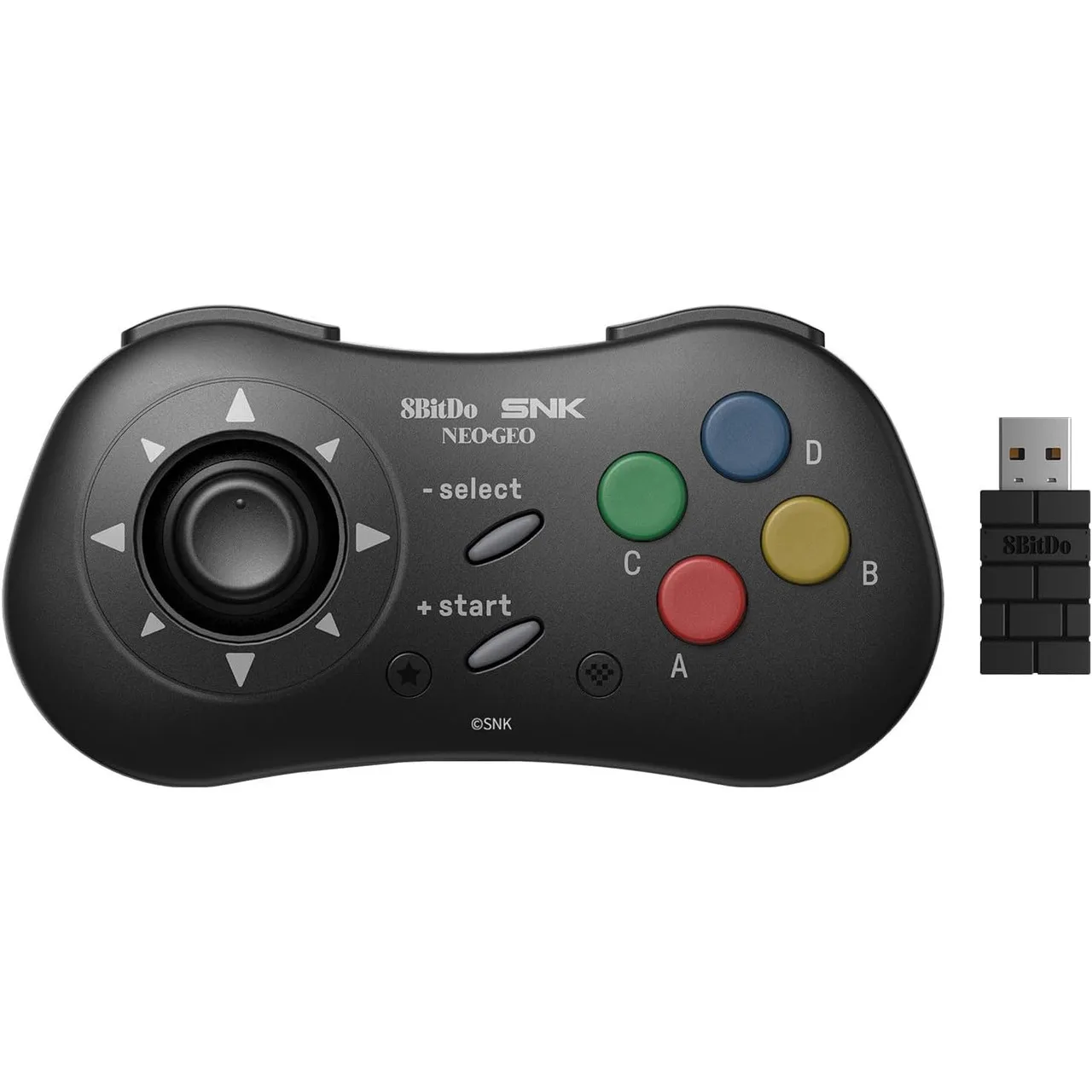
NEOGEO Wireless BT / 2.4G Controller (Black)