Quick answer
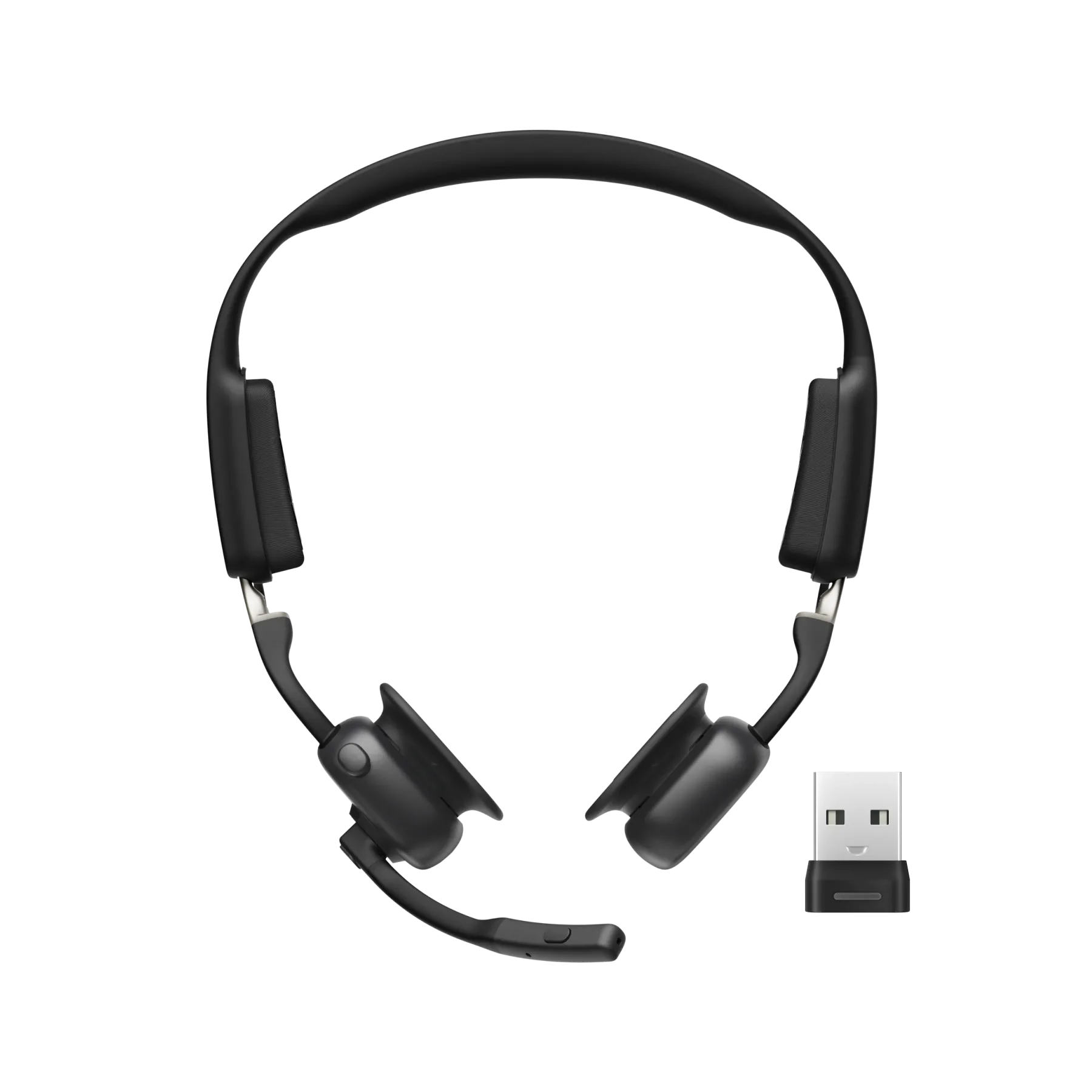
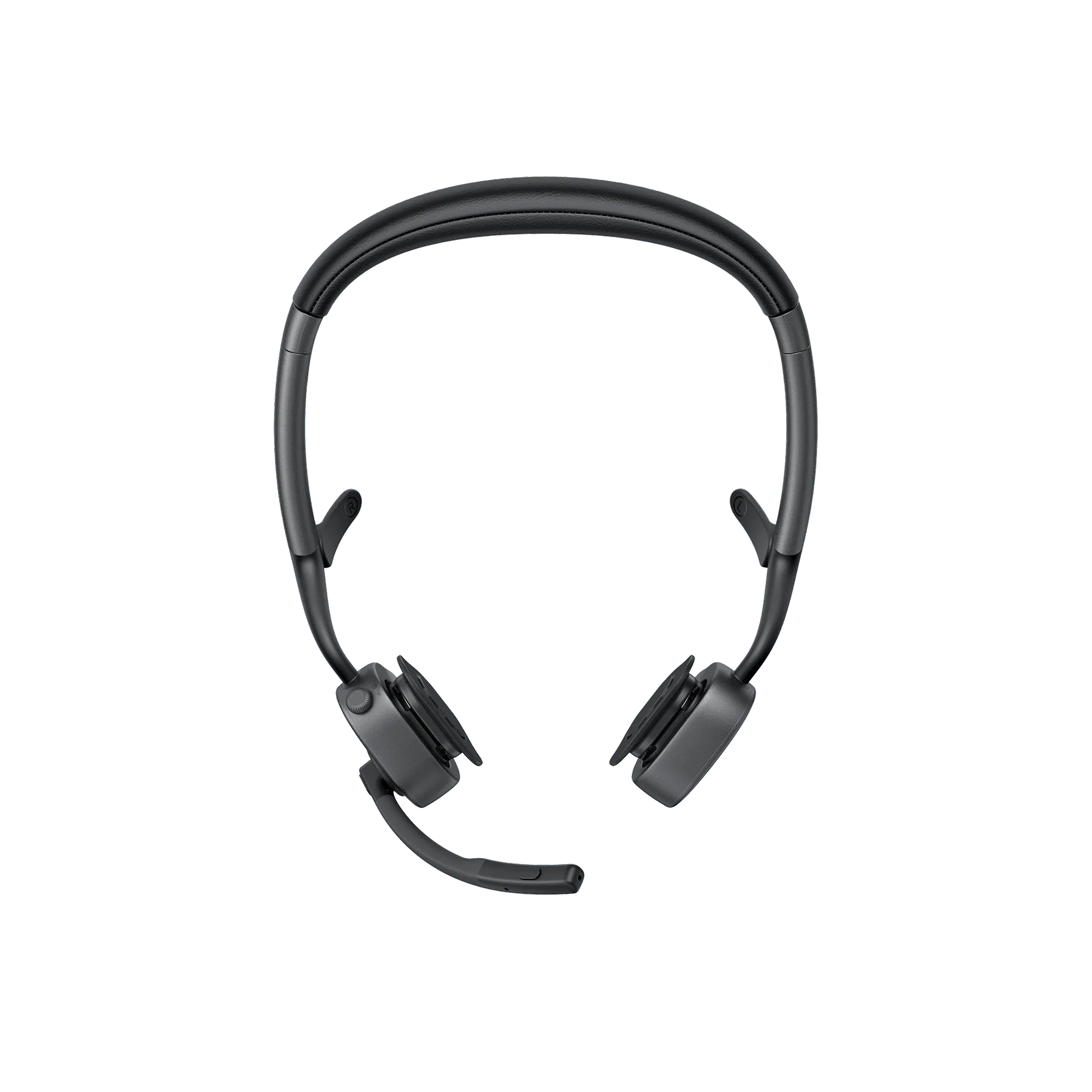
To pair your Shokz OpenRun Pro or openmeet-2-34cc10d9a51685bcfb1edeba-1344154">OpenMeet2 with two devices, first pair each device individually, then enable multipoint on the second device. The headset stores both connections and automatically switches to whichever device is active. You do not need to re-pair each time you switch between laptop and phone.
Before you start: what you need and what to expect
You need two Bluetooth-enabled devices (e.g., a laptop and a phone) and your Shokz headset. Make sure the headset is charged and within 3 feet (1 meter) of both devices during setup. Multipoint pairing works best when both devices stay within range; if you move too far from one, the connection may drop.
OpenRun Pro and OpenMeet2 support multipoint Bluetooth, which lets you connect to two devices at once. However, only one device can play audio at a time. When a call comes in on either device, the headset will switch to that device automatically.
Step 1: Pair with your first device
Start with the device you use most, like your phone. Turn on the headset by pressing and holding the power button until you hear 'Welcome to Shokz' or see a flashing blue light. Then open your phone's Bluetooth settings, find 'OpenRun Pro by Shokz' or 'OpenMeet2 by Shokz' in the list, and tap to connect. Wait for the confirmation tone.
Common mistake: Trying to pair while the headset is already connected to another device. If the headset is already in use, turn it off and back on to enter pairing mode.
Step 2: Pair with your second device
Once the first device is connected, turn off Bluetooth on that device (or move it out of range) so the headset enters pairing mode again. Then put the headset back into pairing mode by pressing and holding the power button until you hear the pairing prompt. On your second device (e.g., laptop), open Bluetooth settings, find the headset, and connect.
Checkpoint: After pairing, you should hear a tone indicating the second device is connected. If not, repeat the pairing process. Some laptops require you to select 'Pair' rather than just clicking the device name.
Step 3: Enable multipoint on the second device
After both devices are paired, you need to enable multipoint on the second device. On most phones, go to Bluetooth settings, tap the gear icon next to your Shokz headset, and toggle on 'Multipoint' or 'Connect to two devices'. On Windows laptops, the option may appear as 'Allow device to connect to multiple devices' or you may need to use the Shokz app to enable it.
If you don't see a multipoint option, your device may not support it. In that case, you can still manually switch by disconnecting from one device and connecting to the other.
Step 4: Test automatic switching
Play audio on one device, then pause it and start playback on the other. The headset should switch automatically within a few seconds. If it doesn't, check that both devices are still connected and that multipoint is enabled on both. For calls, the headset will prioritize the device that receives the call.
Common mistake: Assuming the headset will mix audio from both devices. It won't—only one audio stream plays at a time. If you're on a call on your laptop and a call comes in on your phone, the headset will switch to the phone, and you'll need to switch back manually if desired.
Step-by-step pairing checklist
- Charge and power on: Fully charge your headset and turn it on. A flashing blue light indicates pairing mode. Checkpoint: If the light is solid, the headset is already connected to a device. Turn it off and on again.
- Pair with first device: Open Bluetooth settings on your phone or laptop, select your Shokz model, and confirm the connection. Mistake: Pairing while another device is connected. Disconnect that device first.
- Pair with second device: Turn off Bluetooth on the first device, put the headset in pairing mode, and connect to the second device. Checkpoint: You should hear a confirmation tone. If not, repeat the pairing steps.
- Enable multipoint: On the second device, go to Bluetooth settings and enable multipoint or dual connection for the headset. If the option is missing, your device may not support multipoint; you can still switch manually.
- Test switching: Play audio on one device, then the other. The headset should switch automatically within a few seconds. Mistake: Expecting simultaneous audio from both devices. Only one plays at a time.
Product facts
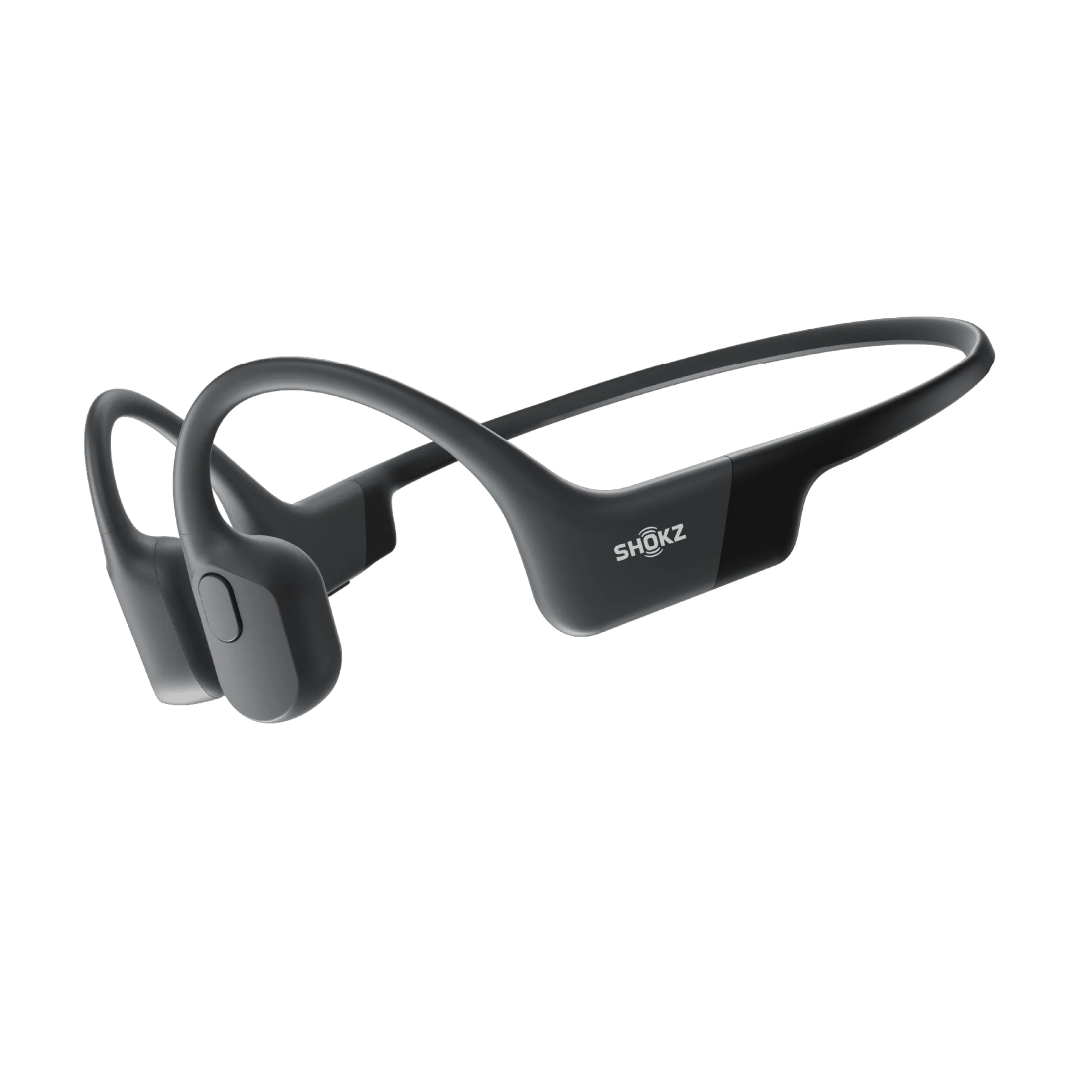
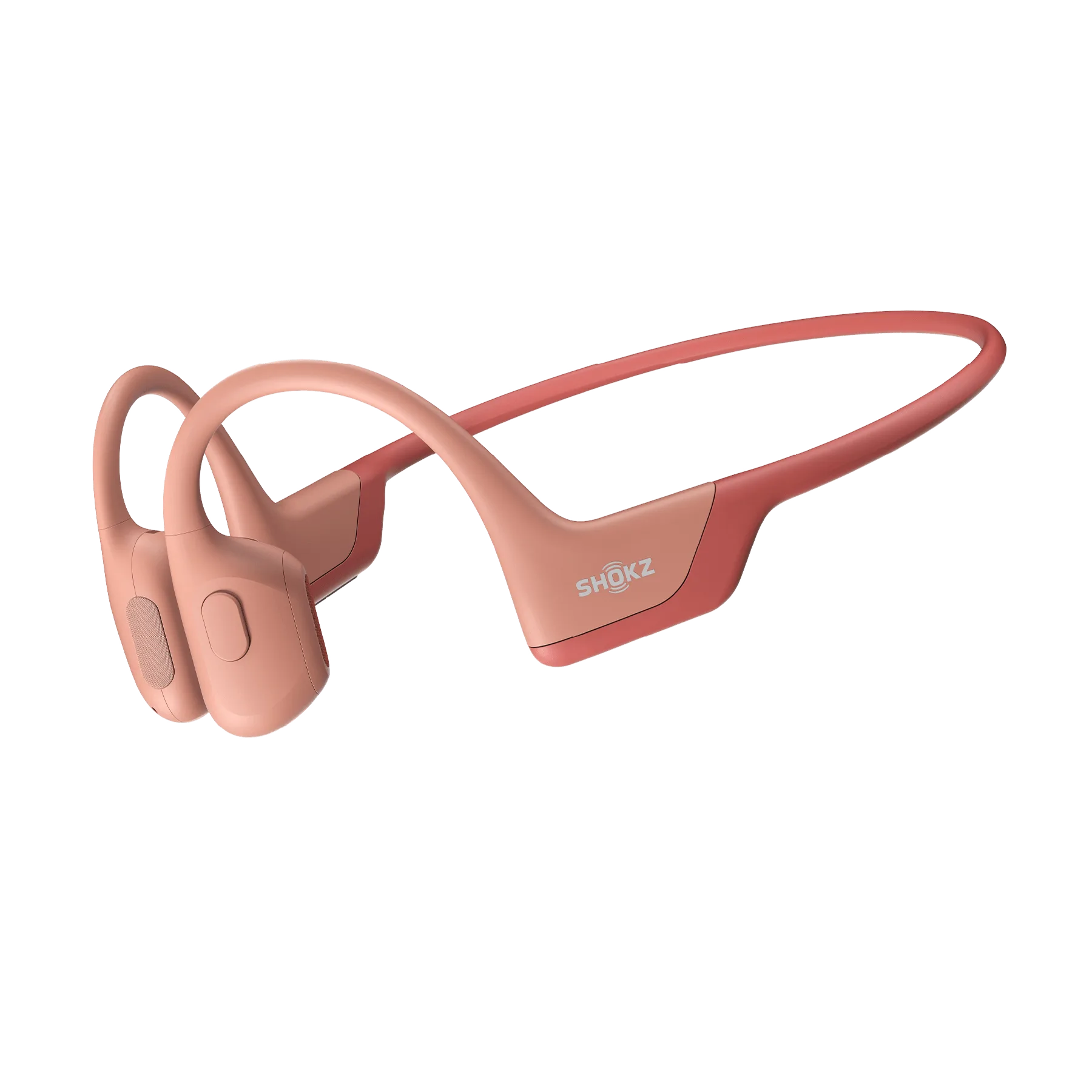
- OpenRun Pro: OpenRun Pro features 9th generation bone conduction technology with two added bass enhancers and 10-hour battery life with quick charge. Long battery life means you can rely on multipoint pairing all day without recharging, and the bass enhancers improve audio quality for music and calls.
- OpenRun: OpenRun has 8th generation technology, 8-hour battery life with quick charge, and IP67 waterproofing. If you need a more affordable option for dual-device pairing, OpenRun still offers solid battery life and sweat resistance for workouts.