Misplacing your keys is one of the most frustrating daily annoyances. You spend precious minutes retracing your steps, checking coat pockets, and rummaging through bags. Fortunately, the solution is simpler than you think: pair a smart tracker with a compact key organizer. This combination not only keeps your keys tidy but also makes them locatable from anywhere within Bluetooth range.
In this guide, we will show you how to set up a Bluetooth smart tracker with a key organizer for maximum convenience. Whether you use an Apple AirTag or another tracker, the process is straightforward. We will focus on the KeySmart Air, which is designed specifically to hold an AirTag while organizing up to five keys, and compare it with other popular KeySmart organizers that can be paired with trackers using optional accessories.
Why Combine a Smart Tracker with a Key Organizer?
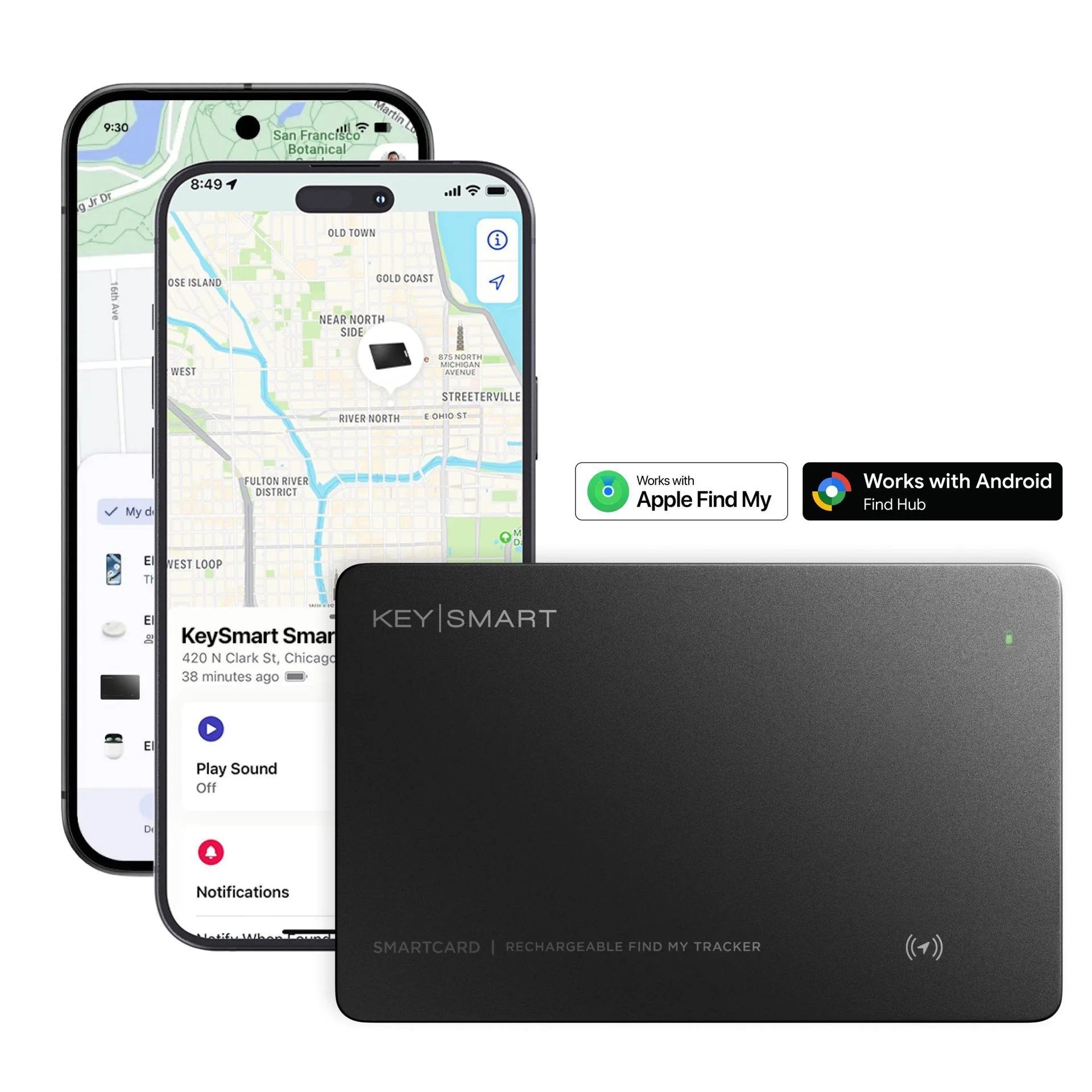
A key organizer alone reduces pocket bulk and prevents keys from jangling, but it does not stop you from losing them. A smart tracker adds a digital layer of security: you can use your phone to make the tracker ring, view its last known location on a map, or even receive a notification when you leave your keys behind. When the tracker is integrated into the organizer, you never have to worry about it falling off or getting separated.
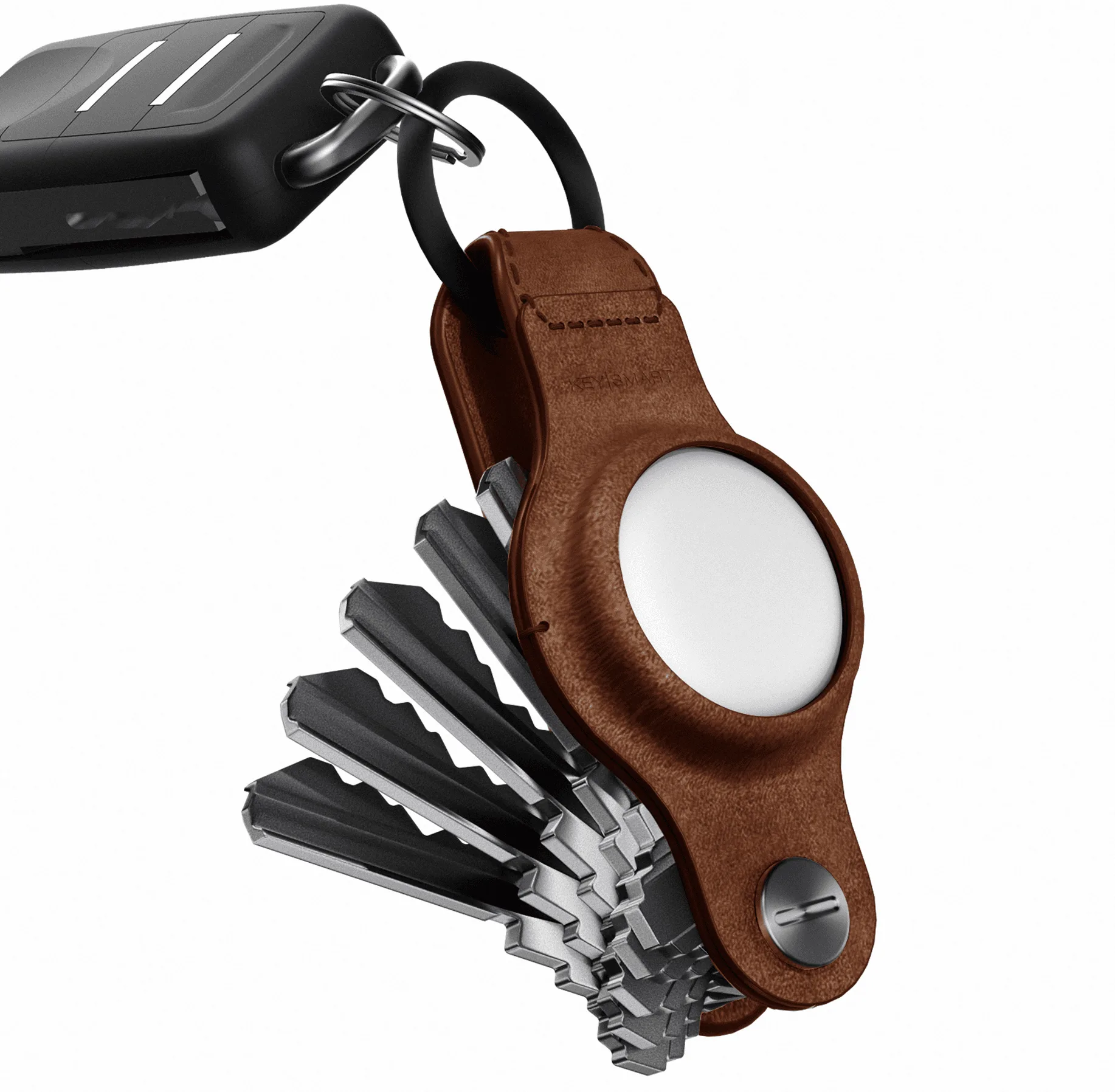
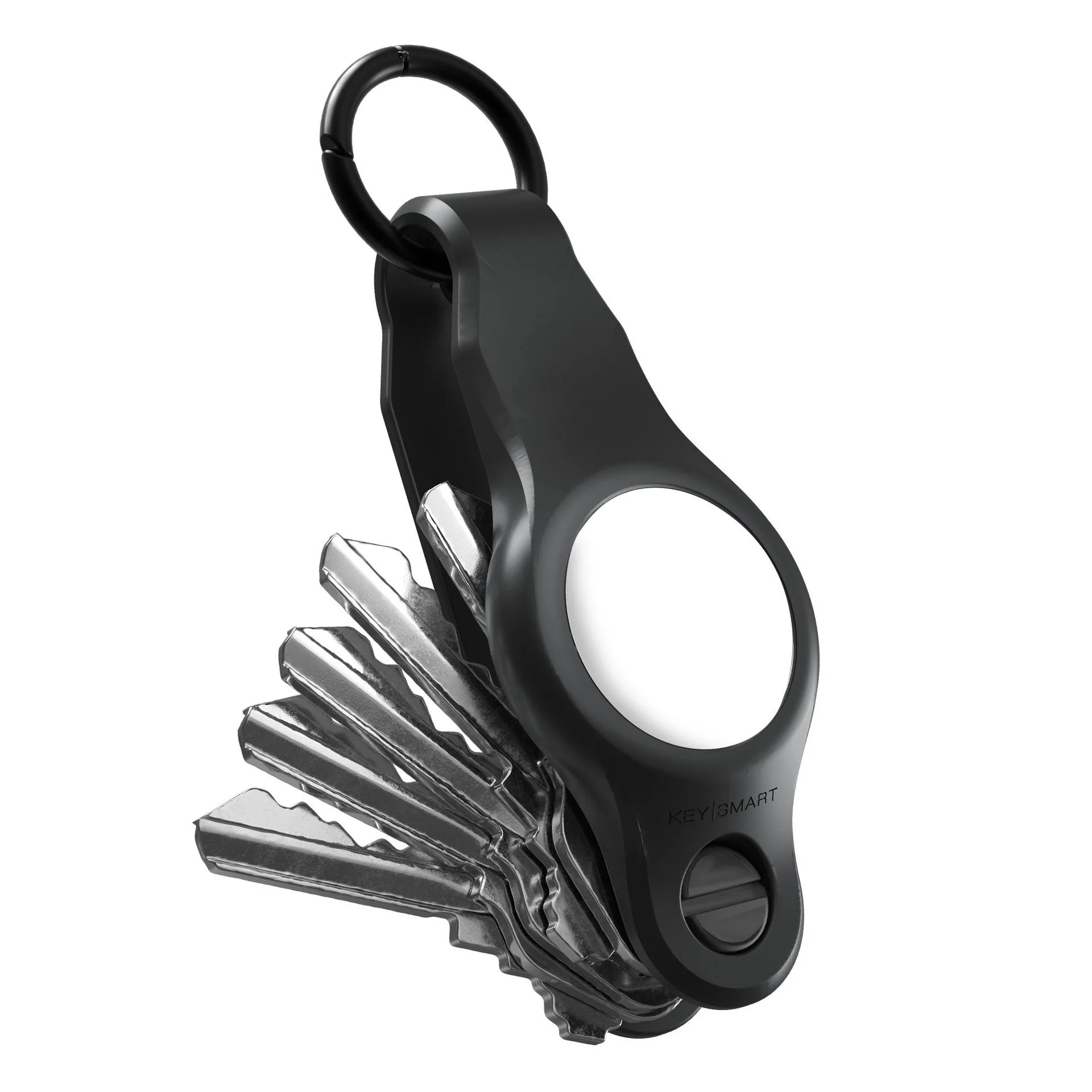
The KeySmart Air is a perfect example of this integration. It features a dedicated slot for an Apple AirTag, so the tracker sits flush inside the organizer. This design keeps your setup slim and prevents the AirTag from being accidentally detached. Other organizers, like the KeySmart Flex, can also be paired with a tracker by adding a small silicone holder or using a key ring attachment, though the experience is slightly less seamless.
- Always test the Bluetooth range of your tracker in your home so you know how far you can walk before losing connection.
- Label your tracker in the Find My app (or equivalent) with something clear like "House Keys" to avoid confusion if you have multiple trackers.
Step-by-Step Guide: Pairing an Apple AirTag with KeySmart Air
Start by removing the plastic tab from your new AirTag to activate the battery. Then, hold the AirTag near your iPhone or iPad. A setup screen should automatically appear on your device. Tap Connect and follow the on-screen instructions to assign a name and emoji to the tracker. Once paired, the AirTag will appear in the Find My app under the Items tab.
Now, insert the AirTag into the KeySmart Air. The organizer has a circular cutout that fits the AirTag perfectly. Press the tracker into place until it clicks. Then, add your keys onto the key posts, up to five standard keys. Tighten the locking screws to secure everything. Your keys are now both organized and tracked. You can test the connection by opening Find My and playing a sound on the AirTag.
- If the setup screen does not appear, make sure Bluetooth is enabled and that the AirTag battery tab is fully removed.
- Replace the AirTag battery every year to ensure reliable performance — a low battery warning will appear in Find My.
Alternative Setup: Pairing a Tracker with Other Key Organizers
If you prefer a different KeySmart organizer, you can still use a smart tracker with a little creativity. For example, the KeySmart Flex holds up to eight keys and has a flexible design that allows you to attach a small tracker holder to the end of the key posts. Some users attach a slim Bluetooth tracker like the Tile Slim directly to the back of the organizer using adhesive or a loop.
Another option is to use the Keysmart Loop series, which features a loop design that can accommodate a tracker on a small key ring. While this setup is not as integrated as the KeySmart Air, it still provides the convenience of a tracker without sacrificing the key organization benefits. Just ensure the tracker is securely fastened so it does not get lost itself.
- For non-AirTag trackers, check the dimensions before attaching — some may be too thick to fit comfortably in your pocket.
- Use a small rubber band or silicone ring to hold the tracker against the organizer if you do not have a dedicated holder.
Tips for Getting the Most Out of Your Smart Tracker and Key Organizer
Once your tracker is paired and your keys are organized, take full advantage of the smart features. Enable notifications in the Find My app so you receive an alert if you leave your keys behind. You can also set up a separation alert that triggers when the tracker is out of Bluetooth range. This is especially useful when you are leaving a coffee shop or office.
Keep your organizer clean and dry to protect both the keys and the tracker. The KeySmart Air is durable, but moisture can affect the AirTag's battery contacts over time. If you frequently carry your keys in a bag with other metal objects, consider using a protective case or sleeve to prevent scratches. Finally, regularly check the battery level of your tracker through the app to avoid surprises.
- If your tracker uses a replaceable battery (like AirTag), keep a spare CR2032 battery in your bag or car.
- Test the separation alert by walking away from your keys while holding your phone — adjust the sensitivity in the app if needed.
Common Mistakes to Avoid When Setting Up a Tracker with a Key Organizer
One common mistake is forcing a tracker into an organizer that is not designed for it. This can damage the tracker or cause it to pop out at an inconvenient time. Always use a compatible organizer like the KeySmart Air for AirTags, or choose a tracker that is slim enough to attach to other models without blocking the key posts.
Another mistake is neglecting to update the tracker's firmware. While AirTags update automatically, some third-party trackers require manual updates through their app. Outdated firmware can lead to reduced range or inaccurate location data. Also, avoid placing the organizer near metal objects when trying to locate it, as metal can interfere with Bluetooth signals.
- Do not stack too many keys on the organizer — exceeding the recommended capacity can make the tracker slot inaccessible.
- If you use a non-Apple tracker, ensure it is compatible with your phone's operating system (iOS or Android).
Pairing a smart tracker with a key organizer is one of the best upgrades you can make to your everyday carry. It eliminates the stress of lost keys while keeping your pocket neat and organized. The KeySmart Air offers the most seamless integration for Apple AirTag users, but other KeySmart models can also work with a little creativity. Take the first step toward a smarter, more convenient carry today by exploring the KeySmart Air and other key organizers that fit your lifestyle.