Quick answer
Turn your Turtlebox on, put it in pairing mode so its Bluetooth light blinks, then select the speaker in your phone or tablet's Bluetooth menu. To pair two Turtlebox speakers together, use party mode on the speaker rather than your phone's Bluetooth list. If the speaker never appears, power it off and back on, move within a few feet, and forget the old Bluetooth entry before retrying.
Turtlebox Bluetooth pairing is usually a 30-second job, but the process splits into two different tasks that people mix up: connecting one speaker to a phone or tablet, and pairing two Turtlebox speakers to each other. The first uses your device's Bluetooth menu. The second happens on the speakers themselves.
This guide walks through both in order, then covers the fixes that solve most Turtlebox speaker not pairing complaints. Keep your phone or tablet within a few feet of the speaker for the first attempt, and charge the speaker if it has been sitting in a truck bed or boat for a while.
Before you start: get the basics right
Power the speaker on and confirm it has enough charge. If the battery is low, plug in the Original Charger (15.0V / 3.0A output) and let it build some charge before pairing. Bluetooth pairing itself draws little power, but a speaker that shuts off mid-pair will drop the connection and send you back to step one.
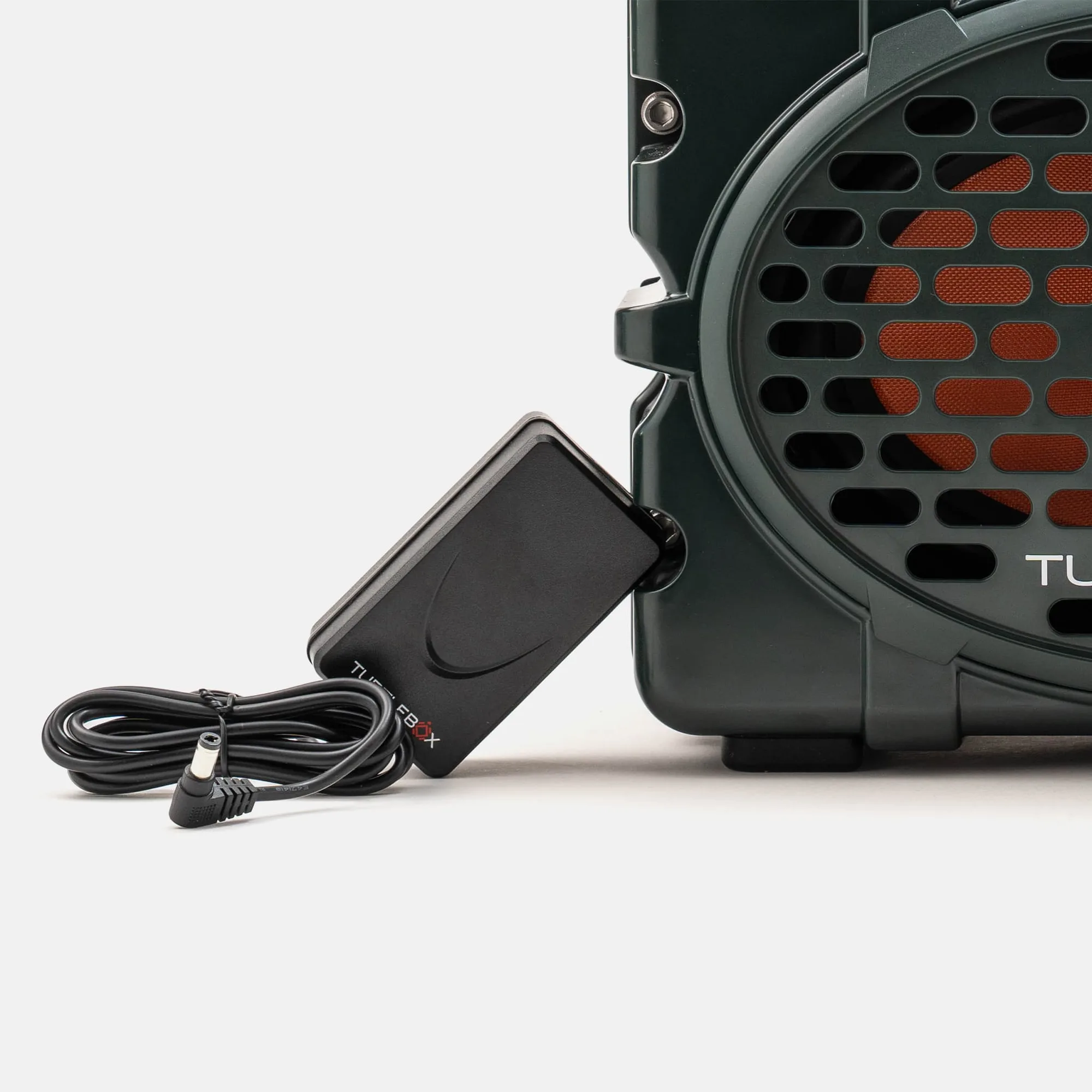
Original Charger
On your phone or tablet, open Settings and find Bluetooth. Turn Bluetooth off and back on if it has been running for days, then leave the Bluetooth screen open while you work with the speaker. You want both devices awake and close together for the first connection.
- Keep the speaker and your device within about three feet for the first pairing.
- Close other apps that may already be holding a Bluetooth audio connection.
Pair a Turtlebox speaker to a phone or tablet
Put the speaker into pairing mode. Most Turtlebox models use a Bluetooth button or a button combination that makes the Bluetooth indicator blink rapidly. A slow or solid light usually means the speaker is on but not discoverable, which is the single most common reason a phone never shows it in the list.
With the light blinking, open Bluetooth on your phone or tablet and wait for the speaker name to appear under available devices. Tap it and accept any pairing prompt. Once connected, the light typically stops blinking and holds steady, and your device shows the speaker as connected.
- If the name appears twice, pick the entry that is not marked 'not connected' and forget the other one later.
- Play a test track before you walk away, so you know audio is actually routing to the speaker.
Pair two Turtlebox speakers together
Linking two Turtlebox speakers is a speaker-to-speaker job, not a phone job. Start with one speaker already connected to your phone or tablet, then put the second speaker into its linking or party mode. On the Cub, this is the party mode feature; check your model's button layout if you are using a Ranger, Original, or Grande.
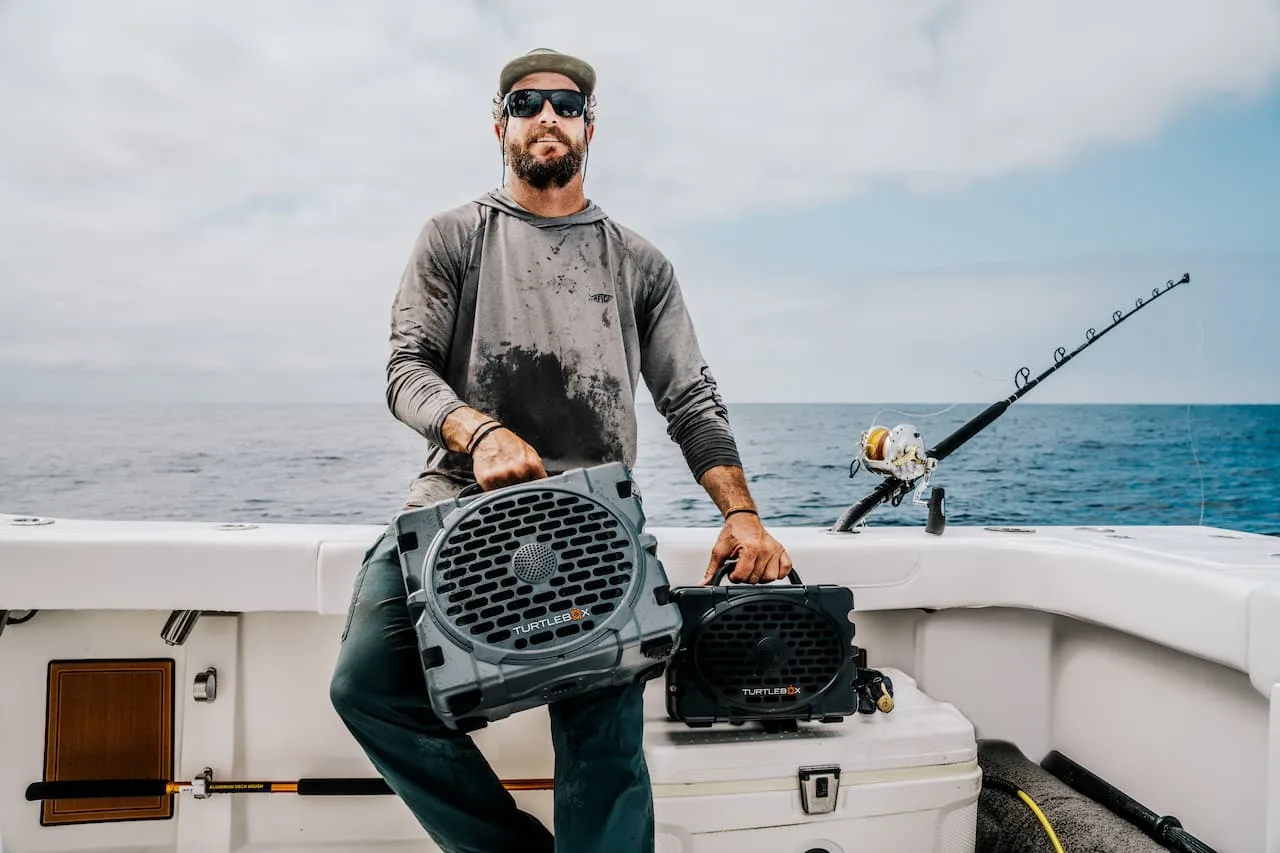
Grande
When the two speakers link, you should hear audio from both. If only one plays, the second speaker is likely still in normal Bluetooth mode instead of link mode. Power it off, power it back on, and repeat the link step rather than trying to add it through your phone's Bluetooth menu.
- Keep both speakers within a few feet of each other while linking, then spread them out.
- Your phone should show only one connection even when two speakers are playing.
Turtlebox speaker not pairing? Work through these fixes
First, forget the speaker on your device: open Bluetooth settings, tap the Turtlebox entry, and choose Forget or Unpair. Then put the speaker back into pairing mode and reconnect fresh. Stale pairing records are behind a large share of connection failures, especially after a phone update.
If that does not work, power the speaker off completely, wait about ten seconds, and turn it back on. Move away from other Bluetooth devices, microwaves, and dense metal or concrete that can block signal. If your tablet still cannot see the speaker, try your phone as a test: if the phone connects, the issue is on the tablet side, not the speaker.
- Charge the speaker if the indicator suggests low battery before you troubleshoot further.
- Test with a second device to isolate whether the problem is the speaker or the source.
Tablet and multi-device notes
Tablets pair the same way phones do, but they often hold onto connections more aggressively. If your tablet shows the speaker as paired but no sound plays, check that the tablet's audio output is set to the speaker rather than its built-in speakers, and disconnect any other Bluetooth audio device that may be grabbing the stream.
Turtlebox speakers connect to one source at a time. If your phone is connected and you want to switch to a tablet, disconnect or turn off Bluetooth on the phone first, then pair the tablet. Trying to connect the second device while the first is still active is a common reason the speaker seems unresponsive.
- Turn off Bluetooth on the previous device before pairing a new one.
- Re-pair from scratch if you switch between devices often and connections get flaky.
Turtlebox Bluetooth pairing steps at a glance
- Charge and power on: Plug in the Original Charger if the battery is low, then turn the speaker on. Checkpoint: the speaker powers on and stays on.
- Enter pairing mode: Press the Bluetooth button or combination so the Bluetooth light blinks rapidly. Common mistake: leaving the speaker on without making it discoverable.
- Connect from your device: Open Bluetooth on your phone or tablet, tap the Turtlebox name, and accept the prompt. Checkpoint: the light stops blinking and your device shows connected.
- Play a test track: Start audio and confirm it comes out of the speaker, not your device. If there is no sound, check the device's audio output setting.
- Link a second speaker: With one speaker connected, put the second into party or link mode on the speaker itself. Common mistake: trying to add the second speaker through your phone's Bluetooth list.
- Fix a failed pairing: Forget the speaker on your device, power-cycle the speaker, and reconnect within a few feet. If it still fails, test with another phone or tablet to isolate the cause.
Gear that helps with pairing and setup
- Original Charger: Backup or replacement charger with 15.0V / 3.0A output. A charged speaker pairs and stays connected reliably; a spare charger keeps you from troubleshooting a battery problem instead of a Bluetooth one.
- Cub: Compact cube-shaped speaker built for the outdoors, featuring party mode. Party mode is the feature you use to link two Cub speakers together, so knowing it exists saves you from hunting through phone settings.
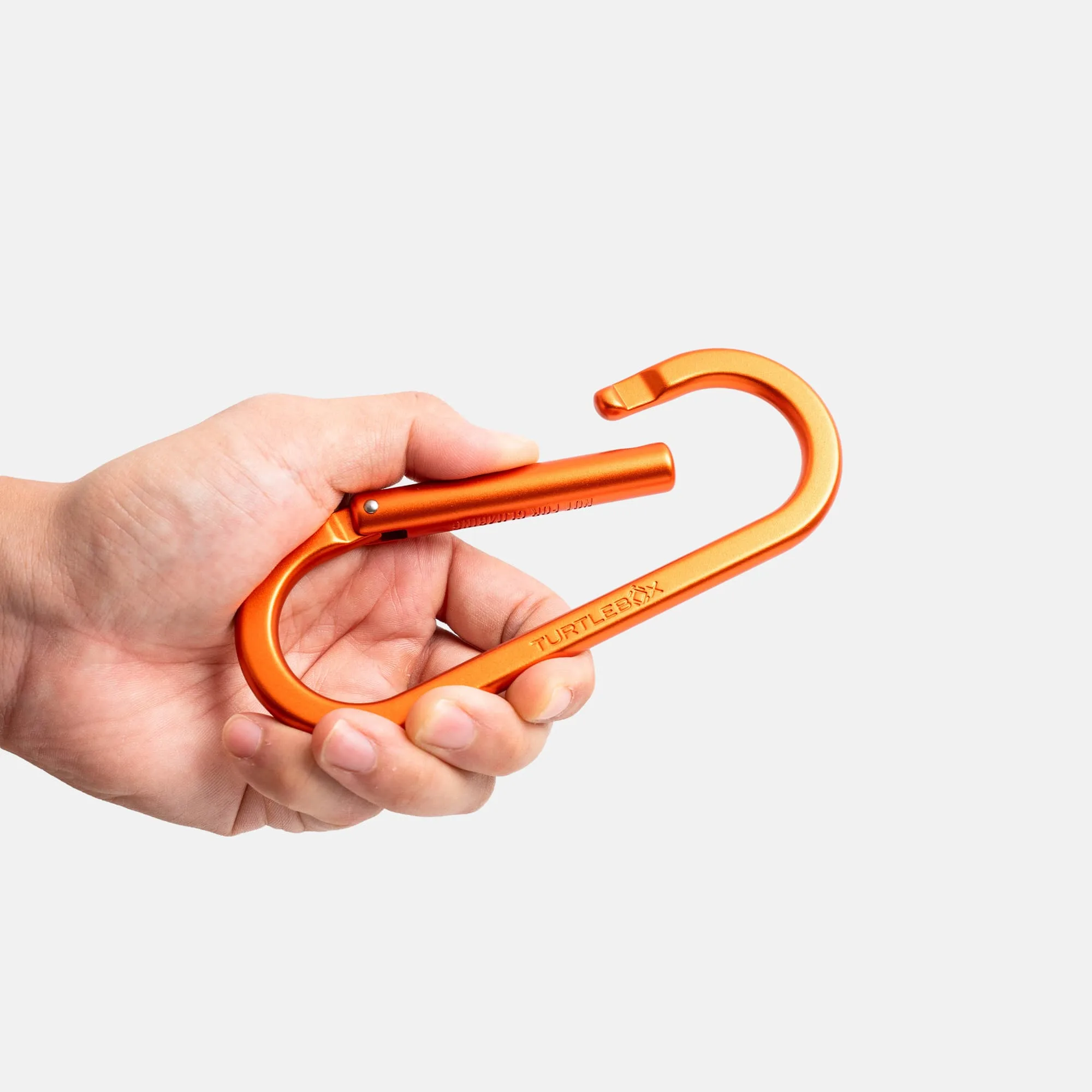
- Carabiner: Ultra-strong lightweight aluminum carabiner that clips into Ranger, Cub, Original, or Grande speakers; not for climbing. Keeps the speaker secure and within Bluetooth range while you set up, especially on a boat, bike, or pack.
Pairing a Turtlebox comes down to two habits: make the speaker discoverable before you open Bluetooth, and link a second speaker on the speaker itself rather than in your phone. When something stalls, forget the old entry, power-cycle, and move closer. That sequence resolves most pairing problems without a support ticket.