Input lag—the delay between pressing a button and seeing the action on screen—can be the difference between victory and defeat in competitive gaming. On powerful consoles like the PS5 and Xbox Series X, even a few milliseconds of extra latency can disrupt your aim, timing, and overall performance. Fortunately, you don’t need to overhaul your entire setup to reduce input lag. By optimizing your controller settings and choosing the right cables and accessories, you can achieve a noticeably snappier response.
In this guide, we’ll walk you through practical, proven methods to reduce input lag on PS5 and Xbox Series X. From adjusting console settings to upgrading your gaming cables and adding precision thumb grips, these tips will help you shave off precious milliseconds and gain a competitive edge.
Understanding Input Lag on Modern Consoles
Input lag is the total delay from your controller input to the corresponding visual feedback on your display. On PS5 and Xbox Series X, this latency can come from several sources: the controller’s wireless or wired connection, the console’s processing, the HDMI cable, and the display itself. While consoles are optimized for low latency, certain settings and accessories can introduce unnecessary delay.
To effectively reduce input lag, you need to address each link in the chain. Start with your controller’s connection—wired mode often provides lower latency than Bluetooth. Then, ensure your display is in Game Mode or its lowest-latency setting. Finally, consider your cables: a high-quality HDMI cable can prevent signal degradation that adds latency. By systematically optimizing each component, you can achieve a more responsive gaming experience.
- Controller connection: Wired USB reduces lag compared to wireless on both PS5 and Xbox Series X.
- Display settings: Enable Game Mode on your TV or monitor to bypass post-processing.
- Cable quality: Use certified high-speed HDMI cables to maintain signal integrity.
Optimize Your PS5 and Xbox Series X Controller for Lower Latency
Your controller is your direct interface with the game. On PS5, the DualSense controller supports a wired USB connection that can lower input lag compared to Bluetooth. Simply connect it via the included USB-C cable, then go to Settings > Accessories > Controllers > Communication Method and select “Use USB Cable.” On Xbox Series X, the Xbox Wireless Controller also benefits from a wired connection—plug it in via USB-C, and the console automatically switches to wired mode, reducing latency.
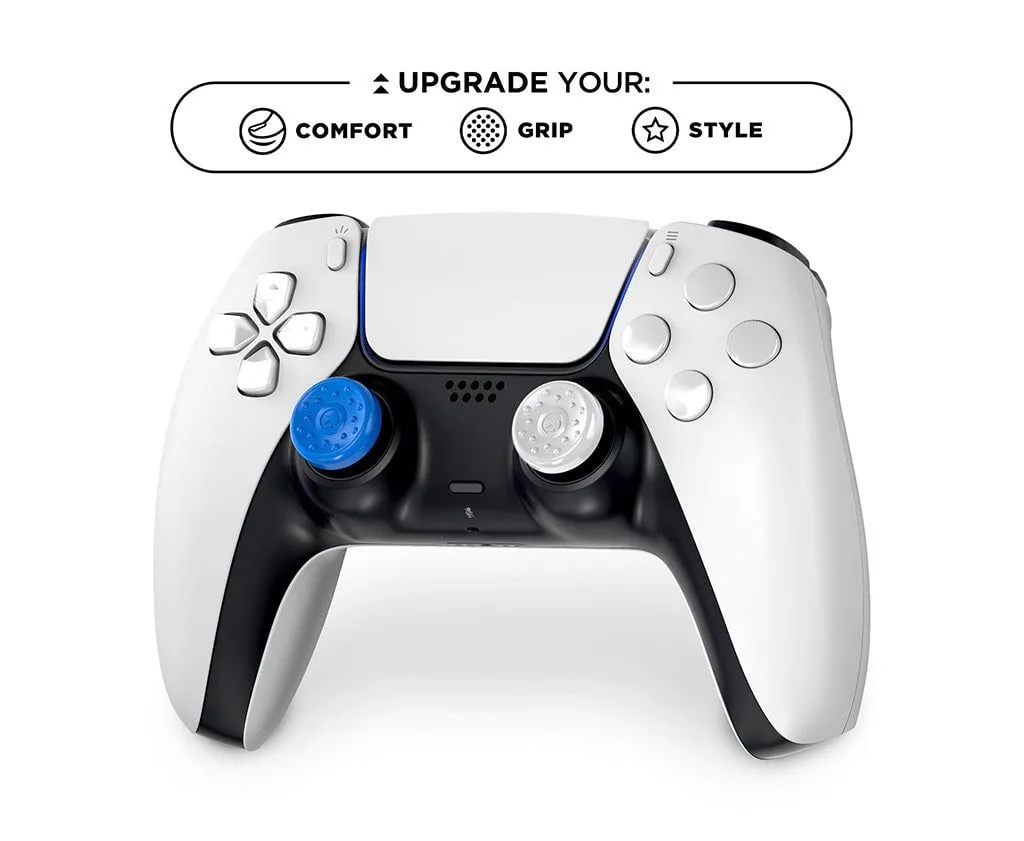
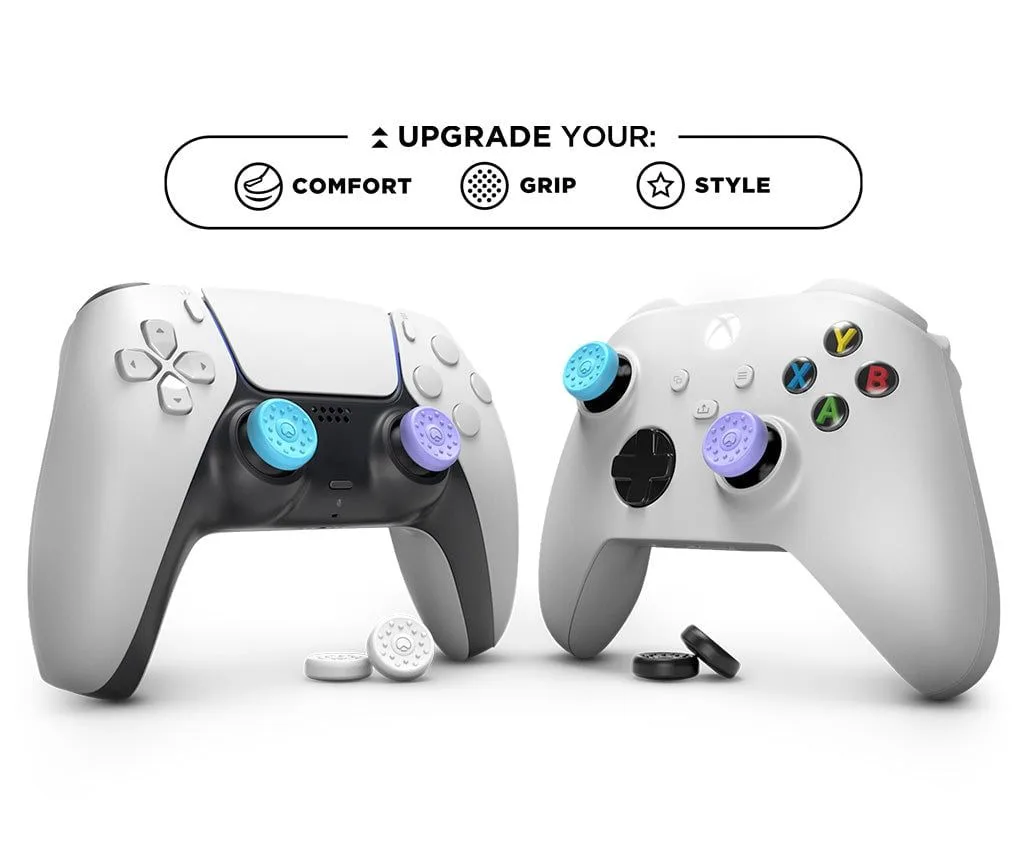
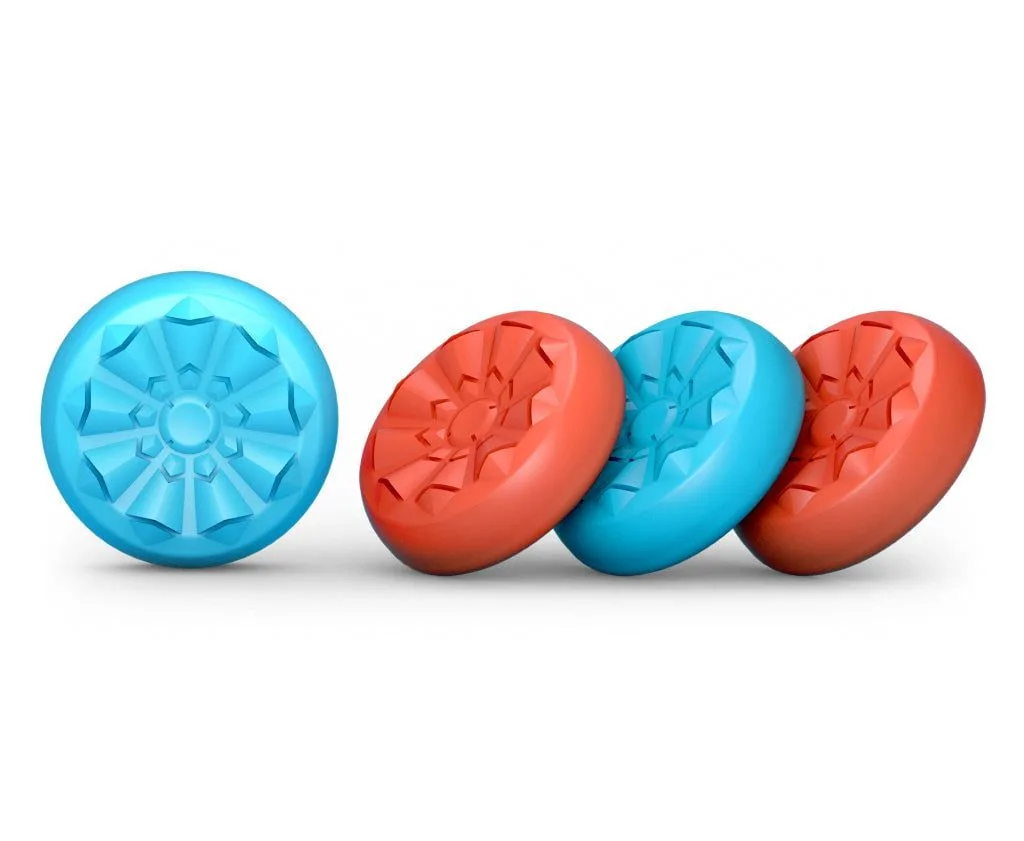
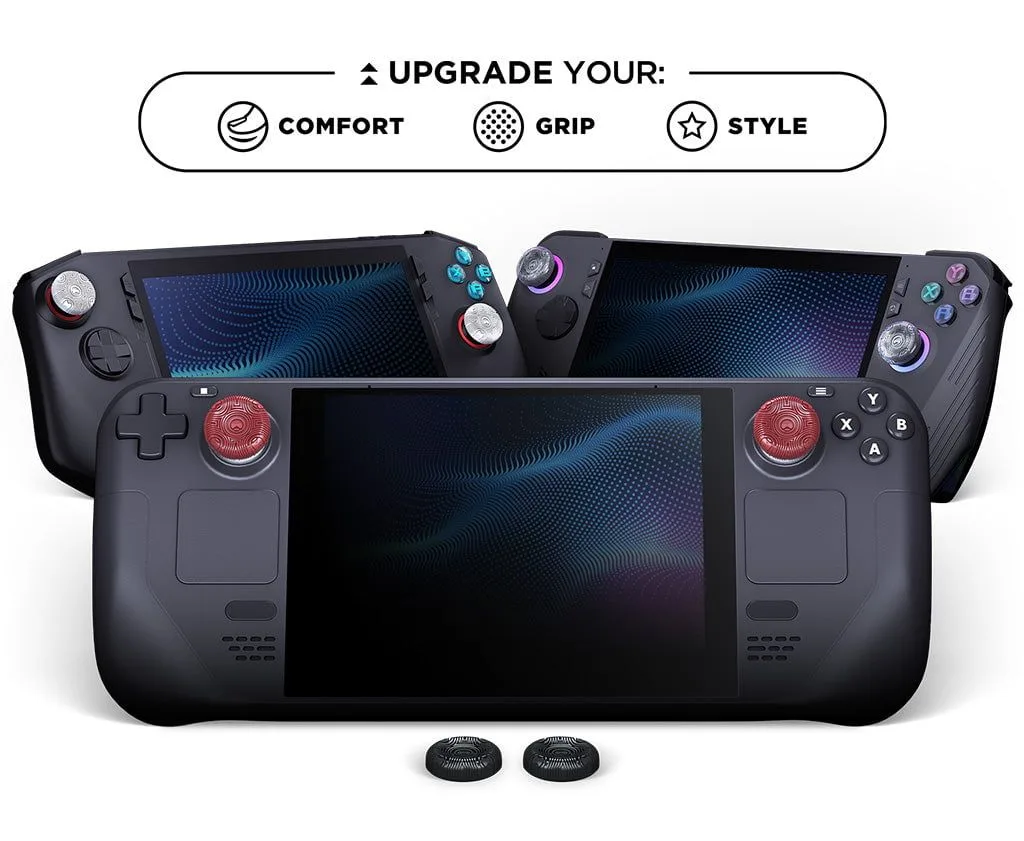
Beyond the connection, the physical feel of your controller affects your reaction speed. Adding precision thumb grips can improve your grip and control, allowing for quicker, more accurate stick movements. The FPS Freek Galaxy offers a concave design and increased height, giving you finer analog control. This can help you aim faster and reduce the perceived lag from stick drift or slippage. Pairing wired mode with a performance grip is a simple yet effective way to reduce input lag on PS5 and Xbox Series X.
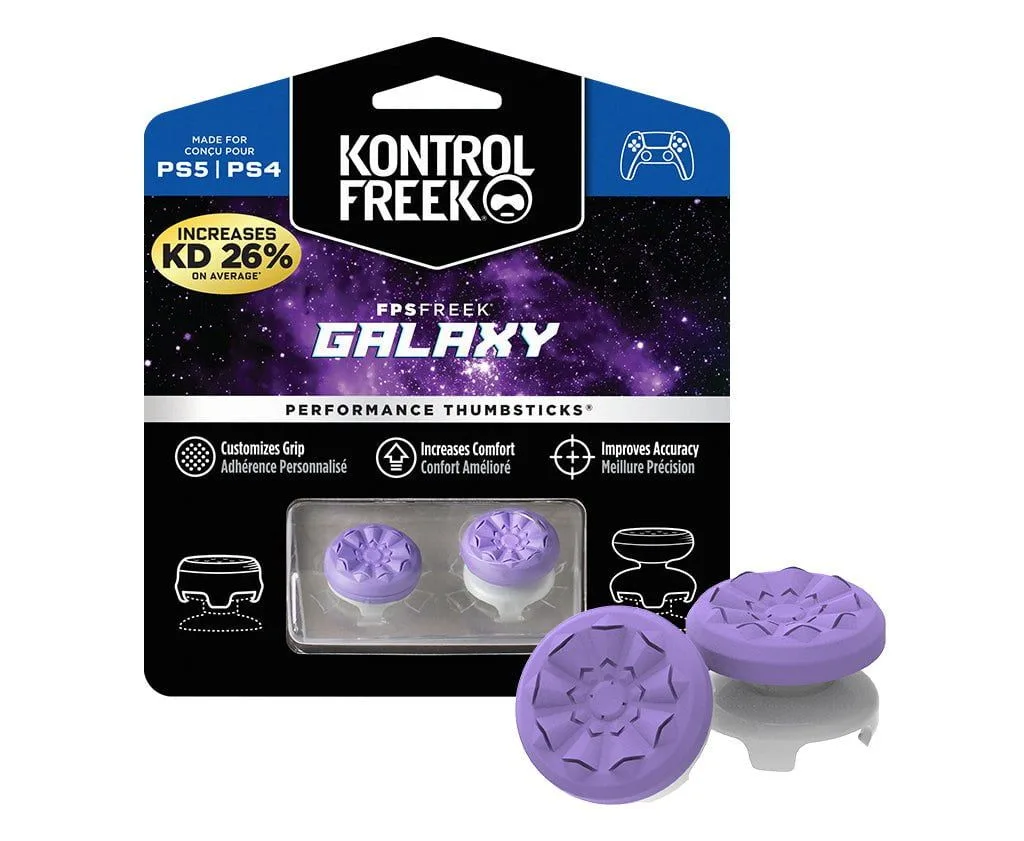
FPS Freek Galaxy
- PS5: Set Communication Method to “Use USB Cable” for wired-only mode.
- Xbox Series X: Plug in via USB-C—the console automatically prioritizes wired input.
- Consider adding thumb grips like the FPS Freek Galaxy for improved stick precision.
Upgrade Your HDMI Cable for Low-Latency 4K Gaming
The HDMI cable connecting your console to your display plays a critical role in latency. Older or lower-quality cables may not support the full bandwidth needed for 4K at 120Hz, forcing your console to reduce resolution or frame rate, which can introduce lag. For PS5 and Xbox Series X, an HDMI 2.1 cable is recommended for the best performance at high resolutions and refresh rates.
A premium option is the 12’ 8K Ultra Speed HDMI 2.1 Gaming Cable™, which is certified to handle 48Gbps bandwidth. This ensures your console can output 4K at 120Hz with HDR and variable refresh rate (VRR) without signal loss. Using a subpar cable can cause handshake issues or force your display into a lower-performance mode, adding milliseconds of delay. Investing in a high-speed HDMI 2.1 cable is a straightforward way to reduce input lag on PS5 and Xbox Series X.
- Use an HDMI 2.1 cable for 4K at 120Hz with VRR support.
- Avoid long or uncertified cables that may degrade signal quality.
- The 12’ 8K Ultra Speed HDMI 2.1 Gaming Cable™ is a reliable choice for low-latency gaming.
Fine-Tune Console Settings for Maximum Responsiveness
Both PS5 and Xbox Series X offer settings that can reduce input lag. On PS5, enable “Game Mode” in the display settings and turn off any post-processing effects like motion smoothing. Also, disable “HDCP” (High-bandwidth Digital Content Protection) when not streaming—this can reduce latency in some games. On Xbox Series X, go to Settings > General > TV & display options > Video modes and enable “Allow 4K,” “Allow HDR10,” and “Allow Variable Refresh Rate.” Set your refresh rate to 120Hz if your display supports it.
Additionally, consider using a wired network connection for online games to reduce network lag, which can compound with input lag. While not directly related to controller or cable latency, a stable Ethernet connection ensures that your inputs are sent and received without packet loss. Combining these console tweaks with hardware upgrades like the FPS Freek Galaxy and a quality HDMI cable will give you the most responsive setup possible.
- PS5: Enable Game Mode, disable HDCP, and set resolution to 4K at 120Hz if supported.
- Xbox Series X: Allow 4K, HDR, and VRR; set refresh rate to 120Hz.
- Use a wired Ethernet connection for online play to minimize network-induced lag.
Why Thumb Grips and Cables Matter for Input Lag Reduction
It might seem surprising that thumb grips can help reduce input lag, but the connection is real. When your thumbs slip on smooth analog sticks, you waste time readjusting, which adds to your reaction time. High-quality grips like the FPS Freek Galaxy provide a non-slip surface and a taller profile, allowing for quicker, more precise movements. This reduces the “dead zone” delay—the time it takes for the stick to register your intended direction.
Similarly, cables are often overlooked as a source of lag. A poor HDMI cable can cause signal retransmission or force your display into a lower bandwidth mode, introducing latency. Upgrading to the 12’ 8K Ultra Speed HDMI 2.1 Gaming Cable™ ensures that your console’s signal reaches your monitor without degradation. Together, these accessories form a low-latency foundation that complements your console’s native performance.
- Thumb grips improve stick control, reducing the time needed for precise inputs.
- High-quality HDMI cables prevent signal loss that can cause display-induced lag.
- Combining both upgrades maximizes your console’s potential for competitive play.
Reducing input lag on PS5 and Xbox Series X doesn’t require expensive equipment—just a few smart adjustments and the right accessories. By using a wired controller connection, enabling Game Mode, and upgrading to a high-speed HDMI cable, you can shave off valuable milliseconds. For even better control, consider adding the FPS Freek Galaxy thumb grips to your setup. Explore the full range of low-latency accessories at KontrolFreek to take your gaming to the next level.