If you use a KeySmart SmartCard to keep tabs on your wallet or keys, you already know how convenient Bluetooth tracking can be. But like all battery-powered devices, the SmartCard Gen 2 will eventually need a fresh battery to keep pinging your phone. Replacing it might sound tricky, but with the right steps, you can do it in just a few minutes.
In this guide, we'll walk you through the entire process of replacing the SmartCard battery. Whether you're a first-time user or just need a refresher, you'll learn exactly what tools you need, how to open the card safely, and how to choose the correct replacement battery. By the end, your tracker will be back to full strength, ready to help you find your essentials.
Why You Need to Replace Your SmartCard Battery
The KeySmart SmartCard is a slim Bluetooth tracker designed to slide into your wallet or attach to your key organizer. Over time, the internal coin cell battery drains, especially if you use features like the built-in finder or location history. When the battery gets low, your phone will alert you, and the tracker's range may shrink. Replacing the battery restores full performance and keeps your device working reliably.
Waiting too long to change the battery can lead to a dead tracker when you need it most—like when you've misplaced your wallet or keys. By learning how to replace the battery yourself, you save money and avoid downtime. Plus, it's an easy DIY task that requires no special skills.
- Tip: Always use a fresh, high-quality CR2032 battery for best results.
What You'll Need for the Replacement
Before you start, gather a few simple items. You'll need a CR2032 3V lithium coin cell battery (the standard size for most Bluetooth trackers), a small Phillips-head screwdriver, and a thin plastic opening tool or a flathead screwdriver. A clean, well-lit workspace also helps prevent losing tiny screws.
If you don't have a plastic opening tool, a guitar pick or a sturdy plastic card works just as well. Avoid using metal tools that could scratch the SmartCard's surface. You can find CR2032 batteries at most electronics stores, pharmacies, or online retailers.
- Check your SmartCard model: Gen 2 uses CR2032; older models may differ.
Step-by-Step Battery Replacement Process
Start by placing your SmartCard face down on a soft cloth to avoid scratches. Locate the small screw on the back of the card—usually near the top or bottom edge. Use your Phillips-head screwdriver to gently remove it. Set the screw aside in a safe spot, as it's easy to lose.
Next, use your plastic opening tool to carefully pry open the card's casing. Insert the tool into the seam and slide it around the edge. The card should separate into two halves. Inside, you'll see the circuit board and the old battery. Note the battery's orientation (positive side up) before removing it.
Lift out the old CR2032 battery with your fingers or the tool. Insert the new battery with the positive (+) side facing up, just like the original. Press it firmly into place. Then, align the two halves of the card and press them together until they snap shut. Finally, reinsert the screw and tighten it gently—don't overtighten.
After reassembly, test your SmartCard by opening the KeySmart app on your phone. The tracker should connect immediately. If it doesn't, check that the battery is seated correctly and that the screw is snug. Your tracker is now ready to use again.
- Pro tip: Dispose of the old battery properly at a recycling center.
Common Mistakes to Avoid
One common mistake is using the wrong battery type. Only use CR2032 batteries for the SmartCard Gen 2. Other sizes like CR2025 or CR2016 are too thin and may not make proper contact. Another error is forcing the card open with metal tools, which can damage the casing or circuit board.
Also, be careful not to lose the tiny screw. If you do, you can often find replacement screws online or at a hardware store. Finally, avoid touching the battery's flat surfaces with your fingers—oils can reduce performance. Use a cloth or gloves if possible.
- Remember: Always check the battery polarity before closing the card.
Extending the Life of Your New Battery
To get the most out of your replacement battery, adjust your SmartCard's settings in the app. Lower the update frequency or turn off location history if you don't need it daily. Keeping the tracker at room temperature also helps preserve battery life—extreme heat or cold can drain it faster.
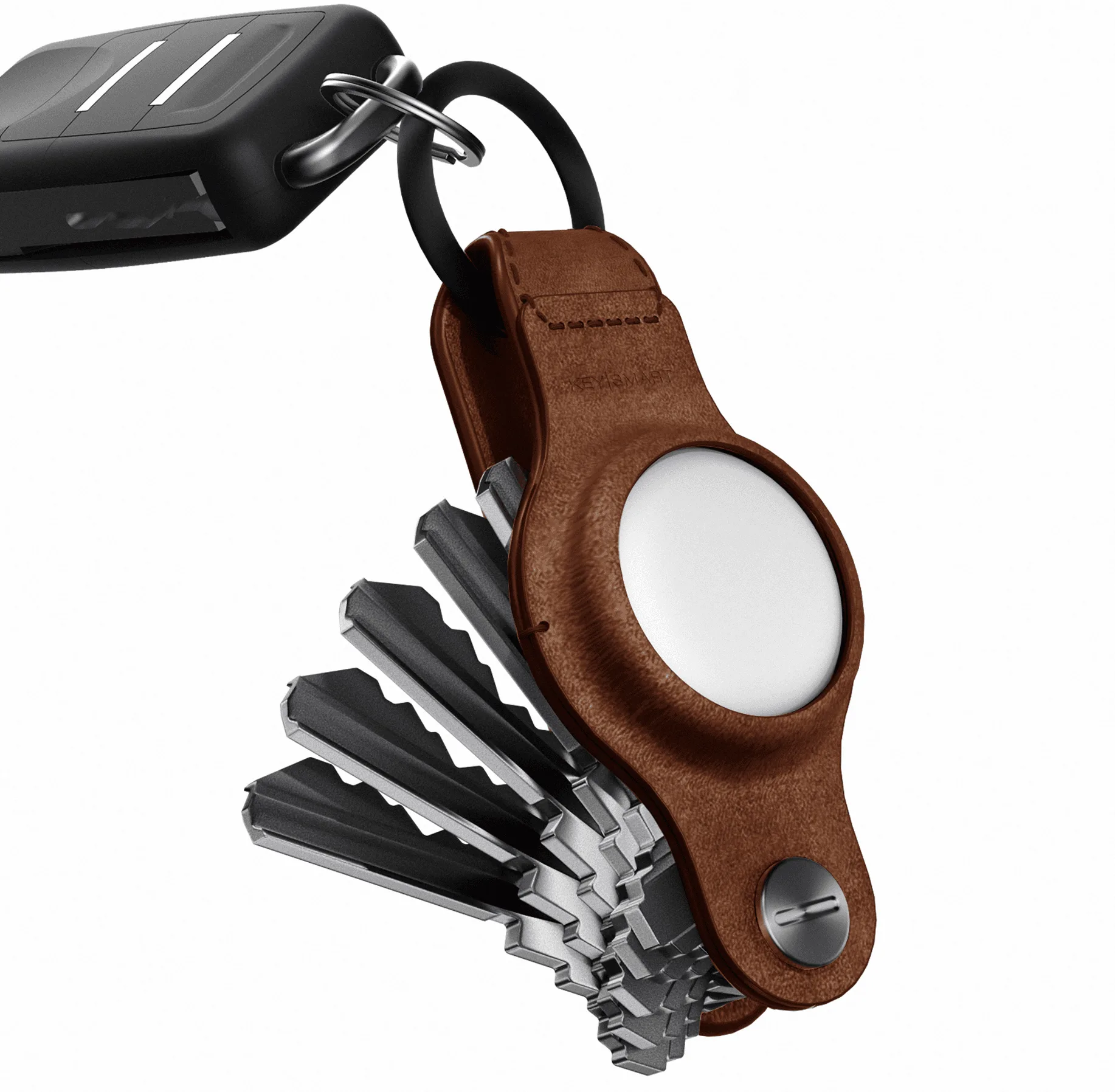
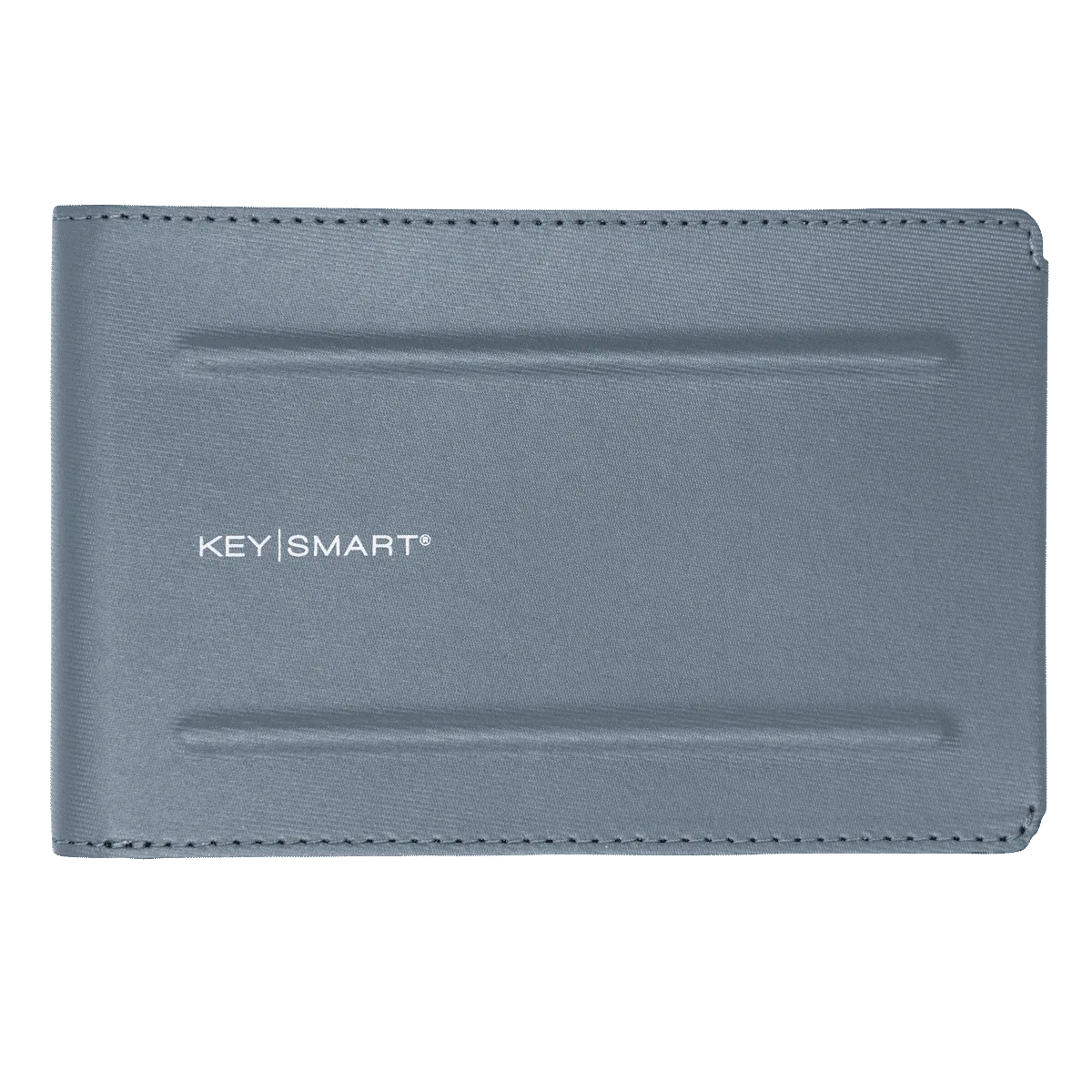
If you carry your SmartCard in a wallet that's always in your pocket, consider removing it when not in use for extended periods. Pairing it with a KeySmart key organizer or a slim wallet like the Urban Union Slim Wallet can also reduce wear and tear on the card.
- Did you know? A fresh CR2032 battery typically lasts 6-12 months with normal use.
Replacing your SmartCard battery is a quick, simple task that keeps your Bluetooth tracker working reliably. With just a screwdriver, a new CR2032 battery, and a few minutes, you can avoid the frustration of a dead tracker. If you're looking to upgrade your entire carry system, explore the KeySmart Flex key organizer to pair with your SmartCard for a truly streamlined EDC.