Quick answer
Scanning 35mm negative strips at home requires a clean workspace, a scanner with a film holder, and careful handling to avoid dust and scratches. The key is to keep the negatives flat and choose the right resolution for your intended use.
Why scanning at home gives you more control
Home scanning lets you decide the resolution, color balance, and file format for each frame. You can scan only the frames you want and re-scan later if your needs change. The trade-off is that you need to be patient with dust removal and flatness — a poorly handled strip can produce soft or speckled scans.
Choosing a scan resolution
Higher resolution captures more detail but creates larger files and slower scans. For social media or small prints, 1200–2400 dpi is enough. For large prints or archival work, 3200–4800 dpi is better. If you plan to crop heavily, go higher. The scanner's optical resolution is the real limit — interpolation beyond that adds no detail.
Step-by-step guide to scanning 35mm negative strips
- Prepare your workspace and tools: Clean your scanner glass with a microfiber cloth and isopropyl alcohol. Wear lint-free gloves when handling negatives to avoid fingerprints. Use a blower or anti-static brush to remove dust from the film strip before placing it in the holder. Even a tiny speck of dust can show up as a white spot on the scan. Re-cleaning is faster than retouching later.
- Load the negative strip into the film holder: Place the strip emulsion side down (the duller side) so the scanner reads through the base. Gently press the strip flat — most holders have a spring or glass insert. Avoid touching the image area. If the strip curls, weigh it down with a clean glass plate (if your scanner allows). A curved negative will produce soft focus. Check that the entire frame lies flat before scanning.
- Set the scan resolution and file type: In your scanning software, choose an optical resolution of at least 2400 dpi for general use, or 3200–4800 dpi for large prints. Save as TIFF or high-quality JPEG. For color negatives, enable the software's color inversion or set it to positive mode and invert later. Scanning at 4800 dpi on a consumer flatbed can take several minutes per frame. For web use, 1200 dpi is often enough and saves time.
- Preview and adjust exposure: Run a preview scan. Check that the histogram doesn't clip highlights or shadows. Adjust brightness, contrast, and color balance before the final scan. For black-and-white negatives, set a gray point on a neutral area. For color, use the film profile if available. Overexposing the scan can blow out highlight detail that can't be recovered. It's safer to scan slightly flat and adjust in post.
- Scan and save with a consistent naming system: Scan each frame or strip and save files with a clear naming convention (e.g., Roll01_Strip02_Frame03). Keep the original scans untouched and work from copies for editing. Store the TIFF master files on two drives or cloud storage. A consistent file name saves hours of sorting later. Renaming after scanning is tedious — plan it before you start.
Product fact
-
35mm Negative Strip Scans: This service is priced per individual strip. Most film strips will have 4 frames, but each strip may contain anywhere between 2 and 6 frames. If you only need a few frames digitized, ordering per-strip scans can be more cost-effective than scanning an entire roll yourself, especially when you factor in your time and equipment.
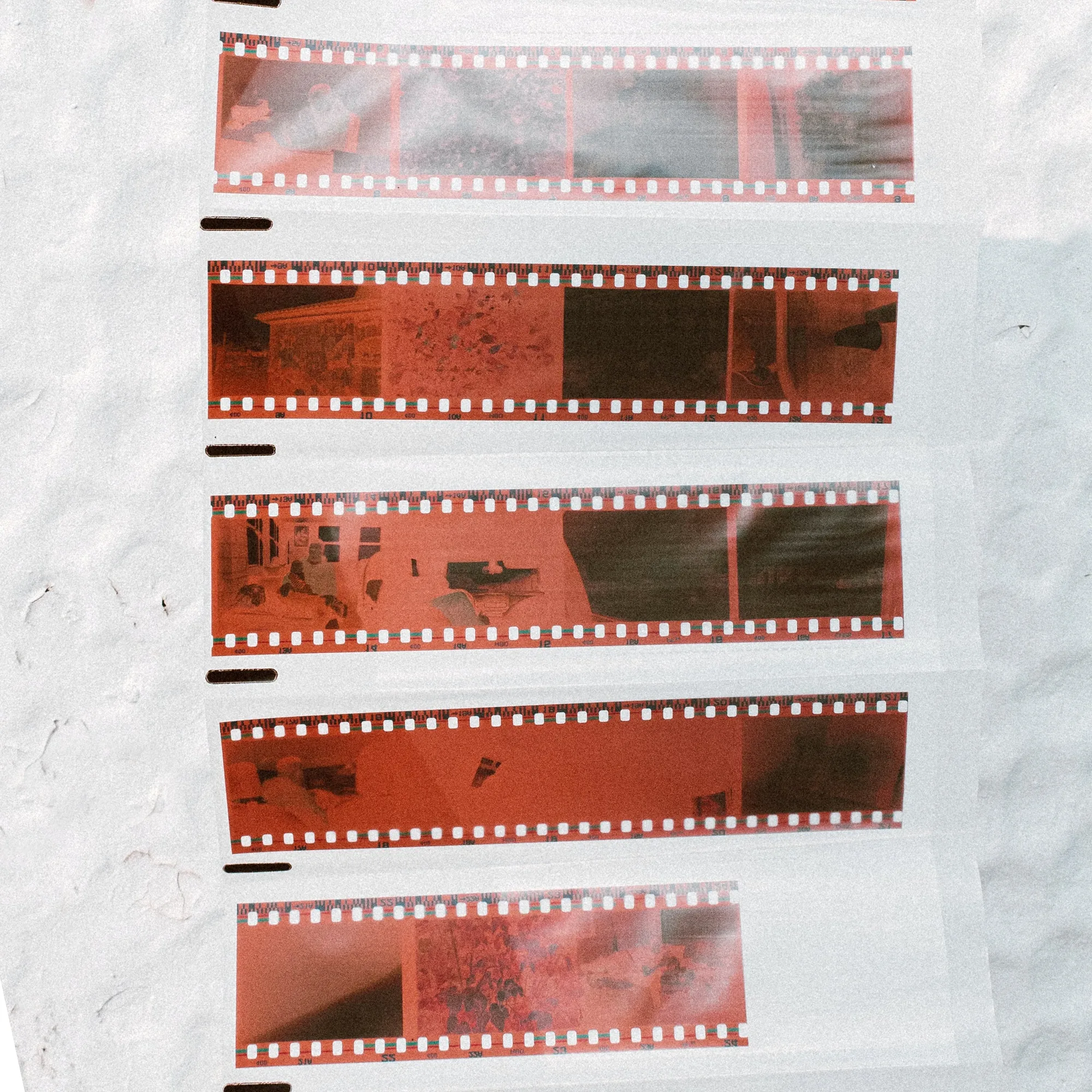
35mm Negative Strip Scans