The PODIUM 3-in-1 Wireless Charger is a versatile charging station designed to power up your iPhone, Apple Watch, and AirPods simultaneously. Whether you're a tech enthusiast or a busy professional, this guide will walk you through the setup process and help you get the most out of your device.
In this article, we'll cover unboxing, placement, alignment, and troubleshooting tips. By the end, you'll be able to charge all your devices efficiently and safely. Let's dive in.
Unboxing and What's in the Box
When you receive your PODIUM 3-in-1 Wireless Charger, the box includes the charging station itself, a power adapter (usually a 30W USB-C wall charger), and a USB-C to USB-C cable. It's essential to use the included power adapter to ensure optimal performance, as lower-wattage adapters may not provide enough power for all three devices.
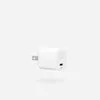
USB-C to USB-C cable
Before you start, find a clean, flat surface near a power outlet. Avoid placing the charger on metal surfaces or near water. The PODIUM is designed to be compact, so it fits nicely on a nightstand or desk.
- Check that all components are included: charging pad, power adapter, and cable.
- Use only the provided 30W adapter (or higher) for best results.
- Place the charger on a stable, non-metallic surface.
Connecting the Power and Positioning the Charger
Connect the USB-C cable to the charging station and the power adapter, then plug it into a wall outlet. The LED indicator on the PODIUM will light up to confirm it's powered. If the light doesn't turn on, double-check the connections and try a different outlet.
Position the PODIUM so that the phone charging area is easily accessible. The charger has a dedicated spot for your Apple Watch (with a magnetic puck) and a flat area for your AirPods. Make sure the charger is not upside down or tilted, as this can affect alignment.
- The LED indicator should glow to show it's ready.
- Ensure the Apple Watch puck is facing up and the phone area is flat.
- Keep the charger away from metal objects that could interfere with wireless charging.
Charging Your iPhone: Placement and Alignment
To charge your iPhone, simply place it on the designated phone area. The PODIUM uses MagSafe technology, so it will automatically align with your iPhone's magnets. For iPhones without MagSafe, you'll need to align the phone's charging coil with the center of the pad. Look for the alignment guide or the small circle on the charger.
Once placed, your iPhone should start charging immediately. If it doesn't, adjust the position until the charging icon appears. For best results, remove thick cases or any metal attachments that might interfere with the magnetic connection.
- For MagSafe iPhones, the magnets will snap into place.
- For non-MagSafe iPhones, align the center of the phone with the charging coil.
- Remove thick cases or pop sockets to ensure proper contact.
Charging Your Apple Watch and AirPods
The Apple Watch charging puck is located on the back of the PODIUM. To charge your watch, simply place it on the puck, and it will magnetically attach. The watch will start charging automatically. Ensure the watch is oriented correctly; the magnetic alignment will guide you.
For AirPods, place the case on the flat charging area. The AirPods Pro and AirPods (with wireless charging case) will charge when placed on the pad. Make sure the case is centered and not upside down. The LED on the front of the case will indicate charging status.
- The Apple Watch puck is magnetic; it will snap into place.
- AirPods cases should be placed with the LED facing you for easy status check.
- If the AirPods are not charging, flip the case or adjust its position.
Troubleshooting Common Issues
If your devices aren't charging, first check the power source and cable connections. Ensure the charging station is plugged in and the LED is on. If the LED is off, try a different outlet or cable.
Alignment is key. If your iPhone or AirPods aren't charging, nudge them slightly until the charging indicator appears. For Apple Watch, make sure the back of the watch is in full contact with the puck.
If you're using a thick case, consider removing it. The PODIUM works with most cases, but some thicker or metal cases may block the magnetic connection.
- Check the LED indicator to confirm power.
- Adjust device placement until charging starts.
- Remove thick cases to improve alignment.
Tips for Optimal Charging and Maintenance
To maintain the longevity of your PODIUM, keep it clean and free of dust. Use a soft, dry cloth to wipe the surfaces. Avoid using liquids or abrasive cleaners.
For faster charging, use a higher-wattage adapter like the WALLY Stretch 35W Wall Charger or WALLY Pro 20 Portable Wall Charger. The PODIUM supports up to 15W for phones, but the adapter must provide sufficient power for all devices simultaneously.
When traveling, consider pairing the PODIUM with a portable charger like the CHAMP Wireless 5K Magnetic Portable Charger for on-the-go charging.
- Clean the charging surfaces regularly to prevent dust buildup.
- Use a high-wattage adapter for optimal performance.
- Pair with a portable charger for travel convenience.
Setting up your PODIUM 3-in-1 Wireless Charger is straightforward, and with these steps, you'll be charging all your devices in no time. Remember to align your devices properly and use a compatible power adapter. For a reliable power source, consider the WALLY Stretch 35W Wall Charger, which pairs perfectly with the PODIUM. Happy charging!