Quick Answer
To set up your Holiday Toniebox 2 Set, unbox the Toniebox 2 and included Tonies, charge the box fully, download the Toniebox parent app, connect to Wi-Fi, and register the device before placing a Tonie on top to start playing.
What’s in the Holiday Toniebox 2 Set
The Holiday Toniebox 2 Set includes a Sunset Red Toniebox 2 and five Tonies: Santa Creative-Tonie, Piney: The Lonesome Pine Tonie, Favorite Masterpieces: The Nutcracker Tonie, The Elf on the Shelf Tonie, and Favorite Children’s Songs: Holiday Songs 2 Tonie. Knowing what’s inside helps you plan which Tonie to try first and ensures nothing is missing before you start.
Why Wi-Fi Setup Matters
The Toniebox 2 needs a stable Wi-Fi connection to download audio content and receive updates. Without it, the box won’t play any Tonies. Make sure your home network is on 2.4 GHz or a mixed band, as the Toniebox doesn’t support 5 GHz-only networks. If you run into trouble, check your router settings before contacting support.
Step-by-Step Setup Guide
- Unbox and Charge the Toniebox 2: Remove the Toniebox 2 from the packaging. Plug the included USB-C cable into the box and a power adapter (not included). Charge for about 3 hours until the ears stop pulsing. A common mistake is using a low-power charger, which can slow charging or prevent it entirely. Use a 5V/2A adapter for reliable charging.
- Download the Toniebox Parent App: On your smartphone, go to the App Store or Google Play and search for “Toniebox.” Download the official parent app. Create an account or log in if you already have one. The app is required to connect the Toniebox to Wi-Fi and manage content. Keep your phone nearby during the entire setup process.
- Connect to Wi-Fi: In the app, follow the prompts to put the Toniebox into pairing mode (press and hold the ears). Select your home Wi-Fi network and enter the password. The box will confirm with a chime. A common mistake is entering the wrong password or selecting a 5 GHz network—the Toniebox only works on 2.4 GHz. If connection fails, restart your router and try again.
- Register the Toniebox: After Wi-Fi is connected, the app will guide you to name your Toniebox and register it to your account. This step links the device to your family’s content library and enables future updates. Write down the Toniebox name you choose so you can identify it in the app later.
- Place a Tonie on Top and Play: Choose any Tonie from the set—for example, the Santa Creative-Tonie—and place it on top of the Toniebox. The box will automatically start playing the audio. Use the ears to control volume (tap sides) and skip tracks (tip the box). A common mistake is placing the Tonie upside down; the character should face upward. Test all five Tonies to ensure they play correctly.
Product Facts
-
Holiday Toniebox 2 Set: This set contains a Sunset Red Toniebox 2 and five holiday-themed Tonies: Santa Creative-Tonie, Piney: The Lonesome Pine Tonie, Favorite Masterpieces: The Nutcracker Tonie, The Elf on the Shelf Tonie, and Favorite Children’s Songs: Holiday Songs 2 Tonie. You get a complete audio entertainment bundle for the holidays right out of the box, so you don’t need to buy additional Tonies immediately.
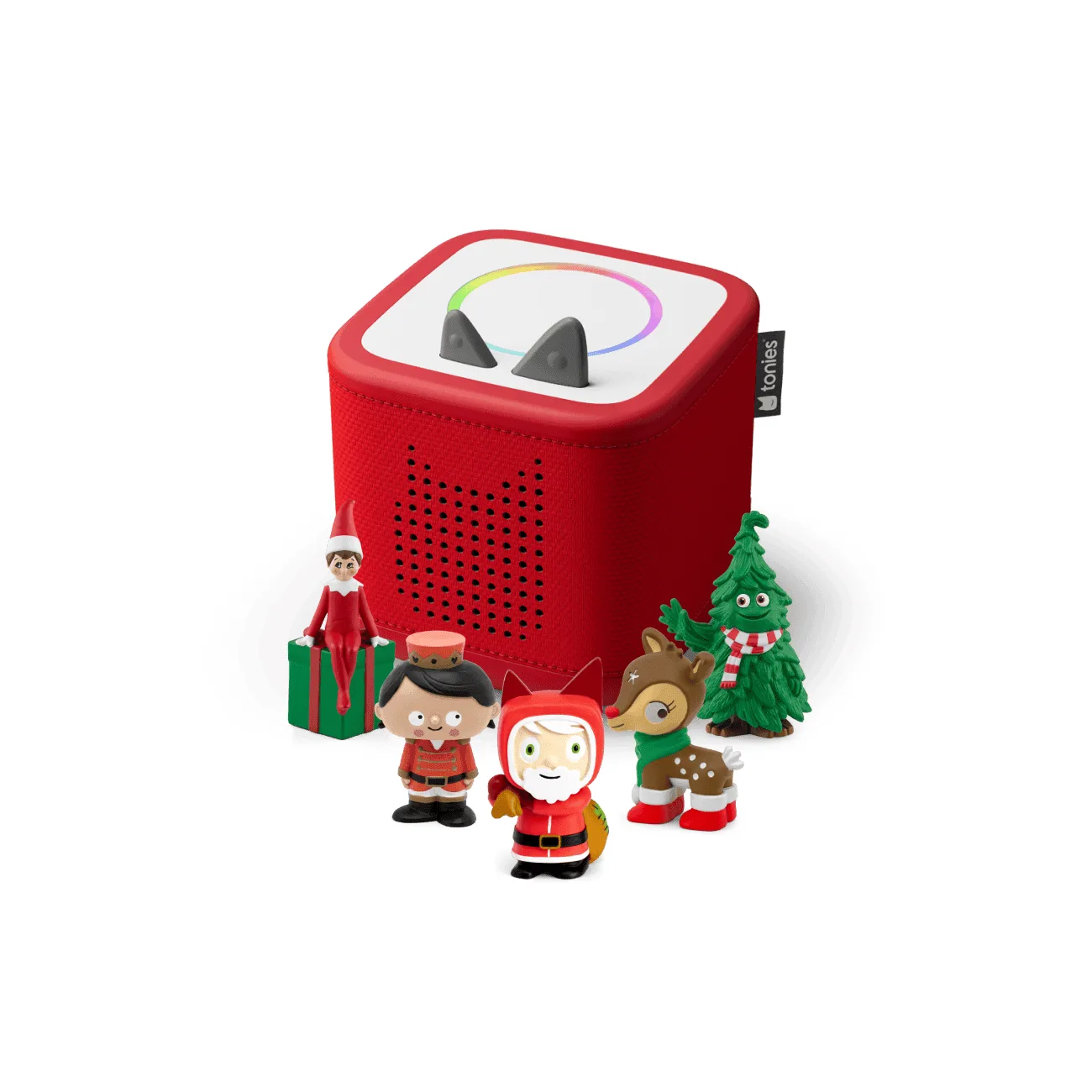
Holiday Toniebox 2 Set