Quick answer
To set up an original Xbox 360 on a modern TV, connect the AV cable, select the correct input, and adjust the console's display settings to match your TV's resolution.
Why your original Xbox 360 may need extra steps on a modern TV
Modern TVs often lack the composite or component inputs that older consoles like the original Xbox 360 rely on. If your TV only has HDMI ports, you will need an adapter or a different cable type to get a picture.
The original Xbox 360 does not have a built-in HDMI port, so you must use the AV port on the back. The included third-party AV cable in a refurbished unit works with most TVs that still have composite (yellow/red/white) or component (red/green/blue) inputs.
Common display issues and how to avoid them
If you see no picture or a distorted image, the most common cause is an incorrect input source on the TV or a resolution mismatch. The Xbox 360 defaults to 480p or 720p, which most modern TVs support, but older games may output at 480i, which some TVs cannot handle.
Another frequent issue is audio but no video. This usually means the TV does not support the console's video signal. Try switching to a lower resolution by holding the controller sync button and the Y button on startup.
Step-by-step Xbox 360 setup for a modern TV
- Connect the AV cable to the console and TV: Plug the third-party AV cable into the AV port on the back of the Xbox 360. Connect the yellow plug to the composite video input on your TV (or use a component adapter if available). Match the red and white plugs to the corresponding audio inputs. Common mistake: Plugging the yellow video plug into a green component input will give no picture. Use the correct composite or component input.
- Select the correct TV input source: Turn on your TV and use the remote to select the input that matches the port you used (e.g., AV, Composite, or Component). If you are using an HDMI adapter, select the HDMI input. If you see no signal, cycle through all inputs—many TVs label them differently (e.g., Video 1, AV1).
- Power on the Xbox 360 and adjust display settings: Connect the third-party power supply, turn on the console, and wait for the dashboard to load. Go to Settings > System > Console Settings > Display. Choose the resolution that matches your TV (720p or 1080i are safe for most modern TVs). If the screen goes black after changing resolution, hold the sync button and the Y button on startup to reset to default settings.
- Test audio and video with a game or dashboard: Insert a game or navigate the dashboard to confirm both audio and video work. If you hear sound but no picture, your TV may not support the current resolution—reset to 480p using the Y+sync method. No audio? Check that the red and white plugs are firmly connected and that your TV volume is not muted. Some TVs require separate audio input selection.
Product facts
-
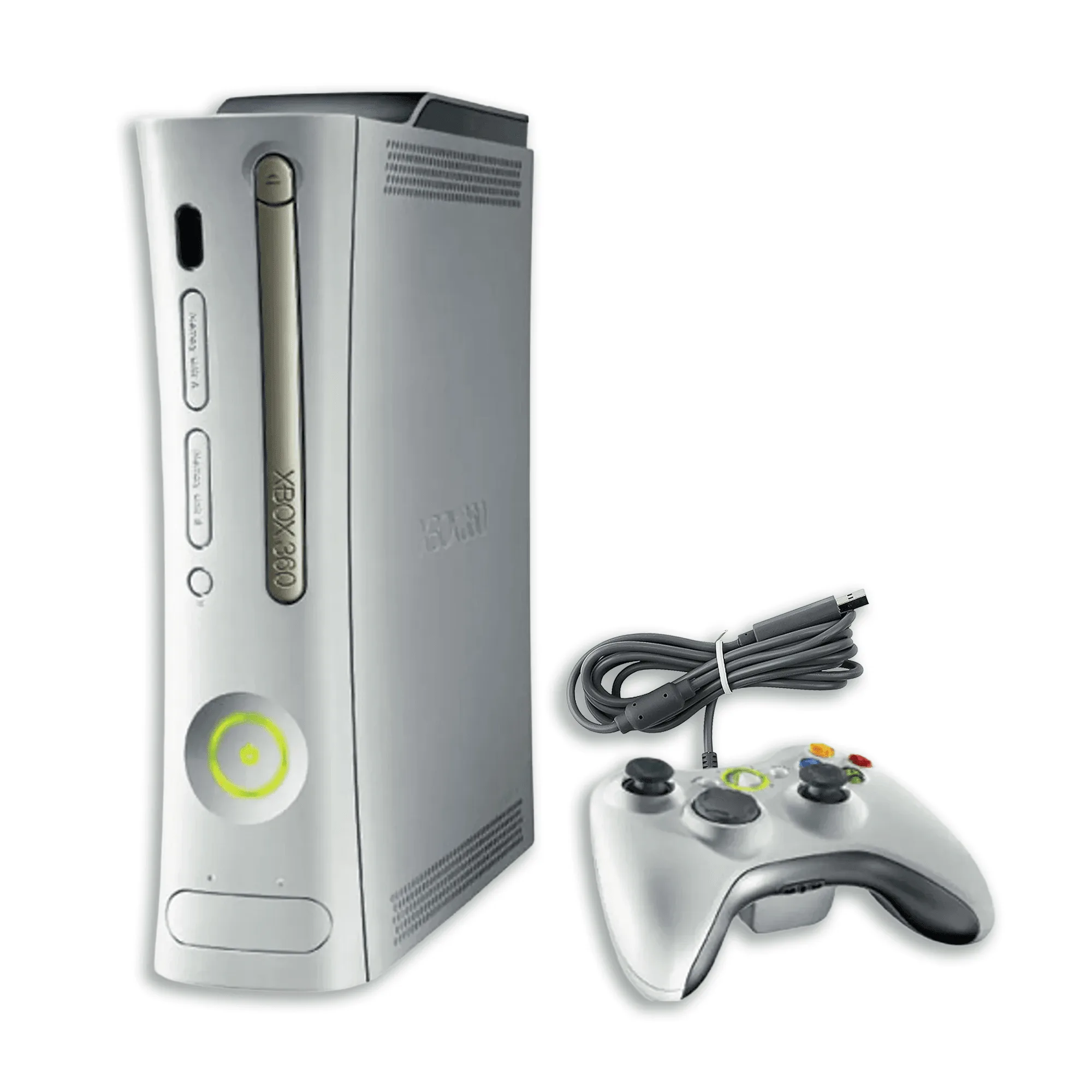
Original Xbox 360 AV Console: The Retro vGames refurbished Xbox 360 includes a third-party AV cable and a full-year functional warranty. You can start playing right away without hunting for cables, and the warranty covers any defects during the first year.
Original Xbox 360 AV Console