Quick answer
Charge the Toniebox fully, connect it to your 2.4 GHz Wi-Fi through the companion app, then place the Pride Tales Tonie on the magnetic top and press an ear to start playback. Do the first setup before handing the box to a child so you can confirm the volume and connection.
Why the first setup matters more than the figurine
The Toniebox is the speaker and the Tonie is the content key. A Pride Tales Tonie will not play until the box has power, a network connection and a completed first-time setup. If you skip the app step, the box may turn on but stay silent, which often looks like a faulty figurine.
Tonies audio stories for kids are designed for child-led switching, so the simpler the setup, the easier it is for a child to use independently later. Keep the app login details somewhere you can find them, because reconnecting after a router change is the most common reason a box stops responding.
Where the Pride Tales Tonie fits in
Pride Tales is one Tonie in a wider library. The box reads whatever Tonie is placed on top, so you can move between audiobooks, music and other audio adventures by swapping characters. That makes it a flexible first Tonie rather than a one-off purchase.
The catalog does not list a runtime or age rating for this Tonie, so check the packaging if you need a specific listening length or age guidance before buying. The box itself is sold separately, which is the main cost to plan for.
Toniebox setup and Pride Tales steps
- Charge the Toniebox before anything else: Plug the box in and leave it charging until the battery indicator shows a full charge. Do not try the first setup on a partly charged box. A box that powers on but drops out mid-setup is usually a charging problem, not a Wi-Fi problem.
- Download the companion app and create your account: Install the official Tonies app on your phone, sign in or create an account, and keep the login details. The app is where the box is registered to your household. Write the account email and password down now; you will need them if you ever reset or replace the box.
- Connect the box to a 2.4 GHz Wi-Fi network: Follow the app's pairing prompts and choose your home network. If your router splits 2.4 GHz and 5 GHz into separate names, pick the 2.4 GHz one. If pairing fails, move the box closer to the router before changing any other settings.
- Set the volume and test the box without a Tonie: Use the app or the box controls to set a low starting volume, then press an ear to check the box responds. Do this before a child uses it. Set the volume limit before the first listen, not after; children often press the ears repeatedly.
- Place the Pride Tales Tonie on the magnetic top: Set the figurine down so it sits flat and centered on the box's top surface. It should hold itself in place magnetically. If nothing plays, lift and reseat the Tonie once; a slightly off-center figure is the most common cause of silence.
- Press an ear to start and switch content: Press one ear to play or pause. To change content, remove the Pride Tales Tonie and place a different Tonie character on the box. Teach the child to lift the figure rather than pull it sideways, which keeps the magnetic contact clean.
Product facts
-
Tonies - Favourite Classics: Pride Tales: The Pride Tales Tonie attaches magnetically to the Toniebox and is switched with other Tonie characters to jump between audiobooks, music or your own audio adventures. You can treat it as one part of a rotating library rather than a single fixed story, so setup only needs to be done once per box.
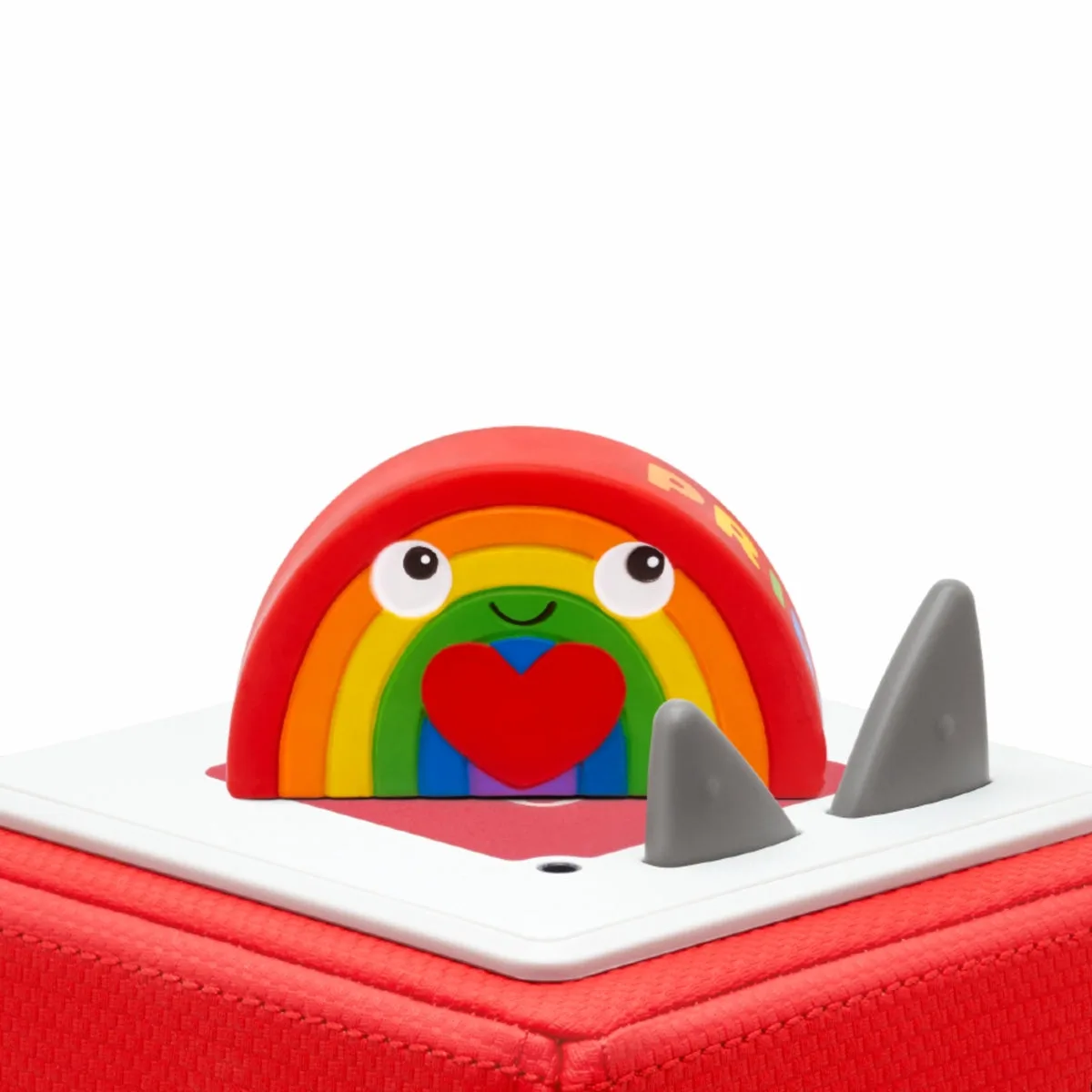
Tonies - Favourite Classics: Pride Tales
-
Tonies - Favourite Classics: Pride Tales: This Tonie is produced in partnership with Mermaid, a UK LGBTQ+ charity supporting trans, non-binary and gender-diverse people. If the content's values matter to your family, this gives you a concrete reason to choose this title over a generic story Tonie.