Quick answer
To set up the Yale Access Upgrade Kit with Wi-Fi, first confirm your Assure lock is compatible, then swap the existing smart module for the included Wi-Fi module, download the Yale Access app, and pair the lock. The kit adds Wi-Fi and Bluetooth connectivity to compatible Assure locks, so you can control and monitor your door from anywhere.
Before you start: check compatibility and gather tools
The Yale Access Upgrade Kit with Wi-Fi is designed for compatible Assure locks, so verify your lock model before purchasing or installing. You will need the kit itself, a Phillips-head screwdriver, your home Wi-Fi network name and password (2.4 GHz is typically required for smart home devices), and a smartphone with the Yale Access app installed.
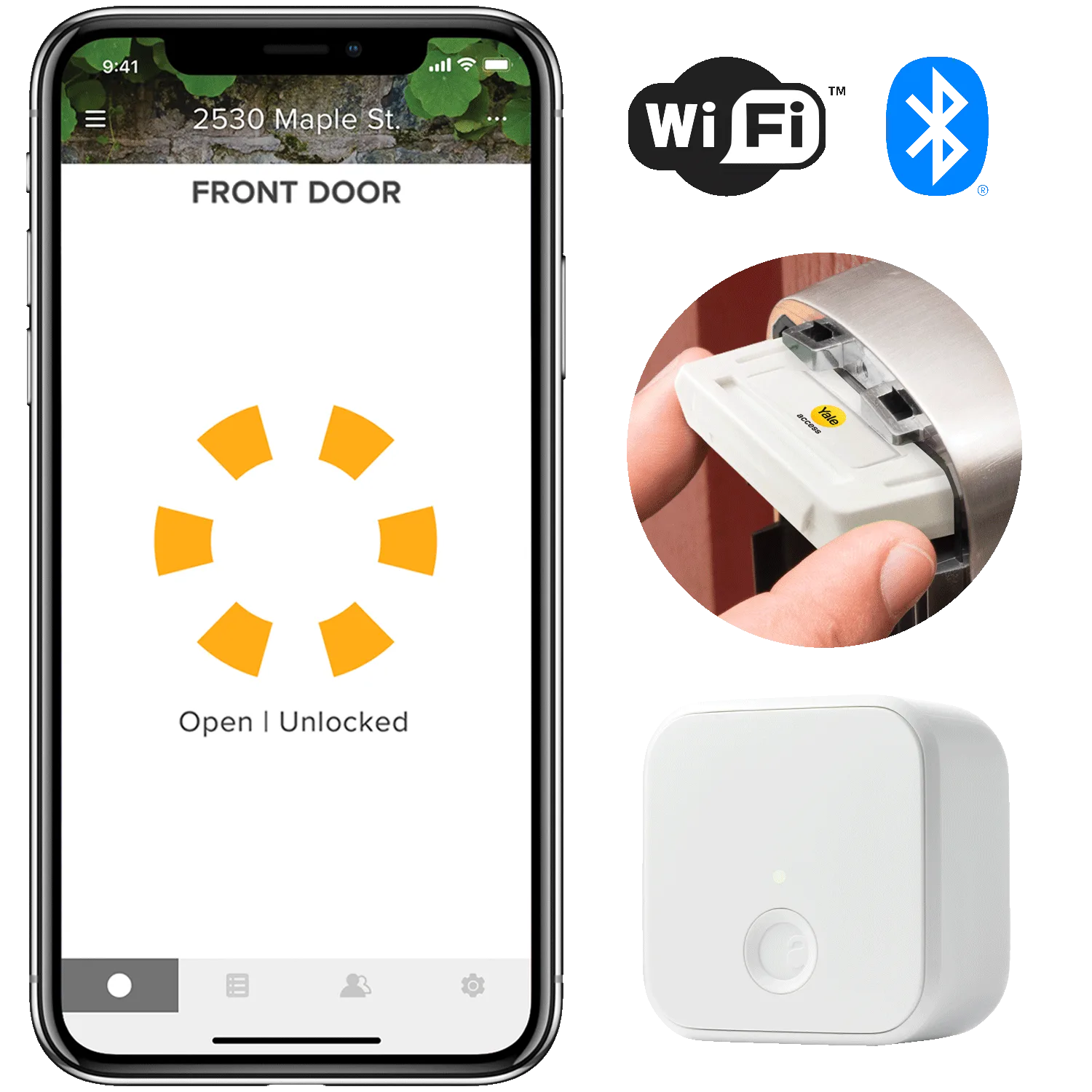
If your Assure lock is already working with a different smart module (such as Z-Wave or Zigbee), you can replace it with the Wi-Fi module from this kit. The kit is offered as a Smart Module in the N/A finish and includes Wi-Fi and Bluetooth technology. It is compatible with Amazon Alexa and Apple HomeKit, so you can integrate it into those ecosystems after setup.
Remove the old module and insert the Wi-Fi module
Start by removing the battery cover from the interior side of your Assure lock. Locate the existing smart module (a small rectangular cartridge) and slide it out. If your lock did not have a module installed, there will be an empty slot. Insert the Yale Access Upgrade Kit module into that slot, making sure it clicks into place. Reattach the battery cover.
A common mistake is forcing the module in the wrong orientation. It should slide in smoothly; if it does not, flip it and try again. Do not bend the connector pins.
Complete the Yale Access app setup and pair your lock
Open the Yale Access app on your smartphone and create an account or sign in. Tap the plus icon to add a new device, then select your Assure lock model from the list. The app will guide you through a pairing process. When prompted, press the button on the interior side of the lock to put it into pairing mode. The app will then ask for your Wi-Fi network credentials to connect the lock to your home network.
Make sure your phone is connected to the same 2.4 GHz Wi-Fi network you want the lock to use. If the pairing fails, move your phone closer to the lock and try again. Once connected, you can name your lock, assign entry codes, and enable features like Auto-Lock with DoorSense (if your lock supports it).
Step-by-step setup checklist
- Verify compatibility: Check that your Assure lock is listed as compatible with the Yale Access Upgrade Kit. This kit works with Assure locks, but not all models or generations are supported. If unsure, consult the Yale compatibility guide or support before removing your existing module.
- Power down and remove the old module: Remove the battery cover and take out the existing smart module (if present). Set it aside in case you need it later. Do not force the module; it should slide out easily.
- Insert the Wi-Fi module: Slide the Yale Access Upgrade Kit module into the empty slot until it clicks. Reattach the battery cover. The module only fits one way; if it resists, flip it.
- Download the Yale Access app and create an account: Install the app from your phone's app store and sign up or log in. This app is required to pair and manage your lock. Use a strong password and enable two-factor authentication if available.
- Pair the lock with the app: In the app, add a device, select your lock model, and follow the prompts. Put the lock in pairing mode when instructed. Keep your phone within a few feet of the lock during pairing.
- Connect to Wi-Fi: Enter your 2.4 GHz Wi-Fi network name and password when prompted. The lock will connect and appear in the app. If connection fails, check that your Wi-Fi password is correct and that the signal reaches the lock.
- Test and customize: Lock and unlock the door using the app to confirm remote control works. Set up entry codes, auto-lock, and integrations with Alexa or HomeKit as desired. Run a final test from outside your home network (using cellular data) to confirm remote access.
Product facts
- Yale Access Upgrade Kit with WiFi For Assure Locks: The Yale Access Upgrade Kit with WiFi for Assure Locks is an accessory designed to add Wi-Fi and Bluetooth connectivity to compatible Assure locks. It is offered as a Smart Module in the N/A finish and is compatible with Amazon Alexa and Apple HomeKit. This kit lets you control your Assure lock remotely and integrate it with popular smart home systems, so you can lock or unlock from anywhere and include the lock in voice commands or automations.
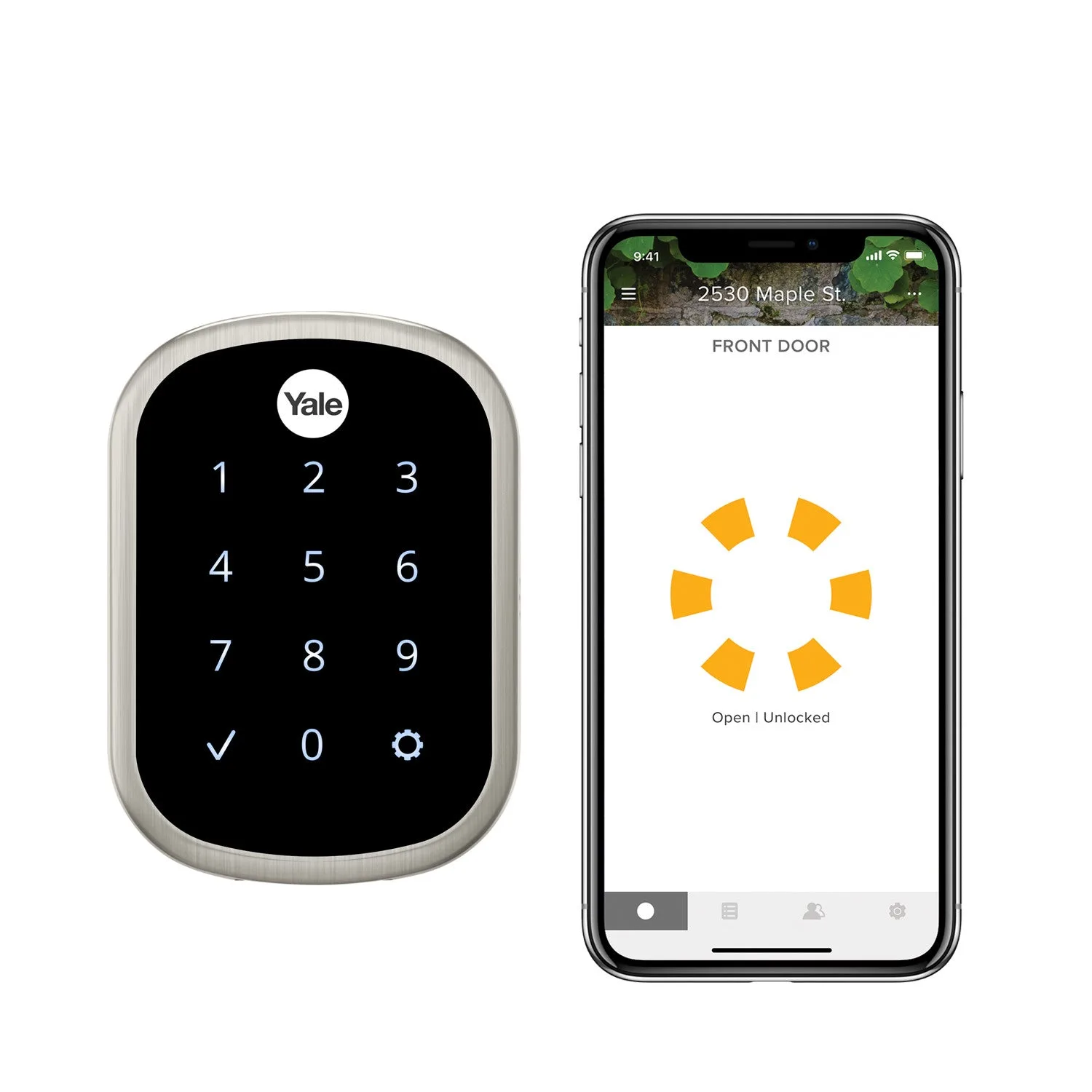
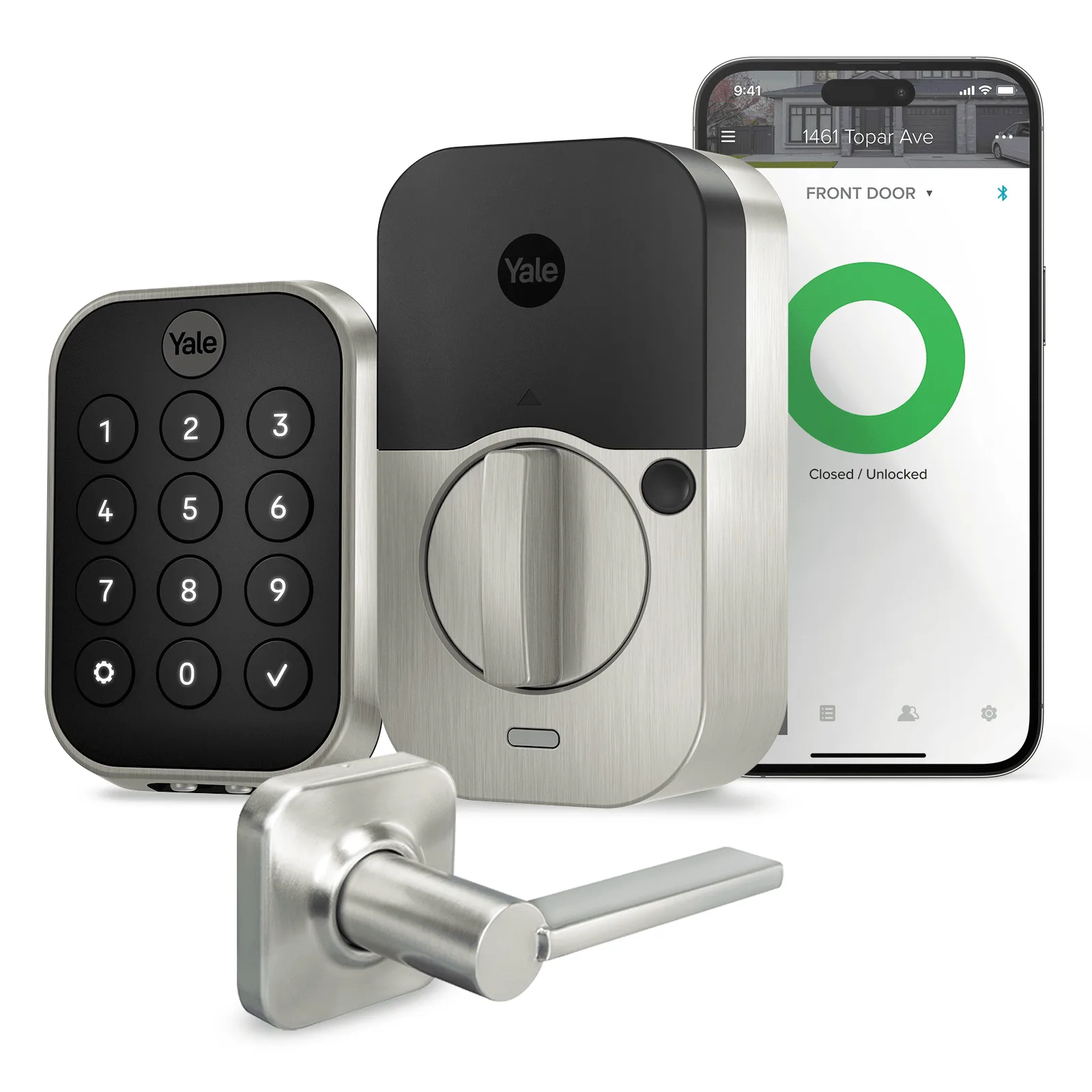
- Yale Assure Lock SL with: The Yale Assure Lock SL with is a key-free touchscreen deadbolt that lets you unlock with a 4-8 digit entry code and lock by tapping the keypad. If you have this lock, the Upgrade Kit adds Wi-Fi so you can manage codes and monitor access remotely, while keeping the key-free convenience.