Quick answer
Digital illustration packs are ideal for creating custom wallpapers because they include high-resolution files and alternative variations that fit different screen sizes. Start by selecting the right file format and crop to your device's aspect ratio.
Why illustration packs work well for wallpapers
Unlike single images, illustration packs often contain multiple variations of the same artwork—different poses, color schemes, or compositions. This gives you flexibility to choose a version that best fits your screen orientation and personal style.
High-resolution files (common in Tier 3 packs) ensure the artwork stays sharp even on large monitors or high-DPI displays. Lower-resolution images can look pixelated when stretched, so pack files give you a cleaner result.
Choosing the right file format
Most illustration packs provide PSD or CLIP files alongside standard image formats. For wallpapers, export a flattened PNG or JPEG at your screen's native resolution. PSD files are useful if you want to adjust colors or remove elements before setting the wallpaper.
If the pack includes timelapse videos or WIP files, those are not suitable for wallpapers—stick to the final high-res renders.
Steps to set up your illustration pack as a wallpaper
- Check your device's aspect ratio: Find your screen resolution in system settings (e.g., 1920x1080 for 16:9, 2560x1440 for 16:10). Write down the width and height. Common mistake: using a square crop on a widescreen monitor leaves black bars. Always match the aspect ratio.
- Select the best file from the pack: Open the pack folder and look for the highest-resolution PNG or JPEG. If the pack has multiple variations, pick the one whose composition fits your screen orientation (landscape vs. portrait). Avoid using timelapse videos or WIP files—they are not final renders and will look incomplete.
- Crop and resize in an image editor: Open the file in Photoshop, GIMP, or any free photo editor. Set the canvas to your screen's resolution. Crop or scale the image so the focal point is centered and no important details are cut off. Common mistake: scaling up a small image makes it blurry. Always use the largest file in the pack.
- Export as a flattened PNG or JPEG: Save the final image as PNG for maximum quality or JPEG for smaller file size. Name it clearly so you can find it in your wallpaper settings. Do not use PSD or CLIP files directly—your device likely cannot read them as a wallpaper.
- Apply the wallpaper on your device: On Windows, right-click the image and select 'Set as desktop background.' On macOS, open System Preferences > Desktop & Screen Saver and choose the image. On mobile, save the image to your gallery and set it from there. Check if your device offers a 'fill' or 'fit' option—'fill' may crop edges, while 'fit' may leave borders. Choose the one that preserves the artwork best.
Product facts
-
March 2023 Pack: Includes high-resolution files and alternative variations. You can pick the variation that best fits your screen orientation without losing image quality.
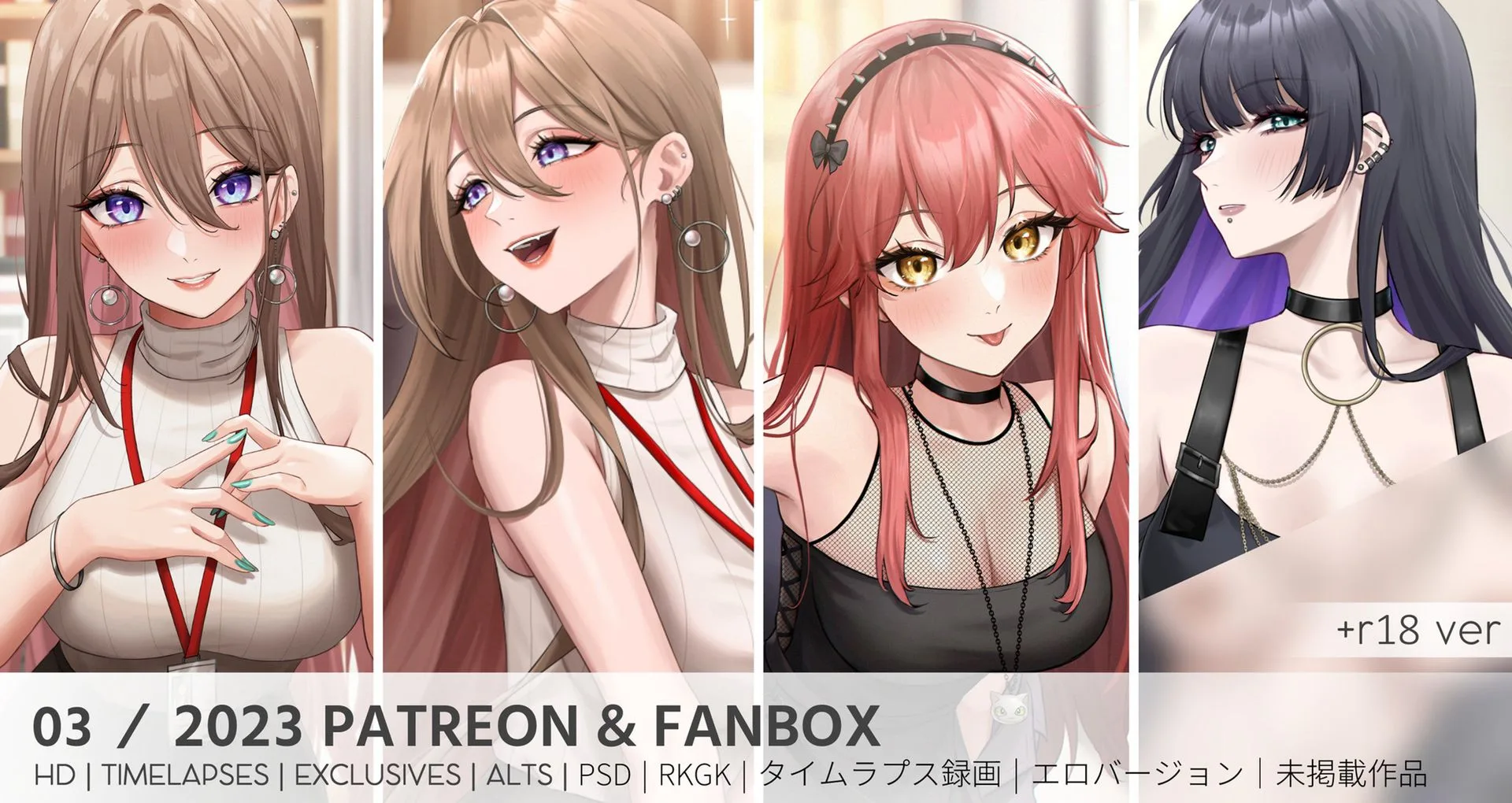
March 2023 Pack
-
September 2024 Pack: Includes timelapse videos, WIPs, and PSD/CLIP files alongside high-res renders. The PSD/CLIP files let you tweak colors or composition before exporting a wallpaper-ready image.
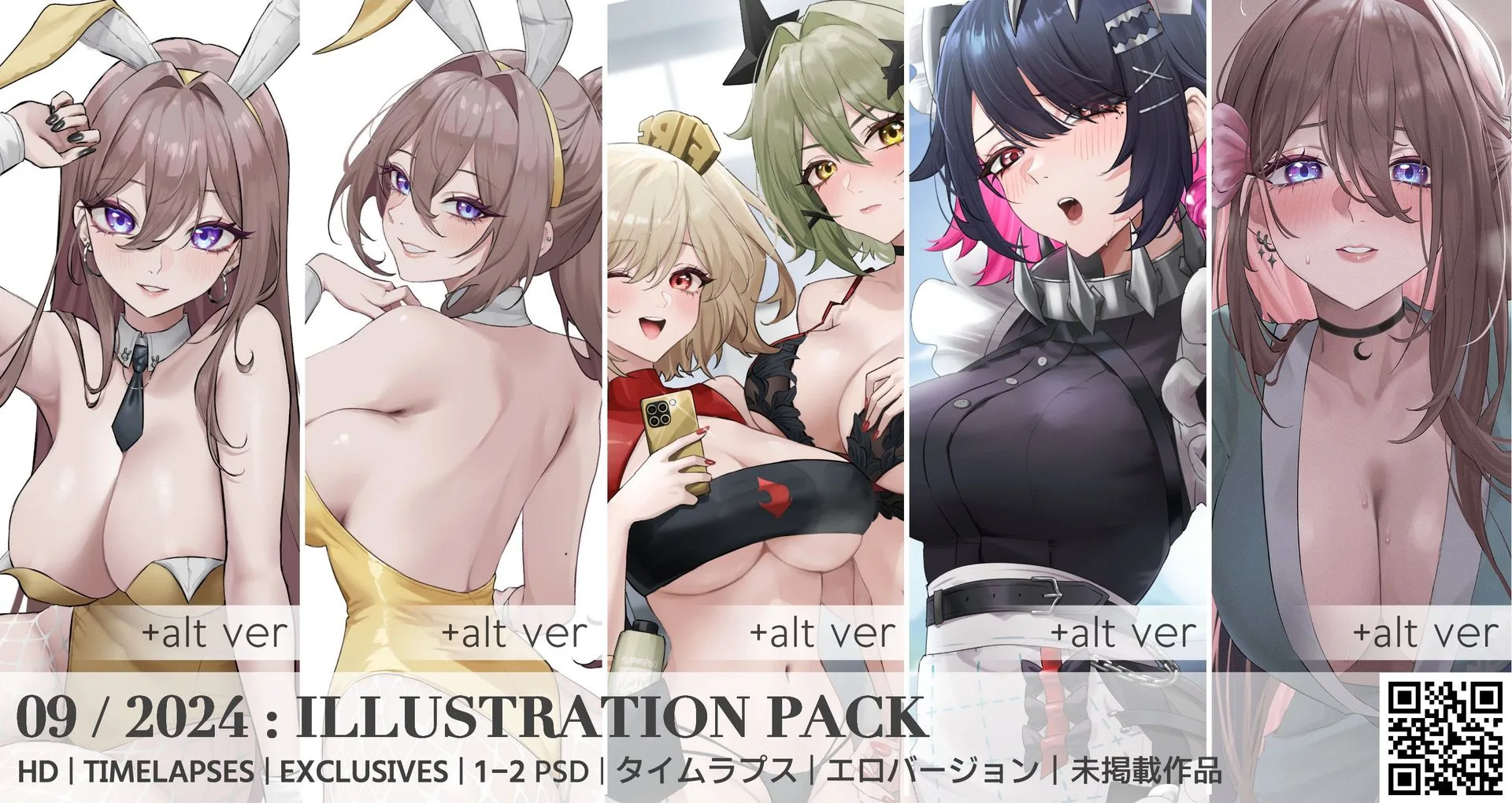
September 2024 Pack