Why a MagSafe Phone Holder Improves Video Calls
Holding your phone during a video call is tiring and limits your movement. A MagSafe phone holder lets you attach your phone to a laptop or desk stand, keeping your hands free and the camera at eye level.
The EDGE Pro Tablet Kit from Rolling Square uses two EDGE Pro Cores with strong magnets to hold your phone or tablet securely. This setup works with iPhone and Android devices, and the ultra-thin 2.5mm profile keeps your phone close to the laptop screen.
EDGE Pro Tablet Kit Facts for Video Calls
-
EDGE® Pro Tablet kit - MagSafe phone & tablet holder: EDGE Pro Tablet Kit comes as a set of two EDGE Pro Cores, which can magnetically hold your tablet attached to your laptop. The two Cores let you attach a phone or tablet to the back of your laptop lid, creating a stable second screen or camera for video calls.
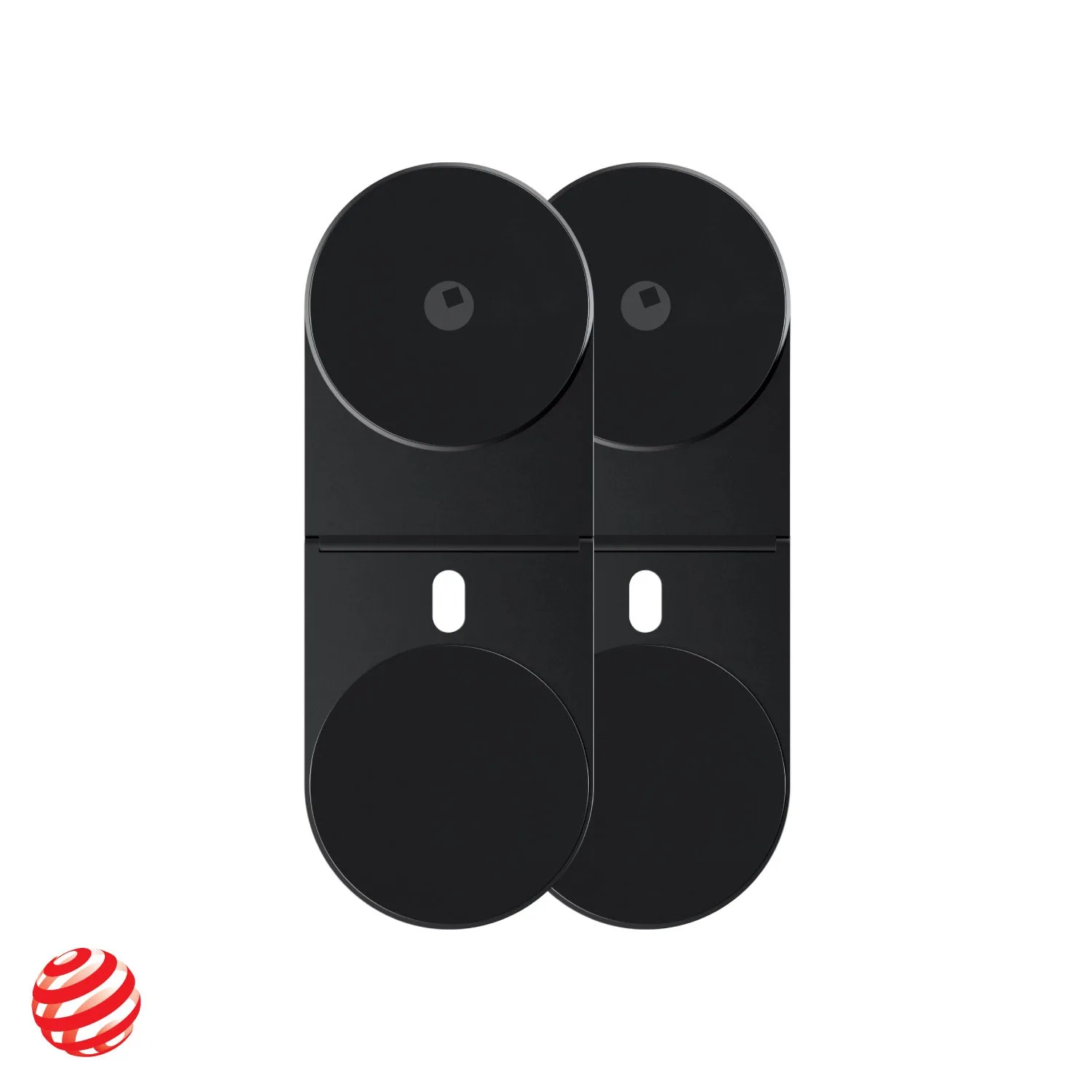
EDGE® Pro Tablet kit - MagSafe phone & tablet holder
-
EDGE® Pro Tablet kit - MagSafe phone & tablet holder: The Core is not just a mount but it is the basic component of the ecosystem, you can now easily detach it from your laptop and keep using it in standalone mode, magnetically holding your iPhone, Android phone or tablet! You can remove the Core from the laptop and use it as a standalone phone stand on a desk, giving you flexibility for different call setups.
-
EDGE® Pro Tablet kit - MagSafe phone & tablet holder: With its ultra thin 2.5mm / 0.1in profile, it will become the essential tool to improve the management of your tasks, also giving you the possibility to benefit of exclusive features like Apple Continuity Camera (MacBook + iPhone) and Apple Sidecar (MacBook + iPad). The slim profile keeps your phone close to the laptop, making features like Continuity Camera practical—your iPhone's camera becomes your MacBook's webcam for higher-quality video calls.
Setting Up the EDGE Pro Tablet Kit for Video Calls
Follow these steps to attach your phone to a laptop or use it as a standalone stand.
- Attach the two EDGE Pro Cores to your laptop lid: Place one Core near the top center of the laptop lid and the other a few inches below, aligning them with your phone's MagSafe ring or adhesive metal plate. The magnets will hold them in place.
- Mount your phone to the Cores: Bring your phone close to the Cores—the magnets will snap it into position. For Android devices without built-in MagSafe, use a metal ring or case that is compatible.
- Adjust the angle for eye level: The Cores allow you to tilt the phone in portrait or landscape mode. Adjust the angle so the camera points at your face, not your chin or ceiling.
- Use Continuity Camera (MacBook + iPhone) for better video quality: If you have a MacBook and iPhone running recent software, the phone will automatically be recognized as a webcam. Open FaceTime or Zoom and select your iPhone as the camera.
- Detach the Core for standalone desk use: If you prefer not to attach the phone to the laptop, remove one Core and place it on a desk. The Core will hold your phone at an adjustable angle for hands-free calls.
Tips for a Stable Video Call Setup
Make sure the laptop is on a flat, stable surface to prevent the phone from wobbling. The EDGE Pro Cores are designed to hold phones and tablets securely, but a sudden bump may shift the angle.
If your phone case is thick or non-MagSafe, the magnetic hold may be weaker. Consider using a slim MagSafe-compatible case or the included metal plate (if supplied) for a stronger connection.
For landscape video calls (like group meetings), rotate the phone before attaching it to the Cores. The adjustable tilt works in both orientations.