Laptops are incredibly portable, but their compact keyboards often sacrifice the number pad—a critical tool for data entry, accounting, and gaming. If you frequently input numbers, a separate mechanical numpad can restore that lost functionality while adding the satisfying feel of mechanical switches. In this guide, we’ll show you how to use a mechanical numpad with your laptop, from connection to customization, so you can boost your productivity without giving up portability.
Whether you’re a financial analyst crunching spreadsheets or a gamer who needs quick access to macros, a dedicated numpad can be a game-changer. Glorious offers the Mechanical Numpad for Compact Keyboards, designed to pair perfectly with laptops and compact keyboards. Let’s dive into the setup process and explore how this accessory can transform your workflow.
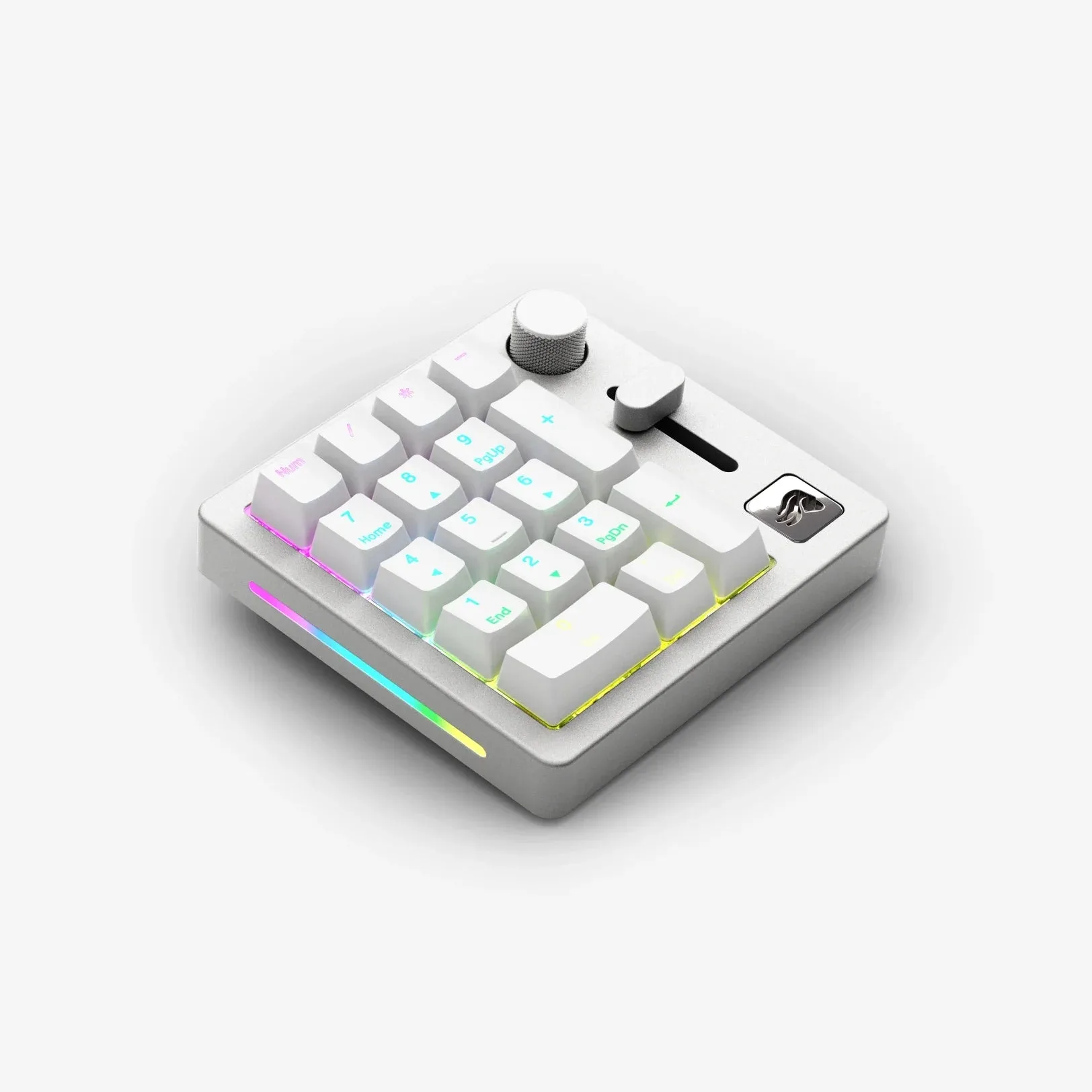
Mechanical Numpad for Compact Keyboards
Why Add a Mechanical Numpad to Your Laptop?
Laptop keyboards are designed for portability, not data entry. Without a numpad, entering numbers requires hunting across the top row, which slows you down and breaks your flow. A separate mechanical numpad places all digits, operators, and Enter key within easy reach of your right hand, making data entry faster and more accurate. This is especially valuable for professionals in finance, engineering, and data analysis.
Beyond productivity, a mechanical numpad offers superior tactile feedback compared to laptop chiclet keys. Mechanical switches provide a satisfying click or bump, reducing typos and increasing typing comfort during long sessions. Plus, many numpads allow hot-swapping switches, so you can tailor the feel to your preference. With a numpad like the Glorious Mechanical Numpad, you get both functionality and the premium feel of mechanical switches.
- Faster data entry and reduced errors
- Ergonomic benefits: keeps your right hand in a neutral position
- Customizable switches and keycaps for a personal touch
How to Connect Your Mechanical Numpad to a Laptop
Connecting a separate numpad to your laptop is usually plug-and-play. Most mechanical numpads, including the Glorious Mechanical Numpad, connect via USB-C or USB-A cable. Simply plug it into an available port, and your laptop will recognize it as a standard keyboard device. If your laptop has limited ports, consider a USB hub or a USB-C adapter.
Wireless options are also available, connecting via Bluetooth or a 2.4GHz dongle. Wireless numpads offer more flexibility, especially if you’re working on the go. However, wired connections provide lower latency and never need charging. Choose the connection type that best fits your workflow. Once connected, you can start typing numbers immediately—no drivers required on Windows, macOS, or Linux.
- Check your laptop’s ports: USB-C or USB-A
- Use a USB hub if you need more ports
- For wireless, ensure the numpad is charged or has fresh batteries
Customizing Your Numpad for Maximum Productivity
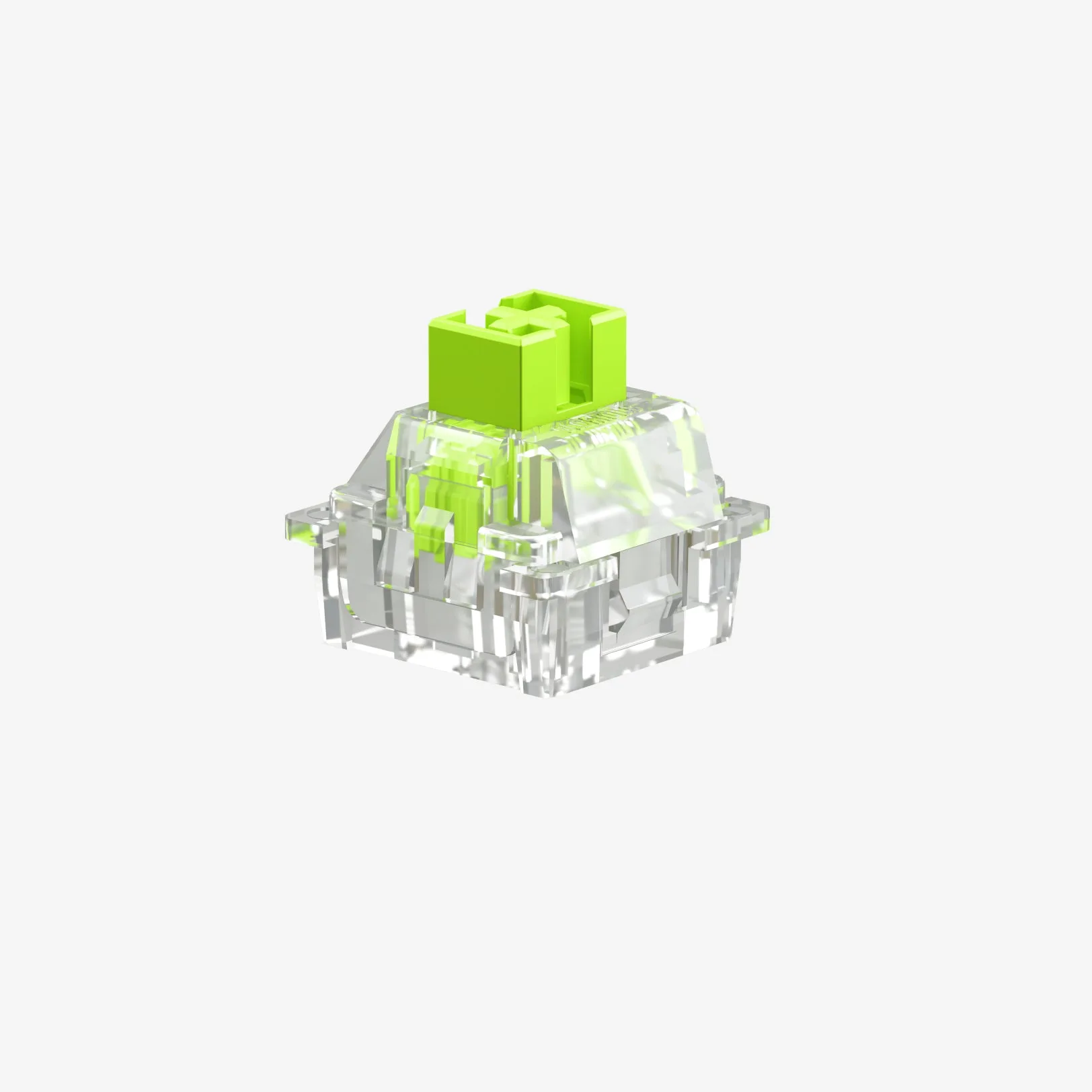
One of the biggest advantages of a mechanical numpad is customization. Many numpads, including the Glorious Mechanical Numpad, feature hot-swappable switches, allowing you to change the feel without soldering. For instance, you might prefer linear switches for fast data entry or tactile switches like the Glorious Panda MX Switches for a satisfying bump that confirms each keystroke. This level of personalization can significantly enhance your typing experience.
You can also remap keys using software. For example, you can assign the numpad’s top row to function keys or create macros for repetitive tasks. Glorious’s software (or third-party tools like QMK) allows you to program layers, so you can have a default numpad layout and a secondary layer with shortcuts. This is especially useful for gamers who want to bind abilities or for professionals who need quick access to frequently used commands.
- Hot-swappable switches let you try different types (linear, tactile, clicky)
- Remap keys to suit your workflow using software
- Create macros for repetitive data entry tasks
Ergonomic Benefits of Using a Separate Numpad
Using a laptop’s built-in keyboard often forces your shoulders to hunch and your wrists to bend awkwardly, especially when typing numbers. A separate numpad allows you to position your hands more naturally. By placing the numpad to the right of your laptop, you can keep your shoulders relaxed and your wrists straight, reducing the risk of repetitive strain injuries.
Pairing your numpad with an ergonomic wrist rest, such as the Glorious Ergonomic Cloth Wrist Rest, can further improve comfort. The soft cushioning supports your wrist during long working hours, preventing fatigue. Investing in ergonomic accessories is a small change that can have a significant impact on your long-term health and productivity.
- Position the numpad to the right of your laptop to keep your shoulders aligned
- Use a wrist rest to maintain a neutral wrist position
- Take regular breaks to stretch your hands and fingers
Numpad Setup for Gamers and Programmers
Gamers often overlook the numpad, but it can be a powerful tool for macros and keybinds. With a programmable numpad, you can assign complex commands to single keys, giving you an edge in MMOs or MOBAs. For example, you can set the numpad’s 1-9 keys to cast spells or use items, freeing up your left hand for movement. The Glorious Mechanical Numpad is perfect for this, especially when paired with a compact keyboard like the GMMK 3 Barebones Mechanical Keyboard.
Programmers and developers can also benefit from a numpad for entering numeric constants, navigation, or even as a dedicated macro pad for code snippets. With layers, you can switch between a standard numpad and a custom layout for your IDE shortcuts. This versatility makes a separate numpad a valuable addition to any tech enthusiast’s desk setup.
- Program macros for gaming or coding tasks
- Use layers to switch between numpad and custom functions
- Pair with a compact keyboard to save desk space
Adding a mechanical numpad to your laptop setup is a simple yet effective way to boost your productivity and comfort. Whether you’re crunching numbers, gaming, or coding, a dedicated numpad offers speed, customization, and ergonomic benefits that laptops can’t match. Ready to upgrade? Check out the Glorious Mechanical Numpad for Compact Keyboards to see how it can transform your workflow.