Quick answer
Attach a wireless tag tracker to your keyring, pair it with the Find My app on your iPhone or iPad, and use the app to play a loud alert when you misplace your keys.
Why a wireless tag tracker works for keys
A wireless tag tracker uses Bluetooth to maintain a connection with your phone. When you walk out of range, the app remembers the last known location. For keys, the built-in speaker is the fastest way to find them under a couch cushion or in a jacket pocket.
The ToughTested TagTracker includes replaceable CR2032 batteries, so you don't need to replace the whole unit when the battery dies. This is a practical advantage over sealed trackers that must be thrown away after 12-18 months.
Limitations to keep in mind
Bluetooth trackers work best within about 30-50 feet indoors. If you leave your keys at a restaurant, the tracker will only show the last location where your phone was connected. For precise long-range tracking, you would need a GPS tracker, which is larger and requires a subscription.
The Find My app requires an iPhone or iPad. Android users cannot use this tracker's primary feature.
How to set up and use your wireless tag tracker for keys
- Remove the battery tab and pair the tracker: Pull the plastic tab from the tracker to activate the battery. Open the Find My app on your iPhone or iPad, tap the Items tab, then tap Add Item and select the ToughTested TagTracker from the list. Follow the on-screen pairing instructions. Common mistake: forgetting to remove the battery tab. If the tracker doesn't appear in the app, check that the tab is fully removed.
- Attach the tracker to your keyring: Thread the tracker's keyring hole onto your keyring. Make sure it is securely closed so the tracker doesn't fall off. The tracker is small enough to fit alongside most keys without adding bulk. Checkpoint: after attaching, jiggle the keyring to confirm the tracker won't detach during daily use.
- Name your tracker in the Find My app: In the Find My app, tap on the newly added tracker and choose a name like 'Keys' or 'House Keys'. This helps you identify which tracker you are looking for if you have multiple. Common mistake: leaving the default name. A custom name prevents confusion when you have more than one tracker.
- Use the app to find your keys when lost: Open the Find My app, tap the Items tab, and select your keys tracker. Tap the Play Sound button. The tracker will emit a loud alert. Follow the sound to locate your keys. The alert lasts for about 2 minutes or until you stop it. If you don't hear the sound, check that Bluetooth is enabled on your phone and that you are within range (about 30-50 feet indoors).
- Replace the battery when the app warns you: The Find My app will show a low battery alert for the tracker. Open the tracker case, remove the old CR2032 battery, and insert a new one with the positive side facing up. Close the case securely. Common mistake: using a battery that is not CR2032. Only use CR2032 lithium coin cells to avoid damage or poor performance.
Product spotlight
-
ToughTested Wireless TagTracker 2 Pack: Includes 2 wireless trackers for essentials and works with the Find My app on iPhone or iPad. You get two trackers in one pack, so you can tag both your keys and your wallet, and use the same app to find either one.
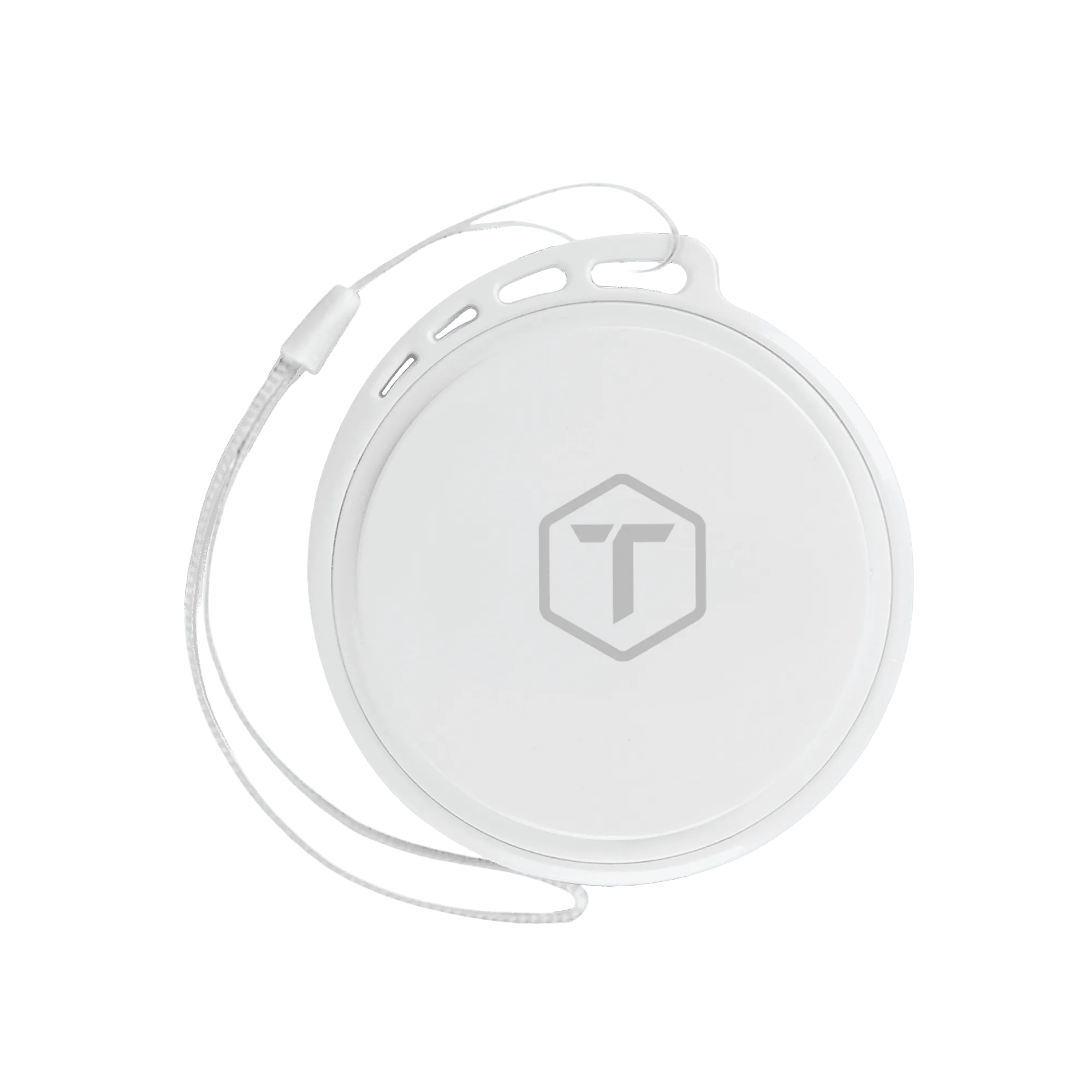
ToughTested Wireless TagTracker 2 Pack
-
ToughTested Wireless TagTracker 2 Pack: Built-in speaker plays a loud alert to locate misplaced items. Instead of searching silently, you trigger a sound from the tracker itself, which is much faster than visual searching in cluttered spaces.
-
ToughTested Wireless TagTracker 2 Pack: Replaceable CR2032 batteries included. When the battery runs out, you swap in a new one instead of buying a whole new tracker, saving money and reducing waste.