Quick Answer
To wire a mechanical endstop for your 3D printer, connect the common (C) and normally closed (NC) pins to your controller board's endstop input, using the ground and signal pins.
Why Use a Mechanical Endstop?
Mechanical endstops like the V1.2 are simple, reliable limit switches that detect when a printer axis reaches its travel limit. They are a straightforward choice for RepRap, Prusa, and Mendel builds because they don't require complex optical or magnetic alignment. Their main trade-off is physical contact, which can wear over time, but for most hobby printers they provide consistent homing at a very low cost.
NC vs. NO: Which Wire to Use?
Mechanical endstops have three terminals: Common (C), Normally Closed (NC), and Normally Open (NO). For 3D printer firmware, always use the NC terminal. The NC circuit is closed when the switch is not pressed, so a broken wire or loose connection triggers a fault state. This fail-safe behavior prevents the printer from crashing into the end of an axis. Using NO would allow the printer to continue moving even if the switch is disconnected.
Step-by-Step Wiring Guide
- Identify the Pins: On your V1.2 mechanical endstop, locate the three pins: C (common), NC (normally closed), and NO (normally open). The board is usually labeled. If not, use a multimeter to check continuity: the NC and C pins are connected when the switch is not pressed. Common mistake: Wires to NO instead of NC will prevent the printer from faulting on a disconnect.
- Connect to the Controller Board: On your printer's mainboard (e.g., RAMPS, Melzi, or MKS), find the endstop header for the axis you are wiring (X+, X-, Y+, Y-, Z+, Z-). Connect the endstop's C pin to the ground (GND) pin on the header, and the NC pin to the signal (S) pin. Leave the NO pin unconnected. Checkpoint: Verify the header pinout on your board—some use different orderings (GND, VCC, Signal). Never connect VCC to the endstop.
- Secure and Test the Connection: Use Dupont connectors or solder the wires for a permanent connection. Mount the endstop so the switch lever contacts the axis carriage at the desired homing position. Before running the printer, test with a multimeter: pressing the switch should break continuity between C and NC. Common mistake: Loose connectors cause intermittent homing failures. Always tug-test each wire after crimping.
- Configure Firmware: In Marlin or your firmware, set the endstop to the correct logic. For NC switches, use ENDSTOPPULLUP and set the endstop invert to false (or true depending on your board). Run M119 in the serial terminal to check endstop states: triggered (pressed) should show 'TRIGGERED'. Checkpoint: If M119 shows 'open' when pressed, invert the endstop logic in firmware.
Product Used in This Guide
-
V1.2 Mechanical End stop for 3D Printer, Reprap, Prusa, Mendel, Makerbot: These mechanical end stops are quiet simply a means to an end. They detect when an x/y/z stage has reached its minimum or maximum. Excellent if you do not want to get bogged down in complicated light beam interrupters or flags. This V1.2 endstop gives you a simple, proven way to add homing to any RepRap-style printer without the complexity of optical sensors.
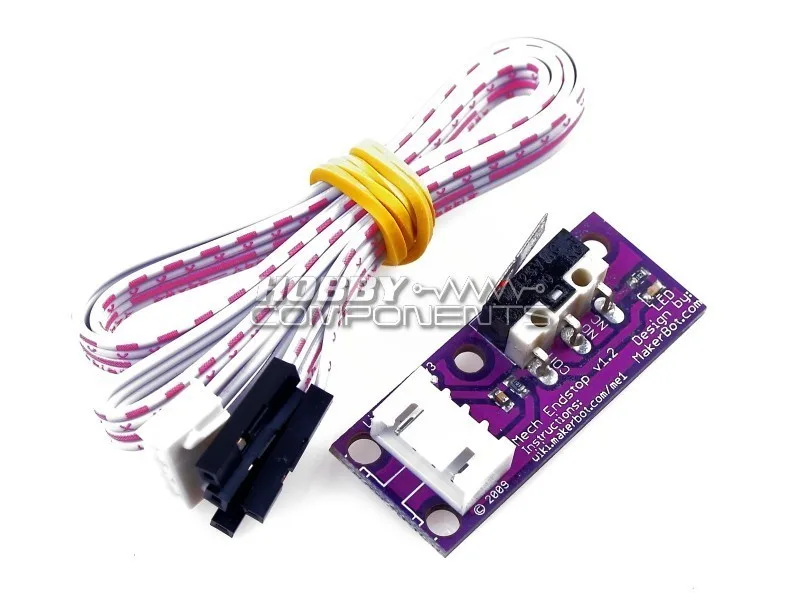
V1.2 Mechanical End stop for 3D Printer, Reprap, Prusa, Mendel, Makerbot