Quick answer
Plug the Hyperkin Trooper 2 Gamepad into a USB port on your Windows, macOS, Linux, or Raspberry Pi device. It is recognized as a standard game controller with no driver installation needed for basic emulation and retro gaming.
What makes the Trooper 2 different from modern controllers
The Trooper 2 is designed for retro gaming and emulation, not for modern AAA titles that require analog sticks or pressure-sensitive buttons. Its digital D-pad and six-button layout mirror classic arcade and console controllers, giving you precise input for 8-bit and 16-bit games.
Because it lacks analog triggers or a second analog stick, it will not work well with games that rely on those inputs. This is a deliberate design choice for authenticity, not a flaw.
Compatibility and system requirements
The Trooper 2 works with Windows, macOS, Linux, and Raspberry Pi. No special drivers are required for basic functionality. On Windows 10 and 11, it appears as a 'USB Input Device' and is automatically mapped as a DirectInput controller.
On macOS and Linux, it is recognized as a standard HID gamepad. For Raspberry Pi, plug it into any USB port and it works with RetroPie and similar emulation distributions.
Step-by-step setup guide
- Connect the Trooper 2 to your device: Plug the USB cable into an available USB port on your computer or Raspberry Pi. The controller has no power switch; it powers on as soon as it is connected. Use a USB 2.0 port if possible. Some USB 3.0 ports on older hardware may cause intermittent disconnects with this controller.
- Verify the controller is detected: On Windows, open 'Game Controllers' by searching 'joy.cpl' in the Start menu. The Trooper 2 should appear as 'USB Gamepad' or 'HID-compliant game controller'. On macOS, open 'System Information' > 'USB' and look for 'USB Gamepad'. On Linux, run 'lsusb' in the terminal; look for 'USB Gamepad'. If nothing appears, try a different USB port or cable. A loose connection is the most common detection issue.
- Configure button mapping in your emulator: Open your emulator (e.g., RetroArch, MAME, Dolphin) and go to the input settings. Select 'Configure Controller' and press each button on the Trooper 2 when prompted. The D-pad and six face buttons map directly to classic console layouts. Do not skip mapping the 'Select' and 'Start' buttons. Many emulators require them for menu navigation, and leaving them unmapped is a common frustration.
- Test the controller with a game: Load a retro game that uses a simple D-pad and button layout (e.g., a NES or Genesis title). Verify that movement, jumping, and actions respond correctly. If inputs are swapped or missing, revisit the button mapping step. If the D-pad directions are reversed, you may have held the controller upside down during mapping. Remap with the D-pad facing up.
- Adjust settings for non-retro games (if needed): For modern PC games that expect an Xbox controller, the Trooper 2 may not be recognized. Use a free tool like JoyToKey or AntiMicroX to map the controller buttons to keyboard keys. This allows you to use the Trooper 2 with almost any game. This is a workaround, not a native feature. The Trooper 2 is not designed for modern shooters or racing games that need analog sticks.
Product spotlight
-
Hyperkin Trooper 2 Gamepad: The Trooper 2 is a premium USB controller compatible with Windows, MacOS, Linux, and Raspberry Pi. You can use one controller across multiple retro gaming setups without buying adapters or separate controllers for each platform.
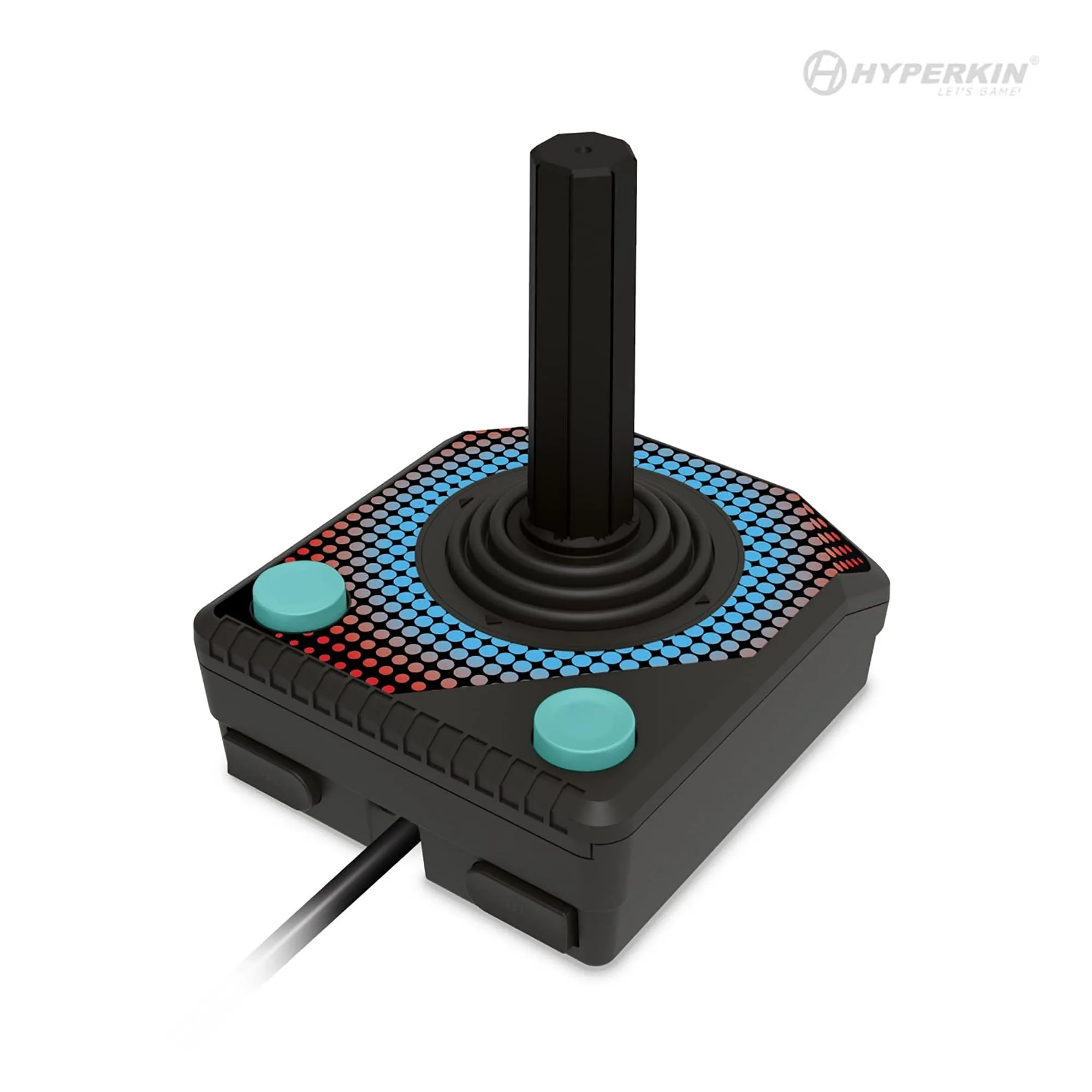
Hyperkin Trooper 2 Gamepad