Quick answer
Start by matching your headset's plug to the jack you actually have: a single TRRS plug for a controller or phone, separate mic and headphone plugs for a PC, or USB for a cleaner digital connection. Then set the headset as the default input and output, turn off console or app audio processing, and adjust volume at the source before the headset. Most bad game audio is a connection or settings problem, not a headphone problem.
You do not need a new headset to get better game sound. In most setups, the weak link is the connection between the headset and the device, or a setting buried in a menu that is fighting your hardware. Fix those two things and the same pair of headphones can sound noticeably clearer and more directional.
This guide walks through the order that actually works: identify your jacks, pick the right cable or adapter, connect, configure, then test. Each step includes the mistake that trips people up most often, so you can check your work as you go.
Step 1: Identify the jacks on your console, PC, or controller
Before buying anything, look at what you are plugging into. A PS5 or Xbox controller typically has a single 3.5mm jack that carries both headphone audio and microphone audio, which means it needs a TRRS plug. A desktop PC usually has two separate jacks, one green for headphones and one pink for a microphone, which means it needs a TRS headphone plug plus a separate mic plug or a splitter. A laptop may have only one combined jack, and a Switch in handheld mode has its own single jack.
Write down what you have: one combined jack, two separate jacks, or USB only. That single note determines every purchase and every setting that follows, and it prevents the most common return: an adapter that fits physically but carries the wrong signal.
- Checkpoint: if your headset has one plug and your PC has two jacks, you need a splitter, not a simple extension cable.
Step 2: Match the plug type to the jack
TRS and TRRS plugs look almost identical, but the extra ring on a TRRS plug is what carries the microphone signal. Plugging a TRRS headset into a TRS-only jack usually gives you audio in one ear or no microphone at all. Plugging a TRS headphone into a TRRS jack usually works for sound but leaves the mic silent. If you are unsure which you have, count the metal bands on the plug: two bands is TRS, three is TRRS.
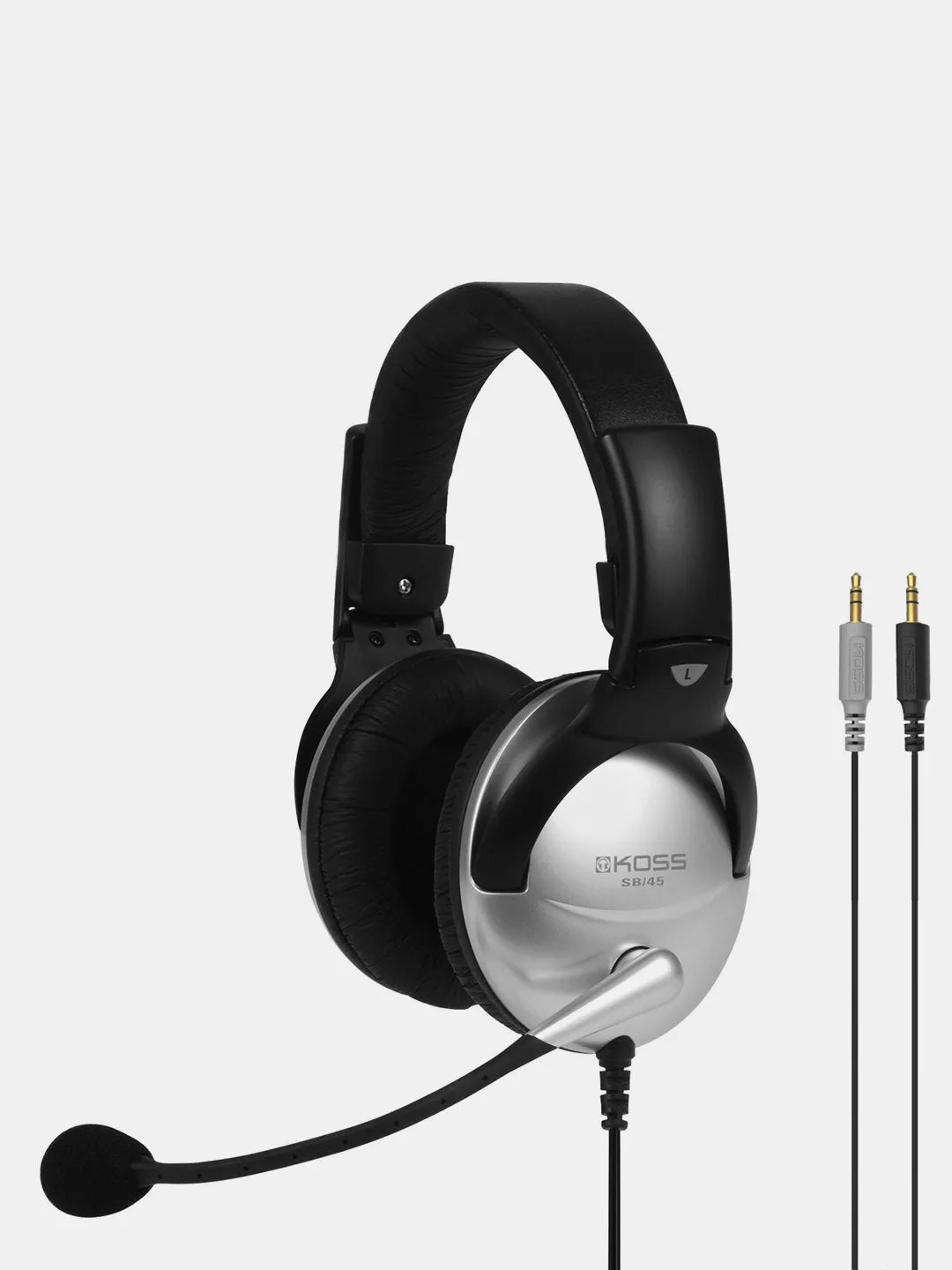
For USB-only devices, skip the analog chain entirely. A USB headset such as the sb45-usb-dac8cf2f8f20d8098dd9162e-1668905">SB45 USB connects digitally and presents itself to the operating system as both a speaker and a microphone, which removes the adapter question and often reduces background noise on the mic side.
- Common mistake: forcing a plug in. If it needs real pressure, you have the wrong plug or a case blocking the jack.
Step 3: Choose an adapter only when the jack demands it
A gaming headphone adapter is a problem-solver, not an upgrade. Buy one when the plug and jack genuinely do not match, and buy the simplest one that solves it. A TRRS-to-dual-TRS splitter for a PC, or a USB adapter for a device with no analog jack, covers most situations. Avoid daisy-chaining two adapters, because each connection adds a failure point and can introduce hum.
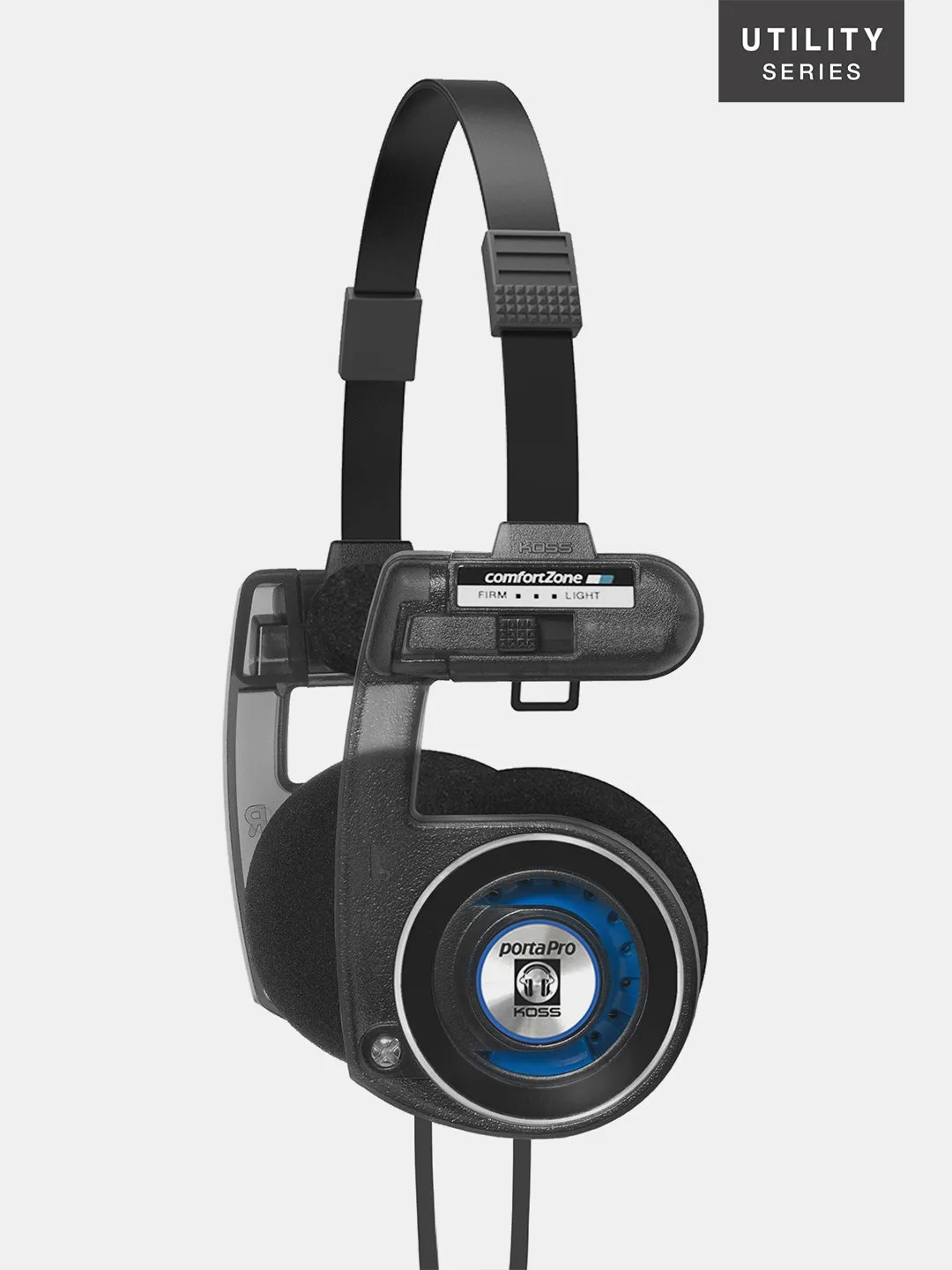
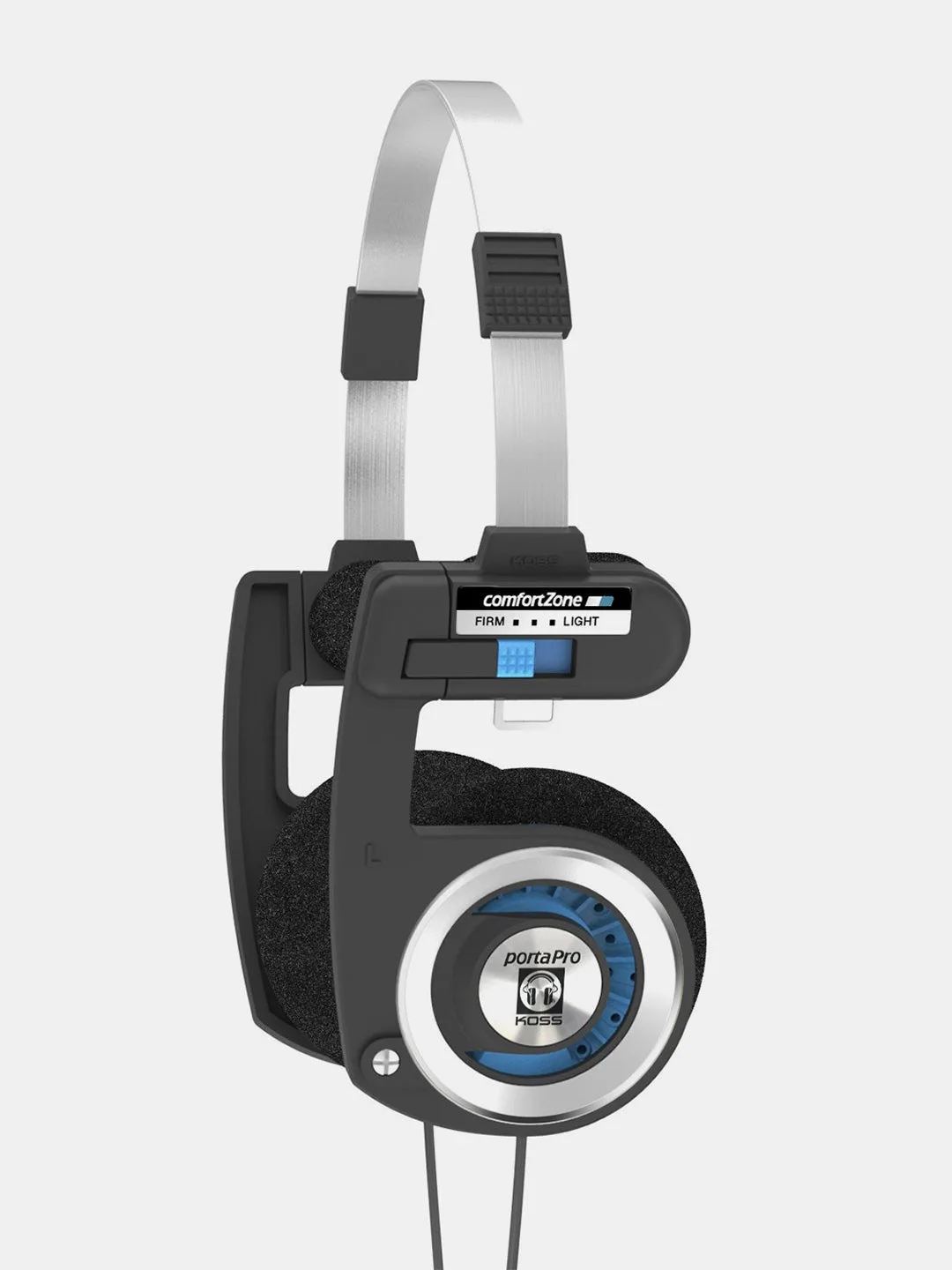
If your headset uses a detachable cord system, you may not need an adapter at all. The Porta Pro Utility Series includes a 3.5mm Utility cord and supports additional USB-C and Bluetooth Utility options, so the same headphone can move between a controller, a laptop, and a phone by swapping the cord rather than adding dongles.
- Checkpoint: connect the adapter, then gently tug the joint. A loose fit causes crackling that people misdiagnose as a broken headphone.
Step 4: Connect in the right order and set defaults
Plug the headset in before launching your game. On Windows, open Sound settings and confirm the headset appears as both an output and an input device, then set it as default for both. On a console, go to the audio output menu and select the headset rather than TV or HDMI. If the game has its own audio menu, set output there too, because some titles override the system default.
This is also where you disable processing you did not ask for. Virtual surround, night mode, and automatic gain control can all make footsteps harder to place or make your mic pump up and down. Turn them off first, test, and only re-enable one at a time if you miss it.
- Common mistake: leaving the mic set to the laptop's built-in array while the headset handles output, which sends game audio into your calls.
Step 5: Set volume at the source, then fine-tune
Set the game or system volume to roughly 70 percent and adjust the headset or inline control from there. If you max the source and keep the headset low, you amplify the noise floor along with the audio; if you do the opposite, you clip loud effects like explosions. Aim for a level where you can hear quiet footsteps without the loudest sounds distorting.
For voice chat, keep game audio and chat on separate sliders when your setup allows it. That way a loud firefight does not drown out your teammates, and you are not forced to choose between hearing the game and hearing the call.
- Checkpoint: listen for hiss with the game paused. Persistent hiss usually means a bad cable or adapter, not a bad headphone.
Step 6: Test with a game that exposes problems
Do not test with a menu screen. Load a match or level where you rely on directional cues, then check three things: can you tell left from right, can you tell front from behind, and does your microphone sound clear to other players. If direction is muddy, revisit the processing settings from Step 4 before blaming the headphones.
If the mic sounds distant or noisy, move it closer to the corner of your mouth and confirm the correct input is selected. Noise-reduction technology such as Koss Clear Voice Technology on the SB45 USB is designed to cut background noise for PC voice applications, but it still works best when the microphone sits near your mouth rather than across the room.
- Common mistake: judging audio in a game with heavy compression or a cinematic mix. Use a competitive mode if one exists.
Your game audio setup checklist
- Identify the jack: Count your jacks and note whether each is combined or separate. Check the plug bands: two for TRS, three for TRRS. Write it down before buying anything.
- Match plug to jack: Use a splitter for a dual-jack PC, a TRRS plug for a controller, or USB for devices with no analog input. If it needs force, stop and recheck.
- Add an adapter only if required: Choose the simplest single adapter that solves the mismatch, or use a detachable-cord headphone to avoid adapters altogether. One adapter, not a chain.
- Set defaults before launching the game: Select the headset as both output and input in system settings, then confirm the in-game audio menu agrees. Two menus, one device.
- Disable unwanted processing: Turn off virtual surround, night mode, and automatic gain control, then re-enable one at a time only if you miss it. Test each change alone.
- Set source volume first: Start around 70 percent at the source and adjust the headset from there; keep chat and game audio on separate sliders where possible. No hiss when paused.
- Test in a real match: Check left-right and front-back cues, then ask teammates how your microphone sounds. Fix direction before replacing gear.
Koss products that fit this setup
- SB45 USB: Full-size USB communication headset with Koss Clear Voice Technology, a noise-reduction microphone designed to reduce excessive background noise for PC voice applications such as speech recognition. A USB connection removes the adapter question entirely and gives you a microphone built for voice chat and voice control, which is useful if your PC has no reliable analog mic input.
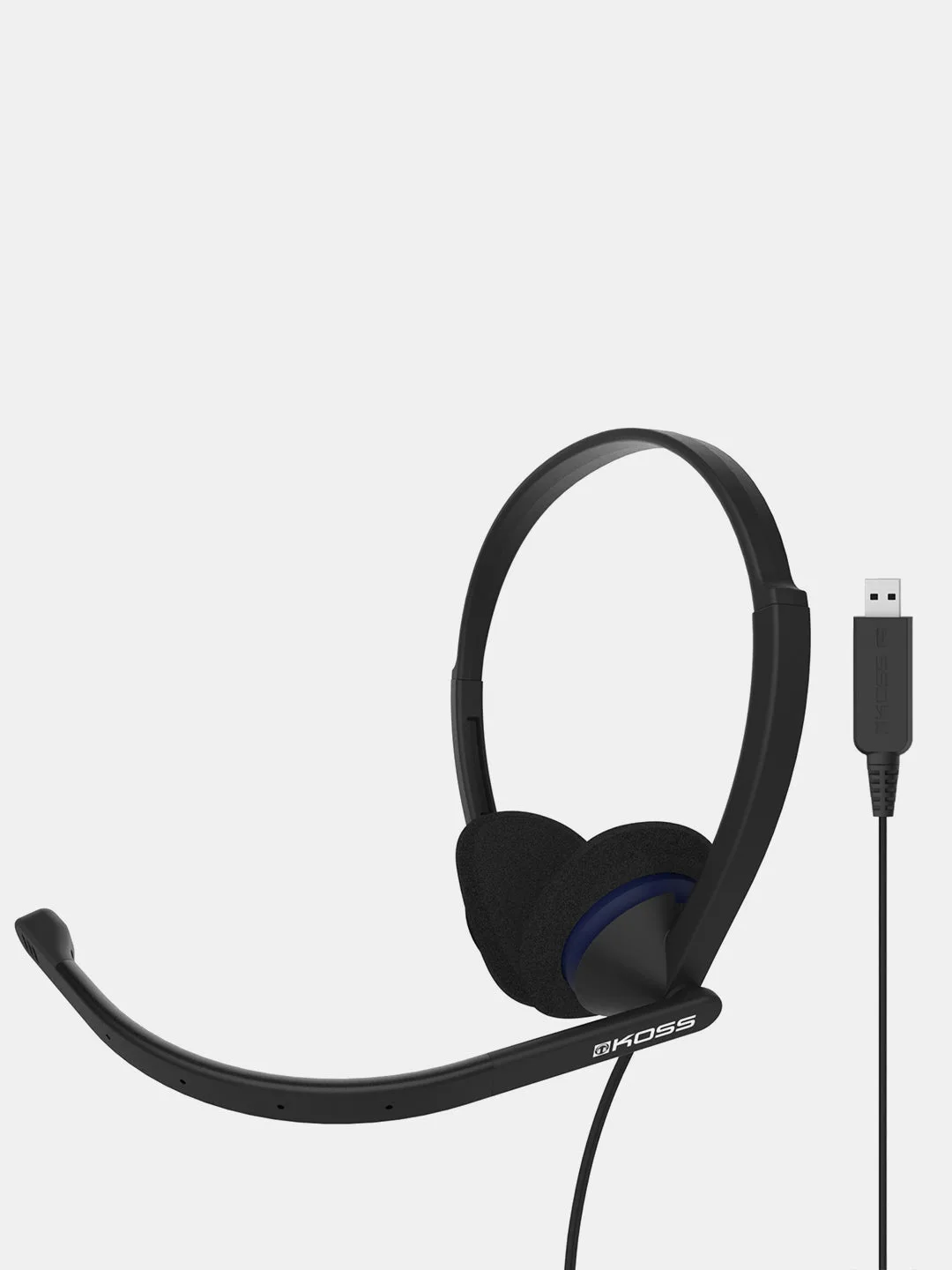
- CS200 USB: USB communication headset with full-range sound, positioned for office use, language learning programs, and internet conference calls. A practical option if you split time between gaming and work calls on the same machine and want one headset that handles both without replugging.
- https://technicsyd.com/products/porta-pro-utility-4855f2cfb34af359fbaf7693-1668997Porta Pro® Utility: On-ear headphone with a detachable cord system, including a 3.5mm Utility cord and support for an additional USB-C Utility cord or Utility Bluetooth Adapter. You can move the same headphone between a controller, a laptop, and a phone by swapping cords instead of stacking adapters, which keeps the signal path short.
Better game sound is usually a connection and settings problem, not a hardware problem. Work through the steps in order, change one thing at a time, and test in an actual match. If you still have a mismatch after that, a USB headset or a detachable-cord model will often solve it more cleanly than another adapter.