What You Can Do with Alexa Scenes and the ISB600
The iView ISB600 smart bulb works with Amazon Alexa and Google Assistant, letting you control lighting with your voice or the Smart Life / Tuya Smart app. With Alexa scenes, you can group multiple bulbs in the same room, set custom colors and brightness levels, and trigger them with a single voice command or schedule. Because the ISB600 connects directly to your 2.4 GHz Wi-Fi network, no additional hub is required—just the free app and the Alexa app on your phone.
ISB600 Smart Bulb Key Facts for Scene Setup
-
ISB600 7W, 600lm, E27/E26 Smart Multi-Color LED WiFi Light Bulb, Works with Alexa & Google Assistant: Built-in WiFi / No Hub Required You can pair the bulb directly with Alexa without buying a separate hub, simplifying the scene setup process.
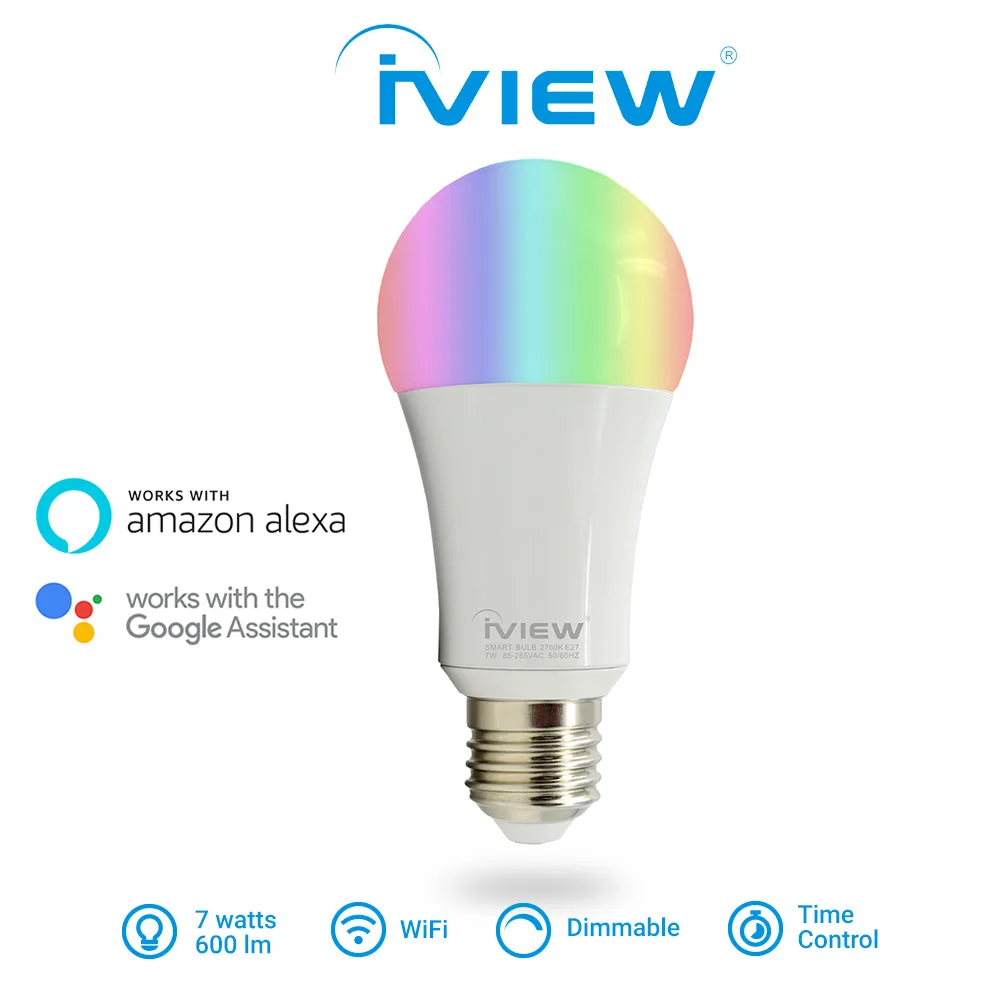
ISB600 7W, 600lm, E27/E26 Smart Multi-Color LED WiFi Light Bulb, Works with Alexa & Google Assistant
-
ISB600 7W, 600lm, E27/E26 Smart Multi-Color LED WiFi Light Bulb, Works with Alexa & Google Assistant: Multiple Color / Dimmable, 600 lumens (7W) Scenes can include specific colors and brightness levels, making it easy to create mood lighting for reading, cooking, or relaxing.
-
ISB600 7W, 600lm, E27/E26 Smart Multi-Color LED WiFi Light Bulb, Works with Alexa & Google Assistant: Works with Alexa and Google Assistant Once scenes are created, you can activate them by voice—say 'Alexa, turn on movie scene' and the bulb adjusts automatically.
-
ISB600 7W, 600lm, E27/E26 Smart Multi-Color LED WiFi Light Bulb, Works with Alexa & Google Assistant: Group Control / Schedule Timers Group multiple ISB600 bulbs in the same room to control them together in a scene, and set timers to turn scenes on/off while you're away.
How to Set Up Alexa Scenes for the ISB600
These steps assume you have already installed the ISB600 bulb, connected it to the Smart Life or Tuya Smart app, and linked that account to Alexa. If you haven't, start by downloading the free app, screwing in the bulb, and following the in-app pairing instructions.
- Open the Alexa app and go to Scenes: Tap the menu icon (three lines) in the top-left corner of the Alexa app, then select 'Scenes'. Tap the '+' icon to create a new scene.
- Name your scene: Give your scene a clear name like 'Good Morning' or 'Movie Time'. This name is what you'll say to Alexa to activate the scene.
- Add the ISB600 bulb to the scene: Tap 'Add Action', then select 'Smart Home'. Choose your ISB600 bulb from the device list. You can add multiple bulbs if you have a group set up.
- Set the desired color and brightness: Within the action, adjust the color and brightness to your preference. The ISB600 supports full color and dimming, so you can create warm white for reading or vibrant colors for parties.
- Save and test the scene: Tap 'Save' to store the scene. Say 'Alexa, turn on [scene name]' to test it. If the bulb responds correctly, the scene is ready.
Using Google Assistant Routines Instead
If you use Google Assistant, the process is similar. Open the Google Home app, create a routine, and add the ISB600 bulb as an action. You can set the color and brightness within the routine. The ISB600 works with both assistants, so you can choose whichever fits your smart home setup.
Tips for Better Scenes
Group multiple ISB600 bulbs in the same room using the Smart Life app before creating scenes. This way, one scene command controls all lights in that room. Use scheduling to have scenes turn on automatically—for example, a 'Good Night' scene that dims lights at 10 PM. Since the ISB600 is energy efficient (saving up to 80% compared to incandescent bulbs), you can leave scenes active without worrying about electricity costs.