Quick Answer
Set up your JDS Labs Element III by connecting USB to your computer, attaching headphones, and installing the driver for first-time use. This guide walks through each step.
What You Need Before Starting
Before unboxing, ensure you have a USB-C cable (included), your headphones, and a computer or source device. The Element III is a combined DAC and headphone amplifier, so no separate DAC is required. If you bought a DEMO UNIT, inspect it for any cosmetic blemishes noted in the listing—functionality is tested and guaranteed.
Understanding the Controls
The front panel has a large volume knob that also acts as a power button (press and hold to turn on/off). The input selector switch lets you choose between USB, optical, and coaxial sources. The rear panel holds all connections: USB-C for computer audio, optical and coaxial digital inputs, and a preamp output for powered speakers.
Step-by-Step Setup
- Connect Power and Source: Plug the included power adapter into the Element III and a wall outlet. Connect your computer to the USB-C port on the rear panel using the supplied cable. The unit will power on automatically when connected to power. Common mistake: Forgetting to use the included power adapter—USB bus power alone is insufficient.
- Install Drivers (Windows Only): Visit the JDS Labs website and download the latest driver for the Element III. Run the installer and restart your computer. macOS and Linux typically work without additional drivers. Checkpoint: After restart, confirm the device appears in your system audio settings as 'JDS Labs Element III'.
- Connect Headphones and Adjust Volume: Plug your headphones into the 1/4-inch (6.35mm) jack on the front panel. Turn the volume knob fully counterclockwise to minimum before playing audio. Slowly increase volume to a comfortable listening level. Common mistake: Starting with volume too high can cause sudden loud playback—always start at zero.
- Select Input Source: Use the input selector switch on the front panel to choose USB (for computer), optical, or coaxial. The selected input LED will illuminate. For first-time use, select USB. Checkpoint: If no sound, verify the input matches your source connection.
- Configure Audio Settings on Computer: On Windows, set the Element III as the default playback device in Sound settings. On macOS, select it in Audio MIDI Setup or System Preferences. Set sample rate to 44.1kHz or 48kHz for general use; higher rates are supported but not required for most music. Common mistake: Using a sample rate above 48kHz without a corresponding source file can cause glitches—match the rate to your music.
- Test Playback and Adjust Gain: Play a familiar track at moderate volume. If the volume knob is past 3 o'clock and sound is still quiet, adjust the internal gain switch (located on the bottom panel) to high gain. For sensitive headphones, keep gain low to avoid noise. Checkpoint: Gain changes require powering off the unit—always turn off before switching.
Product Details
-
JDS Labs Element III Headphone Amplifier & DAC [DEMO UNIT]: DEMO UNIT: This product has been tested and assessed by our team, and is sold in working and resellable condition. It may feature minor physical blemishes. If you purchased a DEMO UNIT, you can expect full functionality but should not expect pristine cosmetics—check the listing photos for any notable marks.
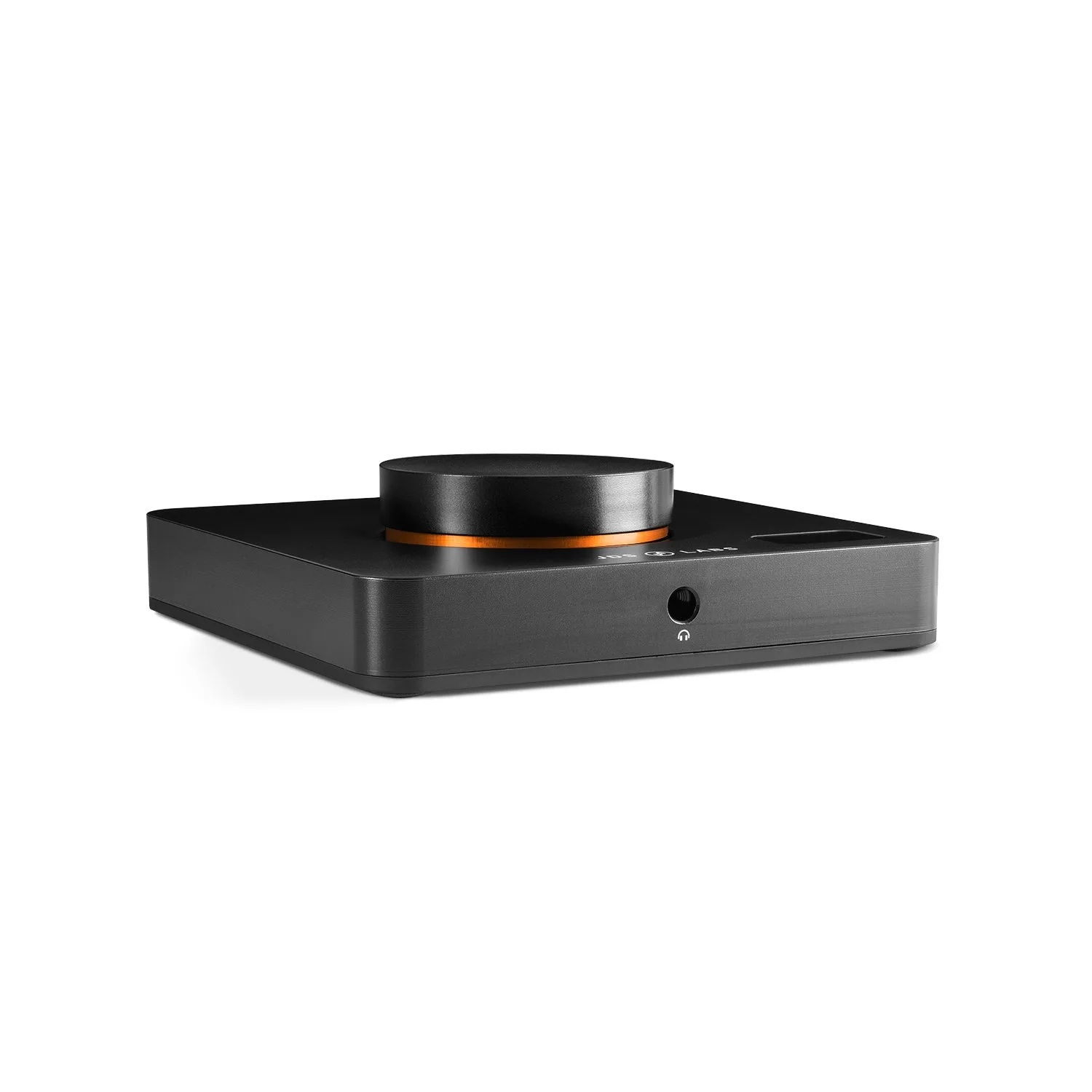
JDS Labs Element III Headphone Amplifier & DAC [DEMO UNIT]