Quick answer
Buy the Keychron K2 Version 3 if you want a compact 75% wireless mechanical keyboard that works with both macOS and Windows, supports Bluetooth 5.2 and wired use, and lets you remap keys through the Keychron Launcher web app. Skip it if you need a full-size layout or a keyboard that ships with every switch option hot-swappable.
Why the 75% layout changes your desk setup
A 75% layout keeps the arrow keys and function row while dropping the numeric keypad. That saves desk width for mouse movement and makes the keyboard easier to carry between rooms, but it also means spreadsheet and data-entry work loses a dedicated number pad. If you rely on ten-key input daily, plan for an external numpad or choose a larger keyboard.
The compact footprint also changes how you reach for keys. The function row is closer, and the arrow cluster is compressed. Most users adapt within a few days, but if you frequently use the Insert, Home, or End keys in a specific cluster, check the layout before buying.
Mac and Windows in one keyboard: what the included keycaps mean
The K2 Version 3 ships with keycaps for both Windows and macOS, so you can match the legends to your operating system rather than memorizing a Windows layout on a Mac. This matters most for the modifier keys: the positions of Command, Option, and Control differ from Windows shortcuts, and correct legends reduce friction when you switch between machines.
If you use one keyboard across a Mac and a Windows PC, the included keycaps let you set up the board for one OS and keep the other set on hand. The keyboard is a compact wireless keyboard for Mac users who also need Windows compatibility, but it is not a dual-boot switcher by itself; you still change the connection or OS mode as needed.
Wireless freedom versus wired reliability
Bluetooth 5.2 lets you connect wirelessly to a laptop or tablet, which is useful when you want a clean desk or you move between devices. The wired connection gives you a stable link for gaming, long typing sessions, or environments with heavy wireless interference. The trade-off is that Bluetooth adds a small amount of latency and depends on battery level, while wired use requires a cable and occupies a port.
Choose wireless if you value portability and a tidy setup. Choose wired if you prioritize consistent response and never want to think about charging. Many users keep both options available: Bluetooth for daily writing, wired for focused work.
Hot-swap and switch options: read the version details
The K2 Version 3 supports hot-swapping with Keychron Super mechanical switches, but only on the hot-swappable version. That distinction matters: if you like to change switch feel without soldering, confirm the version you select includes hot-swap. The available switch type and switch option choices also affect the out-of-box feel, so pick based on whether you prefer a lighter or heavier typing experience.
If you are new to mechanical keyboards, a non-hot-swap version can be a lower-commitment entry point. If you already know you want to experiment with different switches, the hot-swappable version saves you from buying a second keyboard later.
Decision rules for buying the K2 Version 3
- Match the layout to your daily work: Choose the 75% K2 Version 3 if you want arrow keys and a function row without a number pad. If you enter numbers all day, plan for an external numpad or a larger keyboard. Write down your must-have keys before ordering.
- Confirm the hot-swap version: If you want to try different Keychron Super mechanical switches later, select the hot-swappable version. If you are happy with the stock switch feel, the non-hot-swap version is sufficient. Check the version and switch option fields before adding to cart.
- Decide between Bluetooth and wired first: Use Bluetooth 5.2 if you move between devices or want a cable-free desk. Use wired mode if you need the most consistent connection for gaming or long sessions. Keep a USB cable nearby if you switch to wired mode often.
- Check OS keycap needs: The included Windows and macOS keycaps let you set up the keyboard for your primary OS. If you share the keyboard between systems, keep the alternate keycaps in a labeled bag. Install the keycaps for your main OS first, then test shortcuts.
- Use the Launcher for remapping, not for hardware changes: The Keychron Launcher web app handles key and macro remapping. It does not change switch type or add a number pad, so decide those hardware choices at purchase. Remap only after you have typed on the stock layout for a day.
Product facts
-
Keychron K2 QMK Wireless Mechanical Keyboard (Version 3): Supports Bluetooth 5.2 and a wired connection. You can use it wirelessly for a clean desk or plug in for a stable connection when latency or battery life matters.
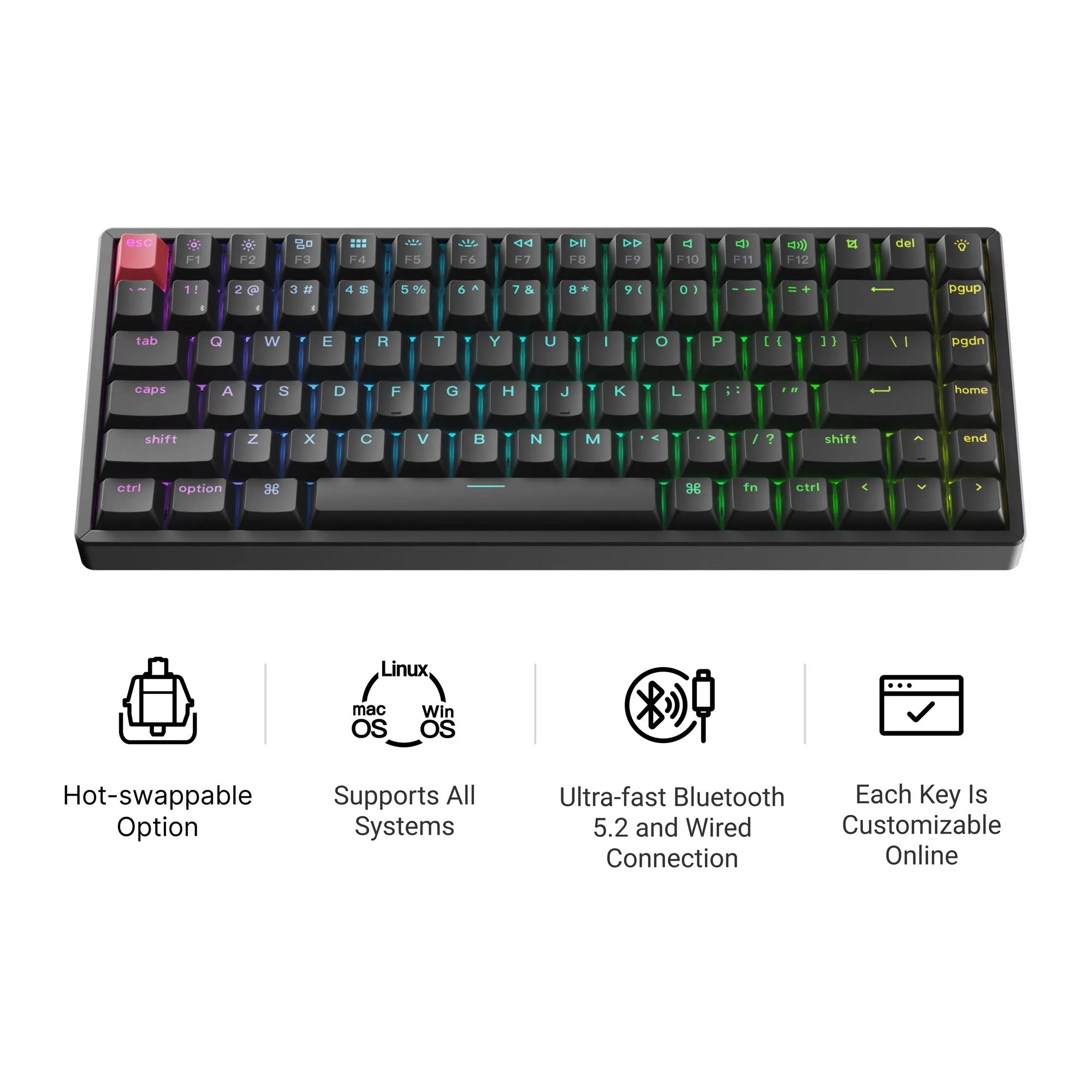
Keychron K2 QMK Wireless Mechanical Keyboard (Version 3)
-
Keychron K2 QMK Wireless Mechanical Keyboard (Version 3): Includes keycaps for both Windows and macOS. You can match the legends to your operating system, which reduces shortcut confusion on a Mac or Windows PC.
-
Keychron K2 QMK Wireless Mechanical Keyboard (Version 3): Keys and macros can be remapped through the Keychron Launcher web app on its 75% layout. You can customize the compact layout to your workflow without installing desktop software.
-
Keychron K2 QMK Wireless Mechanical Keyboard (Version 3): Hot-swap with Keychron Super mechanical switches is available on the hot-swappable version only. If you want to change switch feel later, you must choose the hot-swappable version at checkout.
Who should buy the Keychron K2 Version 3?
Best for
- Mac users who want a compact wireless mechanical keyboard with correct macOS keycaps included
- Windows users who want a 75% layout with Bluetooth and wired options
- Typists who want to remap keys and macros through a web app
- Buyers who will confirm the hot-swappable version if they plan to change switches
Not for
- Users who need a dedicated numeric keypad for daily data entry
- Buyers who expect every version to be hot-swappable without checking
- People who want a full-size layout with no compromise on key spacing