Quick Answer
Use the KitchenAid Smart Thermometer by inserting the probe into the thickest part of the roast, setting your target temperature on the app, and relying on real-time alerts to know when your meat is perfectly cooked.
Why Precision Matters for Roasts
Roasting large cuts like beef, pork, or lamb requires accurate internal temperature monitoring to avoid overcooking or undercooking. The KitchenAid Smart Thermometer eliminates guesswork by providing continuous readings directly to your phone, so you can focus on other tasks without opening the oven door.
A common mistake is relying on cooking time alone. Oven temperatures vary, and factors like meat thickness and starting temperature affect doneness. A smart thermometer accounts for these variables, giving you consistent results every time.
Setting Up the Thermometer Correctly
Before your first use, download the KitchenAid app and pair the thermometer via Bluetooth. Ensure the probe is fully charged—a low battery can cause connection drops mid-cook. The sleek Black Diamond finish is easy to spot on the counter, so you won't misplace it.
Insert the probe into the thickest part of the roast, avoiding bone, fat, or gristle. For bone-in cuts, position the probe tip at the center of the meatiest area, not touching the bone. This ensures the reading reflects the actual doneness, not the bone's heat conduction.
Step-by-Step Guide to Perfect Roasts
- Step 1: Insert the Probe Correctly: Place the probe tip into the thickest part of the roast, avoiding bone and large fat pockets. For irregular cuts, check multiple spots if needed. A misplaced probe can give a false reading, leading to undercooked or overcooked meat.
- Step 2: Set Your Target Temperature in the App: Open the KitchenAid app, select your meat type (beef, pork, lamb, etc.), and choose your desired doneness (rare, medium, well-done). The app will display the recommended internal temperature. Always verify the app's default temperatures against USDA guidelines if cooking for vulnerable guests.
- Step 3: Monitor Without Opening the Oven: Once the roast is in the oven, use the app to track the temperature in real time. The thermometer will alert you when the target is reached, so you can pull the roast at the perfect moment. Resist the urge to open the oven door to check—this releases heat and extends cooking time.
- Step 4: Rest the Meat Before Carving: After the alert sounds, remove the roast from the oven and let it rest for 10–15 minutes. The internal temperature will rise 5–10°F during this carryover cooking. Skipping the rest can cause juices to run out, leaving the meat dry.
Product Details
-
KitchenAid® Smart Thermometer: Smart design allows you to track cooking temperatures conveniently via the KitchenAid app. You can monitor your roast from anywhere in the house, so you don't have to stand by the oven or open the door and lose heat.
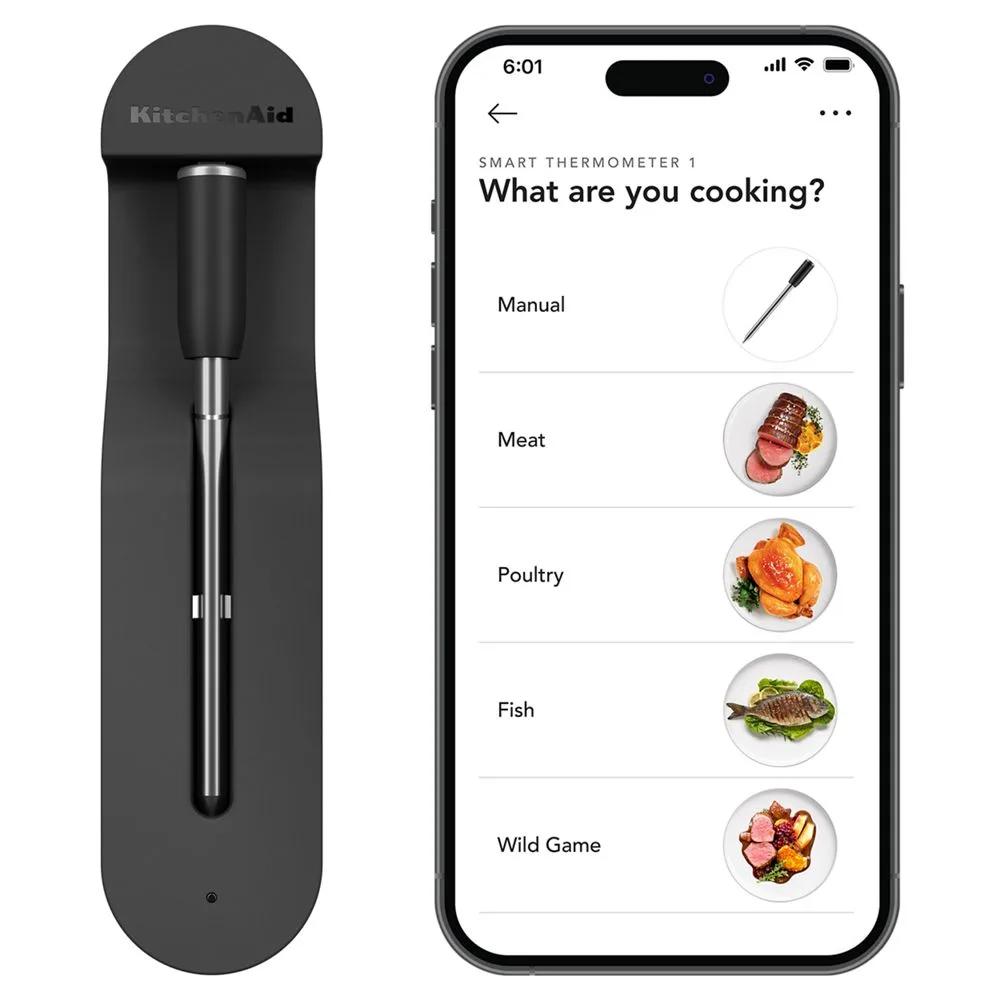
KitchenAid® Smart Thermometer