Quick Answer
To display text and animations on your mBot, connect the Me LED Matrix 8x16 to an open port, then use mBlock's graphical programming to send text, scroll it, or create custom animations.
Why Use the Me LED Matrix 8x16?
The Me LED Matrix 8x16 is a compact, blue LED display that adds visual feedback to your mBot projects. It's great for showing sensor readings, displaying messages, or creating animations that make your robot more engaging.
Because it uses the same Makeblock construction platform as your mBot, it connects easily to the main control board and works with mBlock's drag-and-drop programming, so you don't need to write complex code.
What You Need to Get Started
Before you begin, make sure you have the Me LED Matrix 8x16 module, a connection cable (usually included with the module or your mBot kit), and the mBlock software installed on your computer.
The module is designed to work with mBot and mBot Ranger, but you can also use it with other Makeblock robots that have compatible ports.
Step-by-Step Guide to Displaying Text and Animations
- Connect the module to your mBot: Plug the Me LED Matrix 8x16 into any open port on your mBot (usually port 1, 2, or 3) using the provided cable. Make sure the connection is secure and the module is facing the correct direction (the arrow on the cable should match the arrow on the port). Check that the cable is fully inserted and the port is not already used by another module.
- Open mBlock and connect your mBot: Launch mBlock, select your robot model (mBot or mBot Ranger), and connect via USB or Bluetooth. Wait for the connection indicator to turn green. If the connection fails, try a different USB port or re-pair the Bluetooth device.
- Add the LED Matrix block: In the 'Robots' or 'Modules' section of mBlock, find the LED Matrix block and drag it into the scripting area. This block lets you control the display. If you can't find the block, make sure you've selected the correct robot model and updated mBlock to the latest version.
- Program text to display: Use the 'show text' or 'display text' block and type your message. You can also set the display mode to 'scroll' to make the text move across the screen. Keep messages short (under 16 characters) to avoid cutting off; scrolling works best for longer text.
- Create a custom animation: Use the 'draw' or 'animation' block to create simple patterns or use the built-in animation library. You can also combine multiple frames to make a sequence. Test each frame separately to see how it looks before combining them into a loop.
- Upload and test your program: Click 'Upload' to send the code to your mBot. Watch the LED matrix to see if the text or animation displays correctly. If the display is blank, check the port number in your code matches the port where the module is connected.
Product Spotlight
-
Me LED Matrix 8*16 for mBot/ mBot Ranger: This module features a brilliant blue display with translucent acrylic for ideal display effect. The blue LEDs are easy to read even in bright environments, and the acrylic cover protects the display while keeping it visible.
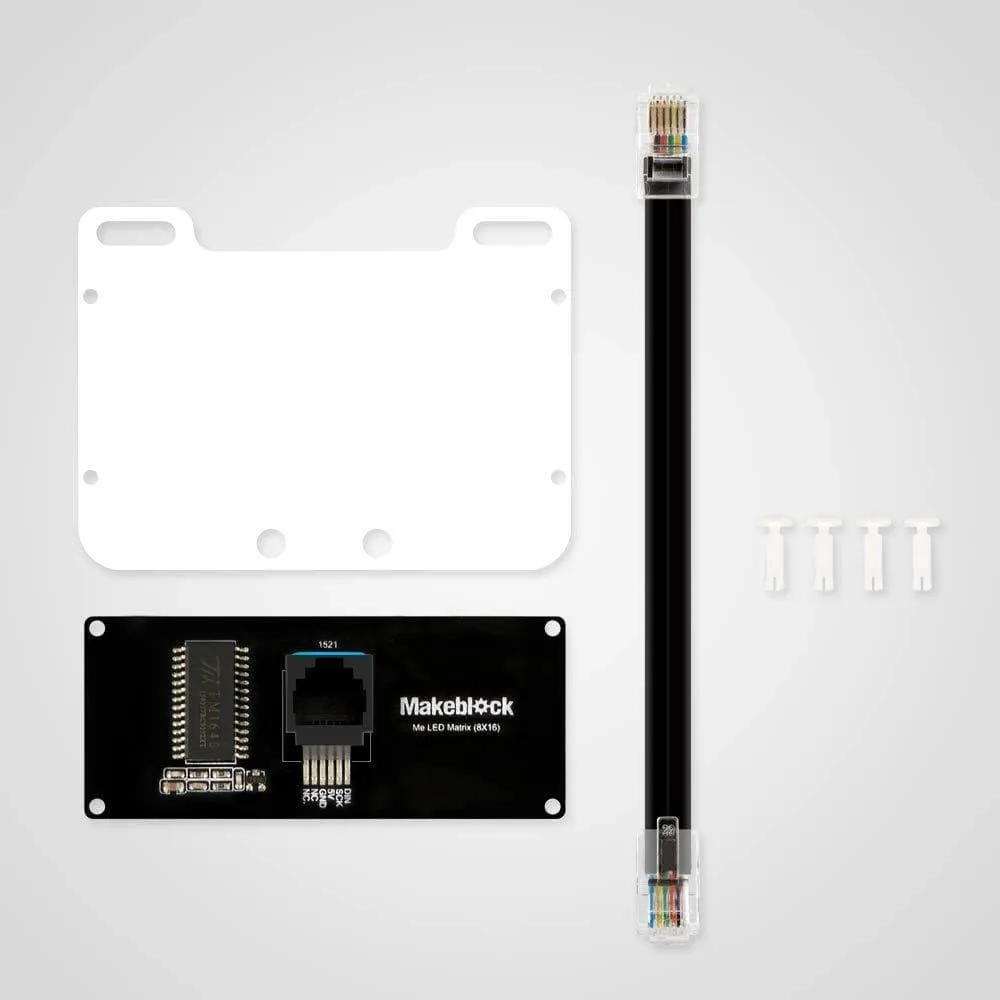
Me LED Matrix 8*16 for mBot/ mBot Ranger