What the MOZA CM2 HD Dash Brings to Your Rig
The MOZA Racing CM2 HD Racing Dash adds a 5-inch 720P touchscreen, 10 RGB shift indicators, and 6 RGB flag lights to your sim racing setup. It connects directly to your PC via USB or to MOZA wheelbases through the RJ11 port, and its height is adjustable to fit different seating positions. This guide covers the supported steps for mounting, wiring, and configuring the dash using the supplied information.
CM2 HD Dash at a Glance
-
MOZA Racing CM2 HD Racing Dash: The dash features a 5-inch 720P capacitive touchscreen with a 60Hz refresh rate. The touchscreen is the main interface for viewing and customizing race data, and the 60Hz refresh rate ensures smooth updates.
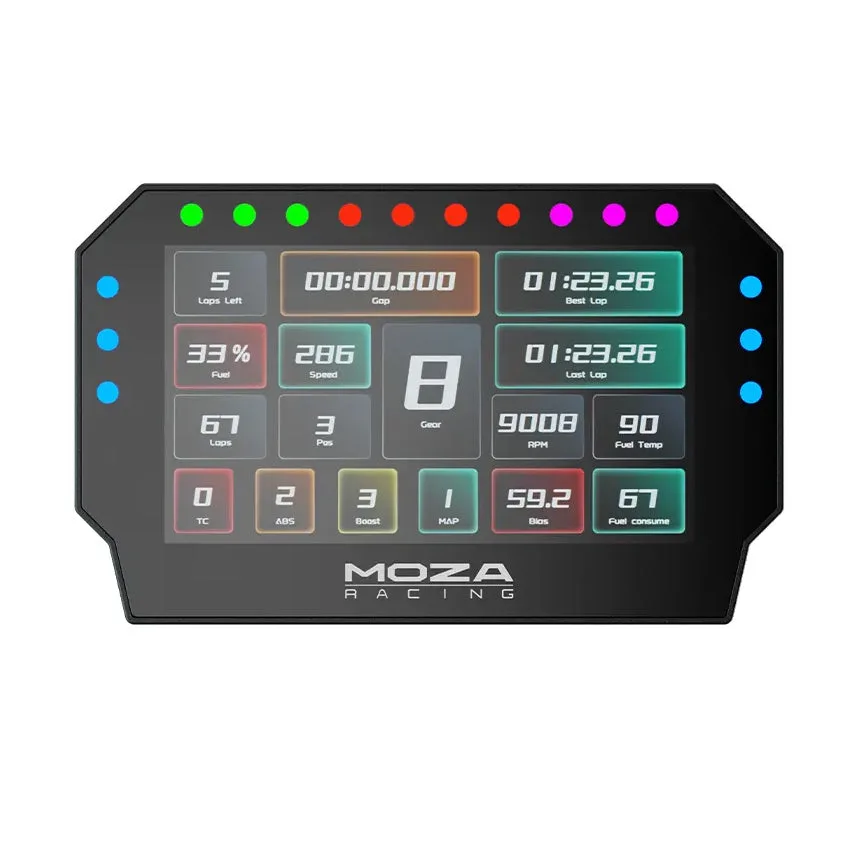
MOZA Racing CM2 HD Racing Dash
-
MOZA Racing CM2 HD Racing Dash: It connects to all MOZA wheelbases via the RJ11 port and to any PC via USB. This dual connectivity means you can use the dash with MOZA bases or with third-party setups, making it flexible for different rigs.
-
MOZA Racing CM2 HD Racing Dash: The height is adjustable to accommodate different seating positions. You can position the dash for clear visibility without straining your neck or blocking your view of the screen.
Mounting the Dash to Your Rig
The CM2 HD Dash attaches directly to the base of your wheel stand or rig. The box includes the dash monitor, a hexagon wrench, M3 screws (both socket head and socket head screen types), and 3M foam adhesive.
- Attach the mount to your wheel base: Use the included M3 screws and hexagon wrench to secure the dash mount to your MOZA wheel base or other compatible surface. The dash is designed to work with all MOZA direct-drive wheelbases.
- Adjust the height: Once mounted, adjust the dash height so the screen is at eye level or slightly below, depending on your seating position. The adjustable height helps you find a comfortable view angle.
- Secure the dash: If needed, use the 3M foam adhesive to add extra stability or to attach the dash to a non-standard surface. The adhesive is optional but can reduce vibration.
Wiring and Connecting the Dash
The dash supports two connection methods: USB direct to PC for universal compatibility, or RJ11 to a MOZA wheel base for a cleaner setup.
- USB direct to PC: Connect the dash to your computer using a standard USB cable. This method works with any sim racing setup, including third-party wheels and pedals.
- RJ11 to MOZA wheel base: If you have a MOZA wheel base, use the RJ11 port on the dash to connect directly to the base. This reduces cable clutter and integrates power and data through one connection.
Configuring the Dash with MOZA Pit House
After connecting the dash, install MOZA Pit House on your PC. This software lets you choose from pre-set dashboard layouts or design your own custom interface. The CM2 HD Dash is the first MOZA product with a fully customizable UI system, and you can share or download designs from the MOZA community platform.
The dash supports popular racing sims such as Assetto Corsa, Assetto Corsa Competizione, F1, Project Cars 2, and DiRT Rally 2. Once Pit House is running, select your game and the dash will display real-time data like speed, RPM, and gear position.
What the Supplied Information Does Not Confirm
The supplied records do not include step-by-step wiring diagrams, specific torque values for mounting screws, or instructions for using the 3M foam adhesive. They also do not specify how to update the dash firmware or troubleshoot connection issues. For those details, refer to the full product manual available from MOZA Racing.