What You Can Customize with VIA
The Multix 104 VIA V2 supports full key remapping and layer configuration through the open-source VIA firmware. This means you can assign any key to any function, create macros, and set up multiple layers for different applications or workflows. VIA runs in your browser or as a standalone app, so no compiling or flashing is required for basic changes.
How to Remap Keys on the Multix 104 VIA V2
Follow these steps to customize your keyboard layout using VIA.
- Connect your keyboard: Plug the Multix 104 VIA V2 into your computer using the included USB Type-C cable. The keyboard is recognized immediately; no driver installation is needed.
- Open VIA: Go to usevia.app in a Chromium-based browser (Chrome, Edge) or download the VIA desktop app. The interface will show a virtual representation of your keyboard once connected.
- Select a layer to edit: VIA displays multiple layers (Layer 0, 1, 2, 3). Layer 0 is the default base layer. Click a different layer number to start customizing. Each layer can hold a completely different keymap.
- Remap a key: Click any key on the virtual keyboard. A menu opens with all available key functions, including standard keys, media controls, mouse actions, and special QMK codes. Choose the function you want, and the change takes effect immediately on the physical keyboard.
- Save your layout: VIA saves changes automatically to the keyboard's onboard memory. You can also export your layout as a JSON file for backup or sharing.
Understanding Layers on the Multix 104 VIA V2
Layers let you multiply the number of functions per key. For example, Layer 0 can be your standard typing layout, Layer 1 can hold navigation keys (arrows, Home, End), and Layer 2 can be a dedicated gaming layer with different key assignments. The Multix 104 VIA V2 supports up to four layers (0–3). You switch between layers by assigning a momentary layer-switch key (MO) or a toggle key (TG) on one of the layers. A typical setup is to put a MO(1) key on Layer 0's Caps Lock or right Alt position, then hold that key to access Layer 1.
Multix 104 VIA V2 Key Features for Customization
-
Multix 104 VIA V2: The keyboard uses a Gateron hot-swap socket, so you can change switches without soldering. If you want different tactile or linear feels per layer, you can physically swap switches without any tools beyond the included keycap puller.
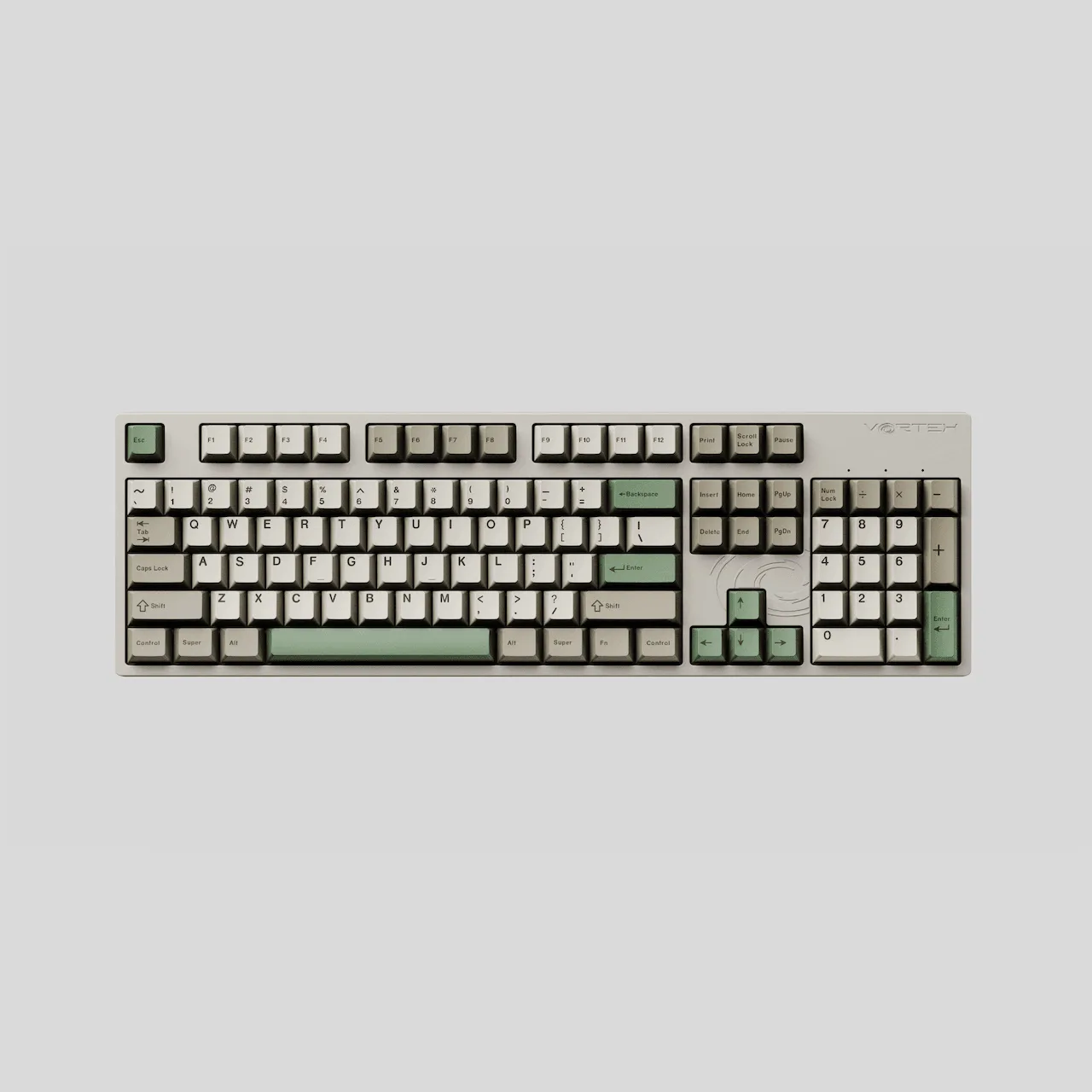
Multix 104 VIA V2
-
Multix 104 VIA V2: Comes with Cherry Profile Two-Tone Double Shot PBT keycaps. Durable keycaps that won't shine over time, and the two-tone design helps you visually distinguish different layers if you use contrasting colors.
-
Multix 104 VIA V2: Includes two dampeners in the box. These reduce case ping and hollow sound, making your customized keyboard quieter—especially useful in shared workspaces.
What VIA Can't Do on the Multix 104 VIA V2
VIA handles basic key remapping and layer switching, but more advanced features like per-key RGB lighting control, complex macros, or custom animations require QMK firmware compilation. The Multix 104 VIA V2 is VIA-compatible out of the box, but if you need those deeper customizations, you'll need to compile and flash a custom QMK firmware. The supplied information does not confirm whether the keyboard supports per-key RGB or underglow, so those features may not be available.