Start with what the Multix is made of
The Vortex Multix is a wired ANSI TKL keyboard with a silicone dampening pad, O-ring dampeners, hot-swap PCB, Cherry profile PBT double-shot keycaps, and gold screw-in PCB stabilizers. Those details matter for cleaning: the PBT keycaps can be removed and washed, the hot-swap sockets let you pull switches without soldering, and the dampening materials mean you should avoid soaking or spraying liquid into the case.
The Multix has no backlight, so you do not need to worry about LED damage during cleaning. It connects by USB Type-C and is listed for Windows 7, Windows 8, Windows 10, and Mac 10.11 or newer, so unplugging it for cleaning is straightforward.
A routine you can repeat monthly
This routine uses only the tools that come with the Multix plus common household items. It keeps the keyboard clean without putting stress on the switches or the finish.
- 1. Unplug and dust the surface: Disconnect the USB Type-C cable. Use a soft brush or a can of compressed air held upright to clear dust from between the keycaps. Keep the keyboard flat so debris does not fall into the case.
- 2. Remove keycaps with the supplied puller: The Multix includes a keycap puller. Pull straight up, one key at a time, and set the keycaps aside in a tray. You do not need to remove every keycap every month; focus on the keys you use most.
- 3. Wash PBT keycaps in cool water: The Cherry profile PBT double-shot keycaps are durable, but use only cool water and a drop of mild dish soap. Rinse thoroughly and let them air-dry completely before putting them back. Do not use hot water or alcohol on the keycaps.
- 4. Clean the plate and case with a dry cloth: With the keycaps off, wipe the plate and case with a microfiber cloth. A soft brush can loosen dust around the switches. Avoid wet wipes or sprays near the hot-swap sockets and the silicone dampening pad.
- 5. Check switches and stabilizers: The Multix uses a hot-swap PCB that supports both 3-pin and 5-pin switches, and it comes with a switch puller. If a key feels scratchy, you can remove that switch and check for debris. The gold screw-in PCB stabilizers can be checked for wobble, but do not overtighten them.
- 6. Reassemble and test: Make sure every keycap is fully dry, then press them back on firmly. Reconnect the USB Type-C cable and test each key. The Multix has NKRO, so you can test multiple keys at once if you use a key-testing tool.
Dust care for the Multix specifically
The Multix has a two-stage height adjustment, so you can tilt it to make dusting easier. These habits keep dust from building up in the first place.
- Keep the keyboard covered when idle: A simple microfiber cloth or a keyboard cover reduces dust settling between keycaps. This is especially useful if your desk is near a window or in a dry room.
- Dust weekly, deep clean monthly: A quick pass with a soft brush once a week prevents crumbs and dust from working into the switches. The monthly routine above is enough for most users.
- Avoid eating over the keyboard: Crumbs are the most common cause of sticky keys. If you snack at your desk, tilt the keyboard and shake it gently over a bin, then brush out the debris.
What not to do with the Multix
Do not put the Multix in a dishwasher or submerge it in water. The silicone dampening pad and O-ring dampeners are not designed for soaking, and water can damage the PCB. Do not use alcohol or solvent cleaners on the PBT keycaps or the case; mild soap and water are sufficient for the keycaps, and a dry cloth for everything else.
The Multix is a wired keyboard, so there is no battery to worry about. However, always unplug the USB Type-C cable before cleaning to avoid accidental key presses or electrical issues.
Multix features that affect cleaning
-
Multix: Cherry profile PBT double-shot keycaps PBT is durable and can be washed with water, but double-shot legends are molded in, so avoid abrasive cleaners that could dull the surface.
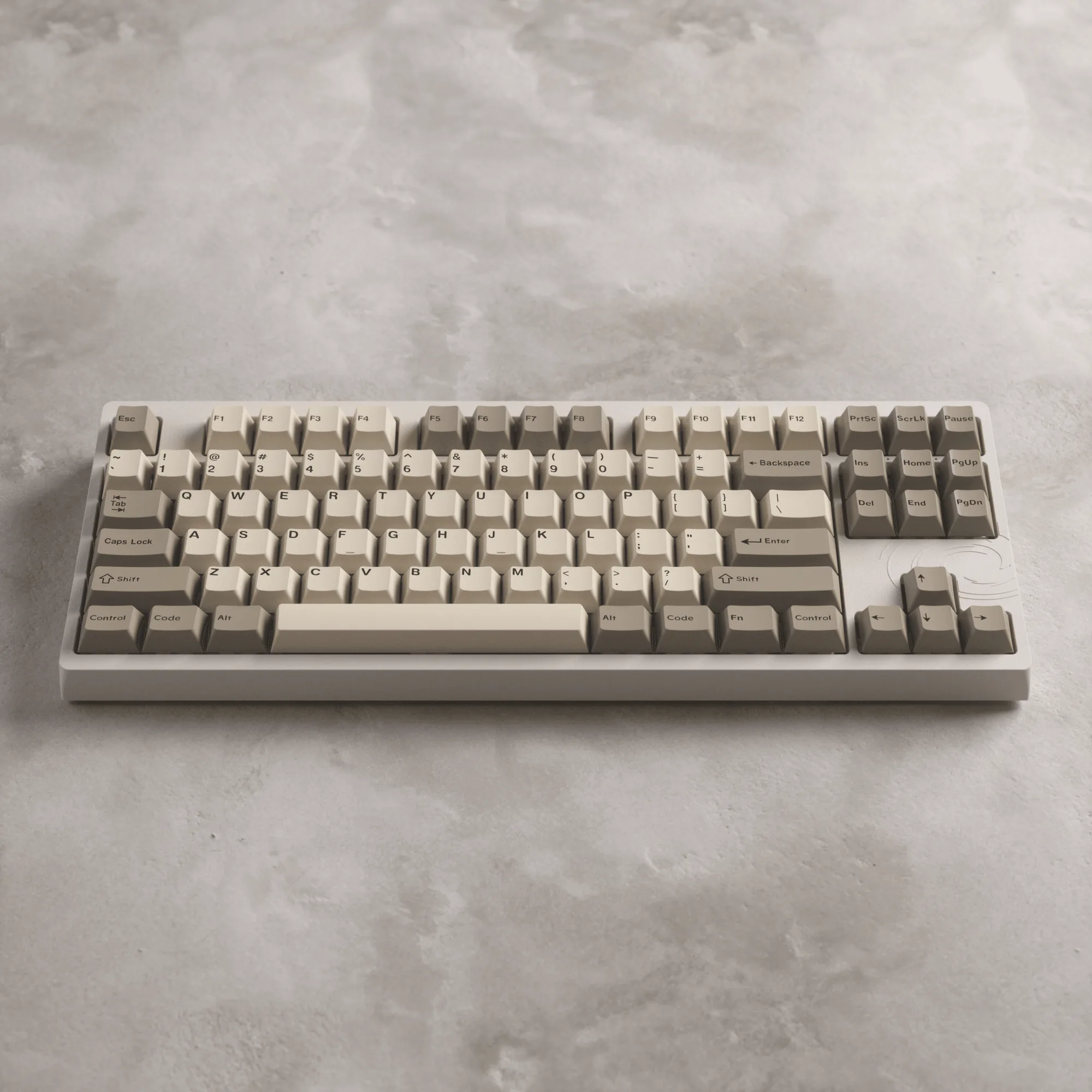
Multix
-
Multix: Multi-layout hot-Swap PCB supports both 3-pin and 5-pin switches You can remove individual switches for cleaning without soldering, which makes it easier to clear debris from the plate.
-
Multix: Silicone dampening pad and O-ring dampeners reduce noise and vibration These materials should not be soaked or sprayed; use a dry cloth or brush around them.
-
Multix: Includes keycap puller and switch puller You have the right tools for removing keycaps and switches without damaging them.
When to replace rather than clean
If a keycap is cracked or the legend is worn through, cleaning will not fix it. The Multix comes with additional keycaps, so check the box before ordering replacements. If a switch is consistently unresponsive after cleaning, you can replace it thanks to the hot-swap PCB. The Multix supports Gateron G Pro and Cherry MX switches in south-facing orientation, so match the replacement to your existing switch type if you want a consistent feel.
The Multix has a 12-month warranty. Cleaning does not void the warranty, but disassembling the case beyond removing keycaps and switches may. If you are unsure, contact support before taking the case apart.