Quick answer
Plug your standard N64 controller into the Hyperkin adapter, set the compatibility switch to Console mode for Nintendo Switch or PC/Mac mode for a computer, then connect the adapter to your device. Test the controller in your game or emulator before you rely on it.
Why the mode switch matters more than the cable
The Hyperkin adapter has a compatibility switch that toggles between PC/Mac mode and Console mode for Nintendo Switch. If the switch is in the wrong position, the adapter may power on but the device will not recognize controller input. Set the mode before you plug the adapter into your Switch or computer, and recheck it whenever you move the adapter between devices.
What to expect from input lag and controller compatibility
The catalog does not list a latency specification for this adapter, so treat input lag as something to test in your own setup rather than a published number. Wired adapters generally avoid Bluetooth pairing delays, but the adapter still converts the N64 controller's signal, and performance can vary by device. The adapter is listed as compatible with standard N64 controller models, so third-party or modified controllers may not behave the same way.
When this adapter is not the right choice
If you need to connect multiple N64 controllers at once, check the adapter's single controller port before buying; this model provides one port. If you want wireless play, this is a wired adapter, so plan for cable length between your controller and your Switch or computer. And if your device is not a Nintendo Switch, PC, or Mac, the compatibility switch has no mode for it.
Setup steps for the Hyperkin N64 Controller Adapter
- Set the compatibility switch: Slide the switch to Console mode for Nintendo Switch or to PC/Mac mode for a computer before connecting anything. Common mistake: leaving the switch in the previous mode and assuming the adapter is broken. Match the switch position to the device you are using right now.
- Connect the N64 controller to the adapter: Plug a standard N64 controller into the adapter's controller port. Checkpoint: use an original-style N64 controller, because the adapter is listed for standard N64 controller models and modified pads may not register.
- Connect the adapter to your device: Plug the adapter into a USB port on your Switch, PC, or Mac. Common mistake: using a hub or front-panel port that does not supply enough power; try a direct port on the device if the adapter is not detected.
- Confirm the device sees the adapter: On Switch, open System Settings and check the controller connection screen. On PC or Mac, open your emulator or game's controller settings and look for a detected gamepad. Checkpoint: if nothing appears, recheck the switch position and try another USB port before troubleshooting further.
- Test buttons and input lag in a game: Launch a game or emulator and test the stick, D-pad, and buttons. For input lag, compare a button press against an on-screen action and adjust emulator settings or your display if it feels delayed. Common mistake: judging lag from the menu instead of actual gameplay. If inputs feel late, test with a different USB port or device before blaming the adapter.
Product facts
-
N64 Controller Adapter for Nintendo Switch, PC, and Mac - Hyperkin: The Hyperkin N64 Controller Adapter is compatible with Nintendo Switch, PC, and Mac and has a controller port plus a PC/Mac-to-Console compatibility switch. You can move one adapter between a Switch and a computer, but you must flip the switch to match the device each time.
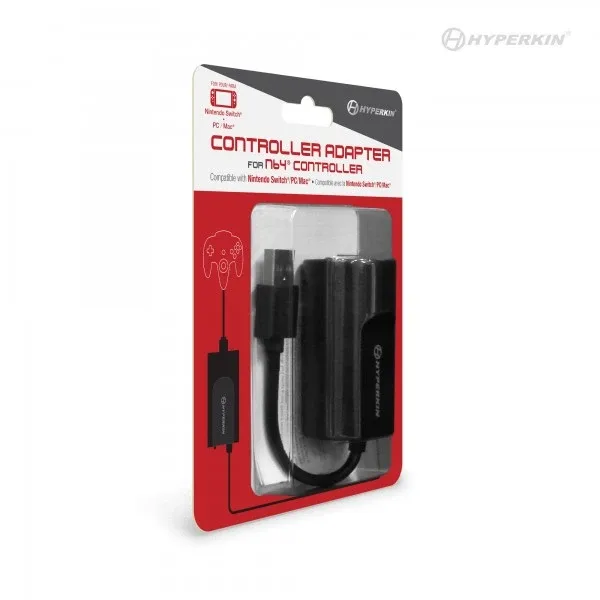
N64 Controller Adapter for Nintendo Switch, PC, and Mac - Hyperkin