Charging Multiple NEO S Controllers: What to Expect
The NEO S Charging Dock is designed to charge one NEO S controller at a time, but if you have more than one NEO S Wireless Collectible Controller, you can rotate them through the dock. This guide covers how to set up the dock, use the magnetic contact points for secure charging, and understand the LED indicators that show charging status.
What the NEO S Charging Dock Includes
-
NEO S Charging Dock: Designed to complement the NEO S Wireless Collectible Controller, this stand-alone dock not only charges your controller but also showcases it when not in use. The dock is intended for a single NEO S controller at a time, but its display function makes it easy to swap controllers between charging sessions.
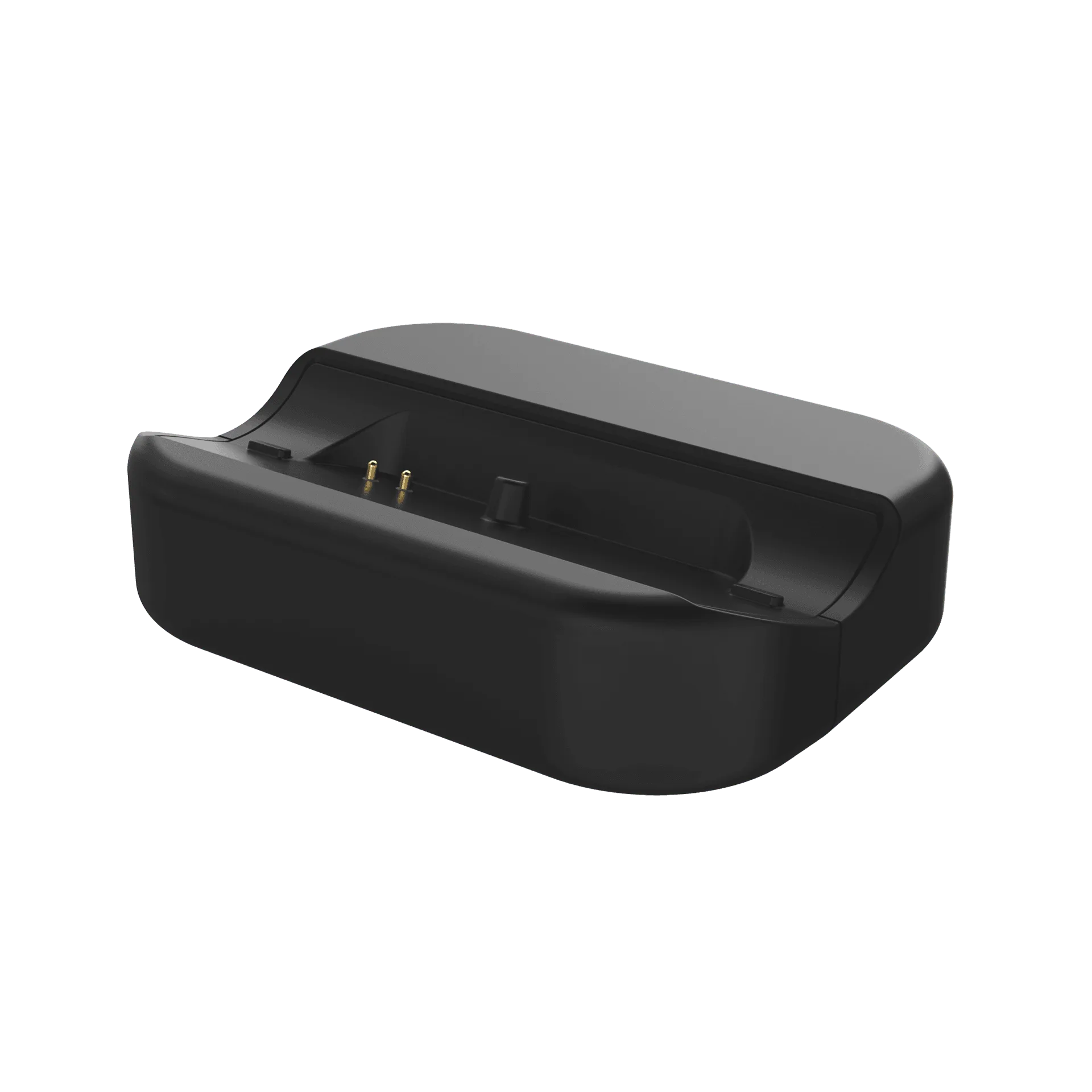
NEO S Charging Dock
-
NEO S Charging Dock: The magnetic contact points ensure a secure and stable connection for rapid charging every time. Magnetic alignment helps you dock the controller quickly and securely, reducing the chance of a poor connection when swapping controllers.
-
NEO S Charging Dock: USB-C CABLE & NEO S CONTROLLER NOT INCLUDED. You need the charging cable that came with your controller to power the dock. If you have multiple controllers, you only need one cable (and one dock) to charge them one at a time.
-
NEO S Charging Dock: Includes Charging Dock Only – Designed for use with the charging cable included with your controller. The dock does not include a power adapter or cable. Use the cable from your controller to connect the dock to a USB power source.
How to Set Up the NEO S Charging Dock for Multiple Controllers
Setting up the dock is straightforward, and you can use it with multiple NEO S controllers by rotating them. Follow these steps:
- Connect the dock to power: Use the USB-C cable that came with your NEO S controller. Plug one end into the dock and the other into a USB-A power source (such as a wall adapter or gaming console USB port). The dock does not include a cable, so keep the controller's cable handy.
- Place the dock on a stable surface: The dock has a compact design that saves space. Place it on a flat, stable surface near your gaming setup so you can easily set down or pick up a controller.
- Dock the controller: Line up the magnetic contact points on the dock with the corresponding contacts on the bottom of the NEO S controller. The magnets will help guide the controller into the correct position. You should feel a secure click when the connection is made.
- Check the LED indicator: Once docked, the LED indicator on the dock will show the charging status. A solid light typically means charging is in progress, while a different color or off light may indicate a full charge or no connection. Refer to your controller's manual for specific LED behavior.
- Swap controllers as needed: When the first controller is fully charged, simply lift it off the dock and place your second NEO S controller onto the dock. The magnetic contacts will align automatically. Repeat this process for each controller you want to charge.
Charging Tips for Multiple Controllers
If you own multiple NEO S controllers, the dock makes it easy to keep them all powered. Here are a few practical tips:
Keep the dock in a central location so you can quickly swap controllers between gaming sessions. Since the dock also serves as a display stand, it looks good on a desk or shelf.
The dock supports fast charging, so each controller should charge relatively quickly. Plan to charge one controller while you use another to minimize downtime.
If you notice the LED indicator is not lighting up, check that the magnetic contacts are clean and that the controller is properly aligned. Dust or debris can interfere with the connection.
Remember that the dock is designed for the NEO S controller only. It may not work with other controllers or devices due to the custom fit and magnetic alignment.
What the Catalog Does Not Confirm
The supplied information does not specify exact LED indicator colors or patterns for different charging states. It also does not confirm the exact charging time or whether the dock supports passthrough charging (using the controller while it is docked). For these details, refer to the documentation that came with your NEO S controller.
The dock is available in Black and White color options, so you can choose the one that best fits your setup.