Quick answer
Install the Nest x Yale Lock, plug in the included Nest Connect, then use the Nest app to pair the lock and Connect to your home Wi-Fi.
Before you start: what comes in the box
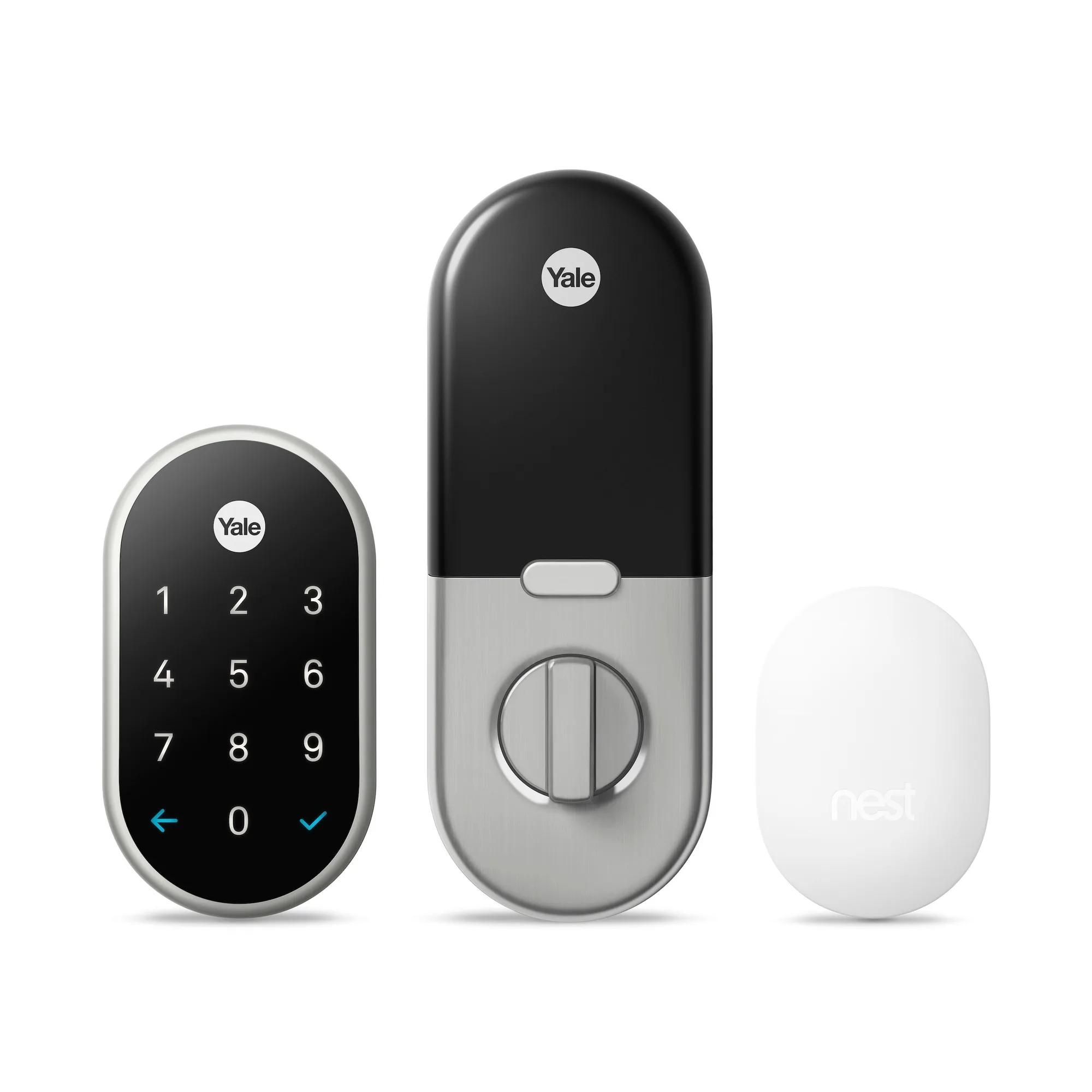
The Nest x Yale Lock ships with the lock assembly, a mounting plate, screws, batteries, and the Nest Connect bridge. The Nest Connect is required for Wi-Fi connectivity — the lock itself does not have built-in Wi-Fi. Without Nest Connect, the lock works via Bluetooth but cannot be controlled remotely through the Nest app.
Choosing the right finish and function
The Nest x Yale Lock is available in multiple finishes and functions, including keyed and key-free options. Select a finish that matches your door hardware and a function that fits your access needs. The key-free version relies entirely on passcodes and the Nest app, which is convenient but means you cannot use a physical key as a backup.
Step-by-step setup
- 1. Install the lock hardware: Remove your existing deadbolt, then install the new latch and mounting plate. Attach the Nest x Yale Lock to the door and secure it with the provided screws. Insert the four AA batteries. Make sure the latch is centered and the lock turns smoothly before attaching the exterior assembly.
- 2. Plug in Nest Connect: Place the Nest Connect within 30 feet of the lock and plug it into a wall outlet. Wait for the LED to pulse blue, indicating it is ready to pair. Avoid placing Nest Connect behind metal objects or inside a cabinet, as that can reduce Wi-Fi range.
- 3. Download and open the Nest app: Install the Nest app on your phone and create or sign in to your Nest account. Tap the plus icon to add a new product, then select 'Nest x Yale Lock'. Keep your phone near the lock during pairing — Bluetooth range is limited to about 30 feet.
- 4. Pair the lock with Nest Connect: Follow the in-app prompts to scan the QR code on the lock or enter the pairing code. The app will guide you through connecting the lock to Nest Connect and then to your home Wi-Fi network. If pairing fails, move Nest Connect closer to the lock and restart the process. A common mistake is skipping the QR code scan.
- 5. Set up passcodes and alerts: Once connected, create entry codes for family members and enable notifications in the Nest app. You can also set a schedule for automatic locking. Test each passcode immediately to confirm the keypad registers the code correctly.
- 6. Test remote access: Leave the lock's Bluetooth range, then use the Nest app to lock or unlock the door remotely. Verify you receive a notification when the lock status changes. If remote commands fail, check that Nest Connect has a solid green LED — a blinking green indicates a weak Wi-Fi signal.
Product facts
-
Nest x Yale Lock with Nest Connect: The Nest x Yale Lock connects to your Wi-Fi and the Nest app through the included Nest Connect. You must install and pair the Nest Connect within range of the lock to enable remote locking, unlocking, and notifications.
Nest x Yale Lock with Nest Connect