Quick answer
Before you connect to Wi-Fi, inspect the screen and Joy-Con, then complete the on-screen first-time setup and test handheld, tabletop, and TV modes. If anything looks off, stop and contact the seller before adding games or accounts.
Why A+ Pristine changes your first hour
A+ Pristine is a condition grade, not a guarantee that every function works. Use the first hour to confirm the cosmetic grade matches what you received and that the hardware behaves like new.
What to have ready before setup
You need a stable Wi-Fi network, a Nintendo Account, and a microSD card if you plan to download games. The Switch 2 uses a 7.9-inch LCD touch screen and detachable magnetic Joy-Con controllers, so check that both Joy-Con are charged and attached before you begin.
Your Switch 2 refurbished setup checklist
- Inspect the screen and body: Hold the console under a light and tilt it to check for scratches, scuffs, or pressure marks on the 7.9-inch LCD. Look at the back and rails for dents. Photograph any flaw before you power on.
- Check the Joy-Con: Slide each Joy-Con onto the rails and confirm the magnetic connection holds. Press every button and move the analog sticks in a circle. If a Joy-Con feels loose or a button sticks, stop and contact the seller.
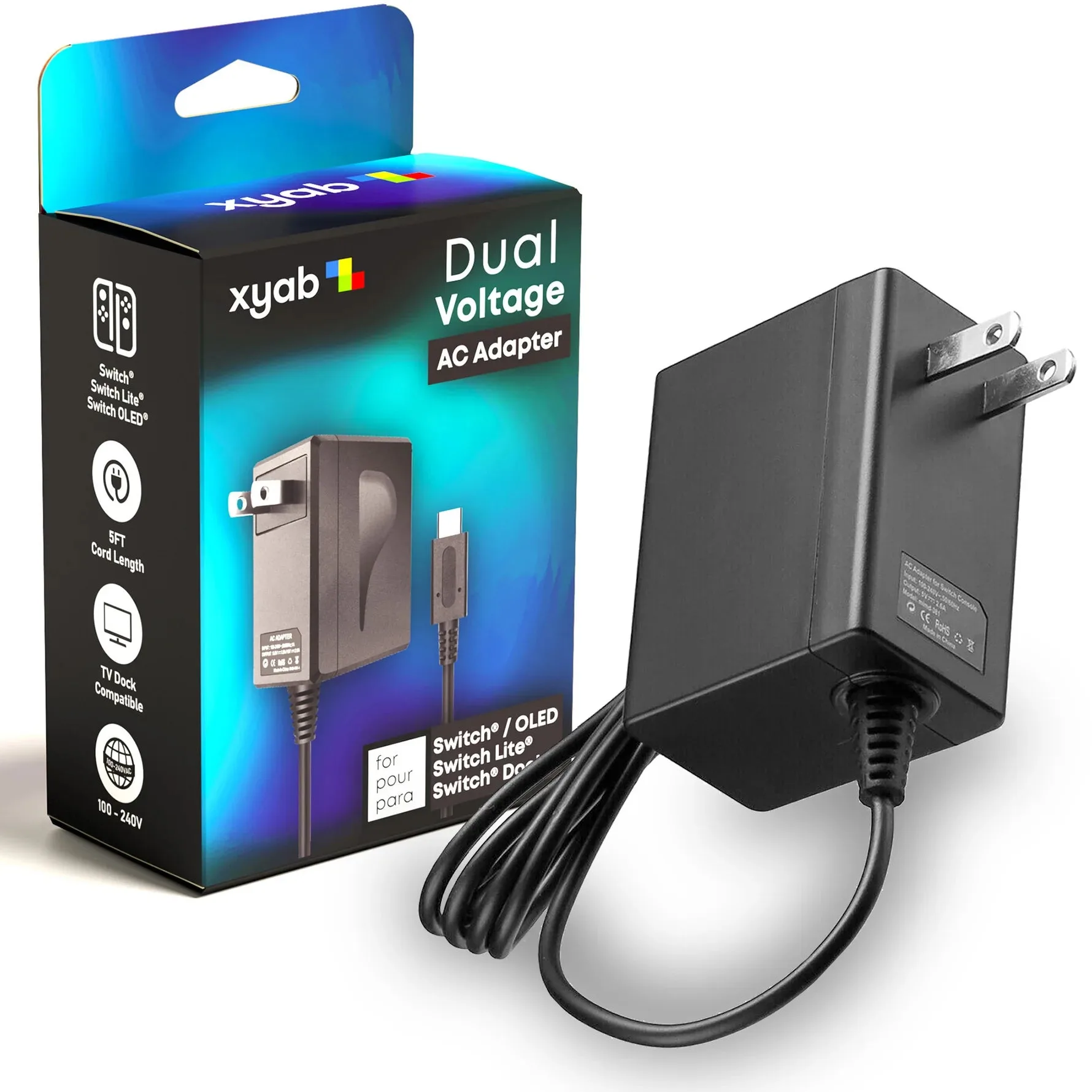
- Power on and complete first-time setup: Connect the AC adapter, power on, and follow the on-screen prompts to select language, region, and Wi-Fi. Link your Nintendo Account when asked. Do not skip the controller calibration screen during setup.
- Test handheld mode: Launch a preinstalled game or download a free demo. Hold the console in both hands and check that the screen responds to touch and that both Joy-Con work. If the screen flickers or a Joy-Con disconnects, note the time and symptom.
- Test tabletop mode: Set the console on a table using the kickstand, detach the Joy-Con, and play for five minutes. Confirm the kickstand holds and the controllers stay connected. A wobbly kickstand is a common refurbished-unit issue—check it now.
- Test TV mode: Dock the console, connect the HDMI cable to your TV, and confirm the image appears on the correct input. Play for ten minutes to check for overheating or fan noise. If the dock does not output video, try a different HDMI port before assuming a fault.
- Check storage and update: Go to System Settings and confirm the internal storage matches the listing. Run a system update, then insert a microSD card if you have one. A missing microSD slot cover is easy to overlook—verify it is present.
Product facts
-
Nintendo Switch 2 – Black – Refurbished A+ Pristine: 7.9-inch LCD touch screen with Full HD handheld resolution. Inspect the screen for scratches or dead pixels before first setup, since the larger display makes flaws easier to spot.
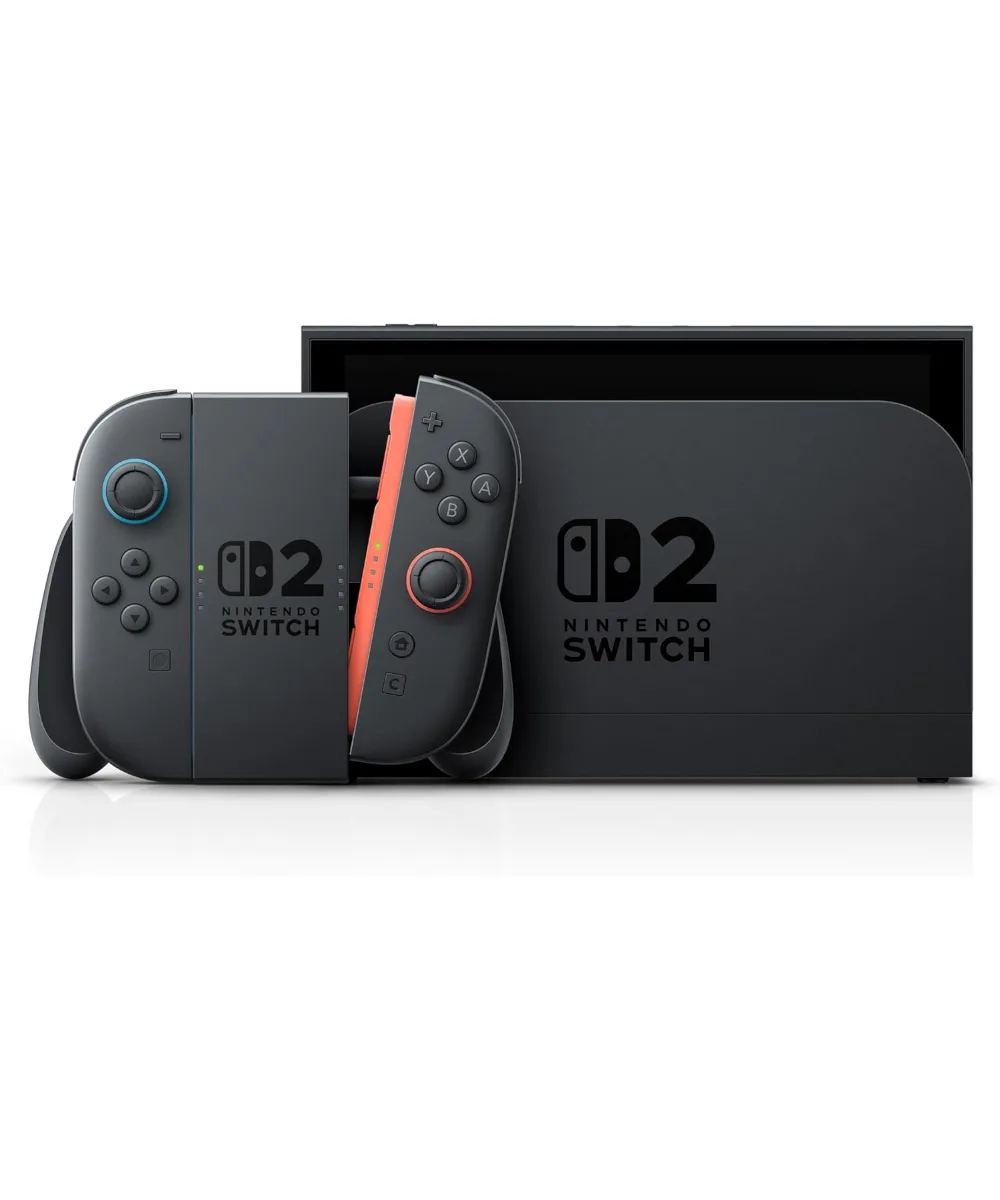
Nintendo Switch 2 – Black – Refurbished A+ Pristine
-
Nintendo Switch 2 – Black – Refurbished A+ Pristine: Detachable magnetic Joy-Con controllers. Test that each Joy-Con attaches firmly and responds in handheld mode, because magnetic alignment is a key part of the hardware experience.