Why Connection Issues Happen with Portable DACs
Portable DAC/AMPs like the Relay rely on a clean digital signal from your source device and proper physical connections. When audio drops out, crackles, or doesn't play at all, the cause is often a loose USB-C connection, mismatched gain, or incorrect filter selection. The good news is that most problems are simple to fix without special tools.
What the Relay DAC/AMP Specs Tell Us
-
Relay DAC/AMP: AKM SEQ 4493 DAC chip, two ultra-low-noise, high-output drivers, High/Low gain modes, six selectable filter modes, 60-step built-in volume controls, 3.5mm single ended & 4.4mm balanced outputs, DSD and PCM playback These features give you several troubleshooting levers: gain modes can fix weak or distorted output, filter modes change how the DAC processes your audio, and the 60-step volume control lets you fine-tune levels without relying on your source device's volume.
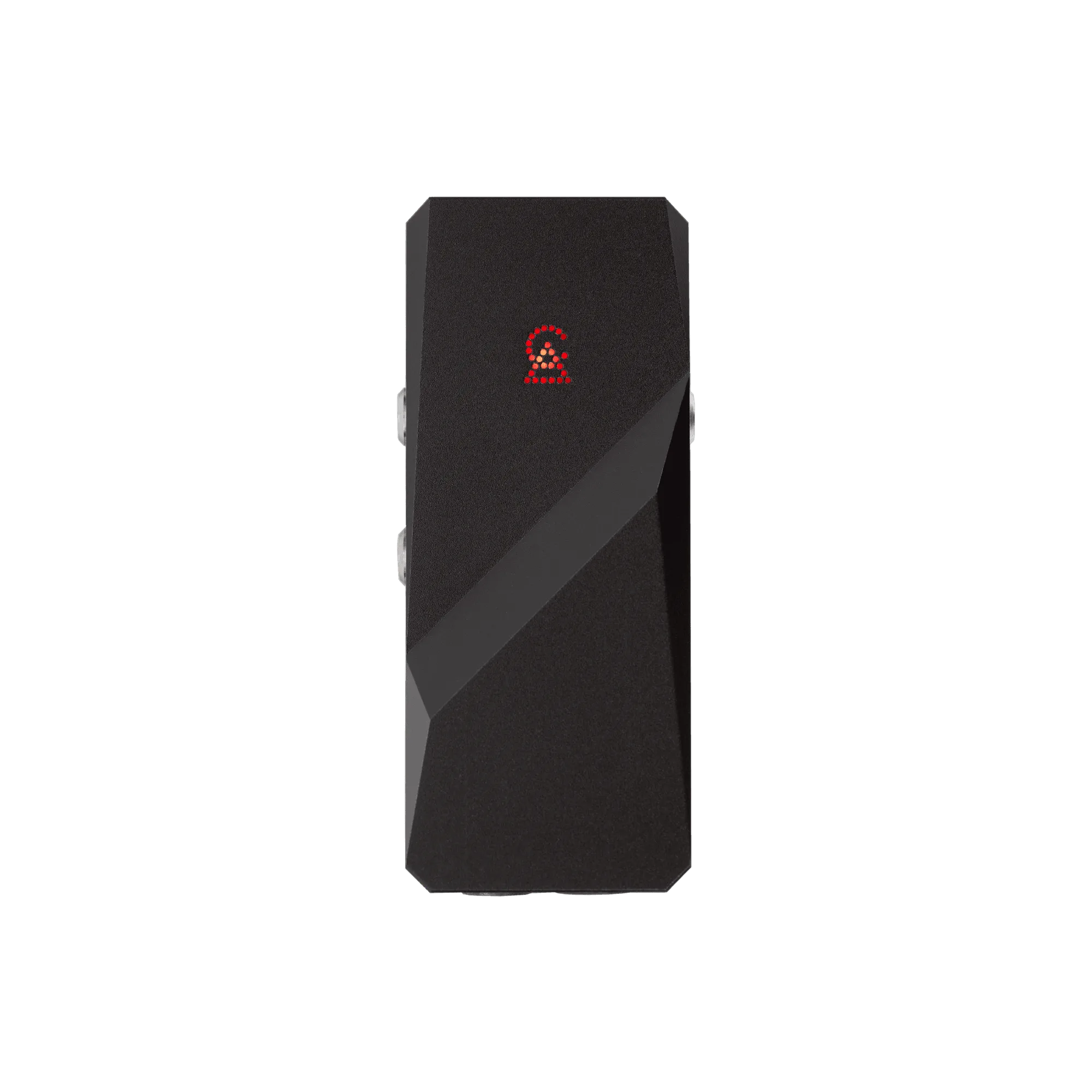
Relay DAC/AMP
Check Your USB-C Connection First
The most common cause of intermittent audio or no sound is a loose or partially inserted USB-C cable. Ensure the connector clicks fully into both your source device (phone, tablet, laptop) and the Relay DAC/AMP. If you're using a USB-C to USB-A adapter, verify it supports data and audio passthrough. A poor connection can also trigger the source device to switch to its internal speaker, so listen for that clue.
Adjust Gain and Filter Settings to Fix Sound Issues
- Switch between High and Low gain modes: If audio is too quiet or distorted, try the other gain mode. Low gain works well with sensitive IEMs; High gain may help with harder-to-drive headphones. The Relay's built-in gain switch lets you change this on the fly.
- Cycle through the six selectable filter modes: Different filters affect how the DAC handles digital-to-analog conversion. If you hear harshness, sibilance, or unnatural treble, switching filters can smooth the output. Try each mode with a familiar track to hear the difference.
- Use the 60-step volume control to match your IEMs: The Relay's dedicated volume wheel gives you precise control. If you get channel imbalance at very low volumes, turn up the Relay's volume slightly and reduce your source volume instead. This keeps the DAC in its optimal operating range.
Verify Output and Cable Compatibility
The Relay offers both 3.5mm single-ended and 4.4mm balanced outputs. If your IEM cable uses a 4.4mm balanced plug, connect it to the 4.4mm jack for the best signal integrity. Using a 3.5mm cable in the 4.4mm jack or vice versa won't work. Also confirm that your USB-C cable supports data transfer—some charging-only cables won't carry audio.
What to Do If Problems Persist
If you've checked connections, switched gain and filters, and still have issues, try the Relay with a different source device to isolate the problem. Some phones or computers may have USB audio driver conflicts. Restarting the source device or updating its operating system can help. The supplied information does not detail specific driver or firmware updates for the Relay, so contact Campfire Audio support if the problem continues.