What You Need Before You Start
The RG-K32B retro handheld console comes with 300 games pre-installed, but you can add your own ROMs to expand the library. Before you begin, you need a computer (Windows, Mac, or Linux), a microSD card reader, and a microSD card (the console uses a standard microSD card for storage). The console itself is not a USB drive, so you cannot simply plug it into a computer via USB to transfer files. You must remove the microSD card and use a card reader.
Step-by-Step: Adding Games to Your RG-K32B
Follow these steps to safely add new games to your RG-K32B. The process is the same for all color variants (Pink, Green, Blue, Grey).
- 1. Power off the console and remove the microSD card: Turn off the RG-K32B completely. Locate the microSD card slot (usually on the side or bottom of the console). Gently push the card in to release it, then pull it out. Place the card on a clean, dry surface.
- 2. Insert the microSD card into a card reader connected to your computer: Use a microSD card reader (or an adapter if your computer has a full-size SD slot). The card should appear as a removable drive on your computer. If prompted, choose to open the folder to view files.
- 3. Locate the ROMs folder on the card: The card contains a folder structure. Look for a folder named 'roms' or 'games'. Inside, you will see subfolders for different console systems (e.g., 'nes', 'snes', 'gameboy', 'genesis'). Each subfolder holds ROM files for that system.
- 4. Copy your new ROM files into the correct system folder: Download or transfer legal ROM files from your own collection. Copy the .nes, .smc, .gb, .gen, or other supported ROM files into the matching subfolder. Do not change the file names or extensions. For example, a Super Nintendo game goes into the 'snes' folder.
- 5. Safely eject the microSD card and reinsert it into the console: On your computer, use the 'Safely Remove Hardware' option before unplugging the card reader. Then insert the microSD card back into the RG-K32B until it clicks into place.
- 6. Power on the console and find your new games: Turn on the RG-K32B. The console should automatically recognize the new ROMs. Navigate to the game selection menu. Your added games will appear in the list, usually sorted by system. If they do not appear, double-check that the ROM files are in the correct folder and are a supported format.
Tips for a Smooth Experience
The RG-K32B is designed for simple, kid-friendly use, but adding games requires a computer. The console's flat ABXY buttons are smooth and easy to clean, which is great for kids, but the microSD card slot is small—use care when removing and inserting the card. The built-in hidden stand on the back is handy for propping the console up while you work on the card, but the actual file transfer happens on your computer. If you are unsure about which ROM formats are supported, check the pre-installed games on the card for examples.
RG-K32B Console at a Glance
-
AISLPC® - RG-K32B Retro Handheld Game Console for Kids: Available in soft pink, sky blue, and mint green, each console is paired with bright yellow buttons for a cheerful color-blocking look. The color variants are cosmetic only; the game transfer process is identical for all colors. Choose the one your child will love.
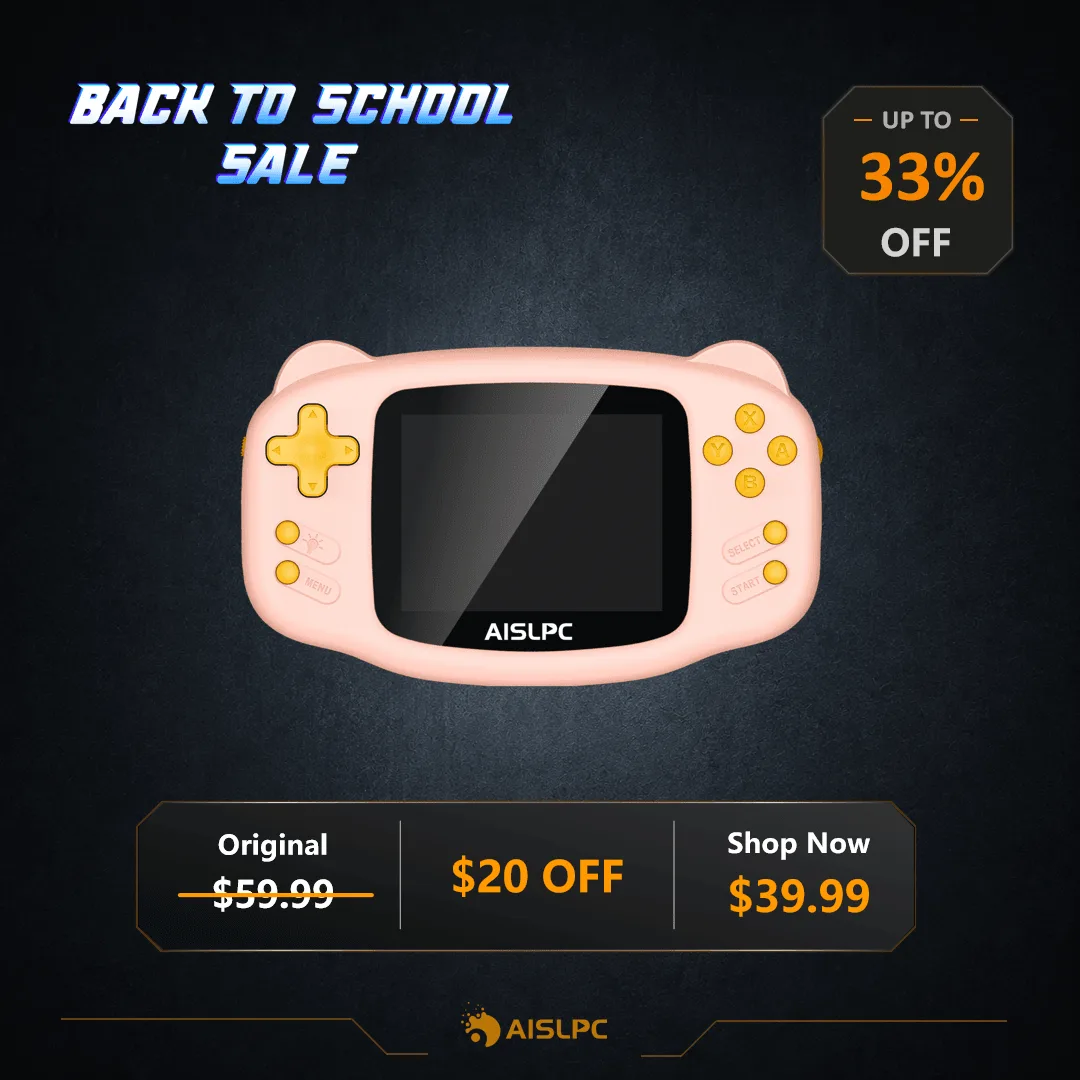
AISLPC® - RG-K32B Retro Handheld Game Console for Kids
-
AISLPC® - RG-K32B Retro Handheld Game Console for Kids: The console comes with 300 games included, with options for Pink, Green, Blue, or Grey variants. Even with 300 games, you may want to add favorites. The microSD card storage allows you to expand the library easily.
-
AISLPC® - RG-K32B Retro Handheld Game Console for Kids: The flat ABXY button design keeps the front of the console smooth and tidy, making everyday cleaning easier. When handling the console to remove the microSD card, the smooth buttons are easy to wipe clean if any dust or crumbs get on them.
What to Do If Games Don't Appear
If your new games do not show up after following the steps, check these common issues: The ROM file might be in the wrong folder (e.g., a Game Boy Advance ROM placed in the 'gameboy' folder instead of 'gba'). The file format might not be supported—compare the file extension with the pre-installed ROMs on the card. The microSD card might not be fully inserted or the console may need a restart. If problems persist, try reformatting the card (backup your files first) using FAT32 format, then copy the original files back along with your new ROMs. For card size, follow the product instructions.