Quick Answer
The Samsung Odyssey G6 is a 27-inch QHD gaming monitor with a 240Hz refresh rate and AMD FreeSync Premium Pro, ideal for smooth, tear-free gaming. To get the most out of it, adjust the refresh rate in your display settings and enable FreeSync in the monitor's OSD.
Why the 240Hz Refresh Rate Matters
A 240Hz refresh rate means the screen updates 240 times per second, which reduces motion blur and makes fast-paced action appear smoother. This is especially beneficial in competitive shooters or racing games where quick reactions matter. However, to actually see the benefit, your graphics card must be able to output high frame rates; otherwise, the monitor will still work but you won't experience the full smoothness.
QHD Resolution: A Balanced Choice
The 2560 x 1440 resolution offers a sharp image without the heavy GPU load of 4K. This makes it a sweet spot for gaming, providing more detail than 1080p while still allowing high frame rates on mid-range graphics cards. If you're upgrading from a 1080p monitor, you'll notice a significant improvement in clarity, but remember that you'll need a reasonably powerful GPU to drive games at QHD and high refresh rates.
AMD FreeSync Premium Pro: Tear-Free Gaming
AMD FreeSync Premium Pro reduces screen tearing and stuttering by syncing the monitor's refresh rate with your graphics card's output. It also supports HDR content, which can enhance colors and contrast. To take advantage, you need a compatible AMD graphics card or an NVIDIA card that supports FreeSync (though not all do). Ensure you enable FreeSync in the monitor's on-screen display (OSD) and in your graphics driver settings.
How to Optimize Your Samsung Odyssey G6
- Set the refresh rate: Right-click on your desktop, go to Display settings > Advanced display settings, and choose 240Hz from the refresh rate dropdown. If you don't see 240Hz, check your cable: use DisplayPort or a high-speed HDMI cable that supports the bandwidth. Always verify the refresh rate after connecting a new monitor; it may default to a lower value.
- Enable FreeSync: Press the joystick button on the back of the monitor to open the OSD. Navigate to Game > FreeSync and set it to On. Then, in your AMD Radeon software, go to Display and enable AMD FreeSync. If you have an NVIDIA GPU, check if your model supports FreeSync over DisplayPort. FreeSync must be enabled in both the monitor and GPU driver to work correctly.
- Adjust picture mode: In the OSD, select Picture Mode and choose a preset that fits your activity: e.g., 'FPS' for shooters, 'RTS' for strategy, or 'Custom' for a balanced look. For HDR content, enable HDR in Windows settings and set the monitor to HDR mode. Don't forget to adjust brightness and contrast in your room's lighting to avoid eye strain.
- Use Eye Saver Mode: In the OSD, go to System > Eye Saver Mode and turn it on. This reduces blue light emission, which can help prevent eye fatigue during long sessions. You can also enable Flicker-Free technology (usually on by default) to reduce screen flicker. Eye Saver Mode can be toggled on and off quickly via the monitor's function keys, so use it when you're not gaming competitively.
- Connect devices and stream: Use Wireless Display to mirror your smartphone or laptop, or plug in a USB drive to the USB hub for easy file access. The built-in Ethernet port provides a stable wired internet connection, and Wi-Fi 5 and Bluetooth 5.2 allow wireless peripherals and streaming. To watch OTT apps, use the monitor's smart features if available. For the best streaming experience, use a wired Ethernet connection to avoid buffering.
Samsung Odyssey G6 at a Glance
-
Samsung 27-Inch(68.47cm) QHD Odyssey G6 Gaming, 240 Hz, 1 ms Curved Smart LED Monitor, 2560 x 1440 Pixels, Height Adjustable Stand, OTT Apps, AMD Freesync Premium Pro (LS27BG650EWXXL, Black): The 27-inch Samsung Monitor features a 2560 x 1440 resolution VA panel with a 240Hz refresh rate for smooth visuals. This combination delivers sharp, fluid gameplay, making it ideal for fast-paced titles when paired with a capable GPU.
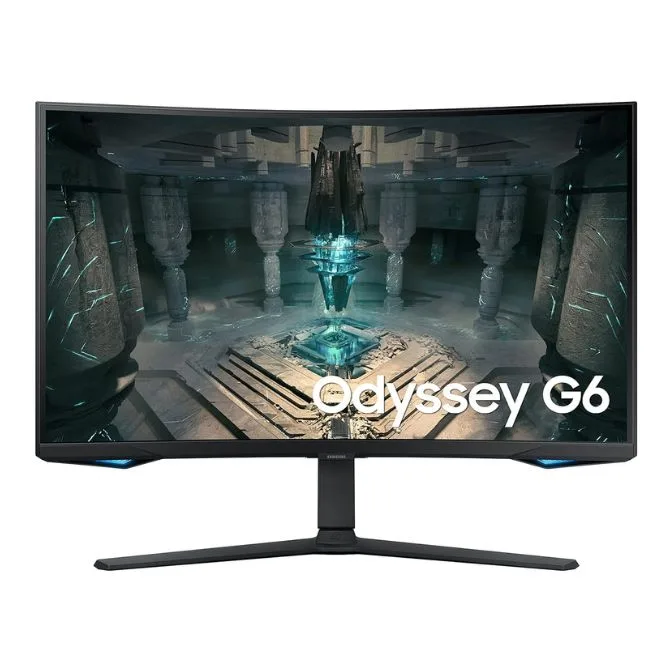
Samsung 27-Inch(68.47cm) QHD Odyssey G6 Gaming, 240 Hz, 1 ms Curved Smart LED Monitor, 2560 x 1440 Pixels, Height Adjustable Stand, OTT Apps, AMD Freesync Premium Pro (LS27BG650EWXXL, Black)
-
Samsung 27-Inch(68.47cm) QHD Odyssey G6 Gaming, 240 Hz, 1 ms Curved Smart LED Monitor, 2560 x 1440 Pixels, Height Adjustable Stand, OTT Apps, AMD Freesync Premium Pro (LS27BG650EWXXL, Black): Connectivity options include Wireless Display, DisplayPort, HDMI, USB hub, Ethernet, Wi-Fi 5, and Bluetooth 5.2. These options allow you to connect multiple devices and even stream content without a dedicated PC, adding versatility beyond gaming.
-
Samsung 27-Inch(68.47cm) QHD Odyssey G6 Gaming, 240 Hz, 1 ms Curved Smart LED Monitor, 2560 x 1440 Pixels, Height Adjustable Stand, OTT Apps, AMD Freesync Premium Pro (LS27BG650EWXXL, Black): Its Eye Saver Mode and Flicker-Free technology ensure comfort for all-day use. These features reduce eye strain during long gaming sessions or work hours, making the monitor suitable for extended use.