What the Saturn BT adapter does
The Humble Bazooka Saturn BT is a Bluetooth adapter that lets you connect various Bluetooth controllers to your Sega Saturn. It runs on the BlueRetro platform by Jacques Gagnon, and a portion of each sale is donated to support that platform.
Supported controllers include PS3, PS4, PS5, Xbox One, Xbox Series S & X, Switch Joy-Cons, 8BitDo (Bluetooth only), and other Bluetooth controllers. The adapter also supports mouse and keyboard input, though mouse support varies by make and model.
Adapter features at a glance
-
Saturn BT Bluetooth Adapter for Sega Saturn - Humble Bazooka: Supports PS3, PS4, PS5, Xbox One, Xbox Series S & X, Switch Joy-Cons, 8BitDo (Bluetooth only), and other Bluetooth controllers. Check your controller against this list before buying; wired-only 8BitDo models are not covered.
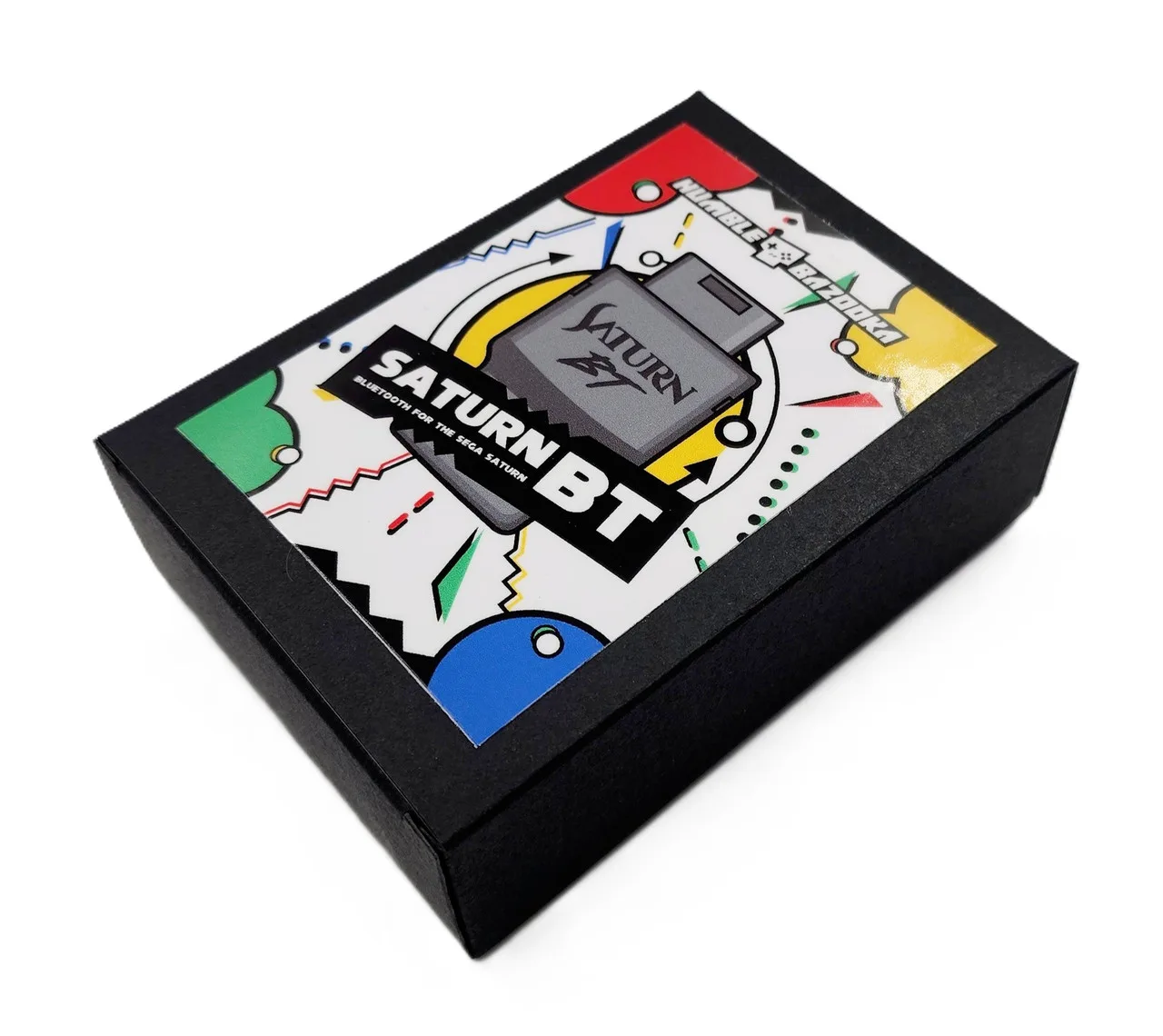
Saturn BT Bluetooth Adapter for Sega Saturn - Humble Bazooka
-
Saturn BT Bluetooth Adapter for Sega Saturn - Humble Bazooka: Includes 3D Analog mode for games like Nights Into Dreams, Multitap support, turbo assignment with varying speeds, button remapping, and low latency. These features determine whether the adapter suits your games and play style.
-
Saturn BT Bluetooth Adapter for Sega Saturn - Humble Bazooka: Firmware is user-updatable via a web browser. You can keep the adapter current without special tools.
Pairing a Bluetooth controller to the Saturn BT
With the adapter connected, power on your console. The adapter's LED will slowly pulse to indicate it is ready to pair. If this is the first time powering on the adapter, it may take 30 seconds to start pulsing.
Put your Bluetooth controller into the correct initial pairing mode. For example, on a DualSense, press Share + Options. After the controller is initially paired, you can simply power on the controller for it to pair again, such as pressing the PS button on a DualSense.
Note: Do not press the “P” button for pairing a single controller. Specific controller brand pairing instructions are available in the official BlueRetro Pairing Guide.
- Connect the adapter and power on the console: The LED pulses slowly when ready to pair; first power-on may take 30 seconds to begin pulsing.
- Put your controller into initial pairing mode: Use the correct button combination for your controller model, such as Share + Options on a DualSense.
- Wait for the LED to turn off: An off LED indicates a controller is connected.
- Reconnect later by powering on the controller: After initial pairing, simply turn on the controller to pair again.
Using the adapter buttons and LED
The adapter has two buttons and an LED that provide status and control.
- R button: Resets the adapter. Use this if the LED is solid, which indicates an error.
- P button: Hold to enable Bluetooth inquiry mode for pairing a new device. A longer hold performs a factory reset, clearing Bluetooth pairing keys for previously paired devices. Do not press P for pairing a single controller.
- LED status: Solid means an error occurred; try rebooting with the R button. Pulsing means Bluetooth inquiry mode is enabled for new pairing. Off means a controller is connected.
- Disconnecting all devices: A short press when a device is already paired disconnects all Bluetooth devices from the adapter.
Configuring buttons, turbo, and presets with Web Config
The BlueRetro Web Config lets you remap buttons, assign turbo, and manage presets. Access it at https://blueretro.io with the adapter connected to the console and the console powered on. Note that Web Config is only supported on Desktop or Android Chrome, and no controller should be paired to the adapter when you connect to Web Config.
Full Web Config instructions cover button mapping, turbo, presets, and more.
Updating firmware via Web Config
Expect around 5 minutes of update time on a PC and significantly longer on Android. To download the latest firmware, navigate to https://darthcloud.itch.io/blueretro. Unzip the downloaded file somewhere easy to access. With the adapter connected and the console powered on, open https://blueretro.io/ota.html, select the “BlueRetro_hw1_saturn.bin” file from the unzipped firmware, and allow time for the update to finish. The “Live Output” will scroll through the update process.
- Download the latest firmware: Visit https://darthcloud.itch.io/blueretro and download the file.
- Unzip the firmware file: Extract it to an easy-to-find location on your computer or phone.
- Open the OTA update page: Navigate to https://blueretro.io/ota.html with the adapter connected and console on.
- Select and upload the firmware: Choose the “BlueRetro_hw1_saturn.bin” file and wait for the Live Output to finish.
Latency by controller
The Saturn BT lists the following approximate latency figures for supported controllers:
- PS4/PS5: ~5.4 ms
- Xbox One: ~8.8 ms
- Switch Pro: ~12.4 ms
- PS3: ~12.8 ms
- WiiU Pro: ~13.2 ms
- Wiimote: ~16.3 ms
Compatibility notes and limitations
The Saturn BT supports Bluetooth controllers, but 8BitDo compatibility is limited to Bluetooth-only models. Mouse support varies based on make and model. Web Config requires Desktop or Android Chrome. The adapter does not include a controller, and the catalog does not list specific supported Saturn game titles beyond the 3D Analog mode example.