Quick answer
Connect the Sony BDP-BX370 to your TV with HDMI, join your Wi-Fi network, then pair the remote and sign in to streaming apps. For discs, keep the player ventilated and use a soft cloth to avoid scratches.
Why the HDMI port and cable matter more than you think
The BDP-BX370 outputs video over HDMI only, so the cable and port you choose directly affect picture stability. Use the included High Speed HDMI cable and plug it into a TV port labeled HDMI IN, not a service or DVI port. If you see flickering or no signal, try a different HDMI port on the TV before assuming the player is faulty.
When Wi-Fi streaming stutters
The player supports built-in Wi-Fi, but signal strength varies with distance and walls. If Netflix or YouTube buffers often, move the player closer to the router or use a wired Ethernet connection if your model has a LAN port. Avoid placing the player inside a closed cabinet, which can weaken Wi-Fi and trap heat.
Sony BDP-BX370 setup steps
- Connect to TV with HDMI: Plug one end of the included High Speed HDMI cable into the player's HDMI OUT port and the other into an available HDMI IN port on your TV. Remember which TV input you used. Check that the HDMI cable is fully seated at both ends; a loose connection is the most common cause of a blank screen.
- Power on and select the right input: Turn on the TV and the player, then use the TV remote to select the HDMI input you connected to. You should see the Sony startup screen. If you see no picture, cycle through TV inputs slowly—some TVs label the same port differently in the menu.
- Run the initial setup: Follow the on-screen prompts to choose your language and network settings. Select your Wi-Fi network and enter the password using the remote's number pad or arrow keys. Double-check the password for typos before confirming; a failed connection often comes from a single wrong character.
- Pair the remote: The BDP-BX370 remote is typically ready to use out of the box, but if it doesn't respond, point it directly at the player and press any button. For Bluetooth pairing, follow the on-screen instructions under Settings > Remote. Replace the batteries if the remote only works from very close range—weak batteries are a frequent culprit.
- Sign in to streaming apps: Open the streaming app you want (such as Netflix or YouTube) and sign in with your account credentials. Use the remote's arrow keys to navigate the on-screen keyboard. If an app won't load, check that the player's date and time are correct in Settings; an incorrect clock can block some services.
- Play a disc and check playback: Insert a Blu-ray or DVD disc with the label facing up. The player should start playback automatically. If it doesn't, press Play on the remote. Handle discs by the edges and store them in cases; fingerprints and scratches cause most skipping issues.
Product facts
-
Sony DVD Player Blu Ray Player BDP-BX370 - Streaming Blu ray DVD Player with Remote, Built-in Wi-Fi, Dolby, CD/DVD/Bluray Player Combo for TV. Bundle- Remote, High Speed HDMI Cable, Zdirect Lens Cloth: Streams from popular apps including Netflix, YouTube, and Pandora over built-in Wi-Fi. You can start watching without a separate streaming stick, but a stable Wi-Fi connection is essential for smooth playback.
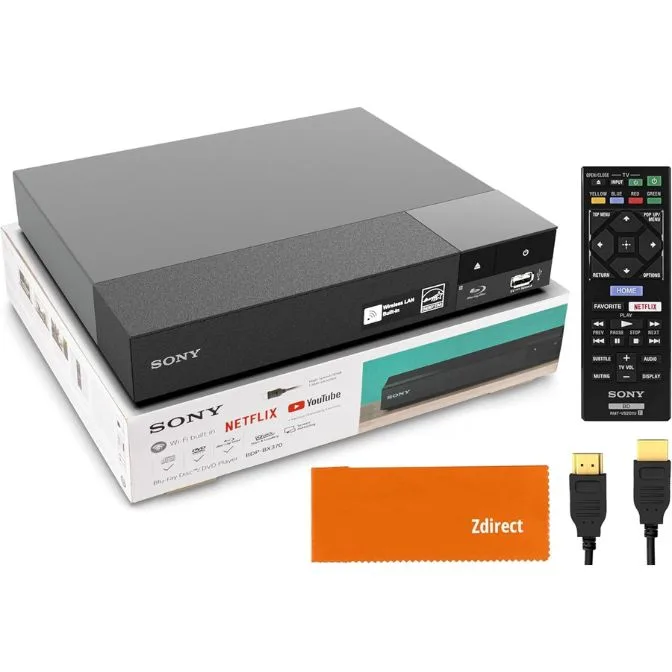
Sony DVD Player Blu Ray Player BDP-BX370 - Streaming Blu ray DVD Player with Remote, Built-in Wi-Fi, Dolby, CD/DVD/Bluray Player Combo for TV. Bundle- Remote, High Speed HDMI Cable, Zdirect Lens Cloth