Quick answer
Clip the SpeakerCom onto your DUALSHOCK 4 controller, plug it into the audio jack, and adjust your PS4 audio settings to enable voice chat without a traditional headset.
Why choose a headset-free solution
Traditional gaming headsets can cause ear fatigue, headset hair, and a feeling of isolation during long sessions. The SpeakerCom offers a more natural way to communicate by clipping directly onto your controller and using your room's speakers for game audio while keeping your ears free.
This setup is ideal for casual gamers, families sharing a living room, or anyone who prefers not to wear a headset for hours. The trade-off is that you won't get the immersive directional audio that a high-end headset provides, and your voice chat will be audible to others nearby.
Setting up your SpeakerCom for PS4
- Clip the SpeakerCom onto your controller: Align the clip with the bottom edge of your DUALSHOCK 4 controller near the headphone jack. Gently press until it snaps into place. Ensure it is secure but not forcing the plastic. A common mistake is clipping it upside down—the microphone should face toward you, not away.
- Connect the audio cable: Plug the SpeakerCom's 3.5mm audio cable into the headphone jack on the bottom of your DUALSHOCK 4 controller. Push it in until you feel a click. If your controller has a built-in speaker, it will automatically mute when the cable is inserted. If you hear no sound, check that the cable is fully inserted and not loose.
- Adjust PS4 audio settings: Go to Settings > Devices > Audio Devices on your PS4. Set 'Output Device' to 'Controller Speaker' or 'TV/AV Receiver' depending on your preference. Set 'Input Device' to 'Controller Microphone'. Adjust 'Volume Control (Headphones)' to your desired level. If your voice sounds too quiet or echoey, try lowering the 'Microphone Level' in the same menu.
- Test voice chat in a party: Create a party on your PS4 and invite a friend. Speak normally into the SpeakerCom's microphone. Ask your friend to confirm they can hear you clearly. If they report background noise, adjust the microphone sensitivity or move the SpeakerCom slightly away from your mouth. Remember that the SpeakerCom picks up room sound—avoid noisy environments for best results.
- Position the microphone for best audio: The SpeakerCom's microphone is designed to pick up your voice from a short distance. Position the controller about 12-18 inches from your mouth. Avoid covering the microphone with your hand or placing it directly against your face. If your friend hears a muffled voice, try moving the controller slightly closer to your mouth.
Product spotlight
-
SpeakerCom for PlayStation®4: The SpeakerCom clips directly onto your DUALSHOCK 4 controller and delivers high-quality voice chat without the heat, weight, or isolation of traditional headgear. You can chat comfortably for hours without ear fatigue or headset hair, making it a great alternative for long gaming sessions.
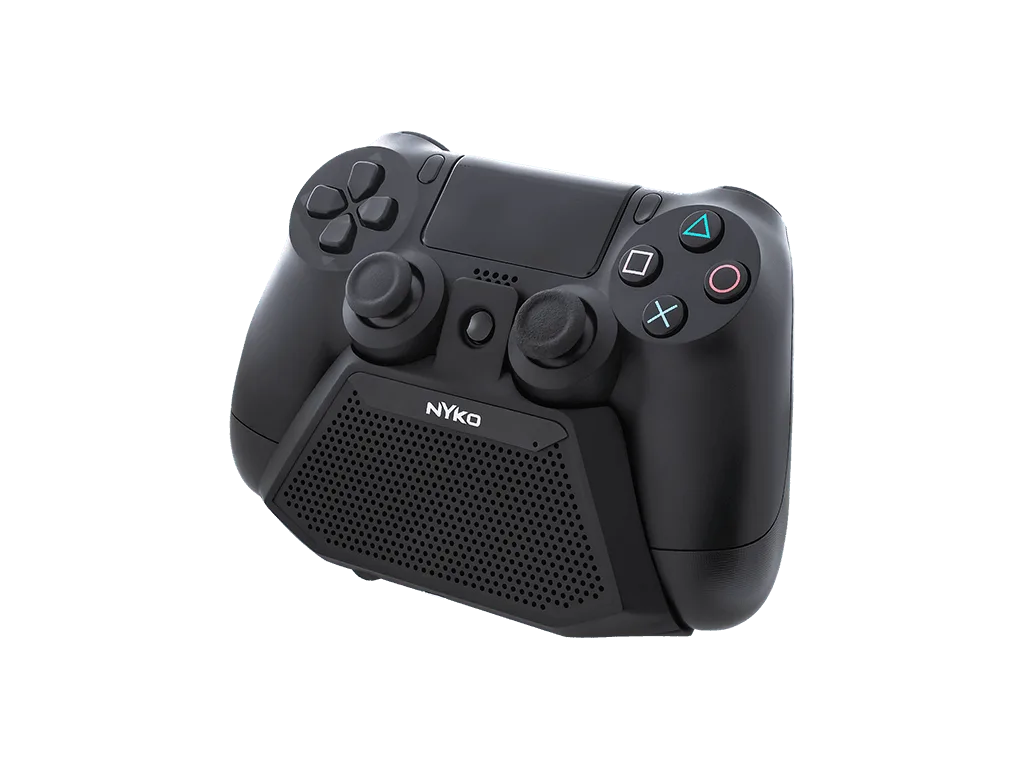
SpeakerCom for PlayStation®4