Quick answer
Use the Sphero Mini Pins & Cones Accessory Pack to create two main coding challenges: a precision driving course with cones and a bowling game with pins. Both activities teach sequence, angles, and speed control.
Why the accessory pack works for coding challenges
The Sphero Mini Accessory Pack includes 6 bowling pins and 6 traffic cones designed for the Mini robot ball. These physical objects give immediate feedback—knock over a cone and you know your code needs adjustment. Unlike screen-only activities, the pins and cones make abstract concepts like angle and velocity visible and measurable.
The pack works with any Sphero Mini robot and the Sphero Edu or Sphero Play app. You don't need additional hardware, which keeps setup simple for classrooms or home learning.
Step-by-step coding challenge setup
- Set up the course: Place the cones in a straight line or zigzag pattern on a flat, smooth surface. Leave at least 12 inches between each cone so the Mini has room to navigate. For bowling, arrange the pins in a triangle formation 3-2-1, about 24 inches from the starting point. Common mistake: placing cones too close together. The Mini needs space to turn; tight spacing causes repeated knock-overs that frustrate beginners.
- Program the first move: In the Sphero Edu app, start with a simple drive block: set heading to 0 degrees and speed to 40. Test if the Mini rolls straight toward the first cone or pin. Adjust heading in 5-degree increments until the robot aims correctly. Checkpoint: If the Mini drifts left or right, recalibrate the robot's heading by rolling it in a straight line on the app's calibration screen.
- Add turns and speed changes: After the first straight segment, add a turn block (e.g., heading 90 degrees) and a speed increase to 60 for the next segment. For bowling, use a consistent speed of 50 and a single straight heading. For the cone course, alternate left and right turns to create an S-curve. Common mistake: using too high a speed on turns. Speed above 70 makes the Mini slide past cones; keep it under 60 for precise navigation.
- Test and debug: Run the program and watch what happens. If a cone falls, note which block caused the collision and reduce speed or adjust heading. If a pin stays standing, increase speed slightly or check that the Mini is aimed at the center of the triangle. Repeat until the course is cleared or all pins fall. Checkpoint: Let students predict which block will fail before running—this builds debugging skills.
What you need
-
Mini Robot Ball Pins & Cones Accessory Pack: The Sphero Mini Accessory Pack includes Mini Bowling Pins and Mini Traffic Cones for setting up driving courses or bowling games. Ages 8+. You get two challenge types from one pack, making it versatile for different coding lessons without buying extra accessories.
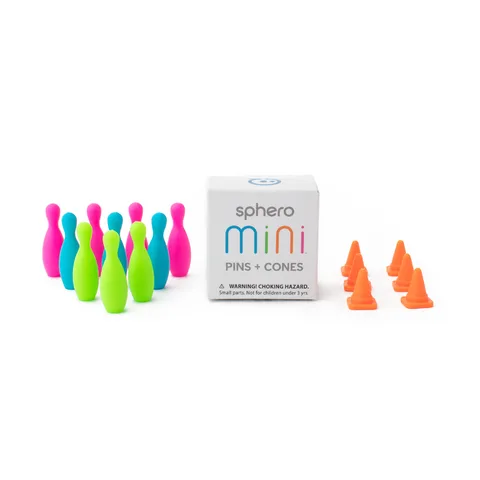
Mini Robot Ball Pins & Cones Accessory Pack