Quick answer
Most Switch TV mode failures come from the wrong HDMI port, a third-party power supply, or a cable that only carries power and not video. Unplug the dock for 60 seconds, plug the Switch's original AC adapter directly into the dock, connect HDMI to a port you have already tested with another device, then seat the console firmly and wake it with the Pro Controller. If the TV still shows no signal after that, the dock or the console's USB-C port is the remaining suspect, and further cable swaps will not help.
Check the cable and port before touching the Switch
Start at the TV end, because that is where the cheapest fix lives. Move the HDMI cable to a port you have personally used in the last week, and confirm the TV input matches that exact port number. Then swap in a different HDMI cable you know carries video, not a charging-only cable from a phone or tablet. If the TV shows the Switch briefly and then drops to a black screen, the handshake is failing rather than the dock being dead, so repeat the port and cable swap once more before moving on.
- Test the same HDMI port with a laptop or streaming stick to prove the port works.
- Use a cable rated for 4K or high-speed HDMI rather than a thin charge cable.
- Change the TV input manually instead of relying on auto-detect.
Power is the second most common culprit
The dock needs the console's own AC adapter, not a phone charger or a generic USB-C brick. A weaker supply can charge the handheld while failing to push enough power for TV output, which looks exactly like a dead dock. Plug the adapter straight into the wall rather than a power strip shared with a TV or monitor, then press the console's power button once while it sits in the dock. If the console's screen stays lit instead of going dark, the dock is not taking over, which points back to power or the dock itself.
- Use the original Switch AC adapter and skip third-party USB-C chargers.
- Avoid daisy-chained extension leads and overloaded power strips.
- Listen for the click when the console seats fully in the dock.
Reset the dock and console in the right order
Unplug the dock's power and HDMI for a full minute, then reconnect power first, HDMI second, and seat the console last. This order matters because the dock negotiates with the TV during startup, and a console already running can miss that handshake. If the Switch is on, hold the power button for 12 seconds to force it off, then dock it and press the power button once. On a Switch OLED, also check that the dock's indicator light comes on when the console is seated; no light at all usually means the dock is not receiving power.
- Power off the console completely before reseating it.
- Reconnect in this order: power, HDMI, console.
- Watch the dock's LED as your first signal that power is reaching it.
When to stop and choose another option
If a known-good cable, a tested TV port, and the original power supply still produce no signal, stop swapping accessories. At that point the likely failure is inside the dock's HDMI board or the console's USB-C port, and neither is fixed by another cable. Test the console in handheld mode to confirm the screen and battery still work, then try a second dock if you have access to one. If a second dock works, replace the dock; if it does not, the console needs repair or replacement rather than more troubleshooting.
- Two failed docks on the same console points to the console's port.
- A working handheld mode with no TV output narrows the fault to the dock chain.
- Do not keep buying cables once the original adapter and a tested port have failed.
Symptom, cause, and what to do
- No signal, TV input correct: Usually a charge-only HDMI cable or a port that has never carried video. Swap the cable for a known high-speed one and test the port with another device. If a laptop works on that port, the port is fine and the fault is in the dock chain.
- Console charges but screen stays on in the dock: The dock is not receiving enough power, often from a third-party USB-C charger or an overloaded power strip. Use the original AC adapter in a wall socket. If the console screen still stays lit, the dock is not switching to TV output.
- Dock LED off when the console is seated: No power is reaching the dock. Reseat the power cable, try another wall socket, and check the cable for damage. Still dark after a socket change means the dock or its power input has failed.
- Works on a second dock, not the first: The original dock's HDMI board is the fault. Replace the dock rather than the console. Stop here and replace the dock.
- Fails on every dock you try: The console's USB-C port is the likely fault, since handheld mode still works but TV output does not. Stop troubleshooting and arrange console repair or replacement.
If you are replacing the console instead
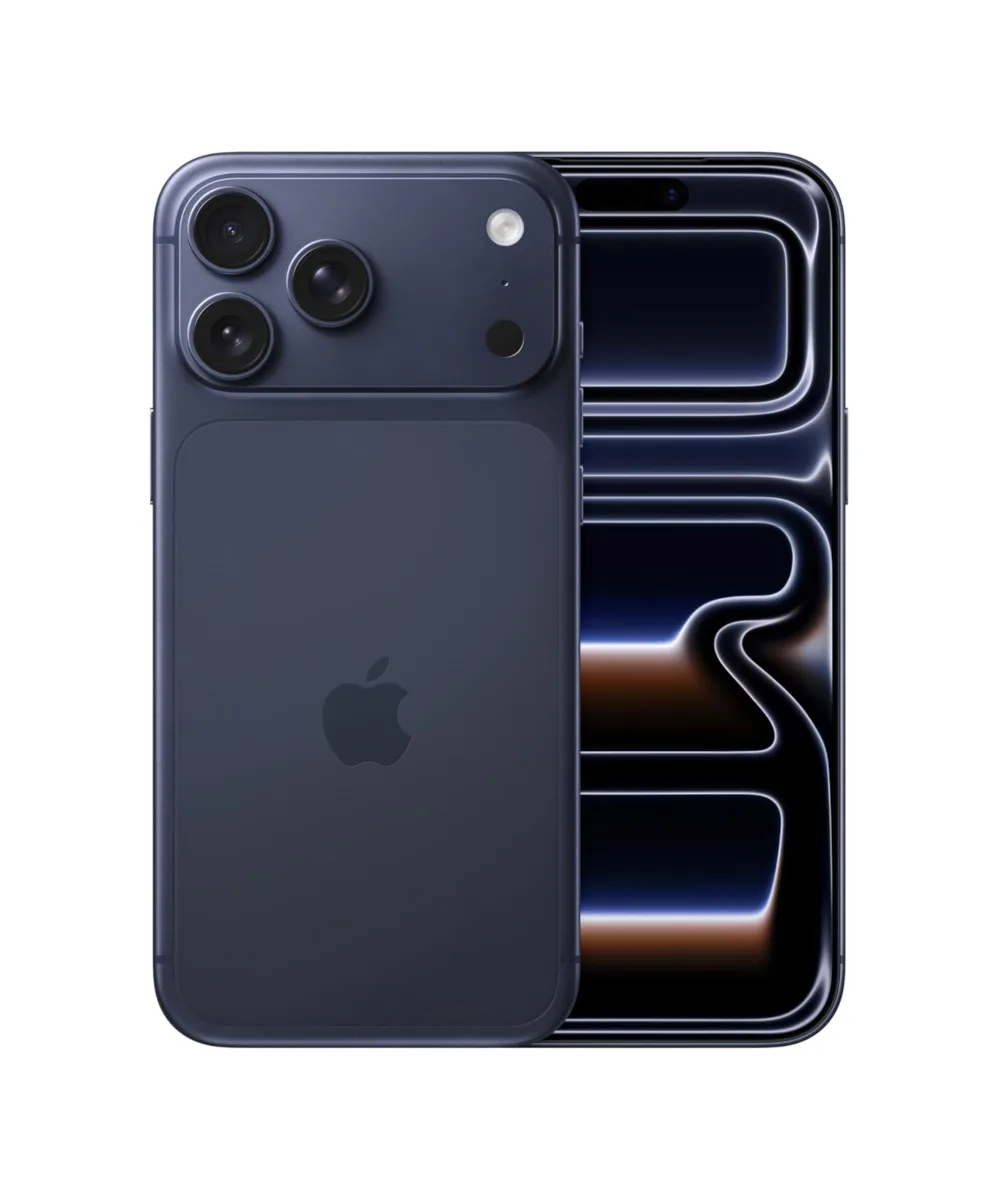
- iPhone 17 Pro Max – 512GB – Deep Blue – Grade A+ Pristine: iPhone 17 Pro Max – 512GB – Deep Blue – Grade A+ Pristine, supplied with a generic box. Useful only if your Switch repair quote pushes you toward upgrading a phone instead; the listing does not include a charger or cable, so budget for those separately.
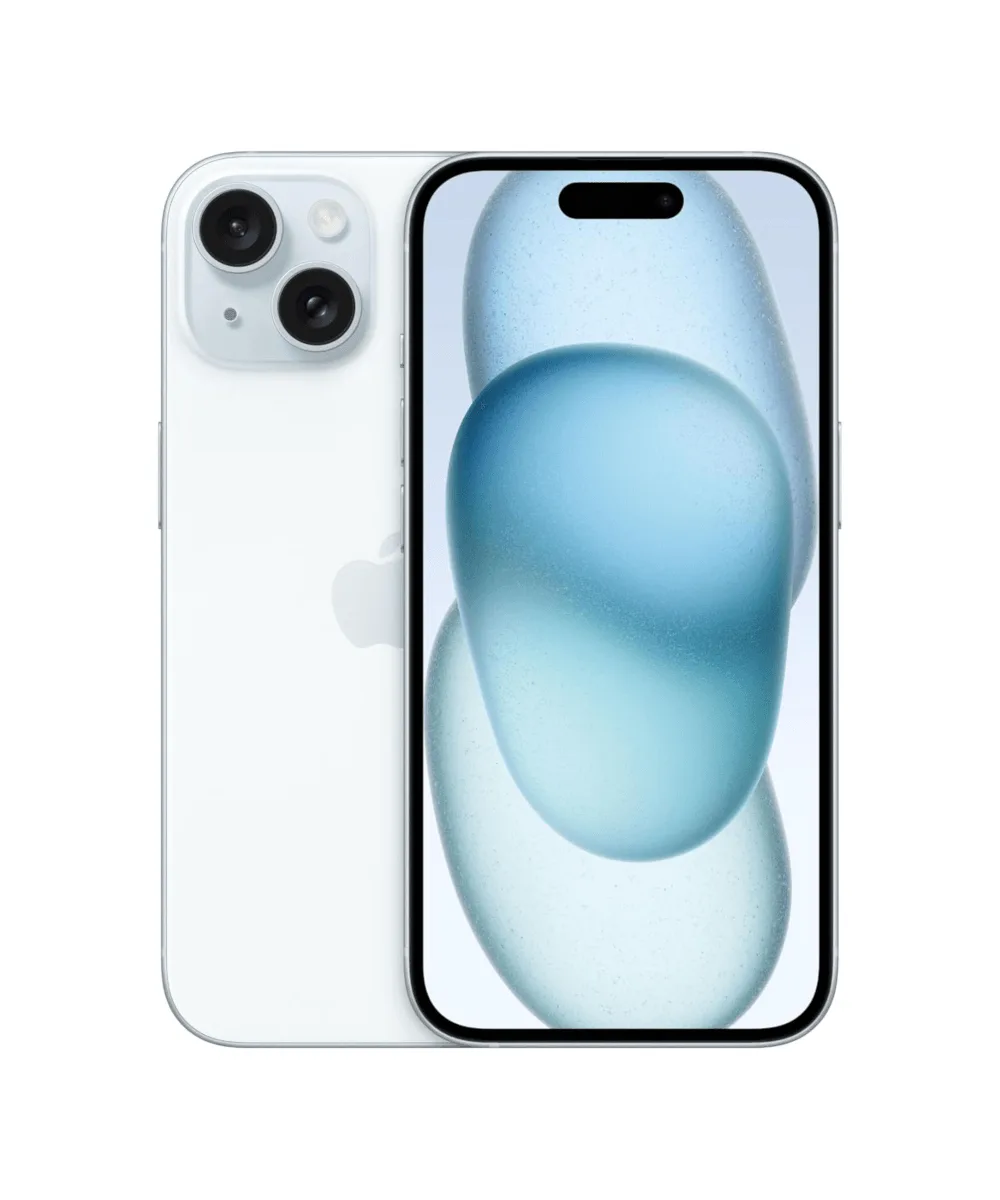
- iPhone 15 – 128GB – Blue – Grade A+ Pristine: iPhone 15 – 128GB – Blue – Grade A+ Pristine, supplied with a generic box. A lower-cost phone option if you are redirecting a repair budget, but the generic box means no original accessories are included.