Before you pair: what the TECKNET Trucker Headset supports
The TECKNET BASICS Trucker Bluetooth Headset connects two ways: wirelessly via Bluetooth to phones and other Bluetooth-enabled devices, or through the included USB adapter for desktops without built-in Bluetooth. This guide walks you through pairing to each, setting up the AI noise-canceling microphone, and fixing common mute button problems.
The headset is compatible with Bluetooth 3.0 or higher devices and works with Zoom, Teams, Skype, and office calls. Battery life is rated at up to 50 hours of continuous use and 85 hours standby from a 1.5-hour Type-C charge, so you can set it up once and use it through long shifts.
Key specs that affect setup
-
TECKNET BASICS Trucker Bluetooth Headset with AI Noise Canceling Mic, Wireless On-Ear for Phone/PC/Office/Home – Bright Black: Bluetooth & USB Adapter Connectivity – Connect to phones wirelessly via Bluetooth or use the included USB adapter for desktops without built-in Bluetooth. Knowing both connection options helps you choose the right method for your device.
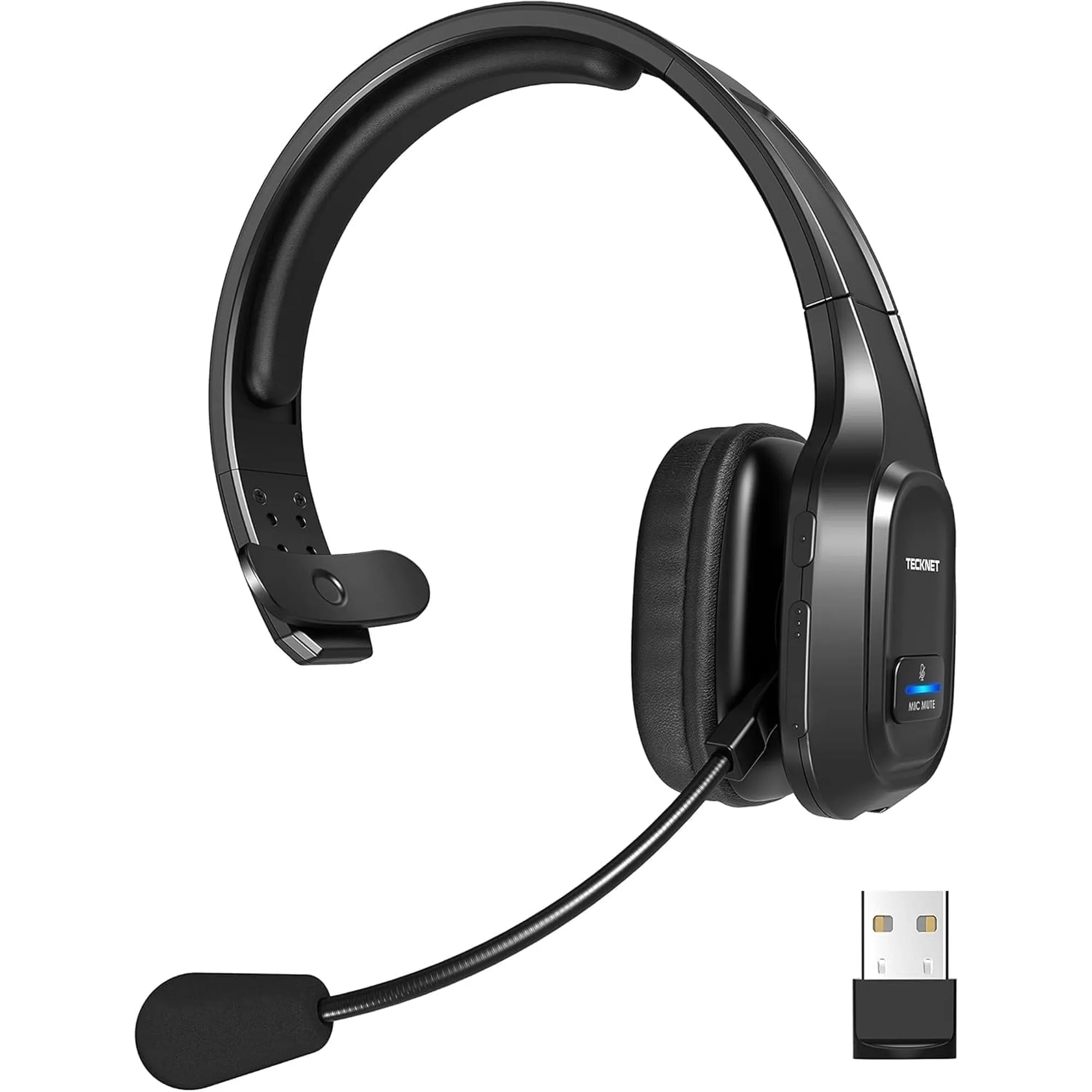
TECKNET BASICS Trucker Bluetooth Headset with AI Noise Canceling Mic, Wireless On-Ear for Phone/PC/Office/Home – Bright Black
-
TECKNET BASICS Trucker Bluetooth Headset with AI Noise Canceling Mic, Wireless On-Ear for Phone/PC/Office/Home – Bright Black: Compatible with Bluetooth 3.0 or higher devices, with included USB adapter support for non-Bluetooth desktops. Check your phone or computer’s Bluetooth version before pairing; older devices may need the adapter.
-
TECKNET BASICS Trucker Bluetooth Headset with AI Noise Canceling Mic, Wireless On-Ear for Phone/PC/Office/Home – Bright Black: 50 Hours Battery Life & Fast Type-C Charging – Enjoy up to 50 hours of continuous use and 85 hours standby from a quick 1.5-hour Type-C charge. A full charge before setup avoids interruptions during pairing or calls.
How to pair the TECKNET Trucker Headset to your phone
Use this method for any Bluetooth-enabled phone. The headset does not require a code for pairing; it uses standard Bluetooth pairing.
- Charge the headset: Connect the Type-C cable and charge for about 1.5 hours or until the battery is full. A charged headset avoids pairing dropouts.
- Turn on Bluetooth on your phone: Open Settings > Bluetooth and enable it. Keep the phone within a few feet of the headset.
- Put the headset in pairing mode: Press and hold the power button until the indicator light flashes (typically red and blue). The exact button and light sequence is not confirmed in the supplied information, so refer to the quick start guide if available.
- Select the headset from your phone’s Bluetooth list: Look for “TECKNET” or the model name and tap it. No PIN is required.
- Confirm connection: The headset should appear as connected. Make a test call to verify audio.
How to connect the headset to your PC with the USB adapter
Use the USB adapter for desktops or laptops without Bluetooth, or when you prefer a dedicated connection for meetings.
- Plug the USB adapter into a free USB port: The adapter is included and works with non-Bluetooth desktops.
- Turn on the headset: Press the power button. The headset should automatically connect to the adapter.
- Select the headset in your software: In Zoom, Teams, Skype, or your system audio settings, choose the TECKNET headset as both the microphone and speaker. For computer meetings, simply select the headset in your system or software audio settings.
- Test the microphone: Use the software’s test feature to confirm the AI noise-canceling mic is active. Speak in a normal voice; the mic reduces background noise automatically.
Setting up the AI noise-canceling microphone
The TECKNET Trucker Headset features an advanced AI microphone that reduces 99.6% of background noise including engines, machinery, wind, and voices. No additional software or drivers are required; the noise cancellation works automatically during calls.
For best results, position the 270° rotating microphone close to your mouth (about a finger’s width away). The flexible boom lets you wear the headset on either ear, so adjust it to the side that feels most comfortable. The AI noise cancellation is always on and cannot be adjusted.
Fixing mute button issues
The dedicated mute button lets you instantly mute or unmute the microphone during mobile phone calls. If the mute button is not working as expected, try these checks.
- Confirm you are on a call: The mute button functions during mobile phone calls. It may not work in all PC applications; use your software’s mute control if needed.
- Check the headset is connected: If the headset has disconnected, the mute button will not respond. Reconnect via Bluetooth or the USB adapter.
- Test with a different call: Some calling apps may override hardware mute. Try a direct phone call to verify the button works.
- Restart the headset: Power off and on again, then reconnect. If the issue persists, contact TECKNET support.
Product facts
- TECKNET BASICS Trucker Bluetooth Headset with AI Noise Canceling Mic, Wireless On-Ear for Phone/PC/Office/Home – Bright Black: AI Noise Cancelling Trucking Headset – Advanced AI microphone reduces 99.6% of background noise including engines, machinery, wind, and voices for crystal-clear communication. This is the core feature for clear calls in noisy environments; it works automatically without setup.
- TECKNET BASICS Trucker Bluetooth Headset with AI Noise Canceling Mic, Wireless On-Ear for Phone/PC/Office/Home – Bright Black: Dedicated Mute Button & Easy Controls – Instantly mute/unmute your microphone during mobile phone calls using the independent mute button. Knowing the button’s intended use helps you troubleshoot if it seems unresponsive.
- TECKNET BASICS Trucker Bluetooth Headset with AI Noise Canceling Mic, Wireless On-Ear for Phone/PC/Office/Home – Bright Black: All-Day Comfort with 270° Rotating Mic – Soft leather ear cushions and ergonomic over-ear design provide lasting comfort during extended wear. The rotating mic and comfortable design support long shifts, reducing fatigue.