Quick Answer
Most Tekko One controller lag comes from wireless interference, a weak pairing, or your TV's picture processing. Start by moving the console away from your router and other 2.4 GHz devices, then re-pair the controller. If the delay persists, switch your TV to Game Mode and test with a different HDMI input. If none of that helps, the controller itself may be the bottleneck, and a replacement Tekko Controllers set is the simplest next step.
Tekko One
Separate the Symptom: Is It Delay, Dropouts, or Dead Inputs?
Input lag feels like a consistent delay between pressing a button and seeing the action on screen. Dropouts feel like the controller stops responding for a moment and then catches up. Dead inputs mean a button or direction simply never registers. Each points to a different cause, so test one thing at a time.
A quick way to tell them apart: open a game with a visible on-screen button prompt, like a fighting game or a platformer with a HUD. Press a button and watch the screen. If the action happens but late, that is lag. If it skips, that is a dropout. If nothing happens at all, that is a dead input or a pairing problem.
Fix Wireless Interference Before You Blame the Controller
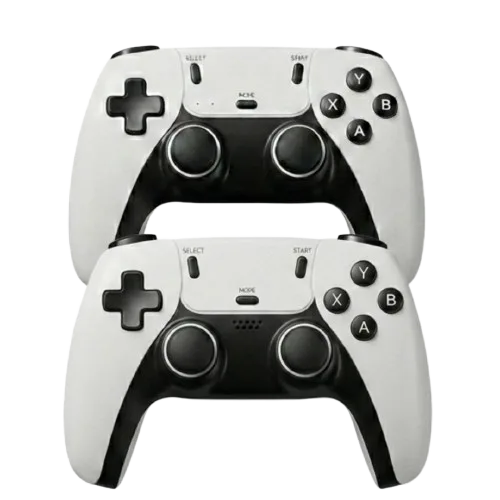
Tekko Controllers are designed for use with the TEKKO ONE retro games console and focus on straightforward functionality and comfort. That simple wireless design is reliable, but it shares airspace with Wi-Fi, Bluetooth, and other 2.4 GHz devices. A router sitting next to the console is one of the most common causes of retro console controller delay.
Move the console and controller away from your router, smart TV, and any USB 3.0 hard drives. Keep the controller within a few feet of the console during testing. If the delay improves, you have found the cause and can decide on a permanent placement.
- Keep the console and controller on the same side of the TV, not on opposite sides of a wall.
- Unplug or move other wireless receivers during your test.
- Avoid charging the controller while playing if you notice lag only when it is plugged in.
Re-Pair the Controller and Check the Battery
Tekko controllers not responding often comes down to a stale pairing. Turn the console off, remove the controller from any paired-device list if your model has one, and pair it again from scratch. On most retro consoles, this means holding the pairing button until the LED flashes, then waiting for it to go solid.
A low battery can also cause intermittent lag because the controller reduces its transmission power to save energy. Charge the controller fully and test again. If the delay only appears when the battery is low, the fix is a charging routine, not a new controller.
Turn Off TV Processing That Adds Delay
Your TV can add more lag than the controller ever will. Picture modes like Vivid or Cinema often run motion smoothing, noise reduction, and local dimming, all of which add processing time. Switch to Game Mode or PC Mode, then turn off any remaining 'Motion Flow' or 'Auto Motion Plus' settings.
If your TV does not have a Game Mode, look for a 'PC' input label. That usually disables the same processing. Also check that the console is plugged directly into the TV, not through an audio receiver or a splitter, which can add another processing step.
- Test with a different HDMI cable and a different HDMI port.
- Disable any 'game mode' or 'low latency' setting on the console itself if it conflicts with your TV.
- Compare the same game on a computer monitor to see if the delay is in the console or the TV.
When to Stop Troubleshooting and Replace the Controller
If you have moved the console, re-paired the controller, charged it fully, and switched the TV to Game Mode, and the delay is still there, the controller is the likely culprit. Worn buttons or a failing wireless module can cause consistent lag that no amount of resetting will fix.
At that point, a replacement set is the practical move. The Tekko Controllers are priced at USD 14.59, which is a low-cost way to rule out the controller without replacing the whole console. If you are still deciding between a stick-style console and a controller-based setup, the https://onid.cc/products/tekko-stick-93517Tekko Stick is a separate option that connects directly to your TV and may suit a different room or player.
Diagnosis Checklist
- Symptom: Consistent delay on every button: This is classic input lag. Move the console away from your router, re-pair the controller, and switch your TV to Game Mode. If the delay drops below your perception threshold, stop here.
- Symptom: Controller stops responding for a moment: This is a dropout, usually caused by wireless interference or a low battery. Charge fully and test with the controller close to the console. If dropouts continue with a full battery and clear line of sight, the controller's wireless module may be failing.
- Symptom: One button or direction never works: This is a dead input, not lag. Check for debris or damage, and test a second controller to confirm the fault is in the controller. If a second controller works, replace the faulty one.
- Symptom: Delay only in one game: The game itself may have heavy processing or a poor emulation profile. Test a different title before changing hardware. If other games feel responsive, the issue is the game, not your setup.
- Symptom: Delay after trying all fixes: The controller is the remaining variable. A replacement Tekko Controllers set is the lowest-cost way to test that theory. If a new controller fixes it, keep the old one as a spare or recycle it.
Product Facts
- Tekko Controllers: Tekko Controllers are designed for use with the TEKKO ONE retro games console, with a standard design for a classic feel and comfortable extended play. If your current controller is worn or unresponsive, a matched replacement keeps the same feel and avoids compatibility surprises.
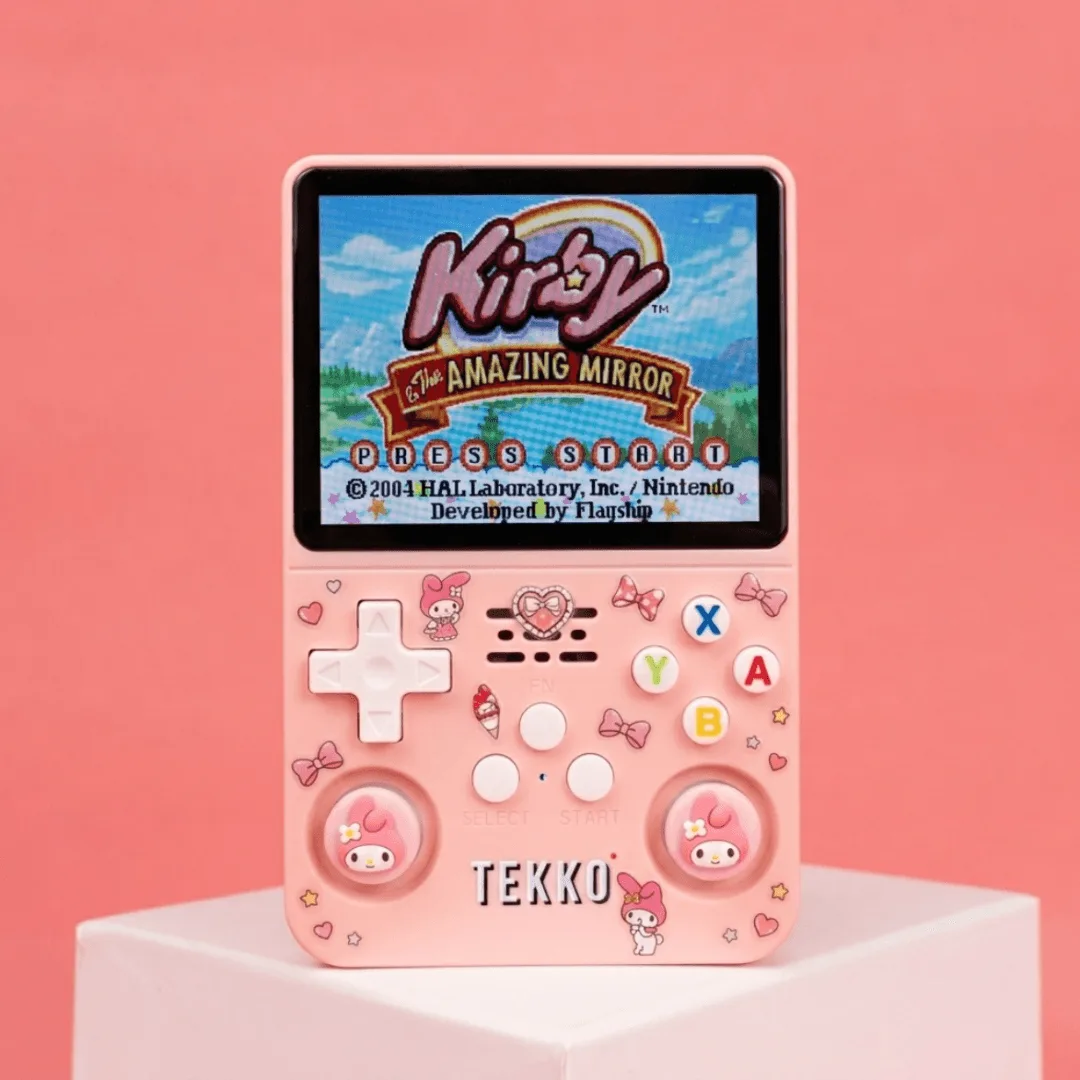
- TEKKO ONE - Retro Games Console: The TEKKO ONE Retro Games Console is available in 64 GB (20K games) or 128 GB (40K games) storage options, with Single or Duo package configurations and a built-in game search function. If you are troubleshooting a Duo setup, check that both controllers are paired correctly and that the console's search function is not hiding a controller input issue.