Quick Answer
For most MG20 Bluetooth issues, delete the headset from your device's Bluetooth list, put the MG20 back into pairing mode, and reconnect from scratch. If audio still stutters or drops, move the source closer, keep the headset charged, and remove other active Bluetooth devices from the room. When Bluetooth stays unreliable, switch to the MG20's low-latency connection or wired audio instead of continuing to re-pair.
MG20 Bluetooth issues usually fall into one of three buckets: the headset will not pair at all, it pairs but the audio drops or lags, or it connects to the wrong device. Each has a different fix, and re-pairing blindly often makes things worse because stale entries pile up on both sides.
Work through the diagnosis below in order. It separates what you are seeing from what is probably causing it, gives you one corrective action at a time, and tells you when to stop troubleshooting and use a different connection method.
Start With the Symptom, Not the Fix
Before you touch any settings, write down exactly what happens. Does the MG20 never appear in the Bluetooth list, appear but fail to connect, connect with no sound, or connect and then cut out after a few minutes? Those are four different problems, and the corrective action changes for each one.
Also note what changed recently: a new phone, a system update, a second paired device, or a low battery. Most MG20 pairing problems trace back to a device-side change rather than the headset itself, which is why the same headset can work perfectly on one source and fail on another.
- Check the battery level first. A nearly empty MG20 can behave like a pairing failure.
- Turn Bluetooth off and on once before doing anything more drastic.
- Test the MG20 with a second device to see whether the problem follows the headset or the source.
MG20 Not Connecting or Not Appearing
If the MG20 does not show up in the Bluetooth list, it is almost always still connected to something else. The headset can only hold one active Bluetooth link at a time, so a laptop in another room or a tablet in a bag can quietly hold the connection and block a new pairing attempt.
Turn Bluetooth off on every device the MG20 has ever paired with, then put the headset into pairing mode and search again from the device you actually want to use. If it still does not appear, remove the MG20 from that device's saved Bluetooth list and start fresh rather than tapping a stale entry.
- Forget the MG20 on the old device, not just disconnect it.
- Keep the headset within a few feet of the source during pairing.
- Give the list a few seconds to refresh before assuming the pairing failed.
MG20 Pairing Problems With a Specific Device
When the MG20 pairs fine with a phone but refuses to pair with a computer, the issue is usually the computer's Bluetooth stack or a conflicting audio device. Check whether the machine has a separate Bluetooth dongle or an internal adapter that is disabled, and confirm the operating system is not holding a partial pairing record.
If your computer has no working Bluetooth at all, that is not an MG20 fault and no amount of re-pairing will fix it. Use the MG20's low-latency connection for gaming and voice chat, or run it wired, instead of troubleshooting a radio that is not present.
- Remove the MG20 entry from the computer, restart, then pair again.
- Close other apps that grab audio, such as chat or streaming software.
- If the computer has no Bluetooth adapter, skip straight to the dongle or wired option.
Connected but Audio Drops, Stutters, or Lags
Dropouts and stutter are range and interference problems far more often than they are headset problems. Bluetooth shares the 2.4 GHz band with Wi-Fi routers, USB 3.0 ports, and other wireless peripherals, so a crowded desk can degrade a link that works perfectly across the room.
Move the source closer, keep the MG20 and the source on the same side of your body, and unplug or relocate nearby wireless receivers. If the stutter persists only in games or calls, the cause is usually latency rather than signal strength, and a low-latency connection is the better answer than another re-pair.
- Keep at least a few feet of clear space between the headset and a Wi-Fi router.
- Avoid stacking the source directly against a metal desk or monitor stand.
- If only voice chat lags, check whether the boom microphone is attached and seated.
When to Stop Troubleshooting and Switch Connections
Stop re-pairing once you have tried one clean removal-and-reconnect cycle on the source device. If the MG20 still will not connect, the problem is environmental or device-side, and repeating the same steps will not change the outcome.
At that point, choose the connection that matches what you are doing. Use the low-latency link for gaming and voice, Bluetooth for casual listening and calls, and wired audio when you need the most stable signal. That is a deliberate choice, not a workaround, and it is the fastest way back to listening.
- One clean re-pair per device is enough before you change approach.
- Switch to the low-latency connection for competitive or chat-heavy sessions.
- Use wired audio when stability matters more than cable-free movement.
MG20 Bluetooth Diagnosis at a Glance
- MG20 never appears in the Bluetooth list: Another device is almost certainly holding the connection. Turn Bluetooth off on every previously paired device, then put the MG20 into pairing mode and search again. If it still does not appear after one clean attempt, treat it as a source or radio problem, not a headset fault.
- MG20 pairs but there is no sound: The device may be routing audio to a different output. Check the output selector on the source, then confirm the MG20 is the selected playback device rather than a leftover entry. If sound returns on a second device, the original source is the issue.
- Audio drops, stutters, or lags: Move the source closer, clear the path of metal and other 2.4 GHz devices, and separate the headset from Wi-Fi routers and USB 3.0 ports. If it only stutters in games or calls, switch to the low-latency connection or wired audio instead of re-pairing again.
- Calls sound bad but music is fine: Attach and reseat the detachable boom microphone, and check that the ear pads are properly seated on the magnetic mounts. If voice is still poor with the boom mic attached, test a different call app before assuming the headset is at fault.
MG20 Details That Affect Bluetooth Troubleshooting
- MG20 Automobili Lamborghini: Features 50mm Beryllium drivers, 7.1 surround sound, a detachable boom microphone, and an internal mic array that keeps talk quality usable even when the boom mic is detached. If call audio sounds wrong rather than dropping, test with the boom mic attached first. The internal mic array means the headset still handles voice when the boom is off, so a bad call is not automatically a Bluetooth fault.
- MG20 Paris Saint-Germain: Offers 7.1 surround sound with custom 50mm Beryllium coated drivers, a detachable boom mic, and on-board microphones for an adjustable talk experience. This is the same MG20 platform in a different finish, so the Bluetooth troubleshooting steps apply identically. If you own both editions, test each one separately before assuming the headset design is the problem.
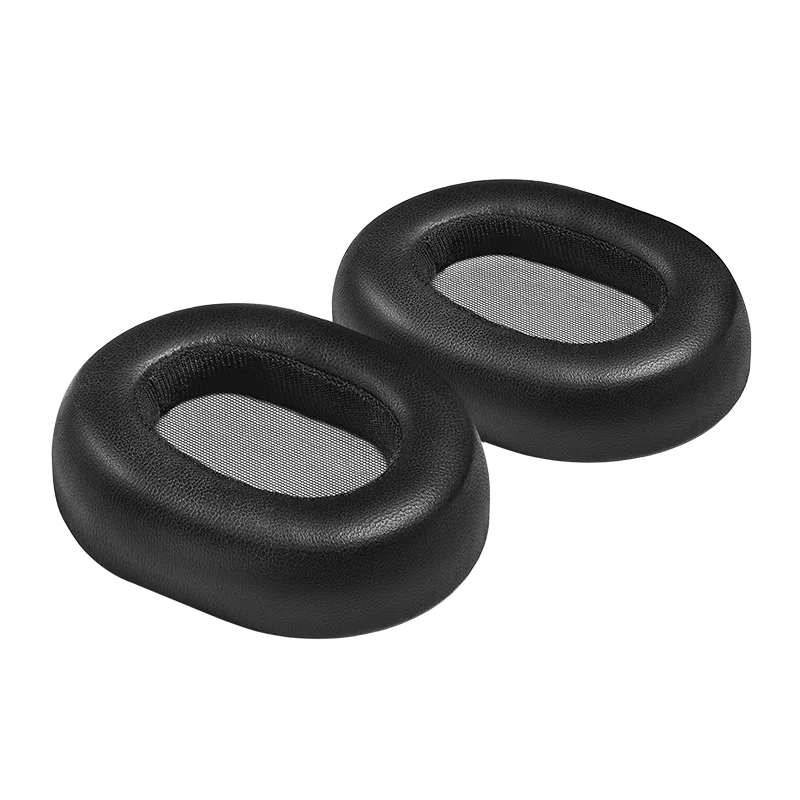
- MG20 Ear Pads: Made of lambskin-wrapped memory foam and held on by magnets, so they pull off gently for cleaning or replacement. Not a Bluetooth part, but worth knowing: if a pad comes loose during handling, reseat it before you blame the connection. A partially detached pad can change how the headset sits and how the boom mic picks up your voice.
- USB-C to USB-A Adapter: A compact adapter sold as a standalone part with a color option. Useful when your computer has no working Bluetooth and you want a stable wired or charging connection instead of fighting a pairing problem.
Most MG20 Bluetooth issues clear up after one clean re-pair on the source device. If they do not, the cause is usually the device or the wireless environment, and the low-latency connection or wired audio will get you back to listening faster than another round of troubleshooting.