Quick Overview of the Universal Combat Headset
The Nyko Universal Combat Headset is an over-ear stereo headset with 40mm drivers and a retractable omni-directional microphone. It connects via a standard 3.5mm audio plug and is compatible with PlayStation 4, PlayStation 5, Xbox One, Xbox Series X|S, Nintendo Switch, PC, and other 3.5mm audio devices. This guide helps you diagnose and fix common mic and audio problems without assuming any specific repair skills.
Key Product Facts
-
Universal Combat Headset - Green Camo: The headset uses a 3.5mm audio plug and is compatible with PlayStation 4, PlayStation 5, Xbox One, Xbox Series X|S, Nintendo Switch, PC, and other 3.5mm audio devices. Compatibility is the first thing to check if audio or mic doesn't work. Not all devices with a 3.5mm jack support both audio and mic on the same plug.
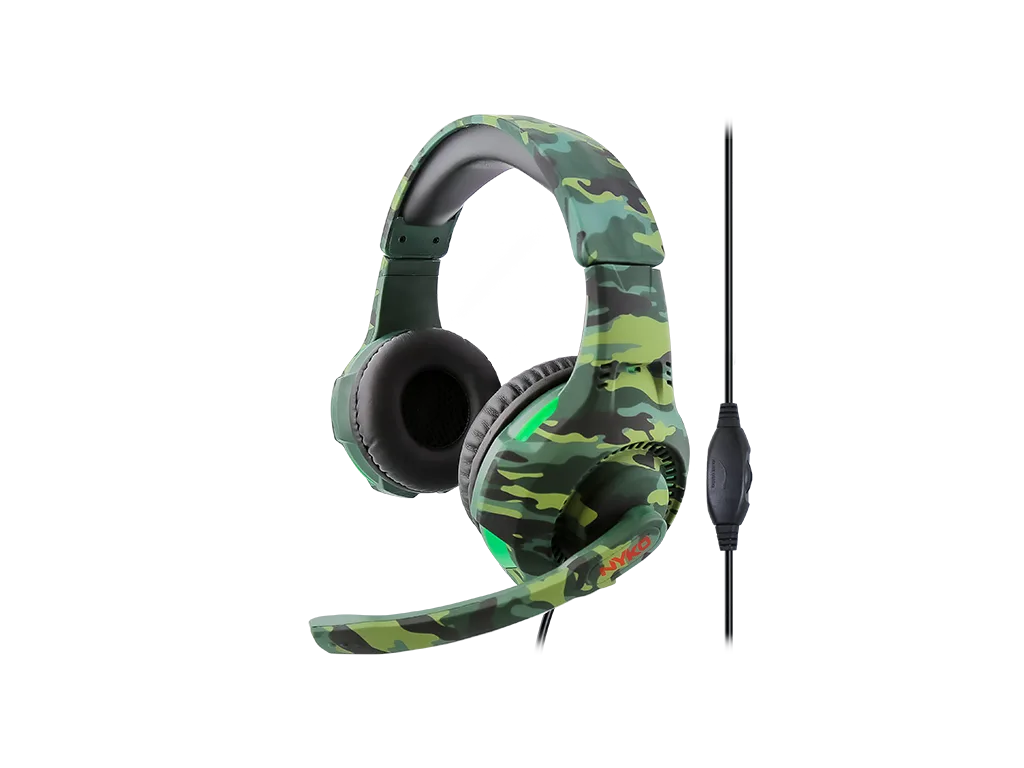
Universal Combat Headset - Green Camo
-
Universal Combat Headset - Green Camo: The headset features an omni-directional retractable microphone. If the mic is not fully extended or is pushed in, it may not pick up your voice. Always ensure the mic is pulled out before use.
-
Universal Combat Headset - Green Camo: Volume for the headset speakers is easily adjustable via inline controls. Low or no audio can sometimes be fixed by adjusting the inline volume wheel. Check that it isn't turned all the way down.
Troubleshooting Mic Not Working
If your microphone is not transmitting audio, work through these steps in order. Each step addresses a common cause based on the headset's design.
- Check the mic is fully extended: The microphone is retractable. Pull it out fully until it clicks into position. If it's partially retracted, it may not pick up sound.
- Verify device compatibility with mic input: Some devices (like older Xbox One controllers without a 3.5mm jack or certain PCs) may not support headset microphones through the same port. The headset is not compatible with controllers that lack a 3.5mm audio port. If your device has separate mic and headphone jacks, you may need a splitter adapter (not included).
- Test on another compatible device: Plug the headset into a known-working device such as a smartphone or Nintendo Switch. If the mic works there, the issue is likely with your original device's settings or port.
- Check device audio settings: On PC, go to Sound settings and ensure the headset is selected as both the default playback and recording device. On consoles, check that chat audio is set to output through the headset and not just TV speakers.
Fixing Audio Issues (No Sound or Low Volume)
If you hear no game or chat audio, or the volume is too low, follow these steps.
- Adjust the inline volume wheel: The headset has an inline volume control. Rotate the wheel to increase volume. If it's at minimum, you'll hear nothing.
- Check the 3.5mm connection: Ensure the plug is fully inserted into the device's audio jack. A loose connection can cause intermittent or no sound.
- Confirm device audio output settings: On consoles, verify that audio is set to output through the headset (not HDMI or optical). On PC, make sure the headset is the default playback device.
- Test with another 3.5mm device: Plug the headset into a phone or tablet to see if audio works. If it does, the problem is with your gaming device's settings or port. If not, the headset may need replacement.
Additional Compatibility Notes
The Universal Combat Headset may not be compatible with all 3.5mm audio devices. Some devices use a different pinout for the 3.5mm jack that does not support both audio and mic. If you're using an Xbox One controller, make sure it has a 3.5mm port (original controllers without the port require an adapter). For PC, a single 3.5mm combo jack is required for both audio and mic; otherwise, use a splitter. The headset is confirmed compatible with PlayStation 4, PlayStation 5, Xbox One (with 3.5mm port), Xbox Series X|S, Nintendo Switch, and PC.
When to Consider Replacement
If you've tried all the steps above and the headset still doesn't produce audio or transmit mic input on multiple known-working devices, the headset may be defective. The supplied information does not include repair instructions, so replacement is the recommended next step.