Quick answer
Start by checking power: a dock that browns out under load will drop USB, Ethernet, and video at random. Use the power supply the dock was designed for, connect it directly to a wall outlet, and remove any unpowered hub or adapter between the dock and your laptop. If dropouts continue, swap the USB-C cable for a certified one rated for the dock's power and data speed, then test with only one peripheral attached.
Separate the symptom from the cause
Random disconnects are rarely one fault. Note what drops and when: only Ethernet, only the display, all devices at once, or the entire dock disappearing from the operating system. A dock ethernet drops pattern that happens during large file transfers points to bandwidth or cable quality; a full dock dropout during charging points to power delivery. Write down the time, the connected devices, and whether the laptop was on battery or AC power. That log turns guesswork into a short list of suspects.
Check power delivery first
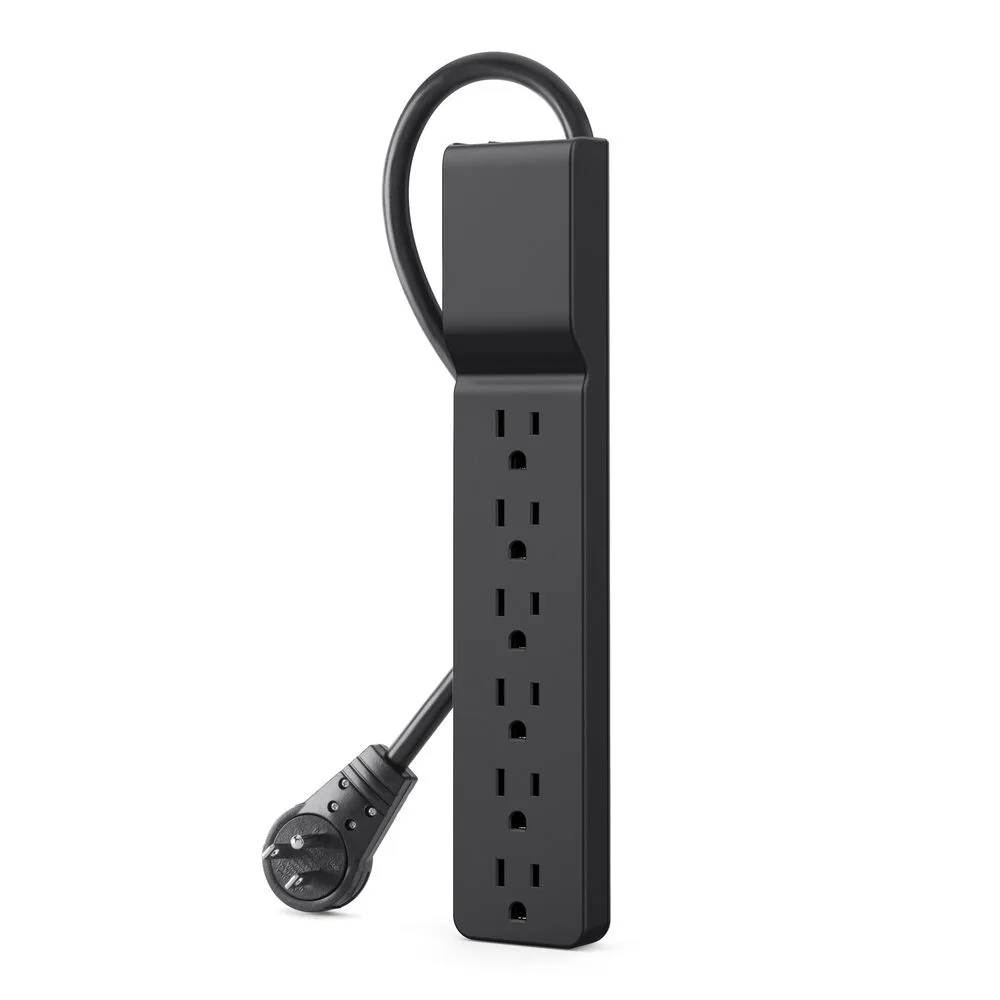
A dock power issue is the most common reason a USB-C dock not stable enough for daily work. The dock needs headroom to run its ports and charge the laptop at the same time. If you use a lower-wattage charger than the dock expects, the dock may reset when a display or external drive draws current. Plug the dock's power adapter directly into a wall outlet, not a power strip that also feeds a monitor or heater, and confirm the adapter matches the dock's rating. If the dock has a power LED, watch it during a dropout: a blink or flicker confirms a power event rather than a software glitch.
Test the cable and the port
Not every USB-C cable carries the same power or data. A charge-only cable can make a dock connection dropping fix impossible because it never supported the dock's full load. Swap in the cable that came with the dock, or a certified USB-C cable rated for the dock's power and speed, and connect it to a different USB-C port on the laptop. Avoid daisy-chaining through an unpowered USB-C hub disconnects are more likely when two bus-powered devices share one port. If the laptop has ports on both sides, test each one; some laptops route display output through only one controller.
Reduce the load and update the basics
Disconnect every peripheral, then add them back one at a time: first the display, then Ethernet, then storage, then audio. A single failing device, such as a bus-powered hard drive or an old webcam, can pull the whole dock offline. On the software side, install the dock manufacturer's latest firmware or driver if one is offered, and update your laptop's USB-C or Thunderbolt controller driver. On Windows, open Device Manager and check whether the dock appears with a warning icon after a dropout; on macOS, use System Information to see whether the dock is still listed under USB or Thunderbolt.
Diagnosis guide: match the symptom to the fix
- All devices drop at once, often during charging: Suspect power. Confirm the dock's adapter is connected directly to a wall outlet and meets the dock's wattage rating. Remove any inline hub or unpowered adapter. If dropouts stop, keep the direct power connection. If they continue with the correct adapter, test the dock on another laptop before replacing it.
- Only Ethernet drops, especially during large transfers: Suspect the cable or the network port. Swap the USB-C cable for a certified one, try a different laptop port, and test with a different Ethernet cable. If Ethernet remains stable on a different port but not the original, the laptop port is the limit. Use the stable port or add a dedicated network adapter.
- One peripheral disconnects while others stay online: Suspect the peripheral or its cable. Move that device to a different port on the dock and try a known-good cable. If the device fails on every port, replace the device or its cable. If it fails only on one dock port, that port is the problem.
- Display flickers or drops when the laptop is busy: Suspect bandwidth or thermal load. Lower the display resolution or refresh rate, close unused high-bandwidth apps, and ensure the dock has ventilation. If the display stabilizes at a lower setting, your workflow exceeds the dock's video bandwidth. Choose a dock rated for your display configuration.
Docks that reduce dropout risk
- USB-C 7-in-1 Multiport Hub Adapter: USB-C 7-in-1 Multiport Hub Adapter with a compact, portable design for on-the-go use. A simpler hub with fewer simultaneous ports draws less power, which makes it a sensible first test if your current dock only drops under heavy load.
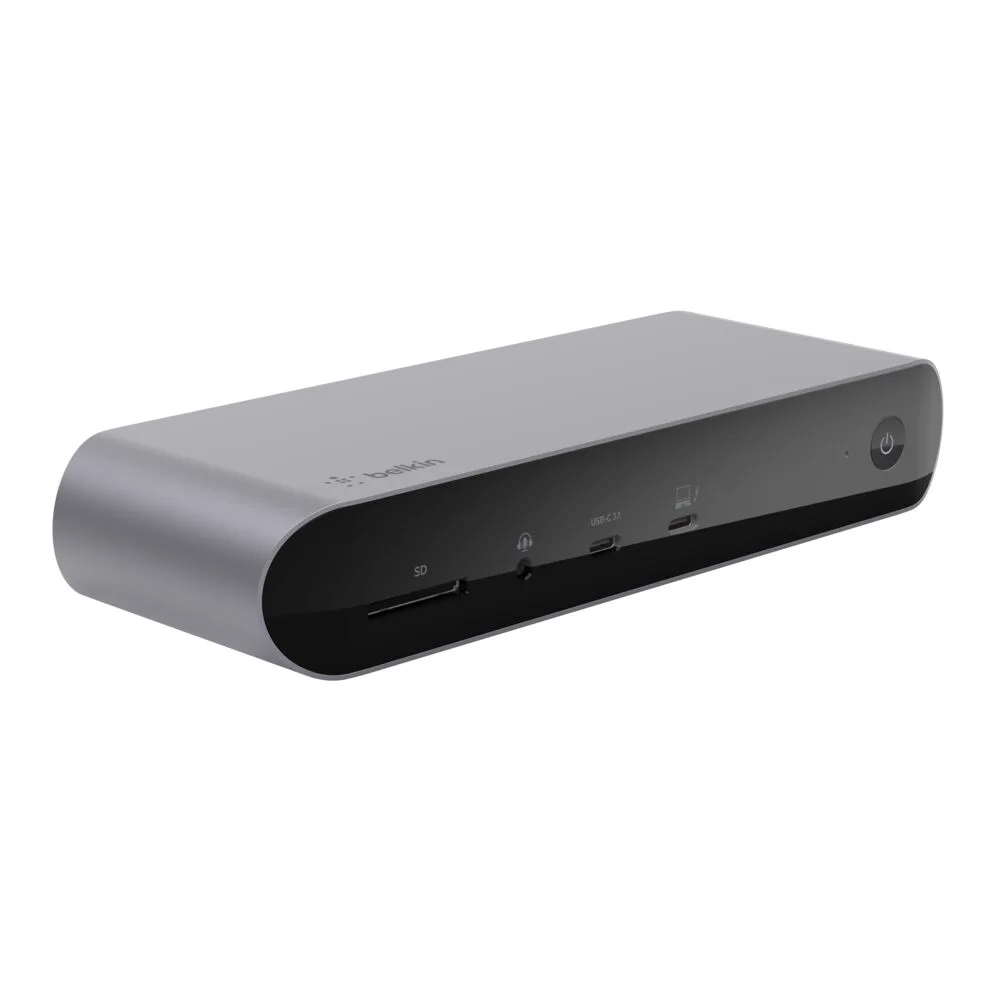
- Universal 16-Port Triple Display USB-C Dock: Universal 16-Port Triple Display USB-C Dock with 140W power delivery and triple display support. A dock rated for 140W gives more headroom for charging a laptop while running multiple displays, reducing the chance of a power-related disconnect.
- USB-C 11-in-1 Pro GaN Dock 150W: USB-C 11-in-1 Pro GaN Dock 150W with GaN technology and 150W power delivery. GaN power delivery in a compact form can run a full desk setup without a bulky adapter, and the higher wattage helps prevent brownouts when several ports are active.