Quick answer
The Satechi USB-C Multimedia Adapter M1 lets you connect two 4K monitors, transfer files, and charge your M1 MacBook or iPad through a single USB-C port.
Why use a multiport adapter with an M1 device
M1 MacBooks and iPads have only one or two USB-C ports, which limits how many peripherals you can connect at once. A multiport adapter like this one expands that single port into multiple connections, so you can run an external display, plug in a flash drive, and keep your device charged without swapping cables.
How to set up and use the USB-C Multimedia Adapter M1
- 1. Connect the adapter to your M1 device: Plug the adapter's USB-C connector directly into your M1 MacBook Pro, MacBook Air, or iPad Pro. The adapter is bus-powered, so no external power source is needed unless you plan to charge your device through it. If the adapter doesn't seem to work, check that your device's USB-C port is clean and that you're using the supplied cable (if included) or a quality USB-C cable.
- 2. Attach your external monitors: Use two HDMI cables to connect your monitors to the adapter's HDMI ports. The port labeled with 60Hz supports 4K at 60Hz; the other supports 4K at 30Hz. For the smoothest experience, connect your primary monitor to the 60Hz port. Your M1 MacBook supports dual external displays only when the lid is closed (clamshell mode). Keep the laptop closed to enable both monitors.
- 3. Connect USB peripherals and charging: Plug flash drives, mice, keyboards, or other USB-A devices into the two USB-A 3.0 ports. Use the USB-C PD (Power Delivery) port to charge your M1 device—connect a USB-C charger rated at least 45W for laptops or 18W for iPads. The USB-C data port is separate from the PD charging port. Do not plug a charger into the data port; it won't charge your device.
- 4. Transfer data using the USB-C data port: The dedicated USB-C data port supports up to 5 Gbps transfer speeds. Use it to connect a USB-C flash drive, an external SSD, or a smartphone for file transfers. If you plug a USB-C hub or another adapter into this port, some peripherals may not be recognized. Connect devices directly for best compatibility.
Product highlights
-
USB-C Multimedia Adapter M1: The adapter features dual 4K HDMI display ports (one at 60Hz, one at 30Hz), USB-C charging, USB-C data, and two USB-A 3.0 data ports. You can run one monitor at full 60Hz for smooth motion while using the second for static content like documents or dashboards.
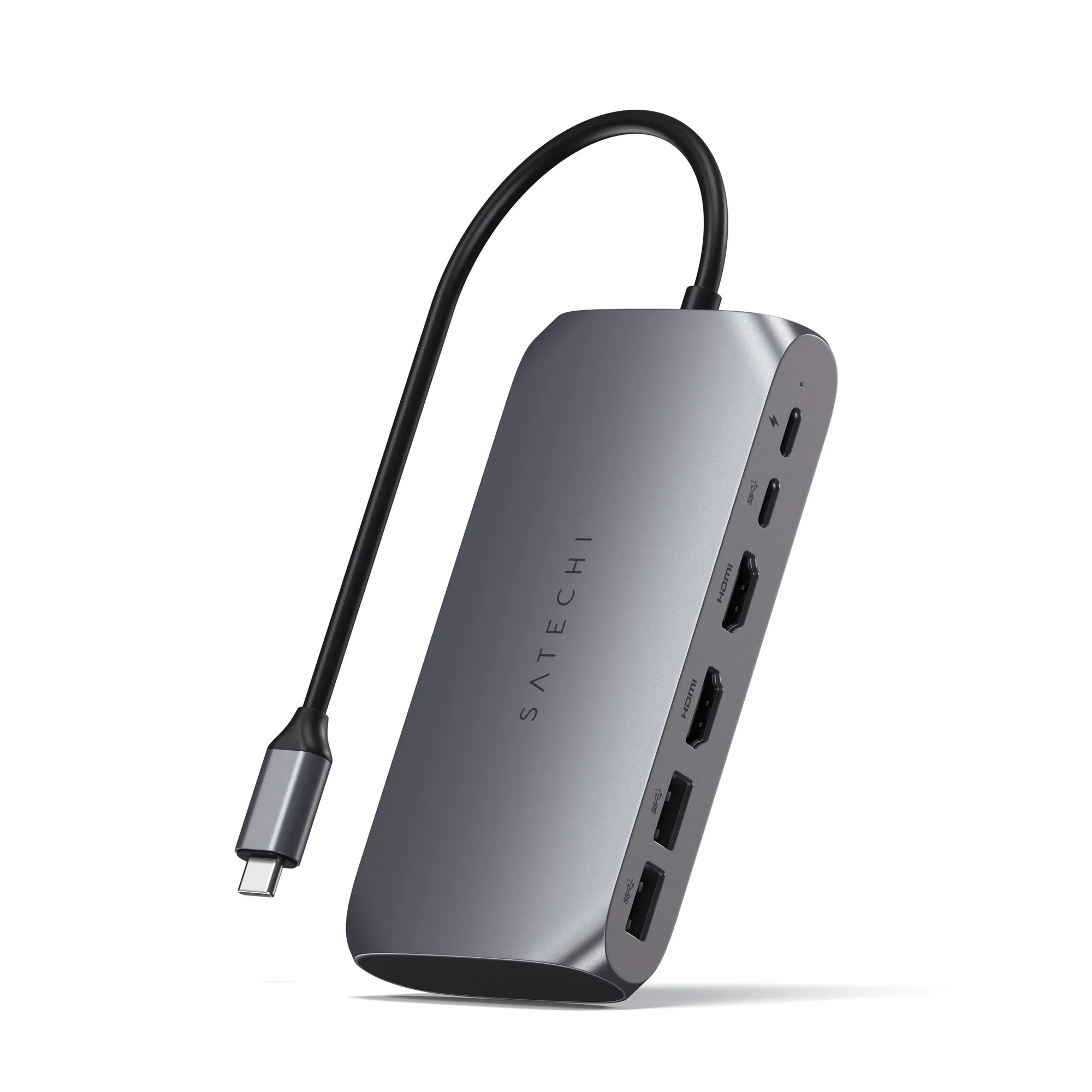
USB-C Multimedia Adapter M1