Start with the MacBook Neo's two USB-C ports
If your USB-C Snap Hub isn't working — no display, no card reader, no data — the most likely culprit isn't the hub itself. The MacBook Neo has two USB-C ports that aren't identical. The Snap Hub is built around that architecture: it routes HDMI, data, card readers, and charging through the high-performance USB 3 port, while the second connector keeps the hub seated flush and stable.
That means a Snap Hub that seems dead may simply be plugged into the wrong port for the job. Before you assume a hardware failure, confirm which of the Neo's ports is the high-performance USB 3 port and make sure the hub's primary connector is seated there.
What the Snap Hub is designed to do
-
USB-C Snap Hub: The Satechi USB-C Snap Hub is the first dual-connector hub built specifically for the MacBook Neo. A hub made for a different laptop may not align with the Neo's port layout or route signals correctly, so compatibility is the first thing to verify.
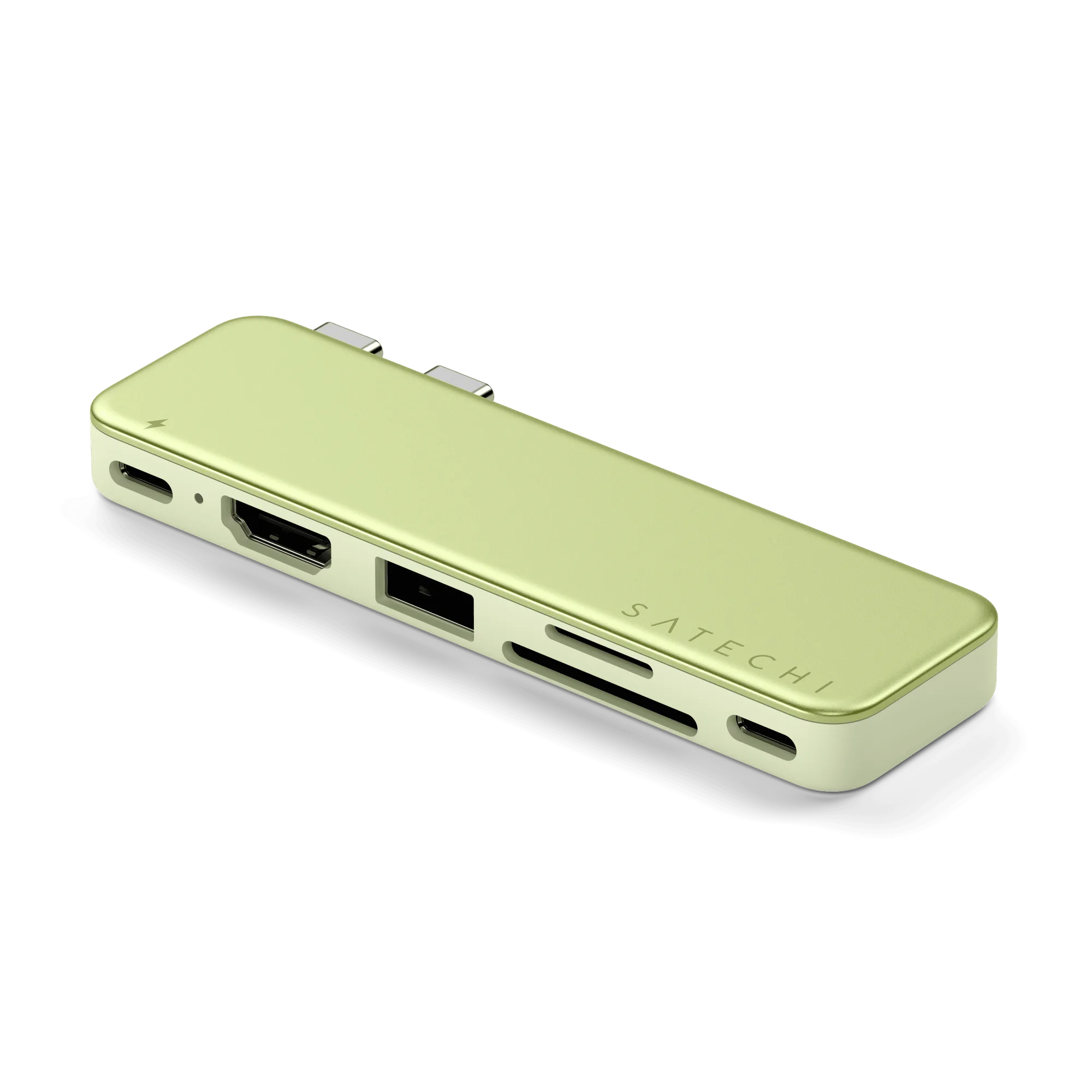
USB-C Snap Hub
-
USB-C Snap Hub: The Snap Hub routes HDMI, data, card readers, and charging through the high-performance USB 3 port while the second connector keeps it seated flush and stable. If HDMI or a card reader isn't detected, the high-performance port is the one carrying that signal — check it first.
A practical troubleshooting order for Snap Hub connection issues
Work through these checks in order. Each step isolates one variable so you don't replace a working hub or miss a simple seating problem.
- Confirm the hub is fully seated on both connectors: The Snap Hub uses two connectors. If either one is loose, the hub may power on but fail to pass data or video. Press both sides down until the hub sits flush against the laptop.
- Verify which port carries the high-performance signal: The Neo's two USB-C ports are not identical. The Snap Hub sends HDMI, data, card readers, and charging through the high-performance USB 3 port. If those features are missing, check that the hub's primary connector is on that port.
- Test one device at a time: Plug in only the device that isn't being detected — an HDMI display, an SD card, or a USB drive — with nothing else attached. This tells you whether the issue is the hub, the device, or the port.
- Swap the cable or device: If a card reader or HDMI display works with another hub or directly, the Snap Hub may not be the problem. Try a different cable or device to isolate the failure.
- Check power and charging behavior: The Snap Hub passes charging through the high-performance port. If charging is slow or absent, confirm the power source and cable are connected to that same primary connector.
Why other dual-connector hubs cause problems on the Neo
Most dual-pin hubs were designed as if the MacBook Neo's two USB-C ports were interchangeable. They aren't. Reviewers tell Neo owners to avoid those hubs because they can't route signals correctly across the two different ports. The Snap Hub is engineered specifically around the Neo's architecture, which is why it can keep HDMI, data, card readers, and charging on the high-performance port while the second connector provides stability.
If you've tried another dual-connector hub and had connection issues, that history is a clue: the problem may follow the hub design, not your laptop.
Color options and what they tell you
- USB-C Snap Hub: The USB-C Snap Hub is available in Citrus, Blush, Indigo, and Silver. Color is a finish choice, not a performance difference. If you're troubleshooting, don't assume a different color behaves differently — the internal routing is the same.
What the supplied information does not confirm
The catalog does not list supported HDMI resolutions, data transfer speeds, card formats, or charging wattage for the Snap Hub. If your issue involves a specific display resolution, a particular SD card type, or a charging speed expectation, those details aren't confirmed by the supplied information. Check the product documentation or contact Satechi support with your exact device and port before assuming the hub is faulty.
The catalog also does not provide step-by-step setup instructions beyond the dual-connector design. The troubleshooting order above is general diagnostic advice, not a manufacturer procedure.
When the hub itself is the likely cause
After the checks above, these signs point to a hub problem rather than a port or device problem.
- No device works on any port: If HDMI, card readers, and USB data all fail when the hub is seated on the high-performance port, the hub may be faulty.
- The hub works intermittently when touched: A loose connection at either connector can cause dropouts. Confirm the hub is flush and stable; if it still cuts out, the connector may be damaged.
- Charging works but data does not: Charging and data travel through the same high-performance port on the Snap Hub. If charging works but data doesn't, test with a different cable and device before concluding the hub is defective.