Quick answer
Plug a USB-C to 3.5mm audio adapter into your phone or laptop, then connect your wired headphones to the adapter's 3.5mm jack. Most USB-C devices output digital audio, so the adapter must contain a DAC (digital-to-analogue converter) to produce sound. If you hear nothing, check that the adapter is fully seated, try another USB-C port, and confirm your headphones work on another device.
Why USB-C phones need an adapter for wired headphones
Many recent phones and slim laptops removed the 3.5mm headphone jack to save space and improve water resistance. USB-C carries digital audio, while most wired headphones use an analogue 3.5mm plug. An adapter bridges that gap by converting the digital signal into an analogue one. Some USB-C ports also support analogue audio output, but this varies by device, so a DAC-equipped adapter is the safer choice when you are unsure.
Check compatibility before you buy
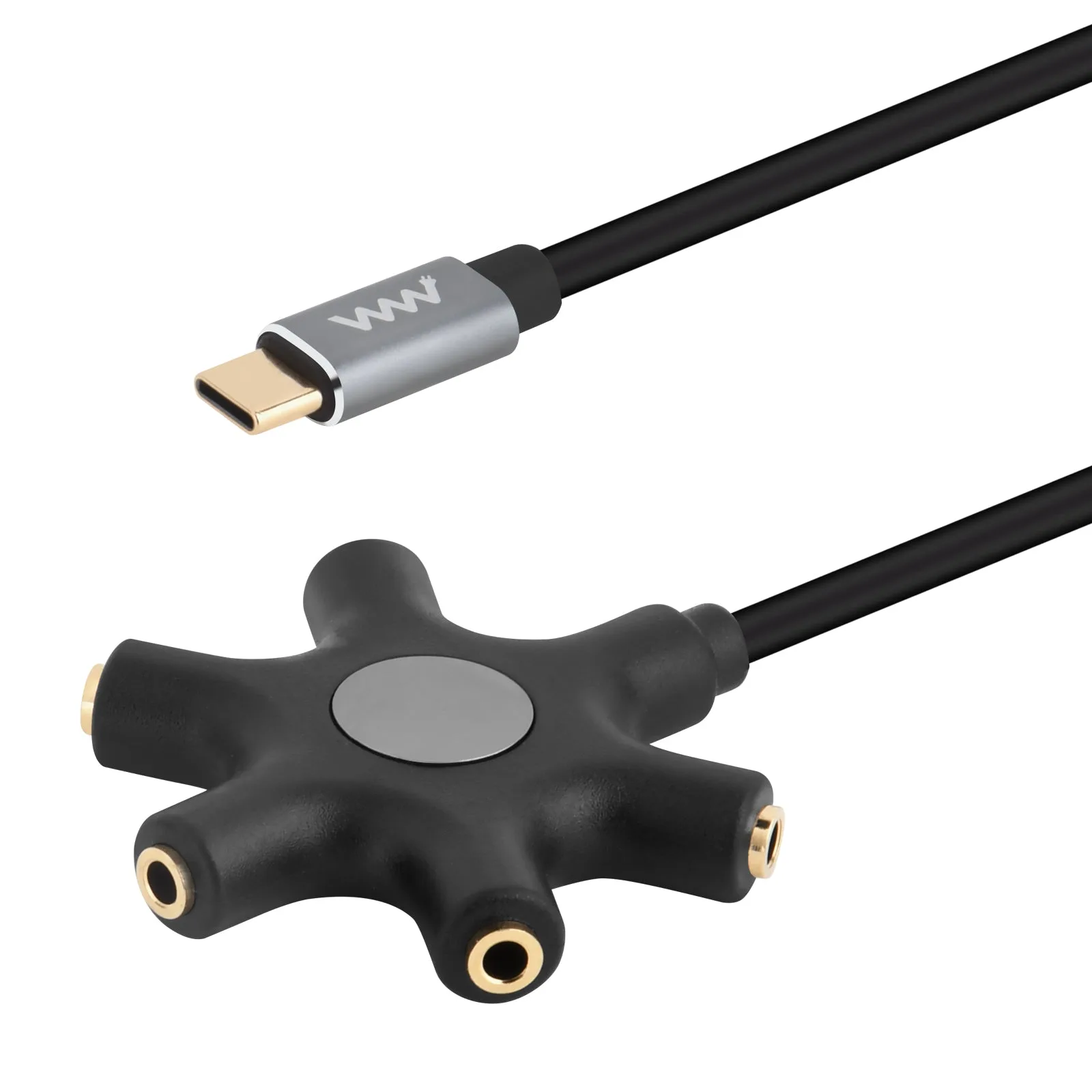
Not every USB-C adapter works with every phone, tablet, or computer. Look for an adapter that explicitly supports your device type, and avoid passive adapters that only pass through an analogue signal if your device outputs digital audio. If you plan to use the adapter with a case, check that the plug fits through the case opening. For group listening or classrooms, a splitter like the USB-C to 3.5mm AUX 5-Way Headphone Audio Splitter Adapter can share one USB-C audio source with up to five pairs of headphones.
Step-by-step setup for USB-C audio
Follow these steps in order. Each step includes a checkpoint to help you catch problems early.
When to use a USB-C to 6.35mm or RCA cable instead
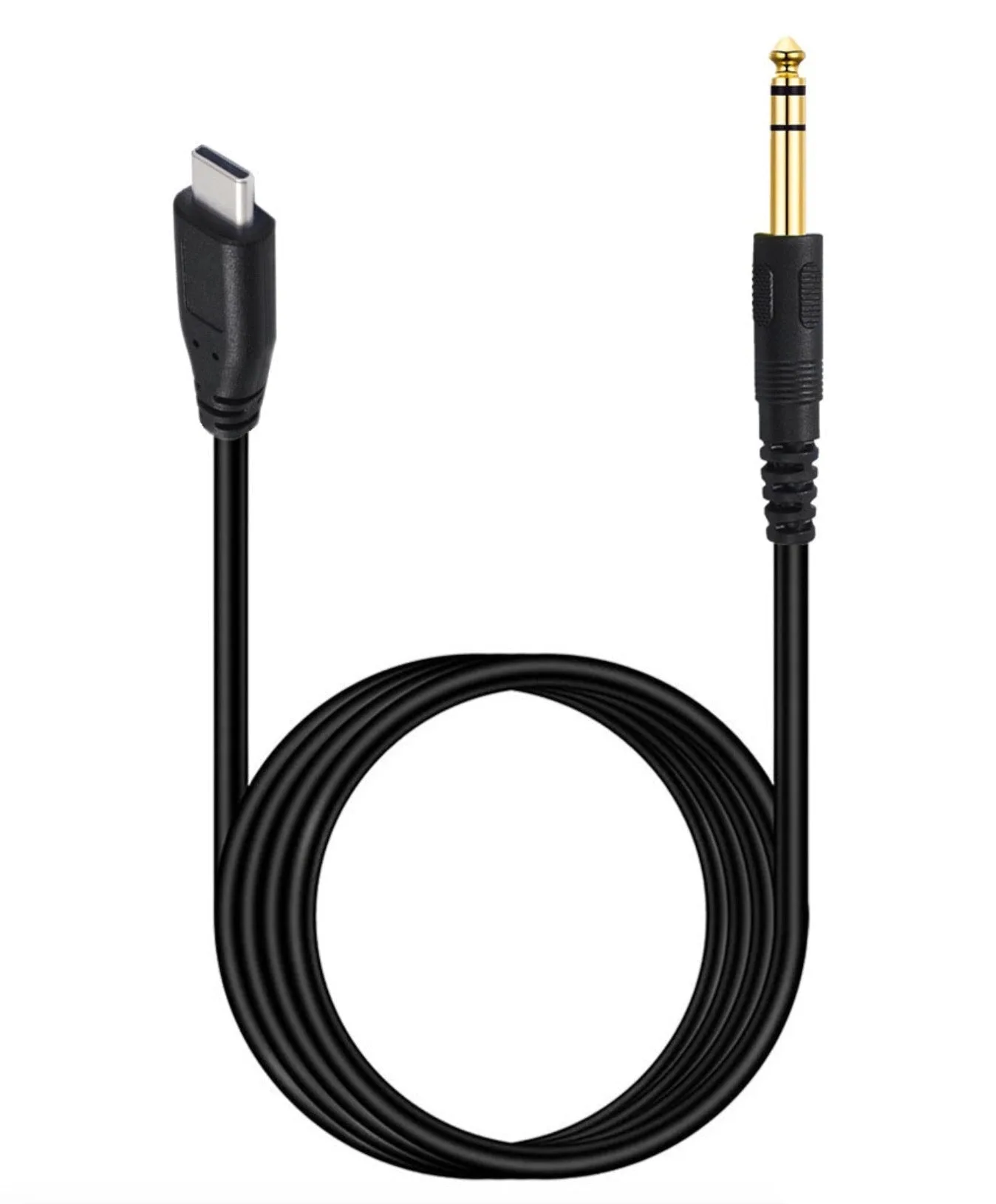
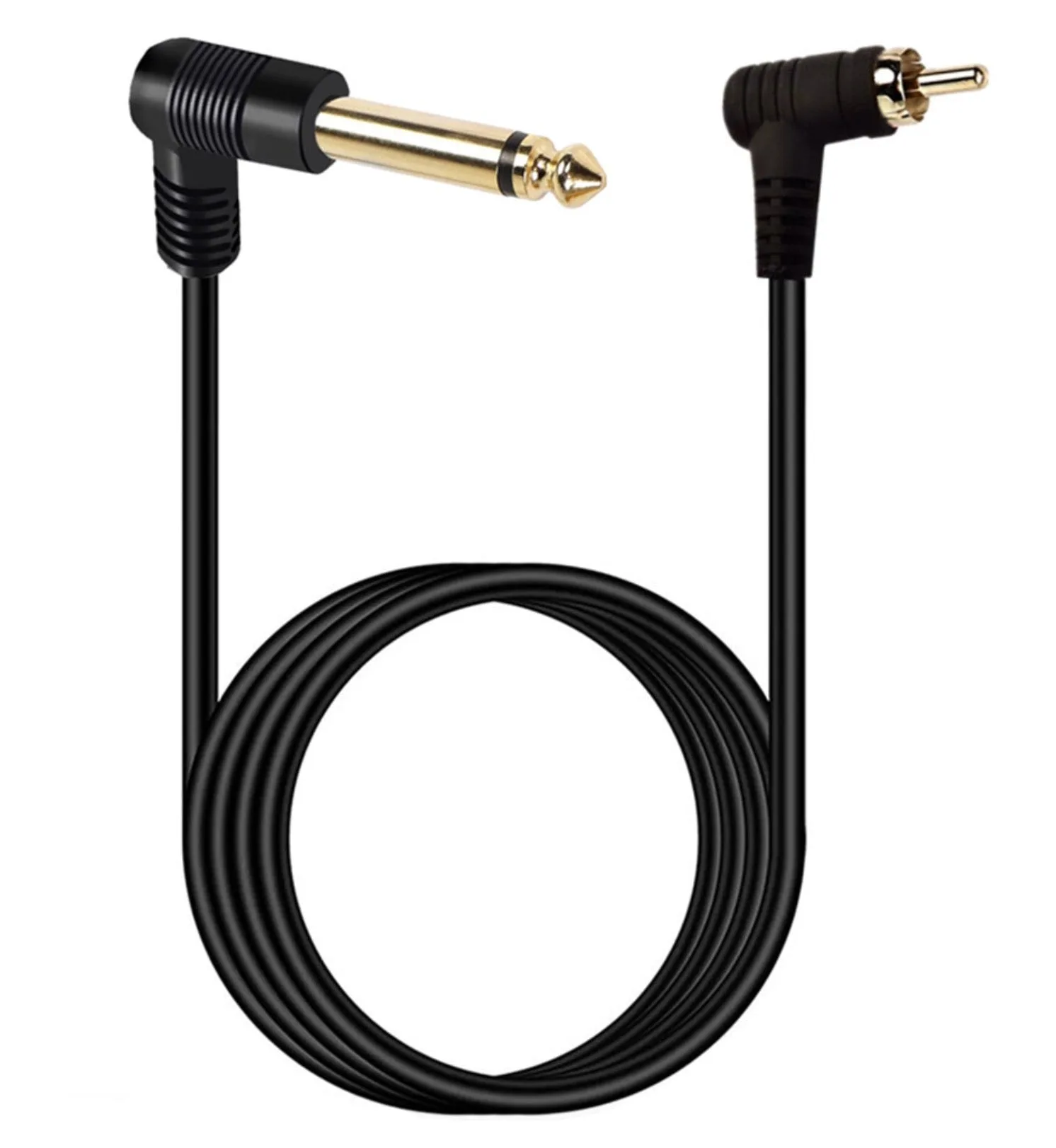
If you are connecting to a mixer, amplifier, powered speaker, or PA system, a 3.5mm adapter may not be the right fit. Professional gear often uses 6.35mm (1/4-inch) TRS or RCA inputs. A USB-C to 6.35mm TRS stereo aux cable connects a compatible USB-C device directly to line or aux inputs on mixers and studio monitors. For mono equipment such as some DJ gear or instrument setups, an RCA to 6.35mm TS audio cable with a right-angle jack can reach tight rear-panel connections. Match the connector type to your equipment before buying.
Setup steps with checkpoints
- Identify your device's audio output: Check your phone, tablet, or laptop specifications to confirm whether its USB-C port outputs digital audio, analogue audio, or both. Most modern phones output digital audio and require an adapter with a DAC. Common mistake: assuming any USB-C adapter will work. If your device outputs digital audio and the adapter is passive, you will get no sound.
- Choose the right adapter or cable for your headphones: For standard 3.5mm headphones, use a USB-C to 3.5mm audio adapter with a built-in DAC. For 6.35mm or RCA equipment, use a cable with the matching connector instead of stacking adapters. Checkpoint: confirm the adapter's plug fits your device and your headphones' plug fits the adapter.
- Connect the adapter to your device: Plug the USB-C end fully into your phone or laptop. Remove thick cases if the plug does not seat completely. Then plug your headphones into the 3.5mm jack. Common mistake: a loose connection. Push until you feel it click or seat firmly.
- Test audio and adjust settings: Play a test sound. If you hear nothing, check that the volume is up and that the adapter is selected as the output device in your sound settings. On some phones, you may need to disable Bluetooth or select 'USB audio' manually. Checkpoint: if sound plays through the phone speaker instead of headphones, the adapter is not recognized. Try unplugging and reinserting.
- Troubleshoot if there is still no sound: Try the adapter on another USB-C device, try different headphones, and clean the USB-C port gently. If the adapter works elsewhere, the issue may be your phone's port or software. Restart your device and check for system updates. Next step: if the adapter fails on multiple devices, replace it. A working DAC adapter should produce sound immediately.
Products that solve common USB-C audio problems
- USB-C to 3.5mm AUX 5-Way Headphone Audio Splitter Adapter: This USB-C to 3.5mm AUX 5-way audio splitter allows up to five headphones or speakers to share audio from a single USB-C device, with a built-in digital-to-analogue converter (DAC) that converts digital USB-C audio into analogue 3.5mm output. Useful for classrooms, group listening, presentations, or travel when several people need to hear the same source without passing around one pair of earbuds.
- USB-C to 6.35mm TRS Stereo Aux Cable (1/4") – Type-C Audio Adapter for Amp, Mixer & Speakers: This USB-C to 6.35mm TRS stereo aux cable connects a compatible USB-C device to professional audio equipment with a 1/4-inch stereo jack, ideal for line or aux inputs on mixing consoles, amplifiers, powered speakers, and PA systems. A better choice than a 3.5mm adapter when your destination gear uses 6.35mm inputs, avoiding extra adapters and potential signal loss.
- RCA to 6.35mm (1/4") TS Audio Cable – Mono Right-Angle Jack to RCA Male Patch Lead 2m: This RCA to 6.35mm (1/4-inch) TS audio cable features a right-angle 6.35mm TS male plug and a straight RCA male connector, designed for mono audio equipment such as mixers, amplifiers, instruments, DJ gear, and AV systems, with a 2-metre length. The right-angle plug helps in tight rack spaces and rear-panel connections, while the 2m length gives flexible routing for mono signal chains.