What to plug in first (and why order matters less than you think)
Does the order I plug devices into the hub matter?
The supplied information for the Belkin USB-C to 4-Port USB-C Hub does not specify a required port order. The hub offers plug-and-play functionality, so you can connect peripherals in any order without complex installation. That said, connecting the hub to your computer first, then adding devices one at a time, can help you confirm each device is recognized.
What should I connect first: the hub or my peripherals?
Connect the hub to your USB-C device first, then plug in your peripherals. This gives your computer a chance to recognize the hub before it enumerates multiple devices. The catalog does not provide a specific sequence, but this approach aligns with typical plug-and-play behavior.
Can I plug in all four ports at once?
The hub adds four USB-C ports, but the supplied information does not state a total power output or per-port power limit. If you plan to use power-hungry devices, check their power requirements and consider whether your computer's USB-C port can supply enough power. For low-power accessories like mice, keyboards, or flash drives, plugging in all four is generally fine.
What the Belkin USB-C to 4-Port Hub actually gives you
-
USB-C to 4-Port USB-C Hub: Adds four USB-C ports to your device, allowing you to connect multiple accessories simultaneously. This is the core benefit: you turn one USB-C port into four, so you can connect a keyboard, mouse, drive, and more at the same time.
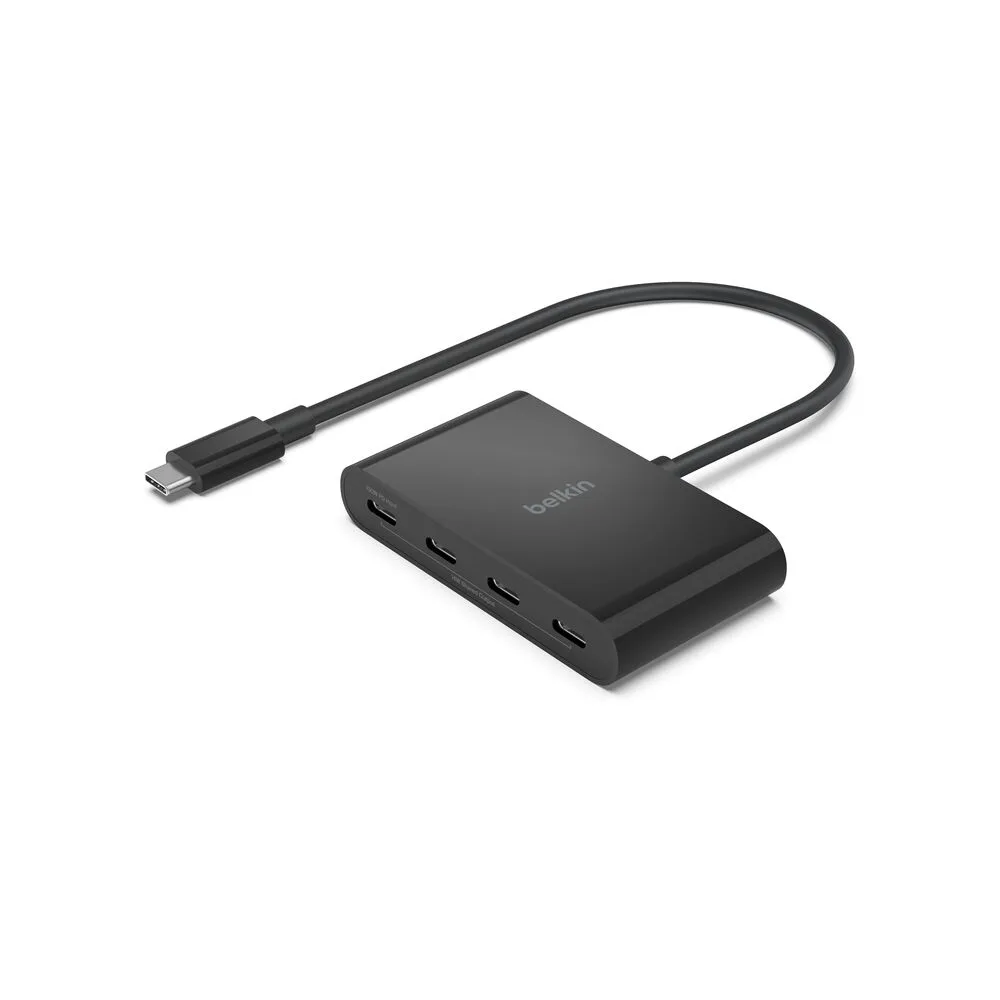
USB-C to 4-Port USB-C Hub
-
USB-C to 4-Port USB-C Hub: Plug-and-play functionality for quick, easy setup without complex installation. There are no drivers or software to install, so you can start using the hub immediately after connecting it.
-
USB-C to 4-Port USB-C Hub: Compatible with a wide range of USB-C devices, including laptops, tablets, and smartphones. This means the hub works with many modern devices, but you should still verify that your specific device supports USB-C hubs and the peripherals you plan to use.
Power limits and compatibility questions
Does this hub need external power?
The supplied information does not mention an external power adapter. The hub appears to draw power from your computer's USB-C port. If you connect power-hungry devices, they may not function reliably if your computer's port cannot supply enough power.
Can I charge my laptop through this hub?
The catalog does not state that the hub supports pass-through charging. Do not assume it can charge your laptop. Use your laptop's dedicated charging port for power delivery.
Will this hub work with my smartphone or tablet?
The hub is compatible with a wide range of USB-C devices, including laptops, tablets, and smartphones. However, not all smartphones and tablets support USB-C hubs or external peripherals. Check your device's documentation to confirm hub support.
What types of devices can I connect?
You can connect USB-C peripherals such as keyboards, mice, flash drives, and other accessories. The hub does not convert USB-C to USB-A, so your peripherals must have USB-C connectors or use USB-C adapters.
A practical note on power and performance
The Belkin USB-C to 4-Port USB-C Hub is a compact, portable way to add four USB-C ports to your setup. Because the supplied information does not include power output specifications, we recommend connecting lower-power peripherals first (like a mouse or keyboard) and testing higher-power devices one at a time. If a device does not work, try connecting it directly to your computer to see if the hub is the limiting factor.
Remember that the hub's performance depends on your computer's USB-C port capabilities. For the most reliable experience, use the hub with a device that provides sufficient power over USB-C.